
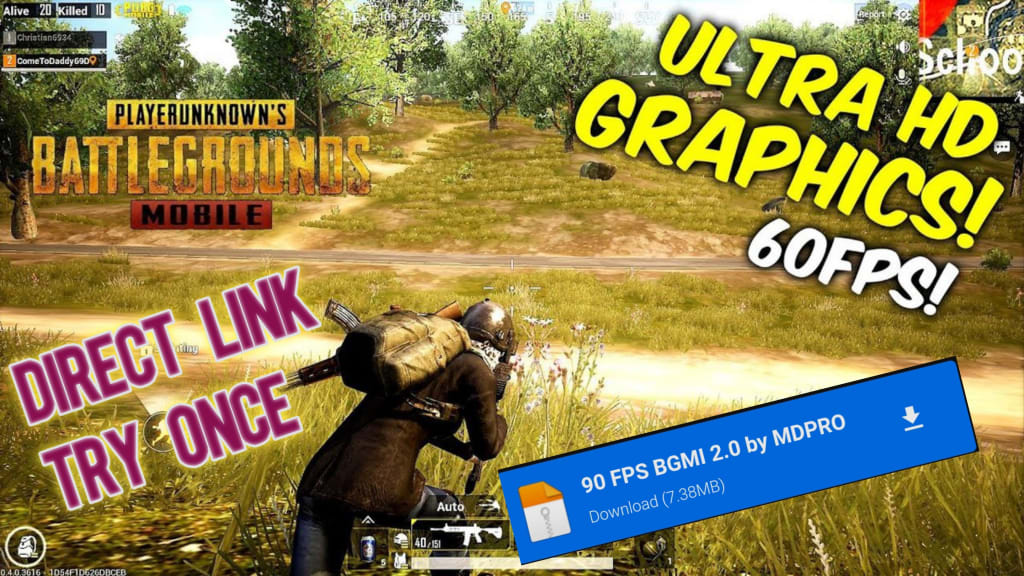
How to improve the fps in gaming mobile
There are several things you can do to improve FPS (frames per second) in mobile gaming:
Close background apps: Make sure to close any unnecessary apps running in the background as they may consume valuable resources that could be used by your game.
Reduce graphical settings: Lowering the graphics quality can help increase FPS in many games. You can usually find these settings in the game's options or settings menu.
Update your device's operating system: Keeping your device's operating system up to date can help improve its performance and increase FPS in games.
Use a gaming mode: Many devices come with a gaming mode that optimizes the device's performance for gaming. This can help improve FPS and reduce lag.
Clear cache: Clearing the cache of your game can help increase FPS. You can do this by going to Settings > Apps > [game name] > Storage > Clear Cache.
Use a game booster app: There are several game booster apps available in the app store that can help improve FPS and reduce lag. These apps usually free up resources and optimize your device's performance for gaming.
Upgrade your device: If all else fails, upgrading to a newer device with better hardware can significantly improve your FPS in games.
FPS, or frames per second, is a critical metric in gaming and video playback. It refers to the number of frames that are displayed on the screen per second, which directly affects the smoothness and quality of the visual experience. Improving FPS is crucial for avid gamers who want to enjoy the best gaming experience possible. In this article, we will provide some tips and tricks to improve FPS in games and video playback.
Upgrade Your Hardware:
The first and most obvious way to improve FPS is to upgrade your hardware. A faster processor, more RAM, a better graphics card, or a solid-state drive can all significantly improve your computer's performance, resulting in higher FPS rates. If you have an older computer, consider upgrading one or more components to improve your system's performance.
Adjust Game Settings:
Most modern games have settings that allow you to adjust the graphics quality and performance to suit your computer's hardware. Lowering the resolution, turning off shadows, reducing the texture quality, or disabling anti-aliasing can all help to improve FPS rates. Experiment with different settings to find the best balance between performance and visual quality.
Update Drivers:
Drivers are software programs that communicate with your computer's hardware, allowing it to function properly. Updating your drivers can often improve performance and fix issues that may be causing low FPS rates. Check the manufacturer's website for updates to your graphics card, sound card, or other hardware components.
Close Background Programs:
Running multiple programs or browser tabs in the background can significantly impact your computer's performance and FPS rates. Close any unnecessary programs or browser tabs to free up resources and improve performance.
Disable Startup Programs:
Some programs are set to start automatically when you boot up your computer, which can slow down your system and impact FPS rates. Disabling startup programs can free up resources and improve performance. You can do this through the Task Manager on Windows or the System Preferences on macOS.
Defragment Your Hard Drive:
Over time, files on your hard drive can become fragmented, which means that they are spread out across the disk rather than being stored in a contiguous block. Defragmenting your hard drive can help to organize these files, making them easier for your computer to access and improving performance.
Adjust Power Settings:
Power settings can impact your computer's performance and FPS rates. Some power-saving settings may limit your computer's performance to conserve battery life, which can result in lower FPS rates. Adjusting power settings to prioritize performance over battery life can improve FPS rates.
Overclock Your Graphics Card:
Overclocking your graphics card can improve its performance, resulting in higher FPS rates. However, overclocking can also increase the risk of damage to your hardware, so it should only be done by experienced users who understand the risks involved.
Clean Your Computer:
Dust and debris can accumulate inside your computer, which can impact performance and cause overheating. Cleaning your computer regularly can help to prevent these issues and improve performance.
Use Game Boosters:
Game boosters are software programs that optimize your computer's performance for gaming. They can help to free up resources, adjust settings, and improve FPS rates. However, some game boosters may be malware or adware, so be sure to research them thoroughly before downloading and installing them.
In conclusion, improving FPS rates can significantly enhance your gaming and video playback experience. Upgrading hardware, adjusting game settings, updating drivers, closing background programs, disabling startup programs, defragmenting your hard drive, adjusting power settings, overclocking your graphics card, cleaning your computer, and using game boosters are all ways to improve FPS rates. Experiment with different techniques to find the best combination for your hardware and software.
About the Creator
Keep reading
More stories from writers in Gamers and other communities.
Dota 2 Gameplay Review: Mastery, Strategy, and Competitive Depth
Dota 2 gameplay is defined by strategic decision-making, team coordination, and long term skill development rather than fast reflexes alone. Every match challenges players to manage resources, read the map, adapt to hero interactions, and communicate effectively under pressure. Over time, these repeated choices shape distinct playstyles and habits that go far beyond visible stats like kills or rankings. This is why many players enjoy reflecting on their in-game behavior through a Dota 2 player purity challenge based on in game behavior and mindset, which offers a clearer picture of how deeply Dota 2 influences the way the game is actually played.
By Enzo Marcelli5 days ago in Gamers
Autonomy Is The Real Privilege
Good morning, freedom-seekers! Today we’re gonna be looking at autonomy. A strange word, I know; one many would probably look at blankly and run away from on sight. We’re gonna figure out what it actually means, consider how it’s achieved, and decipher just how deeply most of us are tangled up in dependence without realising it.
By That ‘Freedom’ Guy4 days ago in Humans




Comments
There are no comments for this story
Be the first to respond and start the conversation.