
How to Let People Control Mouse on Steam Control Play (Easy Step-by-Step Guide)
Learn how to let people control mouse on Steam Control Play with this simple, step-by-step guide. Perfect for remote gaming, co-op play, and helping friends online.

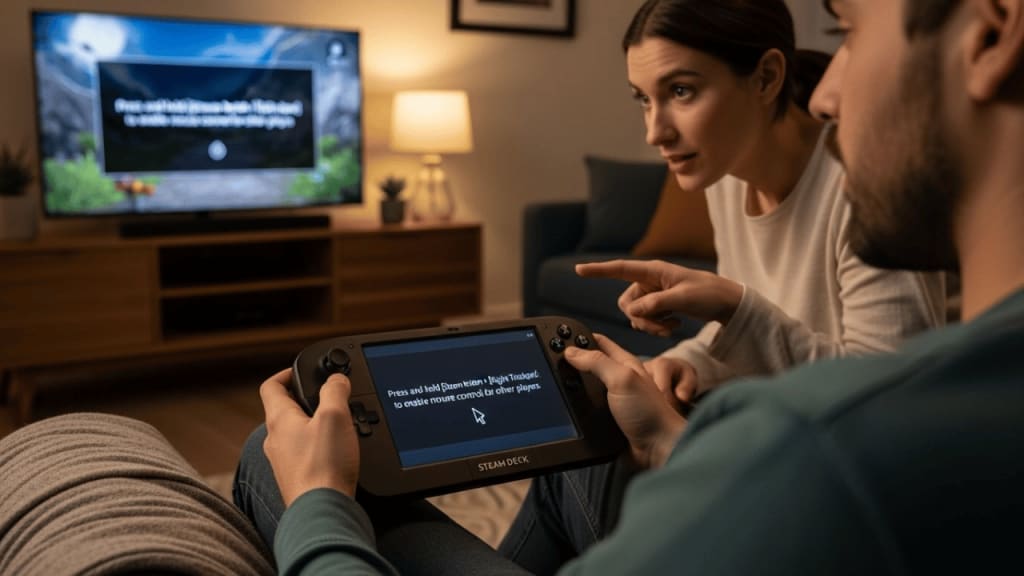
How to Let People Control Mouse on Steam Control Play in 2025
How to let people control mouse on Steam Control Play is a question many gamers ask when they want to share their PC gaming experience with friends online. Steam, developed by Valve Corporation, offers a feature called Remote Play Together. This allows you to invite friends to join your game, even if they don’t own it. But here’s the cool part — you can also give them control of your mouse and keyboard.
In this guide, we’ll walk through exactly how to set it up, why you might want to do it, and how to make sure it works smoothly. Whether you’re helping a friend troubleshoot a game, playing a co-op title, or just having fun, this tutorial will make it easy.
Why Learn How to Let People Control Mouse on Steam Control Play?
Before we jump into the steps, let’s understand why this feature is so useful:
- 🎮 Co-op Gaming – Play games together even if your friend doesn’t own them.
- 🖱 Remote Help – Help friends fix settings or navigate menus.
- 🧩 Puzzle Solving – Work together on games that require quick mouse actions.
- 💻 Tech Support – Guide someone through a PC task without screen-sharing apps.
Because Steam handles the connection, you don’t need extra software like TeamViewer or AnyDesk. This makes it faster, safer, and easier.
How Steam Control Play Works
Steam’s Remote Play Together streams your game to your friend’s device. It also sends their input (mouse, keyboard, or controller) back to your PC. This is how they can control your mouse in real time.
However, you must enable mouse and keyboard sharing in the settings. By default, Steam only shares controller input for security reasons.
Step-by-Step: How to Let People Control Mouse on Steam Control Play
Here’s the complete process to give someone mouse control:
Step 1 – Open Steam and Log In
- Launch the Steam client on your PC.
- Make sure you’re logged into your account.
Step 2 – Enable Remote Play
- Click Steam in the top-left corner.
- Go to Settings → Remote Play.
- Check the box for Enable Remote Play.
- Click OK to save.
Step 3 – Start Your Game
- Launch the game you want to share.
- Make sure it supports Remote Play Together (you can check this on the Steam store page).
Step 4 – Invite Your Friend
- While in-game, press Shift + Tab to open the Steam overlay.
- Right-click your friend’s name in your friends list.
- Select Remote Play Together.
Step 5 – Allow Mouse and Keyboard Control
- Once your friend joins, hover over their name in the Remote Play menu.
- Check the box for Share Keyboard and Mouse.
- Now your friend can move your mouse and type on your PC.
Tips for Smooth Mouse Control on Steam Control Play
Even though the setup is simple, performance can vary. Here’s how to make it better:
- Use a Wired Connection – Reduces lag for both video and mouse input.
- Close Background Apps – Frees up bandwidth and CPU power.
- Adjust Streaming Quality – Lower resolution if the connection is slow.
- Communicate – Use Steam Voice Chat to coordinate actions.
Security and Privacy Considerations
When you let someone control your mouse, they can technically click anywhere on your PC. This means they could close programs, change settings, or access files.
To stay safe:
- Only share control with trusted friends.
- Keep sensitive files closed before starting.
- End the session immediately if something feels wrong.
Games That Work Well with Mouse Sharing
Some games are perfect for this feature:
- Portal 2 – Puzzle-solving with shared controls.
- Don’t Starve Together – Survival gameplay with joint mouse use.
- Tabletop Simulator – Board games where mouse control is key.
- Stardew Valley – Farming and crafting together.
Troubleshooting: When Mouse Control Doesn’t Work
If your friend can’t move your mouse:
- Check the Share Setting – Make sure “Share Keyboard and Mouse” is ticked.
- Restart Steam – Sometimes a quick restart fixes it.
- Update Steam – Outdated clients can cause issues.
- Check Game Compatibility – Not all games allow mouse sharing.
Advanced Settings for Better Control
Steam also has Advanced Host Options:
- Limit Bandwidth – Prevents lag spikes.
- Enable Hardware Encoding – Uses your GPU for smoother streaming.
- Capture Mouse Cursor – Ensures your friend sees the pointer.
How to Stop Sharing Mouse Control
When you’re done:
- Hover over your friend’s name in the Remote Play menu.
- Uncheck Share Keyboard and Mouse.
- Or simply end the Remote Play session.
Best Practices for Fun and Safe Sessions
- Plan Ahead – Decide who controls what before starting.
- Take Turns – Switch control for fairness.
- Use Voice Chat – Makes coordination easier.
- Keep It Light – Remember, it’s about having fun.
Conclusion
Learning how to let people control mouse on Steam Control Play opens up a whole new way to enjoy games and help friends. With just a few clicks, you can share your screen, your game, and even your mouse. This is perfect for co-op gaming, remote tech help, or just having fun together.
By following the steps in this guide, you’ll be able to set it up quickly and safely. Just remember to only share control with people you trust, and always communicate during the session. Steam makes it easy, and now you know exactly how to do it.
FAQ – How to Let People Control Mouse on Steam Control Play
Q1: Can I let someone control my mouse if they don’t have Steam? No, they need a Steam account to join your Remote Play session.
Q2: Does this work on Mac or Linux? Yes, as long as both systems have Steam installed and the game supports Remote Play.
Q3: Can I control the mouse and my friend at the same time? Yes, both can move the mouse, but it may get confusing.
Q4: Is there a delay in mouse movement? There can be slight lag depending on internet speed.
Q5: Can I limit what my friend can click? No, once you share mouse control, they can click anywhere on your PC.
About the Creator
Perfect Tech Views
Welcome to Perfect Tech Views—your go-to source for clear, unbiased, and insightful tech knowledge. Whether you're a pro, a beginner, or just exploring gadgets, we've got you covered with expert guidance!
Keep reading
More stories from Perfect Tech Views and writers in Gamers and other communities.
Upcoming Xbox & Game Pass Releases: What’s Worth Playing This Week?
It’s time once again to take a look at what’s landing on Xbox and Xbox Game Pass this week—and whether any of it is worth your valuable time or money. It has been a minute since the last week-in-preview roundup (holiday chaos and all that), but we’re officially back on track with a fresh lineup of releases.
By Bella Anderson4 days ago in Gamers


Comments