
How to Change Mouse Cursor Color (Guide for Windows & Mac)
Learn how to change mouse cursor color on Windows, Mac, and Chromebook with this simple step-by-step guide. Customize your pointer for better visibility and style.

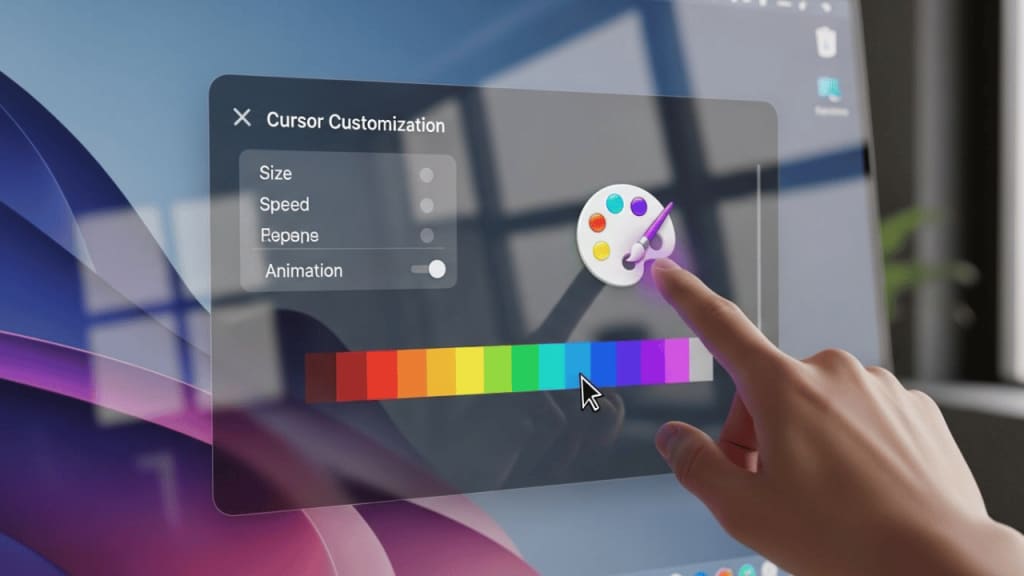
How to Change Mouse Cursor Color in 2025
How to change mouse cursor color is a question many people ask when they want to make their computer easier to use or more fun to look at.
Changing the color of your mouse pointer can help you see it better, match your style, or make your screen more accessible. Whether you use Windows, Mac, or Chromebook, the process is simple once you know the steps.
In this guide, you’ll learn how to change mouse cursor color on different devices, why you might want to do it, and how to choose the best color for your needs.
🖱 Why Change Your Mouse Cursor Color?
Changing your mouse cursor color is not just about looks. It can also help with:
- Better visibility – A bright color makes it easier to find your cursor on the screen.
- Accessibility – People with vision problems can benefit from high-contrast colors.
- Personal style – You can match your cursor to your wallpaper or theme.
- Focus – A unique color can help you keep track of your pointer during work or gaming.
For example, if you often lose track of your cursor while working on a large monitor, switching to a bold red or neon green pointer can make a big difference.
🖥 How to Change Mouse Cursor Color in Windows 10 & Windows 11
Windows makes it easy to customize your mouse pointer color. Here’s how:
1. Open Mouse Settings
- Click the Start Menu and select Settings (gear icon).
- Go to Ease of Access (Windows 10) or Accessibility (Windows 11).
2. Find the Mouse Pointer Settings
- In the left menu, click Mouse pointer or Mouse pointer and touch.
3. Choose a Pointer Style
- You’ll see options for white, black, inverted, and custom color.
4. Pick a Custom Color
- Select the custom color option.
- Choose from the preset colors or click Pick a custom pointer color to select any shade.
5. Apply and Test
The change happens instantly. Move your mouse to see the new color in action.
💡 Tip: If you use multiple monitors, choose a bright color so your cursor stands out everywhere.
🍏 How to Change Mouse Cursor Color on Mac
Apple’s macOS also lets you change your cursor color for better visibility.
1. Open System Settings
- Click the Apple menu in the top-left corner.
- Select System Settings (or System Preferences on older versions).
2. Go to Accessibility
- In the sidebar, click Accessibility.
3. Find Display Settings
- Select Display from the list.
4. Adjust Pointer Outline and Fill Color
- You’ll see options for Pointer outline color and Pointer fill color.
- Click the color box to choose your preferred shade.
5. Save and Test
The change is instant. Move your mouse to check the new look.
💻 How to Change Mouse Cursor Color on Chromebook
Chromebooks have built-in accessibility tools for cursor customization.
1. Open Settings
- Click the time in the bottom-right corner.
- Select the Settings gear icon.
2. Go to Accessibility
- Scroll down and click Advanced.
- Select Accessibility.
3. Manage Cursor Settings
- Click Manage accessibility features.
- Under Mouse and touchpad, turn on Show large mouse cursor.
4. Pick a Color
- Choose from white, black, red, yellow, green, cyan, magenta, or pink.
🎨 How to Choose the Best Mouse Cursor Color
When deciding on a color, think about:
- Contrast – Pick a color that stands out from your background.
- Brightness – Bright colors are easier to see.
- Personal preference – Choose a color you enjoy looking at.
- Eye comfort – Avoid overly bright neon colors if they strain your eyes.
For example, if your wallpaper is dark, a light yellow or white cursor will stand out best.
⚙ Advanced Customization with Third-Party Tools
If you want more control, you can use third-party software like:
- CursorFX – Offers animated and themed cursors.
- RealWorld Cursor Editor – Lets you design your own cursor.
- Custom Cursor for Chrome – A browser extension for fun cursor styles.
Always download from trusted sources to avoid malware.
📱 Changing Mouse Cursor Color on Tablets and Touch Devices
While tablets don’t use a traditional mouse, you can still change pointer colors when using a stylus or external mouse. For example:
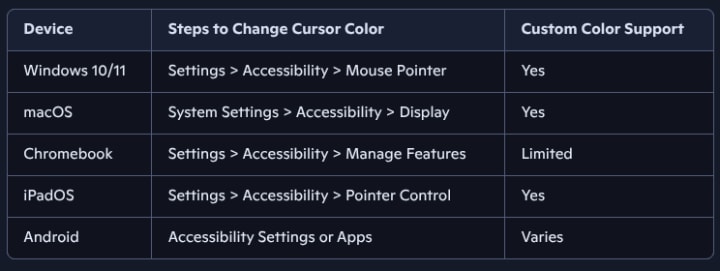
- iPadOS – Go to Settings > Accessibility > Pointer Control.
- Android Tablets – Use accessibility settings or third-party apps.
🛠 Troubleshooting Cursor Color Changes
Sometimes, your cursor color might not change as expected. Here’s what to check:
- Restart your device – Some changes need a reboot.
- Update your OS – Older versions may not support custom colors.
- Check accessibility settings – Make sure the feature is turned on.
- Disable conflicting software – Some apps override cursor settings.
📊 Quick Comparison Table
❓ FAQ – How to Change Mouse Cursor Color
Q1: Can I make my cursor multicolored? Yes, with third-party tools like CursorFX, you can create animated or multicolored cursors.
Q2: Will changing my cursor color slow down my computer? No, it’s a lightweight change and won’t affect performance.
Q3: Can I change the cursor color in games? Some games have their own cursor settings. If not, your system cursor color will still apply.
Q4: Is it possible to set different colors for different apps? Not by default, but advanced cursor software can do this.
🏁 Conclusion
Learning how to change mouse cursor color is a simple way to improve your computer experience. Whether you want better visibility, a personal touch, or an accessibility boost, customizing your pointer is quick and easy on Windows, Mac, and Chromebook.
By following the steps in this guide, you can pick a color that matches your style and makes your work or play more comfortable. Remember to choose a shade that stands out against your background and feels good on your eyes.
With just a few clicks, your mouse cursor can go from plain to perfect — making your screen both more functional and more fun.
About the Creator
Perfect Tech Views
Welcome to Perfect Tech Views—your go-to source for clear, unbiased, and insightful tech knowledge. Whether you're a pro, a beginner, or just exploring gadgets, we've got you covered with expert guidance!
Keep reading
More stories from Perfect Tech Views and writers in Gamers and other communities.
Best CPUs for RTX 3080 Ti in 2025
If you've recently upgraded to the powerful RTX 3080 Ti graphics card, you're probably wondering which CPU will help you get the most out of your new hardware. The right CPU can significantly enhance your gaming experience and ensure you’re getting the best performance possible. In this guide, we'll explore the best CPUs for RTX 3080 Ti, helping you make an informed decision.
By Perfect Tech Views5 months ago in Gamers
10 Board Games That Aren’t Boring
Ethnos This game is a mix between Lord of the Rings and Risk, but I do not like Risk and I love this game. With certain cards, you put a token on a city and gain points each round from how many tokens you put on that certain city or other cities. If you play with more than two people, you get three rounds. Depending on the types of cards you choose, you can steal others, play twice, place tokens wherever you want, etc. This game is very entertaining and strategic.
By Rich Burtonabout 18 hours ago in Gamers
FC26 Daily Update: Fantasy Team 2 Is Live! Forlán & Sterling SBCs and Premier League Tracker Analysis
Hello everyone, welcome to today's FC26 Daily Briefing. We have an action-packed Friday as we move into the second week of the FC Fantasy promotion. Today’s highlights include the reveal of Fantasy Team 2, new SBCs for Diego Forlan and Raheem Sterling, and the high-stakes Champions League knockout draw.
By hasan zidan5 days ago in Gamers
TUS NUA - ch 53
TUS NUA – ch 53 New Beginnings – Mia and Midnight (*)(*)(*) Finola knew Ali’s brother-in-law needed to put his mind at rest. She fed her arm through his and led him outside. “We’ll sit here. If you like, I can put a block around us so our conversation will be private.”
By Margaret Brennan3 days ago in Fiction




Comments