
iPhone and Mac: How Apple’s Perfect Pair Transforms the Way You Work, Connect, and Create
The Ultimate Guide to iPhone and Mac Integration for Productivity, Creativity, and Everyday Use.

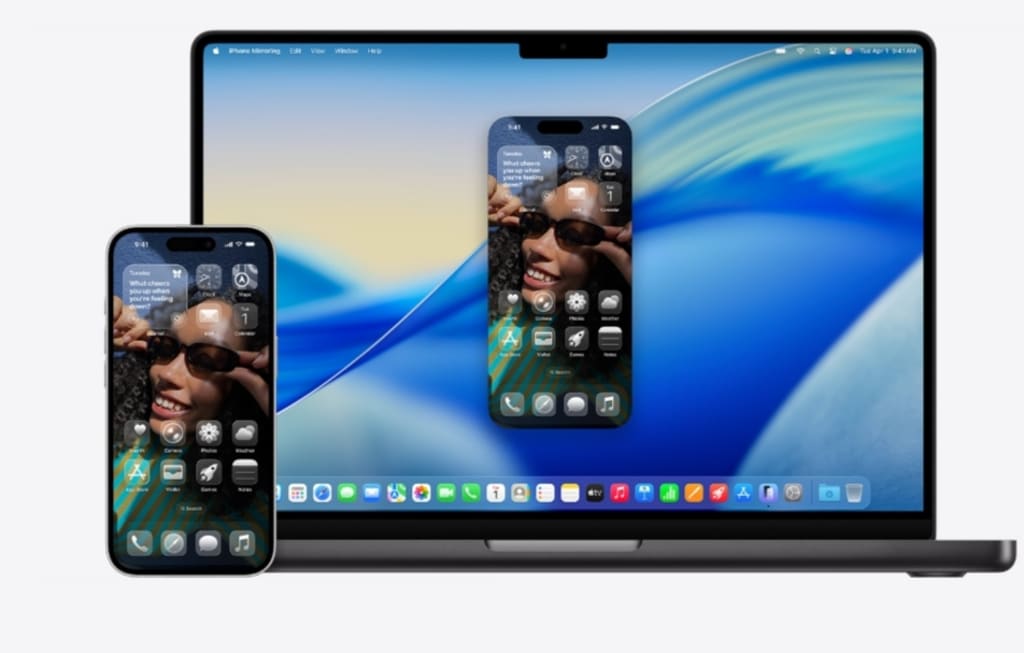
In today’s digital world, convenience is everything. From managing work to staying in touch with family, the average person juggles multiple devices every day. For millions of Americans, that ecosystem is powered by Apple — and the magic truly happens when the iPhone and Mac work together.
Apple’s seamless integration between these two devices is one of the company’s biggest strengths. Whether you’re replying to messages on your Mac, copying text from your iPhone and pasting it on your laptop, or using your phone’s camera as a webcam, Apple has created an environment where switching between devices feels effortless.
If you’ve ever wondered how to make the most of your iPhone and Mac combo, this guide will show you exactly what’s possible — and how it can change the way you work, connect, and create.
Why the iPhone–Mac Relationship Matters
The iPhone and Mac are more than just two separate gadgets. Together, they form a unified ecosystem that enhances productivity and creativity. For U.S. professionals, students, freelancers, and everyday users, this pairing has become a modern essential.
Here’s why:
Continuity Across Devices – Start a task on one device and finish it on the other without interruption.
Unified Communication – Send texts, answer calls, and respond to notifications from your Mac — even when your iPhone is across the room.
Automatic Syncing – Photos, documents, passwords, and notes stay consistent across both devices through iCloud.
Powerful Productivity Tools – From Handoff to AirDrop, these built-in features eliminate the friction between phone and computer.
It’s not about flashy features — it’s about making technology invisible, so you can focus on what you actually want to do.
The Core Features That Make iPhone + Mac So Powerful
Apple’s ecosystem is built on small features that deliver a big impact. Below are the most important ones every iPhone and Mac user should know.
1. Handoff: Pick Up Right Where You Left Off
Handoff allows you to start an email, document, or web page on your iPhone and continue instantly on your Mac. The feature appears as a small icon in your Mac’s dock or your iPhone’s app switcher.
For example, if you’re reading an article on Safari during your morning commute, you can open your Mac at work and continue reading from the exact same spot — no extra steps needed.
2. Universal Clipboard: Copy Here, Paste There
One of Apple’s most underrated tools is the Universal Clipboard. Copy text, images, or links on your iPhone, then paste them directly into a document on your Mac.
Writers, designers, and marketers love this because it makes multitasking between devices seamless — no more emailing yourself notes or screenshots.
3. AirDrop: Instant File Sharing
AirDrop uses Bluetooth and Wi-Fi to transfer files between your Apple devices without cables or internet. Whether you’re sharing photos, PDFs, or videos, it’s fast, private, and simple.
For U.S. professionals working with clients, AirDrop also means no more waiting for uploads or digging through messy email attachments.
4. Continuity Camera: Use Your iPhone as a Mac Webcam
When Apple introduced Continuity Camera, it instantly upgraded the video call experience. Instead of relying on the Mac’s built-in webcam, your iPhone becomes a high-definition camera that connects wirelessly.
In a world where remote work and video calls are standard, this feature makes you look sharper and more professional — whether you’re in a Zoom meeting or recording content for YouTube.
5. iPhone Mirroring on macOS Sequoia: The Game Changer
Apple’s latest addition, iPhone Mirroring (introduced with macOS Sequoia and iOS 18), takes integration to an entirely new level. It lets you view and control your iPhone directly from your Mac.
Your iPhone’s screen appears in a window on your desktop, and you can use your Mac’s keyboard and trackpad to navigate apps, reply to messages, or even drag and drop files between devices.
This is especially useful for multitasking — you can check notifications, edit photos, or browse social media on your iPhone without ever reaching for it physically. It’s like having your phone and computer merge into one workspace.
Setting Up Your iPhone and Mac for Seamless Integration
Getting started is easier than you might think. Here’s a quick setup checklist:
1. Sign in with the same Apple ID on both devices.
2. Enable Bluetooth, Wi-Fi, and Handoff (found under Settings → General → AirPlay & Handoff on iPhone, and System Settings → General → AirPlay & Handoff on Mac).
3. Connect to the same Wi-Fi network.
4. Turn on iCloud sync for apps like Notes, Photos, and Safari.
5. Update both devices to the latest iOS and macOS versions for full compatibility.
Once everything is synced, your devices start communicating instantly. The magic happens behind the scenes — and that’s exactly how Apple designed it.
Top 5 Must-Try iPhone + Mac Workflows
To really unlock the potential of Apple’s ecosystem, try these practical workflows used by power users and professionals across the U.S.
1. Copy, Paste, and Go
If you’re researching online on your iPhone, simply copy a paragraph or link, switch to your Mac, and paste it directly into your notes or document. This is a lifesaver for students and journalists who collect information on the go.
2. Take Calls and Messages from Your Mac
When your iPhone and Mac are linked, you can make and receive calls right from your MacBook. Messages also sync, allowing you to text from your keyboard instead of typing on your phone. This helps maintain focus during work hours without constantly switching devices.
3. Use AirDrop for Instant File Transfers
Need to send a photo or design from your iPhone to your Mac instantly? Just AirDrop it. The process is private, wireless, and far faster than emailing or using cloud services.
4. Mirror and Manage Your iPhone on Mac
With iPhone Mirroring in macOS Sequoia, you can check notifications, manage apps, or access files while your phone stays in your pocket. It’s ideal for professionals who want to stay organized without being distracted by their devices.
5. Turn Your iPhone into a High-Quality Webcam
Enable Continuity Camera to use your iPhone’s advanced lenses and sensors for video calls. You’ll notice sharper focus, better lighting, and a more natural look — perfect for remote work, interviews, or content creation.
How This Integration Boosts Productivity and Creativity
When your devices work together, your workflow becomes faster, smarter, and more enjoyable.
For professionals: iPhone + Mac means quick access to files, real-time collaboration, and a unified workspace.
For creatives: You can shoot 4K videos on iPhone, edit them seamlessly in Final Cut Pro on Mac, and export professional-quality projects.
For students: Notes sync instantly, assignments move between devices, and researching is easier than ever.
For everyday users: Simple conveniences — like answering a FaceTime call from your Mac — save time every day.
This ecosystem isn’t just about convenience. It’s about focus. The integration removes the small daily interruptions that slow you down, allowing you to stay in your creative flow.
Privacy and Security: Apple’s Hidden Advantage
Apple’s device integration works through its secure iCloud and Bluetooth systems. All data transfers — from clipboard to AirDrop — are encrypted end-to-end. That means your information never leaves your devices or goes through third-party servers.
For users in the U.S., this focus on privacy is a major reason Apple continues to dominate the premium tech market. It’s not only about what your devices can do, but how safely they do it.
Final Thoughts: The Future of Apple’s Unified Experience
The iPhone and Mac have always been strong on their own, but together they represent something bigger — a connected lifestyle. With features like iPhone Mirroring, Continuity Camera, and Universal Clipboard, Apple has blurred the line between mobile and desktop computing.
As the company continues to push boundaries with artificial intelligence, on-device processing, and seamless syncing, the iPhone + Mac ecosystem will only get smarter.
If you’re already an Apple user, take the time to explore these features. You might be surprised how much smoother your digital life can be when your devices truly work in harmony.
And if you’re new to Apple, this pairing is one of the best reasons to consider joining the ecosystem — it’s not about having two devices; it’s about having one experience that moves with you.
This story was written with research and editorial assistance to ensure factual accuracy and readability.
About the Creator
NextGen Mobile Tech
- I review the latest smartphones, mobile accessories, and tech essentials to help you make smart buying decisions. Explore my curated kits for phones and gear here: [Kit.co link].
Keep reading
More stories from NextGen Mobile Tech and writers in Futurism and other communities.
Huawei Pura 80 Ultra vs Honor Magic 7 Pro — Complete comparison (design, cameras, performance, battery, software, verdict
Short version: both are top-tier 2025 flagships: Huawei’s Pura 80 Ultra focuses on camera innovation and battery/charging tech, while Honor’s Magic 7 Pro emphasizes raw performance, wide software/ecosystem support, and strong zoom optics. Which one suits you depends on whether you prioritise camera hardware and Huawei’s proprietary stack, or Google-friendly Android performance and broader regional availability. Below is a full, walk-through comparison to help you decide.
By NextGen Mobile Tech3 months ago in Futurism
About Binding Prometheus
I want to start actively advocating on behalf of my own work, and the most valuable part of my canon is, without a doubt, Binding Prometheus, the play I have been working on since 2019 and only finished in 2023 as part of my MA. The play itself is an amalgamation of a million different inspirations. On one end, it evokes the Ancient Greek myth-play, deriving its own title from the earliest extant work of Western drama we have, Aeschylus’s Prometheus Bound. On the other end, it borrows significantly from the sci-fi bulwarks from over the years, namely Mary Shelley’s Frankenstein and Karel Capek’s Rossum’s Universal Robots. The play could be an episode of Black Mirror, I fear. I don’t know. I’ve only ever seen one episode of Black Mirror.
By Steven Christopher McKnight15 days ago in Futurism
Pyridine Market Outlook 2025–2033
Pyridine Market Overview Pyridine, with the chemical formula C₅H₅N, is one of the most important heterocyclic organic compounds in industrial chemistry. Structurally, it consists of a six-membered aromatic ring where one carbon atom is replaced by nitrogen, conferring distinctive reactivity and solvent properties. Pyridine is a colorless, flammable liquid, miscible with water and many organic solvents, and is widely recognized for its pungent odor.
By Marthan Sir5 days ago in Futurism


Comments
There are no comments for this story
Be the first to respond and start the conversation.