


In SAP, a user is an individual who has been granted access to the system and the ability to perform certain tasks and functions within the system. Users can be employees of an organization, external partners or vendors, or other individuals who need to access the system for specific reasons.
Users are identified by a unique user ID, which is assigned by the system administrator. They can be assigned roles, profiles and authorization groups, which determine their access rights and privileges within the system. These roles, profile and authorization groups defines what tasks the user can perform and what transactions the user can access.
Users are managed by the system administrator, who is responsible for creating, modifying, and deleting user accounts, as well as managing system security.
Types of users
SAP has some user types that can be used for specific purposes. They are
• Dialog Users
• System Users
• Communication Users
• Service Users
• Reference Users
These user types are usually created by system administrator or super user and rights, roles and access is defined by the system administrator. These built-in user types can be used as a starting point to create custom user types that are tailored to the specific needs of the organization.
Dialog Users
In SAP, a dialog user is a type of user that is used to run transactions in the SAP system. These users are typically used for business processes that require user input, such as data entry or approval of transactions.
These users are used for interactive activities in the SAP system, such as running transactions or working with forms. They are assigned a specific profile that determines their access rights and privileges.
A dialog user is created in the system by an administrator and is assigned a specific set of authorization roles that determine what actions the user can perform within the SAP system. Dialog users are also given a specific set of parameters, such as a default language and a time zone, which determine how the user interacts with the system.
One of the key characteristics of a dialog user is that they are not intended to run background jobs or batch processes. Instead, dialog users are intended for interactive use by human users.
System users:
System users are used to run background processes and scheduled jobs in the SAP system, such as batch jobs or updates.
Unlike dialog users, system users are not intended for interactive use by human users. Instead, they are used to perform automated tasks that are invoked by the system or by other users.
In general, system users are not intended to be used for logging into the system. They are typically used for background processing and scheduled jobs, rather than interactive activities such as running transactions or working with forms. These users don't have any Interactive access to the SAP system and do not have any personal setting or own workspace.
Communication user
This is a type of user that is used to send and receive messages between different systems within the organization. Communication users are typically used in scenarios where data needs to be exchanged between different systems in a secure and reliable manner.
A communication user is created in the system by an administrator and is assigned a specific set of authorization roles that determine what actions the user can perform within the SAP system. These roles might include sending and receiving messages, as well as creating and managing other communication users. Communication users are used to enable integration between different systems within the organization, such as between SAP and non-SAP systems.
Service Users
A service user is a type of user that is used to run background jobs or batch processes, similar to system users. These users are used for service-oriented activities, such as Web services or RFC (Remote Function Calls) calls. The main difference between service users and system users in SAP is the purpose for which they are intended to be used.
Service users are typically associated with a specific service, such as an integration service or an automation service. This can help to better track and manage access to these services. In contrast, system users are not typically associated with a specific service and are used more generally to perform background tasks.
Additionally, service user can be created with a specific client, which is a logical representation of an organizational unit within the SAP system. While system user can be created with a specific client or can be created in a way that it can access multiple clients.
In summary, while both service users and system users can be used to run background jobs or batch processes, service users are intended to be used specifically for services provided by the system, while system users are intended to be used more generally for background tasks.
Reference users
Reference users can be used as a template for creating other users with the same set of authorization roles and parameters. For example, if an administrator needs to create a large number of new users with the same authorization roles, they can create a reference user with those roles and then use that reference user to create the new users. This can save a significant amount of time and effort compared to manually creating each new user with the same roles and parameters.
Reference users can be used to create other reference users or other types of users like dialog, system, service, communication, etc.
It is always recommended to review and monitor the access and activity of reference users for security and compliance purpose. And also to regularly review the role assignment and the parameter of reference user to ensure it is still valid.
How to create user?
To create a user in SAP, you will need to have authorization to do so.
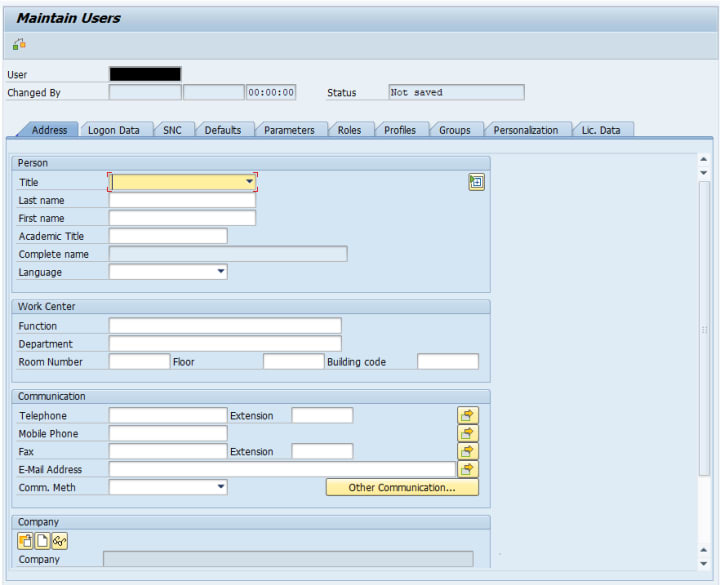
Here is a general outline of the steps you can follow to create a user in SAP:
• Log in to the SAP system with a user that has the necessary authorization to create users.
• Navigate to the "User Maintenance" transaction (Su01 – single user creation or Su10 – Multiple user creation).
• In the "User Maintenance" screen, enter the name of the user you want to create in the "User" field.
• Click the "Create" button.
• In the "Initial Screen" for creating a user, enter the necessary information for the user, such as the user's first and last name, email address, language, and company or organization.
• Assign the user to a user group and specify the authorization profile that the user will need.
• If you need roles to be assigned, you can add required roles in “Roles” tab or ignore it for now. Note that you cannot access any transactions without assigning the specific roles
• Save your changes and activate the user.
The Class that Kicked my Ass
The most difficult undergraduate course I took was Linguistics, and the most difficult graduate school course for me was History and Theory of Rhetoric. The language of language was difficult to learn; it’s dense, it has its own symbols. Diagramming and scansion are only the tip of the iceberg. Gaining a basic understanding of inflection and the difference between inflected and uninflected language was an easy threshold, as were consonance and asonance (we’ll go in-depth with those very soon). When we got down to phonemes and their meanings, I was out of my depth. I’m returning to the text now, hoping to gain passage through thresholds previously impenetrable.
By Harper Lewis5 days ago in Education
Transforming Rentals into Profit Powerhouses
Owning rental property offers a reliable income stream, yet many landlords leave untapped the potential earnings. Thoughtful renovations can elevate rental appeal, increase monthly income, and reduce vacancies. By approaching property upgrades strategically, owners can turn standard rentals into highly competitive, profitable assets. Planning renovations with clear objectives ensures that every improvement contributes directly to long-term financial performance.
By Manny Khoshbin5 days ago in Education



Comments
There are no comments for this story
Be the first to respond and start the conversation.