
How to Export Outlook Contacts to PDF? Easy Guide
Export Outlook Contacts to PDF
Managing and saving contacts is an essential part of any personal or professional organization. MS Outlook gives a comprehensive platform for managing or organizing contacts, calendar events, tasks, and email. However, sometimes you may want to export Outlook contacts to PDF format. It is useful for printing your contact list, sharing it with colleagues or clients, or simply keeping a backup.
In this write-up, we'll walk you through multiple ways to save Outlook contacts to a PDF file, including manual and automated methods that can streamline the process. Whether you need a quick snapshot of your contact list or want to create a formatted document for business use, you'll find the right steps to easily convert Outlook contact groups to PDF.
Convert Outlook Contacts to PDF—Why Need?
Here are a few of the main causes of exporting Outlook contacts to PDF format.
- Offline Data Access: Portable document format are available offline, so if you need to show or print your contact list offline, PDF file is a convenient option.
- Portability: PDF can be simply transferred between devices, either using email, a USB drive, or cloud storage, making your contacts accessible across multiple platforms.
- Printing Option: PDF file documents are easy to print and can be formatted to suit your needs. If you want to make a physical copy of your contacts list, you can use document format to get a clean, organized printout.
- Supported: The Portable Document Format is a universally accepted file, which means it can be opened and viewed on almost all OS and devices. This ensures that the people you share your contact list with have someone who can view it, no matter what platform they use.
Manual Solution to Export Outlook Contacts to PDF
Saving Outlook contacts to PDF directly is not a built-in feature of Microsoft Outlook, but you can do it by combining multiple methods. Here are the first steps to convert Outlook contacts to CSV and then export the CSV file to PDF:
Step 1: Export Contacts from Outlook
- Start Microsoft Outlook and select People or Contacts.
- Click the File in the upper-left corner of Outlook.
- Select Open & Export.
- Select Import/Export from the available options.
- Choose Export to a file and click on Next.
- Select Microsoft Excel or Comma Separated Values (CSV) (Excel is recommended for easy formatting) and click Next.
- Choose the folder with your contacts file you want to export to and hit Next.
- Pick where you want to save the contact file (such as desktop or documents) and give it a name.
- Click Finish.
- Your contact file will now be saved as a CSV or Excel file on your PC.
Step 2: Convert CSV to PDF File
- Once the file is ready in Excel, go to the File menu in the upper left corner of Excel.
- Select Save As.
- Choose a destination path to save the file (like desktop or documents).
- From the save as type drop-down menu, choose PDF.
- Click Save.
Why Should Users Not use the Manual Method?
- It is a time-consuming & complex method for non-technical users.
- High risk of human error.
- No customization options.
- Limited scalability for large contact lists.
Due to limitations, this solution cannot safely convert Outlook contact groups to PDF, so in this case, you need to use a workaround to simplify and optimize the process. Continue to learn more details about the direct method below.
Alternative Solution to Export Outlook Contacts to PDF
The Outlook Contacts to vCard Converter Tool is safe to use and easy to operate without any technical issues. This application can convert Outlook data files to VCF PST, HTML, and many other formats.
Thus, users can easily use this utility to export contacts stored in an Outlook at once without using the Outlook application. Furthermore, this software is compatible with all the latest and old versions of Windows operating system, including Windows 7, 8, 8.1, 10 (32-bit and 64-bit) and Windows 11 (64-bit)
How Does this Software Work?
- Download and Run vCard Export tool on your system.
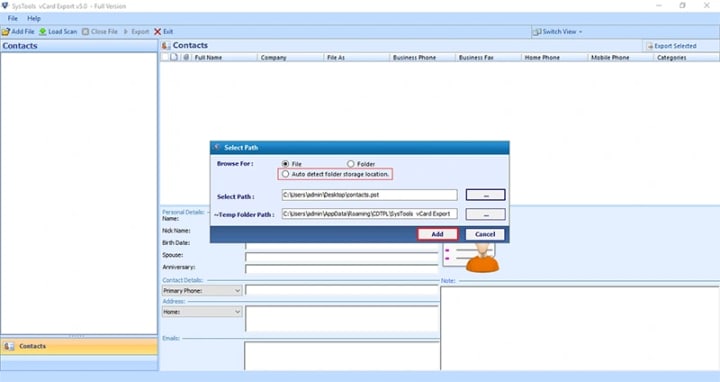
- Upload the Outlook PST file and click on the “Add” button.
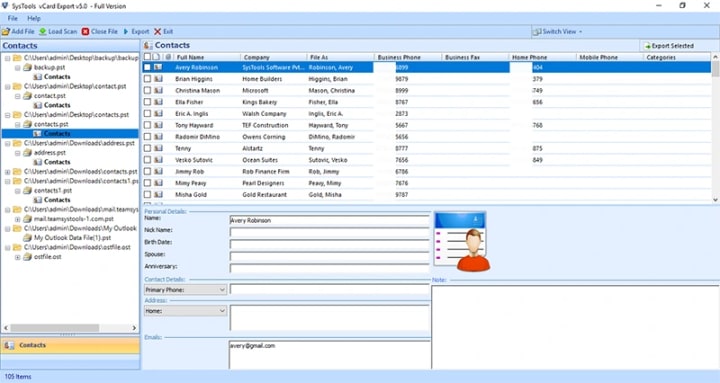
- See a complete preview of all contacts in multiple preview modes.
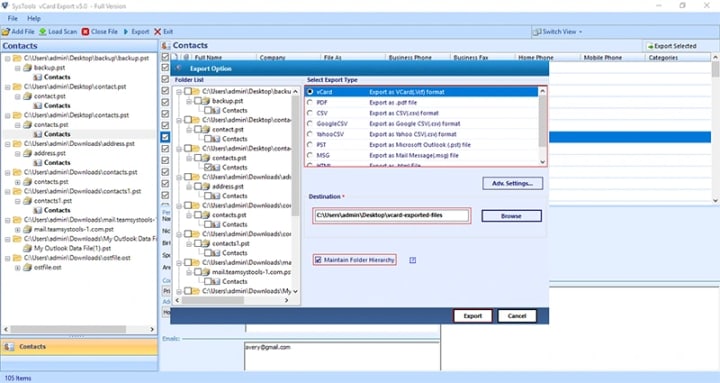
- Choose the PDF format tab and press the Export option.
Conclusion
This guide explains different methods to convert Outlook contacts to PDF. If you only have a few contact files that you want to export, you can use the manual way. However, if you have multiple Outlook data files and need to convert contacts in bulk, it is better to use an automated tool.
So, the solution you select depends on your specific needs. Just choose the solution that best suits your situation, be it the manual way or the automated software. Now you have the information to convert a group of Outlook contacts to PDF file, no matter how many contacts you need to export.
About the Creator
Keep reading
More stories from Elle Stephen and writers in Education and other communities.
How Do I Export Contacts from Outlook as a vCard?
In this article, we have seen why and when users export contacts to vCard files. Here, we have discussed various ways to export contacts from Outlook to vCard format using manual methods and the best solution, like the software recommended by experts. First, try the manual method to convert Outlook contacts to vCard files. If it is not successful, then go for the professional solution. Let’s move on to the methods before learning about vCard files.
By Elle Stephenabout a year ago in Education
Punjab Orders Action Against Private Schools Pressurizing Parents to Buy From Selected Shops
In a bold move to protect parents and uphold fair practices in education, the Punjab government has ordered strict action against private schools that allegedly pressure parents to purchase supplies, uniforms, or books from selected vendors. The directive comes after multiple complaints surfaced regarding unfair practices that forced families to spend extra money or adhere to specific buying instructions, often leaving them with little choice.
By Muhammad Hassan2 days ago in Education
Beyond Speed: How High-Performance Computing Is Shaping Tomorrow’s Discoveries
High-Performance Computing is changing how people explore ideas, test theories, and solve complex problems. It allows machines to work together at great speed. These systems can handle tasks that are far too large for standard computers. As a result, High-Performance Computing and the future of discovery are closely linked.
By Jason Pruet7 days ago in Education
The Path to Salvation
The late autumn evening air filled the monk's lungs, but it wasn't the season that chilled his bones. The heavy-handed presence of evil he had sensed upon entering the woods surrounding this mountain village had not bothered to conceal itself from him.
By Made in DNA4 days ago in Fiction




Comments
There are no comments for this story
Be the first to respond and start the conversation.