
How Do I Export Contacts from Outlook as a vCard?
Export Outlook Contacts to vCard
In this article, we have seen why and when users export contacts to vCard files. Here, we have discussed various ways to export contacts from Outlook to vCard format using manual methods and the best solution, like the software recommended by experts. First, try the manual method to convert Outlook contacts to vCard files. If it is not successful, then go for the professional solution. Let’s move on to the methods before learning about vCard files.
Let’s Start with the Introduction
vCard is a virtual business card It provides a user-friendly interface along with other options like image and additional notes. The saved vCard or.vcf file contains all the information, like name, date of birth, email address, phone number, photo, and other contact fields.
Exporting contacts as a standard vCard (.vcf) file will help you import them into many different email clients and devices, such as Lotus Notes, Mozilla, Thunderbird, Eudora, Microsoft Outlook Express, Google Gmail, Apple iCloud, Apple Address Book, Windows Address Book, Mac Address Book, iPhone and iPad, BlackBerry, Palm, Android devices, and other devices and programs.
Export All Contacts to vCard: Reason
Converting Outlook contacts to vCard file is beneficial for the following reasons:
- Easier Sharing: vCard files can be easily transferred via email or other means. As a standardized format, recipients can import it directly into their own contact management systems.
- Simplified Migration: If you are switching email clients or migrating from one service to another (such as from Outlook to Gmail or vice versa), exporting contacts to vCard can make the migration process smoother and more efficient.
- Preservation of Contact Data: vCard preserve important contact information such as name, email address, phone number, job title, and address, ensuring that no data is lost when moving between platforms or applications.
- Easy Import to Smartphones: vCard files can be imported directly to smartphones, allowing you to quickly transfer and manage contacts on your mobile device.
How to Manually Export Contacts from Outlook as a vCard?
- Open the Microsoft Outlook desktop app.
- Pick the People tab in the lower left corner to move to the Contacts view.
- Select the contacts you want to export. You can choose many file contact by holding down the Ctrl key and selecting each contact.
- If you want to convert all contacts, then enter Ctrl + A to select them all.
- Once you have selected your contacts, click the File tab in the upper left corner.
- From Save as type drop-down menu, select vCard File (*.vcf).
- Pick the path where you want to save VCF vCard file and hit Save.
- This will export the selected contacts as individual.vcf files.
Limitation of Manual Method
- Missing Custom Fields: Outlook allows you to add custom fields to contacts (e.g., additional phone numbers, custom notes). These fields must not be included when exporting to vCard.
- Attachments and Notes: Outlook contacts can contain attachments or detailed notes, but the vCard format does not support them.
- Bulk Export Restriction: In few versions of MS Outlook, converting a large number of contacts at once may result in issue or incomplete vCard.
- Format Edition: Outlook uses the vCard 3.0 format, which may cause compatibility issues with some applications or devices that only support vCard 2.1. vCard 4.0 (the latest version) includes additional fields and features that are not supported in previous versions, which may also cause compatibility issues.
Export Outlook Contacts to vCard—One-Click Solution
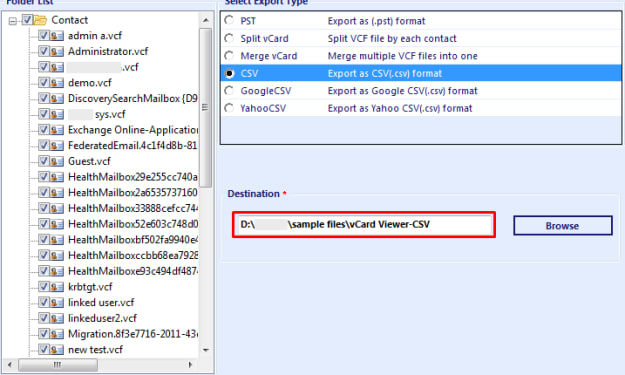
SysTools vCard Exporter Software can convert multiple Outlook contact file to VCF or vCard as well as other formats like PST, PDF, HTML, CSV and MSG. The interface of the application is easy to understand and intuitive, and it provides users with a easy platform to convert Outlook contacts to vCard (.vcf) file format.
Few Steps to Convert All Outlook Contacts to vCard File
- Download the Automatic tool
- Next, select the Add Files or Folders option and select the vCard or VCF file
- The software will now display a preview of the vCard contacts file you have selected
- Finally, click on the Export tab to export all the contacts to vCard.
Final Word
After reading this blog, you will be ability to simply export Outlook contacts to vCard or VCF format. It explains both free and automatic methods to convert Outlook contacts to vCard files. To make the conversion easier and faster, we recommend you use VCF to Outlook Exporter software. You can also use the free demo version to check the performance of the software before investing.
About the Creator
Keep reading
More stories from Elle Stephen and writers in Education and other communities.
How to Transfer Android Phone Contacts to Outlook?
Do you want to import or transfer Android phone contacts to Outlook? If yes, you are at the right place because, after reading this blog, you will get a simple and easy solution to import contacts from Android to Outlook. Read this article till the end to know more.
By Elle Stephenabout a year ago in Education
Role of Technology in Modern Islamic Education
Islamic education has always been a cornerstone of Muslim life, guiding children and adults alike in spiritual, moral, and academic growth. Traditionally, learning took place in mosques, madrasas, or homes with direct guidance from teachers.
By Arslan Shahbaz5 days ago in Education
Quiet Power and the Role of Privacy Architecture in the World’s Most Expensive Homes
Invisible fortresses now define the highest level of residential luxury. In the world’s most expensive homes, owners no longer seek attention or display. They seek control, calm, and protection. Privacy architecture makes this possible. It shapes homes that guard personal life without appearing closed or aggressive.
By Inspirata Groupabout 21 hours ago in Education


Comments (3)
To export contacts from Outlook MSG as a vCard, I suggest you use the WholeClear MSG to VCF Converter to import all Outlook MSG contacts to vCard format. The software is one of the effective utilities that can export Outlook contacts to VCF in bulk without having file size restrictions. The software has a user-friendly interface and can be easily operated by all users. It maintains the Outlook contact details like First Name, Last Name, Postal Address, Email Address, Phone Number, Fax, Notes, Birthdays and all contact fields. One important advantage of using this software is that you will not need to install MS Outlook. Visit Here: https://www.wholeclear.com/converter/msg-to-vcf/
To export contacts from Outlook MSG to vCard files the easiest solution is the GainTools Address Book Manager Software. During the conversion process, it maintains your original data. It converts MSG to vCard format with accuracy. This software also splits and merges vCard contacts. It offers a free trial version that allows users to evaluate how it works and export a few Outlook MSG files to vCard without having to pay anything. Read More: https://www.gaintools.com/blog/how-to-export-outlook-msg-contacts-to-vcard-format/
To export Outlook MSG contacts to vCard try the DataVare MSG to VCF Converter Expert Software. It can also convert multiple MSG contact files to VCF or vCard format. It provides advanced features like quick conversion, live preview, bulk conversion and support for all MS Outlook and vCard versions. All users can also get a free trial version. This demo version allows users to effortlessly convert a few MSG contacts to VCF files for free. Visit Here: https://www.datavare.com/software/msg-to-vcf-converter-expert.html