
How to Create Book Cover Mockup in Photoshop
A Step-by-Step Guide to Showcasing Your Book Cover Design Like a Pro

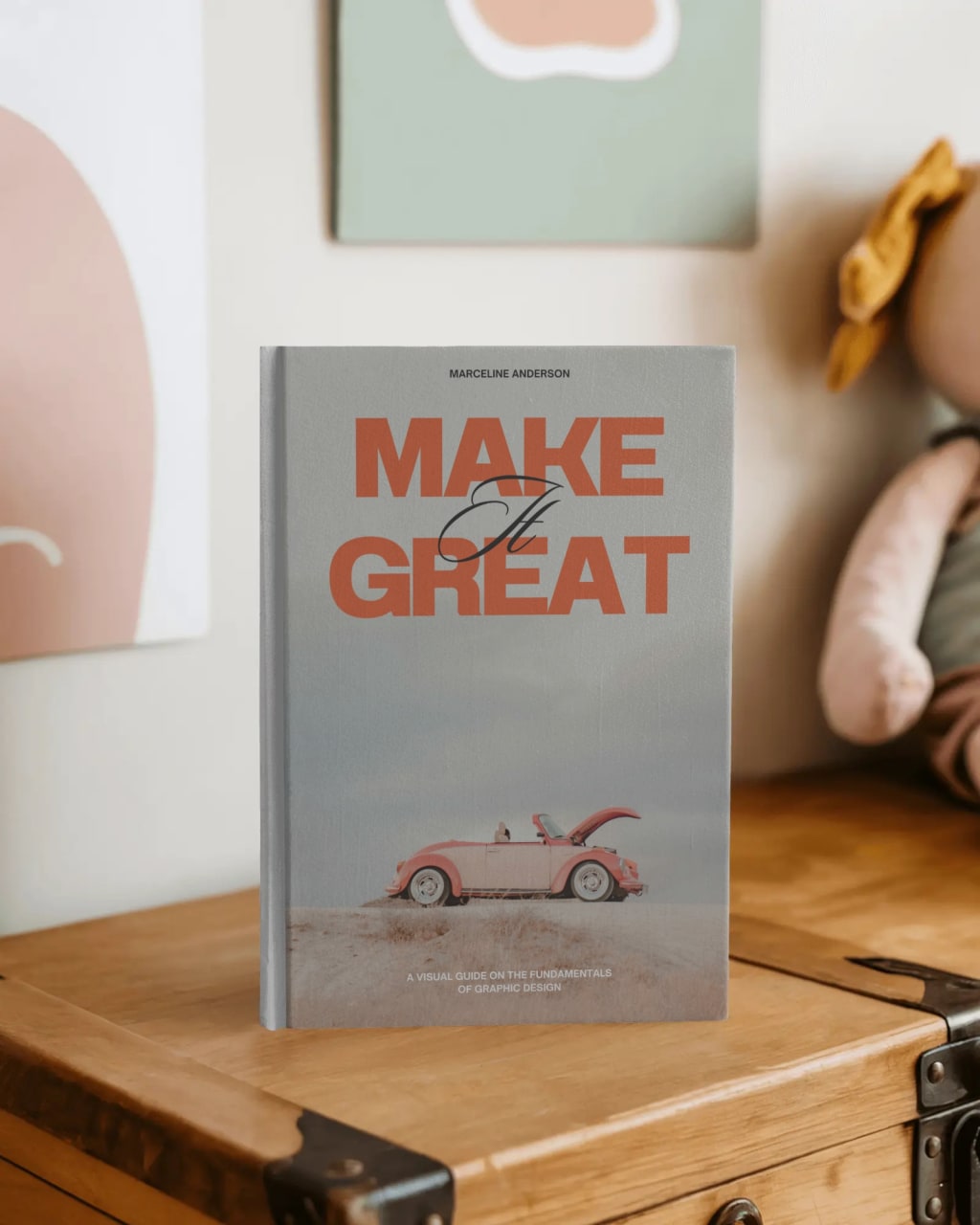
If you've ever designed a book cover, you already know — getting it to look good is one thing, but making it look real? That’s a whole different story.
Clients want to see how their book will look when it’s printed. Readers are more likely to click when a book is shown as a finished product. That’s where mockups come in. And while there are online tools that can get the job done, creating a book cover mockup in Photoshop gives you more flexibility and a professional edge.
Here’s how I usually do it.
Step 1: Find a Good PSD Mockup Template
Before jumping into Photoshop, you’ll need a PSD file set up for mockups. Look for one that has smart objects — most templates from sites like Freepik, Behance, or even Creative Market have this built in. Just search something like “book cover mockup PSD” and pick one that matches the kind of book you're designing (paperback, hardcover, square, portrait, etc.).
I usually go with a clean, minimal scene if I want the cover to stand out, or something lifestyle-based if I’m designing for Instagram or marketing materials.
Step 2: Open It in Photoshop and Locate the Smart Object
Once you open the PSD in Photoshop, check the Layers panel. You’ll see a layer (or multiple) labeled something like Place Cover Here, Your Design, or Smart Layer. Double-click on that — it will open a new window. That’s where you’ll drop in your book cover design.
Step 3: Drop in Your Cover Design
Now that you’re inside the Smart Object, just drag and drop your actual cover design (usually a JPEG or PNG) into the window. Make sure it fits properly — use Ctrl + T or Cmd + T to resize it. Keep proportions locked so nothing stretches weirdly.
Once it looks good, hit Save (or Ctrl + S / Cmd + S) and close the Smart Object window. Your design will now show up on the mockup. Pretty satisfying, right?
Step 4: Adjust the Scene (Optional)
Most good PSD mockups let you tweak things like background color, shadow intensity, or even lighting. Sometimes I like to tone down the shadows or change the background to a neutral gray or off-white — especially if I want to use the image on a product page.
Some templates also let you customize the spine and back cover the same way. Just find those extra smart objects and repeat the process.
Step 5: Export Your Final Image
When everything looks the way you want it, go to File > Export > Export As. Save it as a high-resolution JPEG or PNG. I always double-check that the image is at least 2000px wide if I’m planning to share it online or in a portfolio.
And that's it — you now have a clean, professional-looking book cover mockup.
Final Thoughts
There’s something satisfying about seeing your flat design come to life in a 3D scene. It doesn’t just look good — it helps sell the idea, whether you’re presenting to a client or putting together your own promotional content.
Photoshop can feel intimidating at first, especially if you’re new to mockups, but once you go through the steps a couple of times, it becomes second nature.
And if Photoshop isn’t your thing or you're in a rush? Free mockup generator is a solid option for quick, no-software-needed mockups. But if you want control — real control — Photoshop is still the best way to go.
Got stuck somewhere? I’ve been there. Feel free to reach out or drop a question in the comments. Happy designing!
About the Creator
Keep reading
More stories from Luna Writes and writers in Education and other communities.
The Ultimate Magazine Mockup Guide (2025)
A magazine mockup is an essential tool for designers, publishers, and marketers to showcase their work in a realistic and compelling format. Whether you're pitching a new magazine cover design or creating a polished presentation for your portfolio, a high-quality mockup can make all the difference. In this guide, we'll explore everything you need to know about magazine mockups—from the best free resources to premium options and customization tips.
By Luna Writes9 months ago in Education
Interactive Learning Transforming Modern Education
Education has always evolved with time. From handwritten manuscripts to printed books and now digital platforms, the way people learn has continuously adapted to new technologies and changing societal needs. In the modern world, education is no longer limited to traditional classrooms or long lectures. Instead, learning has become more interactive, engaging, and accessible than ever before.
By Backlinks Cart7 days ago in Education
Using 3D Laser Scanning for Accurate Facility Upgrade and Renovation Planning
Facility upgrades and renovation projects require precise knowledge of existing building conditions. Many older facilities lack reliable documentation, and outdated drawings can lead to design conflicts, costly change orders, and construction delays.
By Matt Sharon3 days ago in Education




Comments
There are no comments for this story
Be the first to respond and start the conversation.