
Beginner's Guide To Python's GUI Library Called "Tkinter"
Basics every python programmer should know

In this article, we will try to cover everything beginners need to know about Python's library for creating desktop apps called Tkinter.
What is Tkinter?
Tkinter is one of the common libraries which allows users to create desktop apps using Python. It provides resources to create buttons, text boxes, lists, and so on. Officially, these elements are called widgets, but I call them elements, you also can call them however you want.
Now, let's walk through them.
Button
As its name says, it's just a button. You can set its width, height, text, color, and of course, its function.

Label
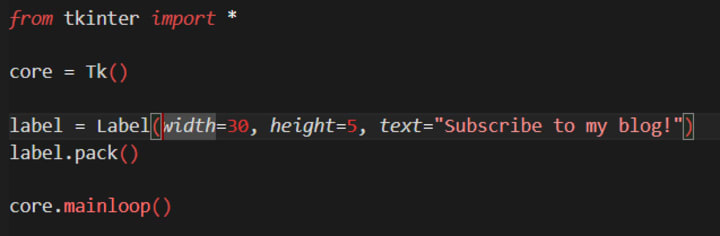
Basically, it's just a field where you can set an information, both textual and visual(not videos). But, you can't set a command to it.
Entry
This widget allows users to type in a text. But it won't fit for novel sized texts, as it has only one line(you can't control height, only width), so it will go for email, or password fields.

These were the most used and significant widgets in Tkinter, and I have a task for you: make an app where user types a text in entry, and when button is clicked, entry's value will be on label.
Text
Next widget is Text. As its name says, it's a text box where you can write your lovey-dovey novels). You can set its width, height, font, background and text color, and so on.

Radiobutton and Checkbutton
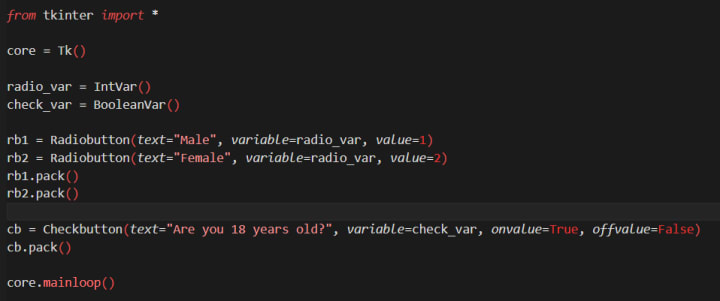
You could see these two when signing up or taking online quiz. These two are a bit tricky, as they require using Tkinter's special variables(IntVar, BooleanVar, etc), especially Radiobutton.
Messagebox and Filedialog
These two are not widgets, but separate libraries which are inside of Tkinter library. Don't get confused, it's a common thing in Python.
- Messagebox
This library simply creates a pop-up message with info, error, warning, and so on.

- Filefailog
This library is used to save/edit files on user's computer.


Listbox and Combobox
These are the widgets that create a list in your app. Between Listbox and Combobox, latter is easier to use and build(objectively).
Important fact, Combobox is in separate library called ttk, which is inside tkinter library.
- Listbox
- Combobox
- Grid()
- Place()
Pack, Grid and Place
I suppose you noticed that pack() method in every code example. Well, with this method, you place the widget on the screen. Without it, your app will be empty. However, pack() is not the only method to place widgets in tkinter. There are two more, these are grid() and place().
For me, it's the second most popular method to place widgets, as it allows you to easily understand how widgets stand on screen.
Key difference of grid() from pack() is that you need to give it a couple of arguments, mostly ones called row and column. Except this, you can also state how much place can take.
This method can be used to set exact position for widgets. Its main arguments are x and y. To work with this method effectively, users better be able to imagine how widget will look like in chosen coordinates, so widgets won't overlap or look odd.
Methods to control window
In place() method's example, you could see core.geometry() method. To simplify, this method allows you to change window's size. Additionally, you can also set wether window can or can't be resized. It's done by main window's resizable() method.
I personally use only these two methods.
Conclusion
Well, I suppose the material I've gave you in this article is quite enough to keep learning and creating your own wonderful apps. Keep searching, working and practicing.
And for now, good bye!
About the Creator
Keep reading
More stories from Alex Smith and writers in Education and other communities.
The Energy Pivot The State of Russia’s Oil and Gas in 2026
For decades, this was the "world's gas station": Russia's pipeline network to Europe was the veins of the world economy. By 2026, that aura is dull and those veins are rerouted out of Europe. Since the collapse of the Soviet Union, the Russian oil and gas sector is facing the largest structural change.
By Neeraj kumarabout 18 hours ago in Education
How a Bowl of Noodles Became a Global Phenomenon That Crossed Borders
A bowl of noodles is one of the most familiar meals in the world. It appears in many cultures, served in different ways, yet always recognizable. The path of how a bowl of noodles became a global phenomenon is tied to human movement, simple cooking methods, and the need for comfort food. This story explains how a basic dish grew into a worldwide favorite.
By Table to Stix Ramen3 days ago in Education


Comments
There are no comments for this story
Be the first to respond and start the conversation.