
Best Guide to Import Spotify Playlist to YouTube Music
Ready to import a well-curated Spotify playlist to YouTube Music but are unsure where to start? Scroll through this feasible guide that will help you with this effortlessly.


Your preferred music streaming service may also change over the course of time, whenever your personal music preferences shift. It's true that Spotify is a leading on-demand streaming music service, housing numerous songs and playlists available for all users. But it's not the only on-demand music platform out there. Some users may have begun to switch from Spotify to YouTube Music, but they'll be disappointed to learn that their favorite tracks and playlists are locked inside the Spotify app.
Now, this real pain can be addressed! Below we will walk you through the detailed steps of downloading Spotify songs or playlists as offline audio and import them to YouTube Music.
Recommend >>> Transfer Spotify Playlists to Apple Music
Part 1. Can I Directly Sync Spotify Playlists to YouTube Music?
Officially, the answer is NO. Spotify doesn't support transferring or syncing Spotify songs, playlists, or albums straight to your YouTube Music library. In this case, various Spotify to YouTube Music transferring services has emerged to cover the shortage, such as SongShift, TuneMyMusic or Soundiiz. But noteworthy, these transferring services mainly proceed to locate songs from the source music platform, then sync to the newly-created playlist in the destination. Certain songs or artists may have incomplete or incorrect metadata after the file is transferred. Moreover, the streaming audio quality provided by different streaming music services varies a lot. Spotify's top bitrate for audio is 320kbps, while the highest for YouTube Music is merely 256kbps. As a result, the sound quality of the transferred music files varies.
Part 2. How to Import Spotify Music and Playlist?
Tool Required: AudiCable Spotify Music Recorder
To migrate your Spotify music to YouTube Music library seamlessly, you should take first to download Spotify songs to computer as local audio files so that complete the transfer to YouTube Music. Here AudiCable Spotify Music Recorder is a top pick for you.
Available for Spotify Free and Spotify Premium, AudiCable Audio Recorder is a professional and trusted Spotify music downloader for saving Spotify playlists, music, and albums to MP3, AAC, WAV, FLAC, AIFF, and ALAC for offline playback. It supports recording from many other popular streaming music resources, including Apple Music, Amazon Music, YouTube Music, and more. Moreover, this tool can perfectly handle the conversion with keeping lossless audio quality and ID3 tags info like title, artist, and the like. With this, you’re free to keep Spotify downloads forever, burn Spotify songs to CD, and play them in the car without any internet connction and so on. Check out more features below!
💡Step-by-step Tutorial
AudiCable Audio Recorder works for both Windows and Mac systems. Here we’ll start with the steps on downloading Spotify Music to the local drive using the Windows version of AudiCable.
Step 1 Download and Install AudiCable Spotify Music Recorder
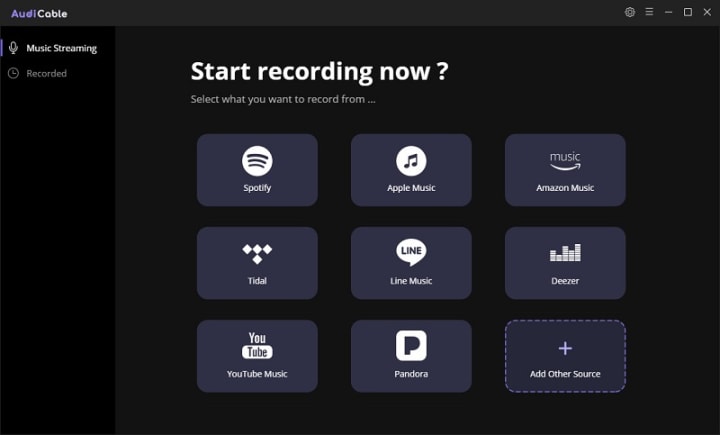
Take first to download and start AudiCable Spotify Music Recorder for Windows or Mac. Most popular music streaming platforms are displayed on the main interface of AudiCable. Navigate to "Spotify" and click.
Step 2 Choose the Player and Sign in
Please choose the way you want to download Spotify music. After that, sign in with your Spotify Free or Premium account.

Step 3 Customize the Output Format as MP3
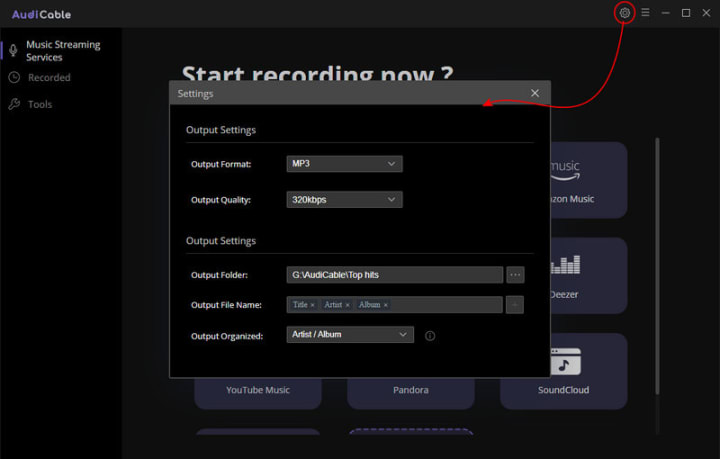
YouTube Music supported imported file formats include FLAC, M4A, MP3, OGG, and WMA. So here to adjust the output forma as "MP3" or "FLAC" clicking on a "gear icon". Then close it to apply the changes.
Step 4 Download Spotify Music to Local Drive
Choose your preferred Spotify songs, playlist, or albums to play. As soon as you play the song, AudiCable will start recording simultaneously. All recorded Spotify songs are saved in the format you set before.

Step 5 Check Downloaded Spotify Songs on Your Computer Folder
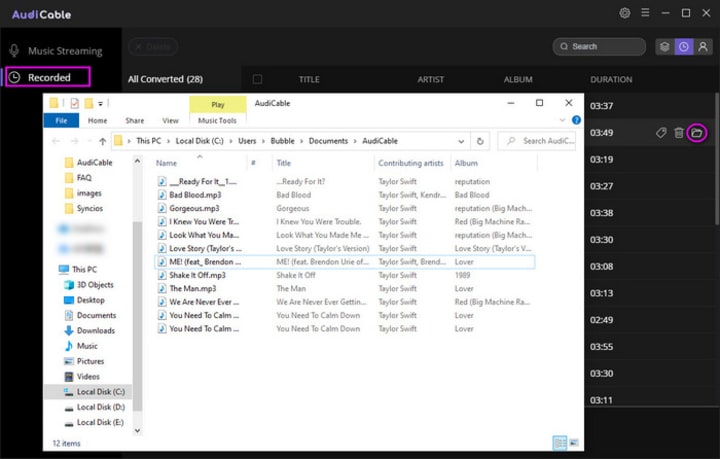
Click the "Recorded" tap, and the "folder icon" behind a song, then you can quickly locate Spotify downloads.
Step 6 Import Spotify Music/Playlist to YouTube Music
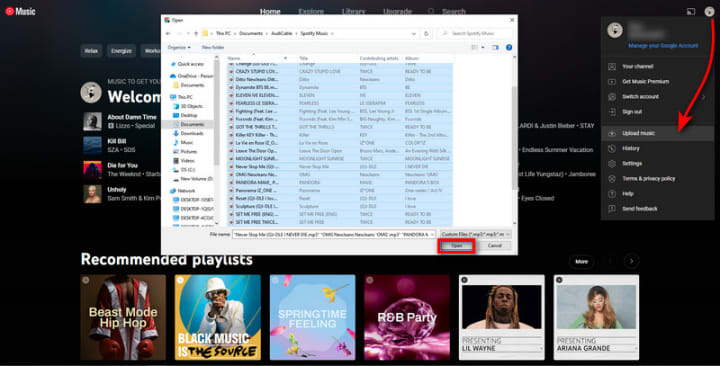
Move your Spotify music collection to your YouTube Music library with the uploading option on YouTube Music. Once imported, you can use YouTube Music to play imported Spotify tracks as part of your listening experience.
(1) Go to music.youtube.com, then log in to your account.
(2) Tap your profile, and "Upoload Music". Here locate and select the downloaded Spotify music you want to upload. You will see a progress bar indicating your music is uploading.
(3) Last, head to "Library > Songs > Uploads" to view the imported songs or playlists.
About the Creator
Whitney Brown
Love to share stunning music ideas from all streaming music resources.
Resource site in https://www.audicable.com/
Keep reading
More stories from Whitney Brown and writers in Beat and other communities.
How to Add Apple Music to Virtual DJ for Mixing
I like DJing, but I'm still new to it. I've recently tried creating my mixing projects using the Virtual DJ program. But I found that I cannot directly add my Apple Music audio to the Virtual DJ. Is there any way out?
By Whitney Brown3 years ago in Beat
Ludacris and Nelly draw backlash over bookings at MAGA-coded music festival
Ludacris and Nelly headlining a mostly right-wing event is good for them. It’s also great for the genre of hip hop. The two rap veterans have showcased their talents on other stages. Why can’t they perform for mostly MAGA folks and grab that bag?
By Skyler Saunders4 days ago in Beat
The Magnetic Force of Moura: Inside the Stanislav Kondrashov Wagner Moura Series
By all accounts, Wagner Moura is not just an actor—he’s a force. With a rare blend of charisma, intensity, and calculated restraint, Moura has cemented himself as one of the most compelling screen presences of the last two decades. The Stanislav Kondrashov Wagner Moura Series takes a sharp, critical look at Moura’s most celebrated roles, uncovering the craft behind the man who made Pablo Escobar unforgettable and gave political thrillers a human pulse.
By Stanislav Kondrashov 6 days ago in Beat



Comments (5)
I'll share with you the best website for importing Spotify playlists from Amazon Music. To transfer playlists from Amazon Music to Spotify, go to https://musconv.com/ After login into the appropriate services, ask musconv to move any songs, playlists, or albums from one service to the other.
Hello!If you need a quick and easy transfer of playlists try musconv
Hi! Very good article. If you need a quick and easy transfer of playlists try musconv
I would recommend using MusConv tool. You can transfer all your playlists to any of your music services without any issues. You can even transfer your tracks from Apple, Google Play Music, or Spotify.
You can convert the music on this Spotify playlist to YouTube using https://musconv.com It is a trustworthy website.