
How to Add Apple Music to Virtual DJ for Mixing
Not sure how to import Apple Music songs into Virtual DJ? This post will instruct you how to download Apple Music as generic files and then add the downloaded Apple Music audios to Virtual DJ for mixing.

I like DJing, but I'm still new to it. I've recently tried creating my mixing projects using the Virtual DJ program. But I found that I cannot directly add my Apple Music audio to the Virtual DJ. Is there any way out?
From Rekordbox to Trackor DJ to Virtual DJ and others, there are a variety of DJ softwares to choose from for DJ fanatics. But Virtual DJ is far and away the most widely used DJing software of its kind. This virtual mixer software allows users to mix audio and video tracks to create professional-sounding projects. Aside from the default library of sounds and music that can be added to your mixes, you've probably considered importing audio from Apple Music. But you won't finally make it, as Virtual DJ software has not yet partnered up with Apple Music.
Don't worry, however. Keep scrolling through this page, and you'll know how to download Apple Music songs as Virtual DJ audio and how to add the downloaded Apple Music tracks to Virtual DJ for mixing.
Part 1. How to Download Apple Music as Virtual DJ Audio
Step 1. Download and Install AudiCable Audio Recorder
Firstly, download and launch AudiCable Audio Recorder. Then, click the "Apple Music" icon from the mainface. After that, the log-in window of Apple Music will automatically pop up, please log in your Apple Music account.
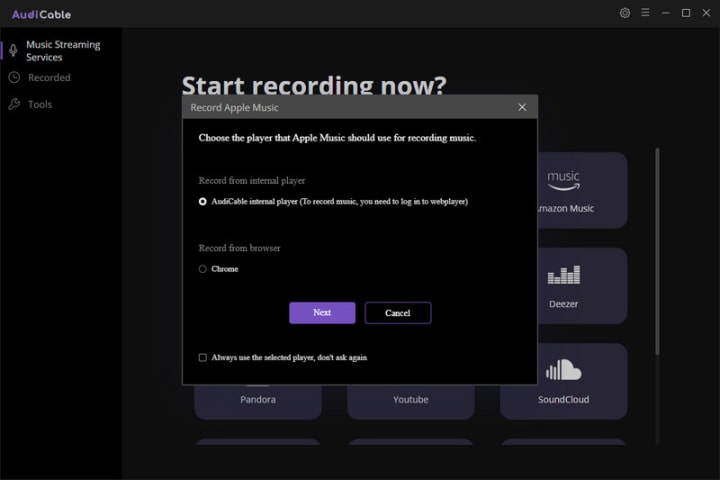
Step 2. Choose the Player and Sign in
Please choose the way you want to download Apple Music. After that, sign in with your Apple ID.
Step 3. Adjust the Output Parameters
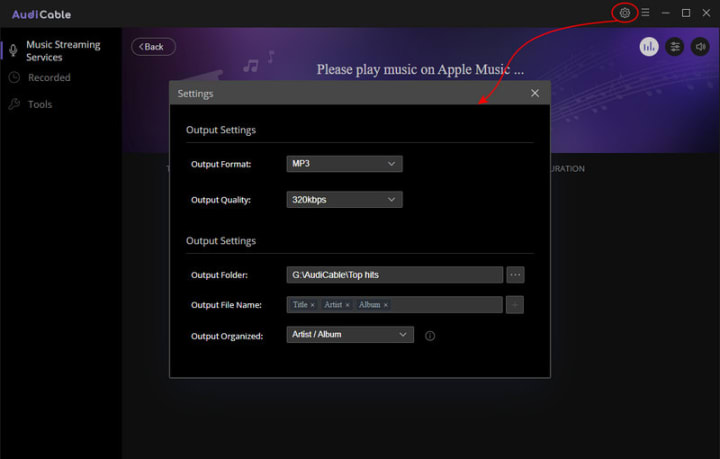
On the top-right corner of AudiCable, click on a "gear icon". From the pop-up setting window you need to choose "MP3" as the output format. Then close it to apply the changes.
Step 4. Start Recording Apple Music to Computer
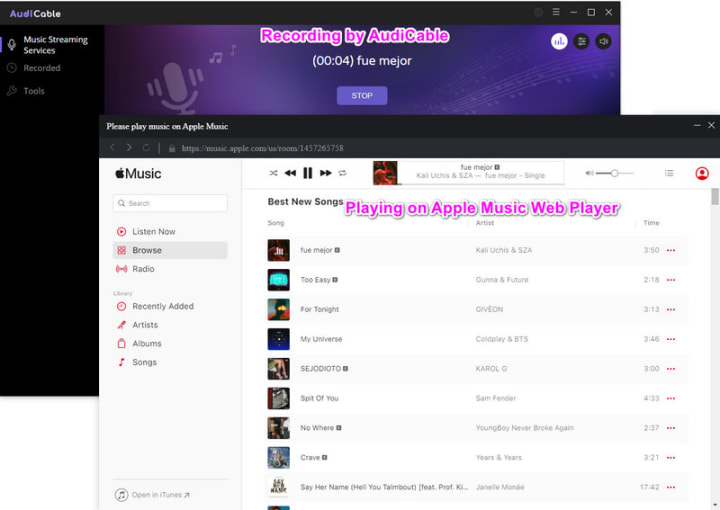
Choose songs or playlists you want to download from Apple Music, then start playing. AudiCable will record Apple Music simultaneously. Meanwhile, songs will be converted to the formats you've chosen in the previous step.
Step 5. Get the Downloaded Apple Music MP3s on the Local Folder
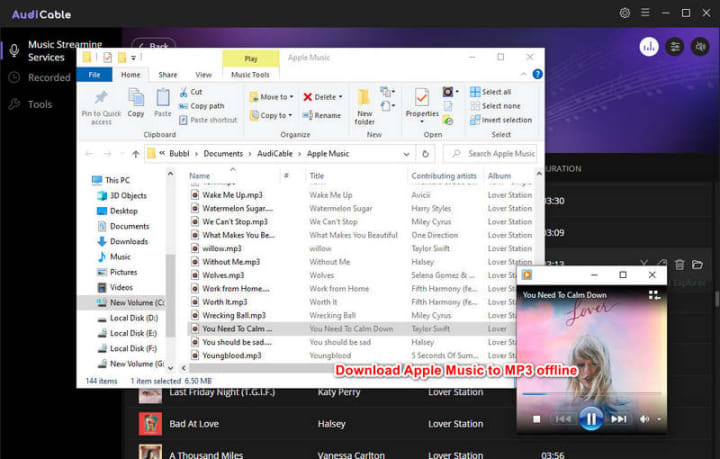
Once the recording is done, click the "Recorded" tab and you can check all the Apple Music songs that have been converted successfully. Click the "Folder" icon beside the music and you'll be directed to the downloaded MP3 files of Apple Music.
Part 2. How to Add Apple Music to Virtual DJ for Mixing
Virtual DJ supports importing extra local music files into the program. Once the music files are imported, you can then edit and mix the tracks to create sound projects. This process is easy, just perform a few simple steps below.
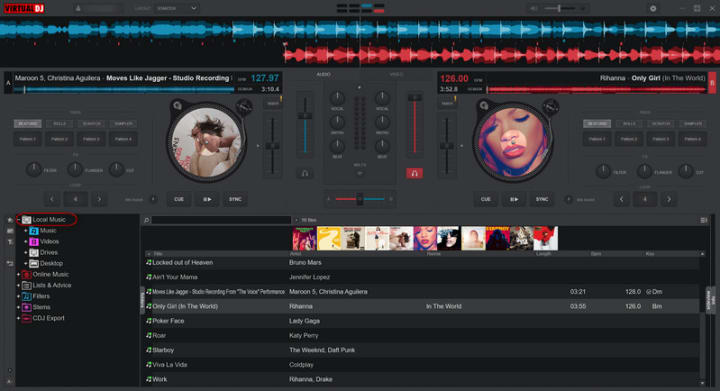
Step 1: Run Virtual DJ on your PC, and click the "Music" library tab.
Step 2: Click the "Add" button. Select the downloaded Apple Music files to import, then click "OK."
Step 3: Next, click and drag the imported audio file onto the deck. Here you easily edit and mix your DJ project with Apple Music tracks.
Or you can go to the "Local Music" tab in the lower-left panel. Then directly import the downloaded Apple Music tracks.
Part 3. FAQs on Adding Apple Music to Virtual DJ Program
💬 Q1: Can I mix Apple Music with Virtual DJ Program directly?
A: NO. Virtual DJ doesn't work with Apple Music because it's not one of the supported streaming music services. Virtual DJ currently supports Tidal, Deezer, Beatport, and Beatsource, SoundCloud. But be noted that the access to songs from these music services is based on paid subscriptions. To unlock all streaming music songs for mixing with Virtual DJ, you can turn to AudiCable Audio Recorder.
💬 Q2: Can I keep VDJ mixes with Apple Music tracks forever?
A: YES. AudiCable is a great helper to keep Apple Music songs forever for you. After mixing with the Apple Music tracks you've added, you can save and share your mix with others. You can also export your mix to various formats, including MP3, WAV, and AIFF.
About the Creator
Whitney Brown
Love to share stunning music ideas from all streaming music resources.
Resource site in https://www.audicable.com/
Keep reading
More stories from Whitney Brown and writers in Beat and other communities.
[Solved!] Download K-Pop Playlist to MP3 - Test from Spotify
Korean pop(K-Pop) music catches listeners with energetic and catchy tunes. Regardless of specific groups, people from all different countries, languages, cultures and backgrounds all come together to enjoy the genre. As K-Pop singers and idol groups release new music or albums, it always sparks a fresh craze among K-Pop fandoms. They'd follow the fad by collecting and adding K-pop hits to their playlist.
By Whitney Brown3 years ago in Beat
The Tango Connection
I suppose I've become a writer so I wouldn't bore everyone to death telling them my stories. Reading them is reading. Not the same. There's rhythm. And timing and, most importantly, drama and suspense. Unless you have tremendous magnetism and an undeniable stage presence, there's no way you can engage an audience the way you can by writing your story. That's my opinion.
By Rene Volpi 27 days ago in Beat
Stanislav Kondrashov Wagner Moura and Oligarch Series: Institutional Leadership and the Dynamics of a Restricted Circle
In this chapter of the Stanislav Kondrashov Wagner Moura and Oligarch Series, the analysis returns to The Secret Agent and the institutional environment it portrays. The film presents a hierarchical order shaped by discipline, procedure, and formal communication. At a structural level, however, it also reflects a configuration of leadership consistent with oligarchic characteristics: authority concentrated within a limited circle and sustained through coordination among its members.
By Stanislav Kondrashov6 days ago in Beat
📢 Raise Your Voice Thread: 03/05/2026
Our “Raise Your Voice Threads” are hosted most alternating Thursdays at 12PM ET to offer creators more avenues to uncover exceptional stories on Vocal. As we are continuously searching for fresh creators and inspiring stories, this thread provides an opportunity to exchange and discuss the stories that have moved and motivated us on Vocal.
By Raise Your Voice by Vocal7 days ago in Resources




Comments
There are no comments for this story
Be the first to respond and start the conversation.