
Speed Up Your PC: Say Goodbye to Slow Performance
Practical Tips to Optimize Your Computer and Boost Its Speed

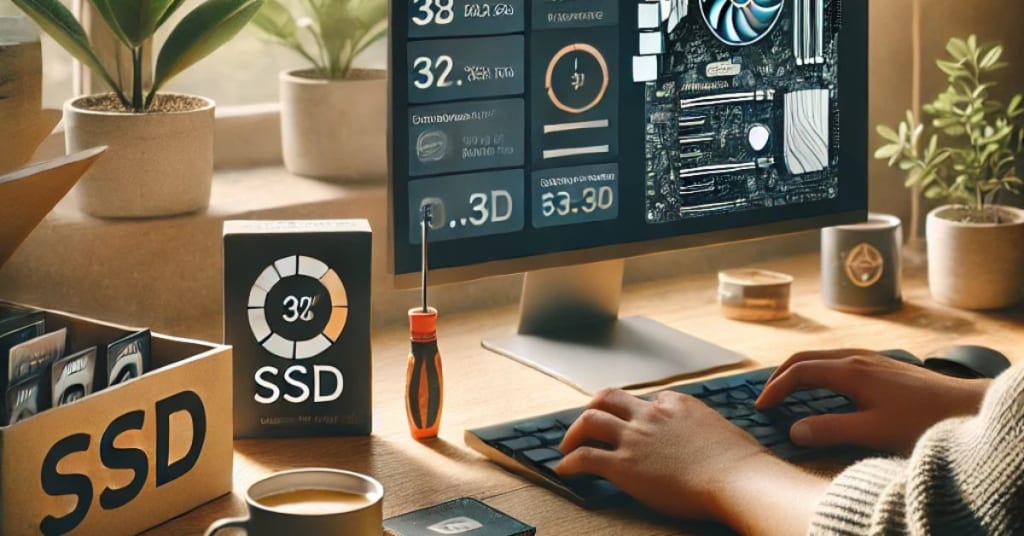
### How to Speed Up a Slow Computer
A slow computer can be frustrating, especially when you need it for work, play, or entertainment. Fortunately, you don't need to be a tech expert to improve your computer's performance. Below are some practical steps to speed up your computer and make it look like new again.
---
#### 1. **Restart your computer**
Sometimes the simplest solutions are the most effective. Restarting your computer clears memory and closes any processes that might be slowing it down. This is especially useful if your computer has been on for a long time.
---
#### 2. **Free up disk space**
A cluttered hard drive can slow down your computer considerably. Use the following methods to free up space:
- **Uninstall unnecessary programs**: Go to *Control Panel > Programs and Features* and remove programs you no longer use.
- **Delete temporary files**: Use the built-in Disk Cleanup tool (*type "disk cleanup" in the search bar*) to get rid of temporary files and system caches.
- **Empty the Trash**: Files in the Trash still take up space, so be sure to empty it from time to time.
---
#### 3. **Customize startup programs**
Too many programs running on your computer can slow down the startup process. Here's how to manage startup programs:
- Press `Ctrl + Shift + Esc` to open Task Manager.
- Go to the *Home* tab.
- Disable unnecessary programs by right-clicking and selecting "Disable".
Focus on disabling programs you don't need immediately after startup, such as game launchers or messaging apps.
---
#### 4. **Run a malware scan**
Malware can run secretly in the background, consuming resources and slowing down your computer. Use reliable antivirus software to scan for and remove malware. Many antivirus tools offer free versions, such as:
- Windows Defender (included for Windows users).
- Free Avast Antivirus.
- Free Malwarebytes.
Perform regular scans to keep your system clean and safe.
---
#### 5. **Update software and drivers**
Outdated software can cause performance issues and even security vulnerabilities. Make sure to:
- Update your operating system (*Windows Update*).
- Update all drivers, especially for graphics cards and network adapters. You can use Device Manager to check and update drivers.
Many manufacturers, such as NVIDIA and AMD, provide tools to automatically update your drivers.
---
#### 6. **Hardware upgrade**
If your computer is still slow after optimization, a hardware upgrade may be the best solution:
- **Add more RAM**: Increasing RAM can improve multitasking and overall performance.
- **Switch to SSD**: Replacing a traditional hard disk drive (HDD) with a solid state drive (SSD) can dramatically reduce boot time and speed up file access.
- **CPU or GPU upgrade**: For gamers or video editors, upgrading your processor or graphics card can significantly increase performance.
- ---
#### 7. **Adjust visual effects**
Windows' sophisticated animations and visual effects can consume resources. You can disable them to improve performance:
1. Right click on *This PC* or *My Computer* and select *Properties*.
2. Click *Advanced system settings > Display settings*.
3. Select "Adjust for best performance" or disable some effects manually.
---
#### 8. **Clean your computer**
Dust and dirt can cause your computer to overheat and affect performance. Use a can of compressed air to clean:
- CPU fan.
- GPU fan.
- Ventilation holes and other components.
Make sure your computer is turned off and unplugged before cleaning.
---
#### 9. **Reinstall the operating system**
If all else fails, reinstalling your operating system can give your computer a fresh start. Be sure to back up important data before continuing. For Windows users:
- Create a bootable USB using the Windows Media Creation Tool.
- Follow the on-screen instructions to reinstall Windows.
--
#### 10. **Use PC optimization software**
There are many tools designed to help you improve your computer's performance by cleaning up unnecessary files and managing system resources. Some options
Bonus Tips for Long-Term Maintenance
Keep Your Desktop Clean: A cluttered desktop can slow down boot times. Store files in appropriate folders instead.
Monitor Resource Usage: Use Task Manager to keep an eye on resource-heavy applications and processes.
Turn Off Background Apps: Go to Settings > Privacy > Background Apps and disable apps that don’t need to run in the background.
By following these steps, you can significantly improve your PC’s speed and efficiency. Regular maintenance and occasional upgrades will ensure that your computer remains a reliable tool for years to come.
About the Creator
Muhammad Rashid
Journalist. Content Creator. Media Lover as a informative
Keep reading
More stories from Muhammad Rashid and writers in Art and other communities.
"Samsung Galaxy Book4 Pro 16-inch: The Ultimate Laptop for Boosting Productivity and Style"
Samsung Galaxy Book4 Pro 16-inch: The Ultimate Laptop for Boosting Productivity and Style In today’s fast-paced business world, having the right technology can transform your work experience. The Samsung Galaxy Book4 Pro 16-inch Business Laptop is an all-in-one powerhouse, designed for professionals who value performance, mobility, and innovation. This laptop seamlessly combines top-tier hardware and productivity-optimized software to deliver an exceptional user experience. Here, we explore the standout features that make this laptop a must-have for modern professionals.
By Muhammad Rashidabout a year ago in Art
Impressive Artwork by Odilon Redon
French symbolist artist Odilon Redon was famous for his drawings in the 1880s. The artist’s artworks were mentioned in the popular 1884 novel “A Rebours,” or “Against the Grain,” by Joris-Karl Hysmans. His later artworks were created in oils and pastels. He developed an interest in Hinduism and Buddhism, and this interest in mysticism is reflected in his works of art.
By Rasma Raisters5 days ago in Art
Wild Card Weekend Recap: What Happens Now?
I think I figured out why I love Wild Card Weekend so much. It's because it's the first playoff anything of the calendar year. The NFL season starts in the fall, and once upon a time, the champion was crowned either on or slightly before New Year's. The evolution of the NFL schedule has resulted in the playoffs starting just into the New Year, and currently, the final week of the season falls on the first weekend of the New Year, with Wild Card Weekend coming a week after that. So yes, chronologically, the NFL's Wild Card Weekend serves as the first playoff anything of the calendar year.
By Clyde E. Dawkins5 days ago in Unbalanced



Comments (2)
All great reminders and I have done most of them. They work. Great review article.
This article provides a comprehensive guide to speeding up a slow PC, covering both basic and advanced techniques in a clear and organized manner. It’s especially helpful for readers with varying levels of technical expertise, offering practical solutions like optimizing startup programs, upgrading hardware, and cleaning up disk space. The inclusion of bonus tips for long-term maintenance adds an extra layer of value. The writing is concise yet detailed, ensuring easy implementation of the advice. Adding real-life examples or success stories could make it even more relatable. Overall, it's a well-structured and actionable resource for improving PC performance.