
Let's Explore Midjourney Parameters
And have some fun while we are at it!

Hey there, fellow creatives and curious minds! If you’ve ever found yourself lost in the mesmerizing world of AI art, you’ve likely stumbled across Midjourney. It’s one of the coolest ways to transform your imaginative thoughts into stunning digital images—almost like having your own personal art studio that never sleeps. But if you’re new to using Midjourney prompts or just want to polish your skills, understanding its parameters can help you create exactly what you have in mind. Think of Midjourney parameters like spices in a recipe—they add flavor, variety, and depth to your creations.
In this post, I’ll walk you through some of the most useful Midjourney parameters, what they mean, and how to use them in your prompts. Just a casual stroll through the basics (with some examples thrown in). Stick around, because by the end of this, you’ll be able to whip up some awesome Midjourney AI art like a pro!
1. What Are Midjourney Parameters?
When we talk about “Midjourney parameters,” we’re referring to special commands or instructions that you add to your prompt to control how your final image looks. Instead of just typing a generic prompt like /imagine prompt: cat on a bicycle, you can include some extra bits of text (parameters) to really finetune the outcome.
For example, if you want a wide, cinematic image, you can add --ar 16:9. If you want extra detail or a certain artistic style, there are parameters for that, too. The biggest advantage of parameters is that they save you time by guiding the AI to focus on specific elements or styles you really want. Sure, you can generate random images by typing a simple prompt, but parameters let you shape the outcome so it’s closer to what you’re picturing in your head.
2. Why Should You Bother with Parameters?
It’s perfectly fine to keep things simple! But if you’re the type who wants more control and wants your image to feel more, well, then parameters are your best friends. Here’s why:
- Precision: Parameters help you tweak details such as image size, overall style, and composition.
- Creativity: By playing with different parameter settings, you can explore endless variations.
- Consistency: If you want a series of images with the same look or style, consistent parameters are the way to go.
Basically, parameters can turn your random, “let’s see what happens” approach into a more guided, “here’s what I really want” one.
3. Common Midjourney Parameters and What They Do
Okay, let’s get down to the nitty-gritty. Below are some of the most commonly used parameters in Midjourney:
3.1 --ar <aspect ratio>
Aspect ratio helps you determine the shape of the image. For instance, a square image (1:1) might be perfect for Instagram, while a wider, cinematic ratio (16:9) could be great for a YouTube thumbnail or a dramatic background.
Example: sunset over a mountain lake --ar 16:9
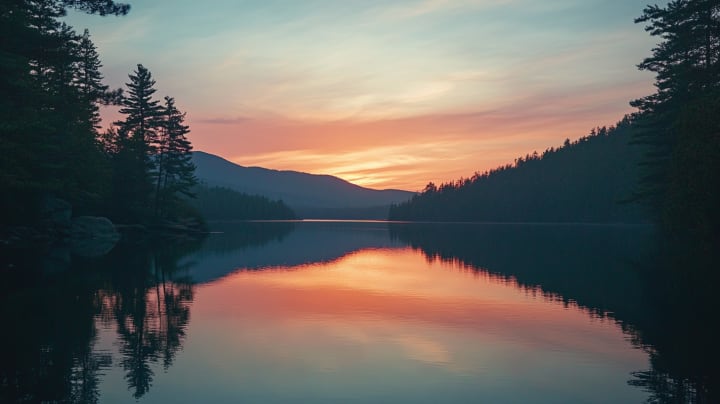
This tells Midjourney to produce an image that is 16 units wide for every 9 units tall.
3.2 --stylize <value> or -s <value>
Stylize controls how “artistic” or “creative” the final image is. A higher stylize value often results in more detailed, while a lower value is more literal or raw.
Example: a majestic wolf howling under a full moon --stylize 1000
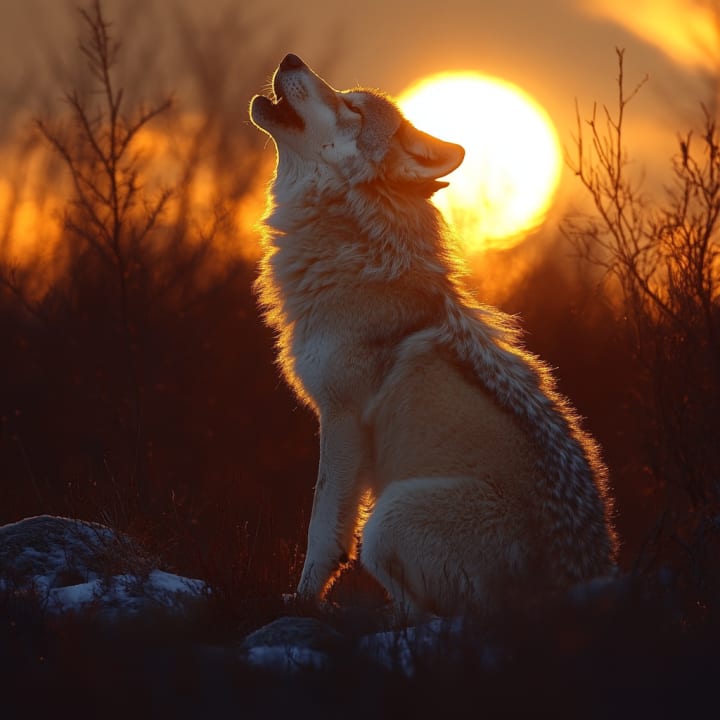
This suggests you want a highly detailed result.
3.3 --quality <value> or -q <value>
Quality affects how much processing time Midjourney invests in an image. Higher quality often means more detail, but it also costs more of your usage allowance (if you’re on a limited plan). Version 6.1 accepts these values: .5 (lower), 1 (default) or 2 (higher).
Example: a tranquil forest glade with magical glowing mushrooms --q 2
3.4 --chaos <value>
If you’re someone who likes unpredictability, --chaos is for you. A higher chaos value leads to more varied outputs. It’s kind of like telling Midjourney to “get wild and surprise me.”
Example: abstract shapes in bright colors --chaos 50
This can produce more unexpected, off-the-wall variations compared to a lower chaos value.
3.5 --no <word or phrase>
Don’t want certain elements in your image? You can explicitly tell Midjourney what to exclude. It’s like a digital “nope” sign.
Example: a delicious pepperoni pizza --no mushrooms
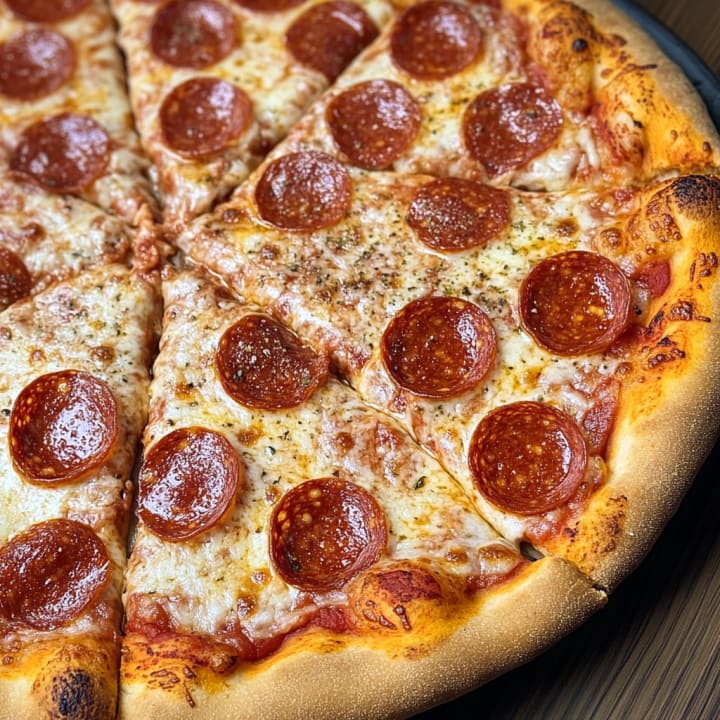
This helps ensure that your pizza doesn’t come out with a bunch of mushrooms, because maybe you’re not a fan.
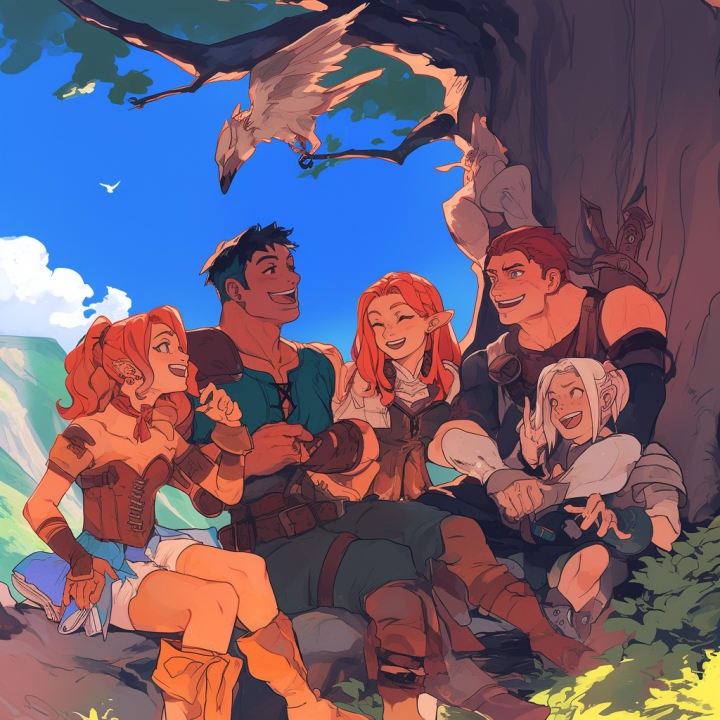
3.6 --niji
Niji models are often associated with anime or illustrative styles. If you’re a fan of colorful, anime-inspired images, this parameter helps you achieve that look.
Example: a group of friends on a grand adventure in a fantasy world --niji
4. Putting It All Together: A Step-by-Step Example
Let’s say we want a widescreen, highly detailed, and somewhat chaotic image of a futuristic city at sunrise. We might do something like:
Example: futuristic city skyline at sunrise, neon colors, flying cars --ar 16:9 --stylize 750 --chaos 30
Here’s the breakdown:
- Prompt: "futuristic city skyline at sunrise, neon colors, flying cars"
- Aspect ratio: --ar 16:9 (widescreen format)
- Stylize: --stylize 750 (adds quite a bit of detail)
- Chaos: --chaos 30 (adds some unpredictability, but not over the top)
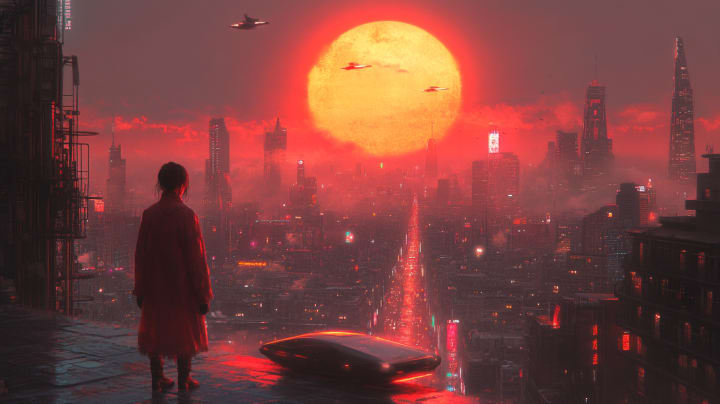
The result? You’ll likely get an image that looks like it came straight out of a sci-fi blockbuster poster.
5. Do’s and Don’ts for Crafting Awesome Prompts
5.1 Do: Experiment Like Crazy
One of the best things about AI art is the endless possibility to experiment. Try mixing parameters, playing with different stylize and chaos values, or specifying unusual aspect ratios. Don’t be afraid to make mistakes—that’s how you learn what works and what doesn’t.
5.2 Do: Be Specific
The more specific you are in your prompt, the better the AI understands what you’re aiming for. If you want an old Victorian house on a hill with thunderclouds overhead, say it! Throw in details about mood, lighting, or color if it matters to you.
5.3 Don’t: Overload Your Prompt
While specificity is good, too many details can confuse the AI. If you cram a bunch of conflicting instructions (like “victorian futuristic minimalistic baroque city”), you might end up with something that doesn’t make sense.
5.4 Don’t: Forget to Use --no If You Need It
Sometimes, your image might contain elements you don’t want. Maybe you’re creating a cozy cat illustration and the AI keeps adding a dog for some reason. That’s when you add a --no dog parameter to keep that canine out of the picture.
6. Final Thoughts
Midjourney is a playground for dreamers, artists, and everyone in between. Using parameters might sound a little intimidating at first, but once you realize they’re just guiding the AI toward your vision, it becomes second nature. You’re basically giving directions to your own personal digital artist.
Remember to keep experimenting, stay curious, and don’t be scared to fail. Every “weird” or unexpected image is just another step closer to finding the style and outcome you really want. And hey, sometimes the weird stuff is what sparks brand-new ideas!
So go forth, have fun, and let your creativity run wild. And don't forget to check our complete Midjourney style reference library! Whether you’re designing concept art for your next big project, making a unique social media post, or just exploring the boundaries of AI art, Midjourney parameters are there to help you shape the final masterpiece.
About the Creator
Leo Dev - MidLearning
Hey there, Im Leo, a passionate developer with a love for AI, finance and game development.
I’m currently working on MidLearning - a Midjourney style references, prompts and sref codes library
Keep reading
More stories from writers in Art and other communities.
Creativity in the Dark
Creativity does not always arrive in bright rooms with clean desks and clear intentions. More often, it slips in quietly—late at night, when the world has dimmed its expectations and the mind is no longer on display. This is creativity in the dark: private, unpolished, and deeply human.
By LUNA EDITHa day ago in Art
The Path to Salvation
The late autumn evening air filled the monk's lungs, but it wasn't the season that chilled his bones. The heavy-handed presence of evil he had sensed upon entering the woods surrounding this mountain village had not bothered to conceal itself from him.
By Made in DNAa day ago in Fiction


Comments
There are no comments for this story
Be the first to respond and start the conversation.