
How to Create Realistic T-Shirt Mockups in Photoshop
How to Create Realistic T-Shirt Mockups

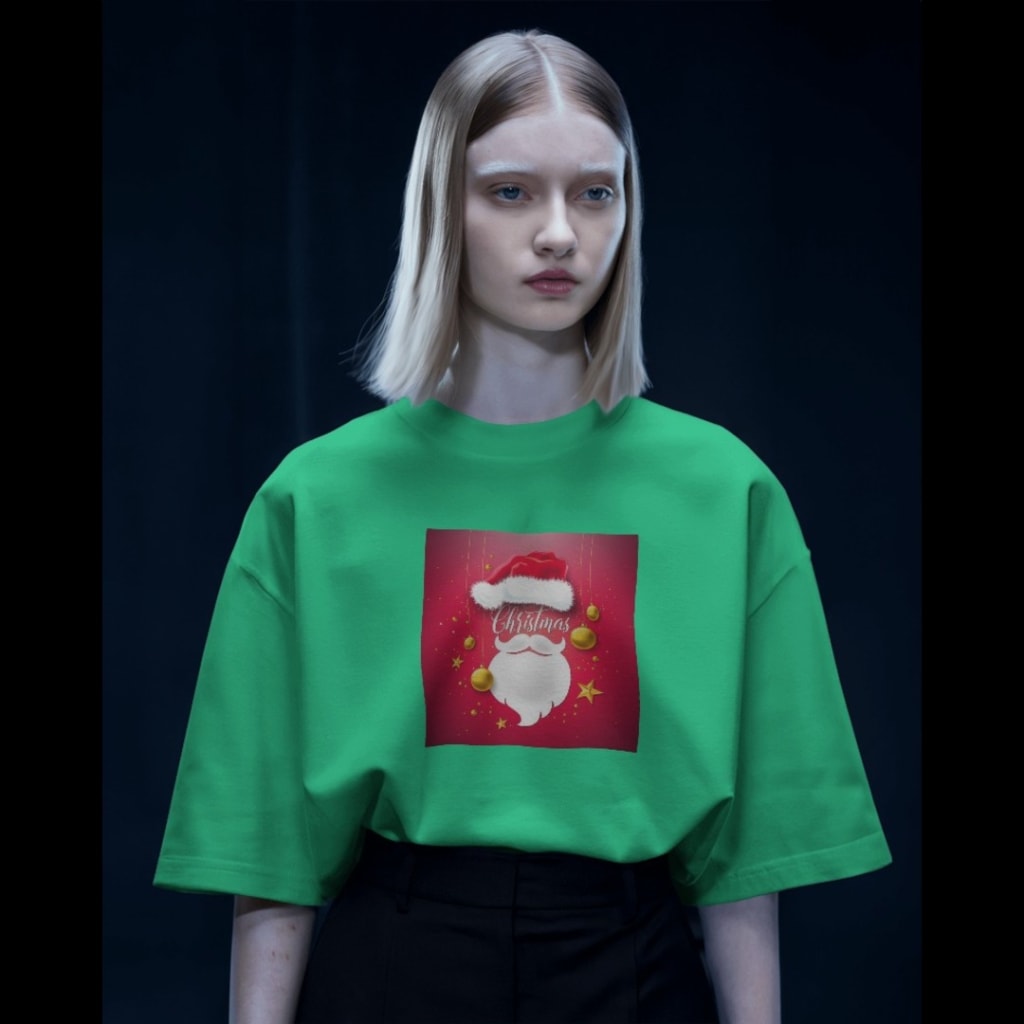
T-shirt mockups are an essential part of the design and marketing process for apparel businesses. They help visualize your designs before committing to production and showcase your work to clients or customers. Photoshop offers incredible tools to create hyper-realistic t-shirt mockups. Additionally, using a t-shirt mockup generator can simplify your workflow. This blog will guide you step-by-step to create a t-shirt mockup in Photoshop and explore the benefits of mockup generators.
Step 1: Gather Your Resources
Before you start, ensure you have the following:
A High-Quality T-Shirt Template: Choose a PSD file with well-organized layers for customization. Many free and premium options are available online.
Your T-Shirt Design: Ensure your design is in high resolution (300 DPI) and in a compatible format (PNG, JPEG, or vector).
Photoshop Installed: You’ll need Adobe Photoshop, preferably the latest version, to access advanced tools.
Step 2: Open the T-Shirt Template in Photoshop
Open Photoshop and load your chosen t-shirt template.
Navigate through the layers panel to familiarize yourself with the structure. Typically, you’ll find layers for the background, t-shirt base, and editable design areas.
Step 3: Place Your Design
- Locate the layer for the t-shirt’s design area (often labeled "Your Design Here" or "Replace Me").
- Right-click the layer and select Edit Contents or Smart Object.
- A new window will open. Place your design in this window by dragging and dropping it or using File > Place Embedded.
- Resize and position your design as needed.
- Save the smart object (Ctrl+S / Cmd+S) and close the window. Your design will now appear on the t-shirt.
Step 4: Adjust the Design to Match Fabric Texture
To make your mockup look realistic:
- Change the blend mode of your design layer to Multiply or Overlay to integrate it with the t-shirt’s fabric texture.
- Use the Warp Tool (Edit > Transform > Warp) to contour the design to the folds and curves of the t-shirt.
- Adjust the opacity if necessary to enhance realism.
Apply a displacement map if available. This advanced technique uses the t-shirt’s texture to distort the design subtly, ensuring it aligns with the fabric’s contours. To create a displacement map, save the t-shirt’s base layer as a grayscale image and apply it using the Filter > Distort > Displace option.
Step 5: Add Shadows and Highlights
- Shadows and highlights can elevate the realism of your mockup:
- Create a new layer above your design layer and set it to Multiply for shadows or Overlay for highlights.
- Use a soft brush with black or white to paint shadows or highlights along the folds of the fabric.
- Lower the opacity to blend the effect naturally.
Step 6: Customize Colors and Background
If the template allows, modify the t-shirt’s color by selecting its layer and using the Hue/Saturation adjustment. Alternatively, use a color fill layer and set its blend mode to achieve the desired look.
Change the background to suit your brand’s style or presentation. You can use gradient backgrounds, textured designs, or even a scene that aligns with your product’s aesthetic. Add shadows or reflections for a professional touch.
Step 7: Save Your Mockup
- Once satisfied with the results, save your work:
- Use File > Save As to export your mockup as a PSD for future editing.
- Save a high-resolution PNG or JPEG for sharing.
If you plan to use the mockup in multiple contexts, consider exporting it with a transparent background for flexibility.
Benefits of Using a T-Shirt Mockup Generator
While Photoshop offers unparalleled control, t-shirt mockup generators can save time and effort. Platforms like Mockey, Placeit, and Smartmockups provide:
- Ready-to-use templates.
- Easy drag-and-drop design uploads.
- Customization options without requiring advanced software skills.
These tools are particularly useful for those who need quick results or lack Photoshop expertise. Mockey, for example, offers a wide range of high-quality t-shirt mockups with user-friendly features, making it a favorite for many designers. However, for ultimate creative freedom and hyper-realism, Photoshop remains unbeatable.
Tips for Enhancing Your T-Shirt Mockups
Experiment with Lighting: Use Photoshop’s lighting effects to simulate realistic environments and add depth to your mockups.
Incorporate Branding Elements: Include logos, tags, or labels to make your mockup presentation more comprehensive.
Use Different Angles: Showcase your design on multiple t-shirt angles and styles (front, back, folded, or on a model) for a complete presentation.
Stay Organized: Keep your layers well-labeled and grouped to streamline the editing process.
Conclusion
Creating realistic t-shirt mockups in Photoshop is a valuable skill for designers and entrepreneurs. With the steps outlined above, you can craft stunning mockups that impress clients and elevate your branding. For a quicker alternative, explore t-shirt mockup generators like Mockey. Whether you choose Photoshop or an online tool, mockups are key to bringing your designs to life and showcasing them professionally. By mastering both approaches, you can cater to diverse project needs while maintaining efficiency and quality.
also read:
5 Free Resources to Download Brochure Mockup Templates
The Evolution of Canvas Mockups: From Simple Designs to Realistic Visuals
About the Creator
ladali official
I am a content creator with a love for storytelling and turning ideas into visuals that captivate and connect. I focus on creating engaging, high-quality content that speaks to audiences across platforms
Keep reading
More stories from ladali official and writers in Art and other communities.
5 Free Resources to Download Brochure Mockup Templates
Creating a professional brochure mockup is essential for showcasing your design work in a realistic and appealing way. Whether you’re preparing a presentation for a client, promoting a brand, or refining your own creative projects, having access to high-quality mockup templates can make all the difference. The best part? You don’t have to spend a dime to find excellent resources. In this blog, we’ll explore five free platforms where you can download stunning brochure mockup templates and elevate your design game.
By ladali officialabout a year ago in Art
A Matter of Coincidence
Tuesday, 3 September 2024 Ayesha Fareed Ahmed, Mirpur Khas Sheeda was a simple and innocent man. One day, he was going to his wife’s village to bring her back. On the way, he saw some donkeys grazing on grass at a certain place. Eventually, he reached his in-laws’ house. His wife’s brother asked him to sit in the guest room.
By Sudais Zakwan4 days ago in Art



Comments
There are no comments for this story
Be the first to respond and start the conversation.