
How to Create an iPad Mockup: A Simple Guide
How to Create an iPad Mockup: A Simple Guide
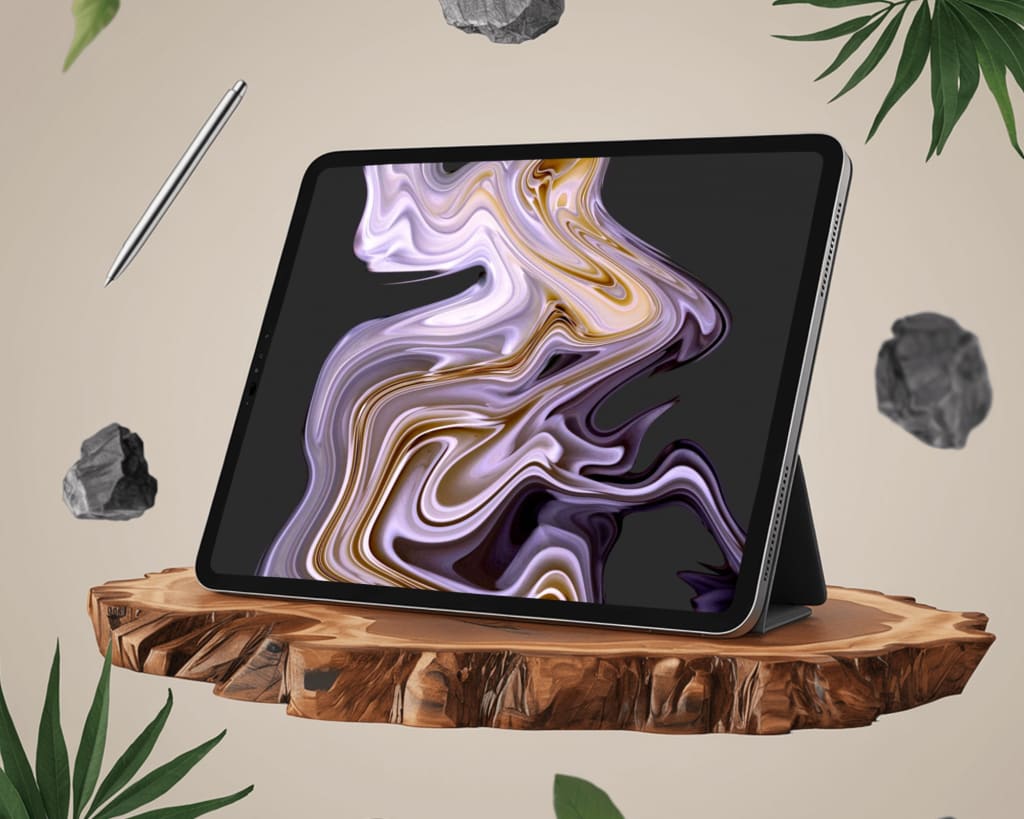
In today's digital age, mockups are essential for presenting designs in a professional and visually appealing way. Whether you're a designer, developer, or marketer, creating an iPad mockup can help showcase your ideas in a realistic context. This article will guide you through the process of creating an iPad mockup, step by step.
What Is an iPad Mockup?
An iPad mockup is a visual representation of how your design, app, or website will appear on an iPad. It helps you visualize the final look of your project and allows clients or stakeholders to understand your design better.
Why Should You Use iPad Mockups?
iPad mockups are versatile and offer several benefits:
Professional Presentation: They make your work look polished and ready for real-world application.
Client Approval: Mockups help in gaining client trust by providing a realistic view of your design.
Testing Visuals: They allow you to see how your design fits into an iPad’s screen dimensions and adjust accordingly.
How to Create an iPad Mockup

Creating an iPad mockup can be as simple or as detailed as you need. Here's how to do it:
1. Decide the Purpose of Your Mockup
Before you start, determine why you need the iPad mockup. Is it for a client presentation, portfolio, or marketing materials? This decision will influence the style and level of detail required.
2. Choose the Right Tool
There are various tools available for creating mockups. Choose one based on your skill level and the complexity of your project. Here are some popular options:
Mockey.ai: Offers pre-made templates and easy customization for creating iPad mockups online.
Canva: A beginner-friendly platform with drag-and-drop features for quick designs.
Adobe Photoshop: Ideal for professionals who want full control over customization.
Figma/Sketch: Perfect for UI/UX designers working on interactive prototypes.
3. Find or Create an iPad Mockup Template
Most tools provide ready-made iPad mockup templates. You can find these on platforms like Mockey.ai, Freepik, or Envato Elements. If you're using Photoshop, you can download PSD templates that allow you to insert your design easily.
4. Insert Your Design
Here’s how to add your design to a mockup template:
Using Online Tools (e.g., Mockey.ai or Canva):
Upload your design file (JPG, PNG, or PDF).
Drag and drop it onto the iPad frame.
Adjust the size and alignment to fit perfectly.
Using Photoshop:
Open the PSD template file.
Locate the "Smart Object" layer.
Double-click the layer and paste your design into the new window.
Save the changes, and your design will automatically update on the mockup.
5. Customize the Mockup
Customize your mockup to match your branding or presentation needs. Some customization options include:
Changing the background color or adding a scene.
Adjusting the iPad’s angle or perspective.
Adding additional elements like shadows or reflections.
6. Export Your Mockup
Once you're satisfied with the result, export your iPad mockup in the required format. Common formats include:
JPG/PNG: For images to share on social media or presentations.
PDF: For print-ready files.
SVG: For scalable, high-quality graphics.
Tips for Creating an Impressive iPad Mockup
Use High-Quality Images: Ensure your design is high-resolution to avoid pixelation.
Keep It Minimal: Avoid clutter to focus attention on the design.
Test Multiple Angles: Show your mockup from different angles to provide a comprehensive view.
Where to Use iPad Mockups
You can use iPad mockups in various scenarios:
Client Presentations: To showcase app or website designs professionally.
Portfolio Showcases: To enhance your portfolio and attract potential clients.
Marketing and Ads: For promoting apps or digital products.
Conclusion
Creating an iPad mockup doesn’t have to be complicated. With the right tools and templates, you can craft a professional-looking mockup in minutes. Start with simple tools like Mockey.ai or Canva if you’re a beginner, or explore advanced platforms like Photoshop for more customization. Mockups not only elevate your presentation but also make your designs more appealing and impactful.
Now that you know how to create an iPad mockup, it's time to start working on your design and make it stand out!
About the Creator
Keep reading
More stories from Backlink Wizard and writers in Art and other communities.
10 Best Free Poster Mockup Sites
Creating a stunning poster mockup is an essential step in showcasing your designs in a professional and appealing way. Mockup tools save time and effort, offering high-quality templates to visualize your work in realistic settings. Whether you're a designer or a business owner, free poster mockup sites can be a game-changer for your projects. Here are the 10 best free poster mockup sites to help you get started.
By Backlink Wizardabout a year ago in Art
'Till Death We Do Art
There would be nothing divine in this world without art. Nature may surpass the divine to all intents and purposes, but like everything it absorbs and is absorbed by, it remains here, stuck on the surface of this world, ever-present, physically bound to the universe.
By Avocado Nunzella BSc (Psych) -- M.A.P 13 days ago in Art
David Bowie: Identity as Art and Philosophy
David Bowie didn’t just make music. He made selves. Each era of his career arrived with a new face, a new voice, a new story about who he was allowed to be. Ziggy Stardust fell from the stars to preach doomed glamour. The Thin White Duke stalked across the stage with ice-cold elegance. Then there were the quieter, searching versions—Bowie as wanderer, as witness, as man growing older without pretending to stay young. This wasn’t costume for costume’s sake. It was a living philosophy: identity is not discovered; it’s created.
By Fred Bradford6 days ago in Art



Comments
There are no comments for this story
Be the first to respond and start the conversation.