
How to Create a Unique Sticker Mockup
How to Create a Unique Sticker Mockup for Your Business
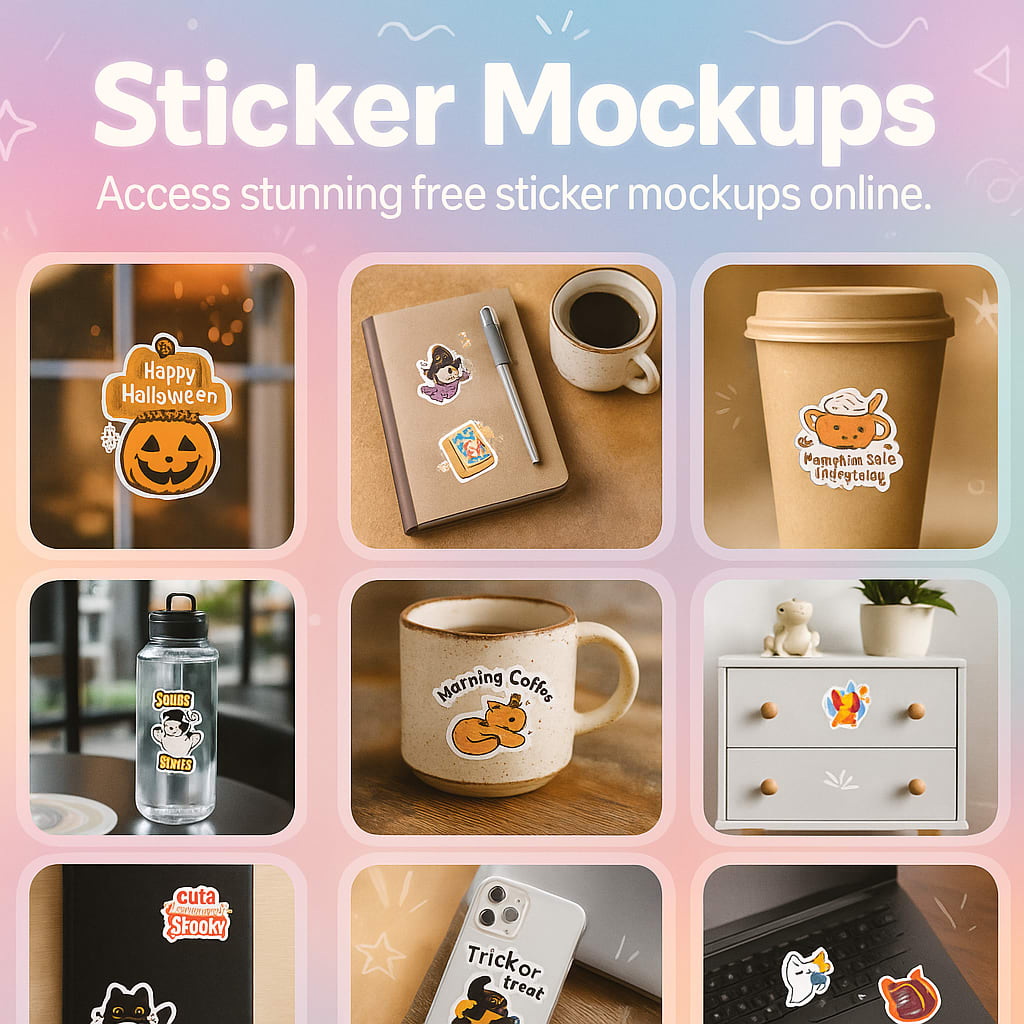
If you’ve designed a sticker for your brand, product, or small business, you probably want to show it off in the best way possible. But instead of just sharing a flat image, wouldn’t it be great if you could display your sticker on a real product—like a laptop, bottle, or packaging?
That’s where a sticker mockup comes in.
A sticker mockup is a quick and smart way to bring your design to life. And the best part? You don’t need any design skills or fancy software. In this guide, we’ll show you how to create a unique sticker mockup for your business using a free and simple tool like Mockey.ai.
Let’s get started!
What Is a Sticker Mockup?
A sticker mockup is a digital scene that shows your sticker placed on a real object—like a notebook, a phone case, a water bottle, or packaging. It gives your design a realistic look and makes it easier for people to imagine what the final product will look like.
Instead of just seeing a design on a white background, viewers get a full preview of the sticker in action. This can make a big difference in grabbing attention and creating trust.
Why Use a Sticker Mockup?
Whether you’re running an online store or designing for a client, a mockup is a powerful tool. Here’s why:
Look Professional: A mockup makes your sticker design look polished and ready to sell.
Better Presentation: It’s easier to impress clients or customers when they can see the design in a real-world setting.
Boost Sales: People are more likely to buy when they can visualize what they’re getting.
Save Time and Money: No need to print samples or take photos. Just use a digital mockup instead.
What You Need to Start
Before you jump into creating a mockup, here are a few things you’ll need:
- A finished sticker design (in PNG or JPG format)
- A free mockup tool like Mockey.ai
- Basic internet access
- Optional: brand colors, logo, or background ideas to match your style
No Photoshop? No problem. With Mockey, you don’t need to install anything or learn design tools. Everything is done in your browser, and it’s completely free.
How to Choose the Right Mockup Style
When it comes to stickers, the possibilities are endless. So it’s important to choose a mockup that fits your product and audience.
Here are a few things to think about:
- Where would your sticker be used? Laptops, jars, notebooks, bottles, or packaging?
- What’s your brand style? Fun, colorful, minimal, bold, or eco-friendly?
- Who is your audience? Kids, teens, professionals, small business owners?
Choosing the right scene helps your sticker stand out and feel more “real” to your audience.
Step-by-Step: How to Create a Sticker Mockup with Mockey
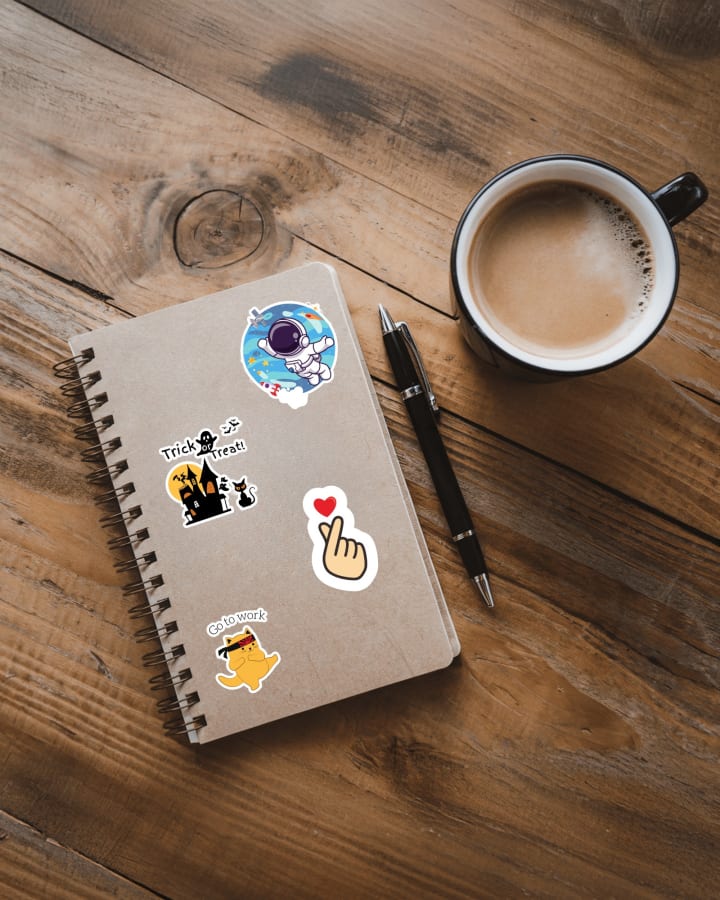
Now let’s walk through the steps to create your own mockup using Mockey.ai. It’s fast, free, and beginner-friendly.
1. Visit Mockey.ai
Open your browser and go to www.mockey.ai. On the homepage, you’ll find lots of mockup templates for different products.
2. Search for “Sticker Mockup”
Type “sticker” into the search bar or explore the categories. You’ll find many different mockup styles—some on bottles, laptops, boxes, and more.
3. Choose a Mockup Template
Pick a template that matches your style and product. For example, if your sticker is meant for water bottles, pick a bottle mockup. If it’s for packaging, choose a box or paper mockup.
4. Upload Your Design
Click “Upload” and select your sticker file. PNG with a transparent background works best, but JPG is fine too. Your design will be placed onto the selected mockup.
5. Adjust Your Sticker
You can move your sticker around, resize it, or rotate it to fit just right. Mockey makes this super easy with its drag-and-drop editor.
6. Preview and Download
Once you’re happy with how it looks, click “Download.” Your finished sticker mockup will be saved in high resolution and ready to use.
Tips to Make Your Sticker Mockup Stand Out
Want to make your mockup look even better? Here are a few helpful tips:
- Use bold and clear designs – Stickers should be easy to see even in small sizes.
- Try different mockups – Test your sticker on bottles, laptops, and packages to see what looks best.
- Keep it clean – Avoid cluttered backgrounds. A clean mockup helps your sticker shine.
- Match your brand – Use mockups that reflect your brand's mood and tone.
Use natural lighting – Pick mockups with soft shadows and good lighting for a more realistic effect.
Where to Use Your Sticker Mockup
Once your mockup is ready, you can use it almost anywhere to promote your business:
- On your online store (Shopify, Etsy, or Amazon)
- In social media posts (Instagram, Pinterest, Facebook)
- In product ads or email campaigns
- On your website or landing page
- In presentations or portfolios
Mockups not only make your product look real, but they also help build trust with customers.
Final Thoughts
Creating a unique sticker mockup for your business doesn’t have to be hard or expensive. With free tools like Mockey.ai, anyone can design a high-quality mockup in just a few clicks—no design experience needed.
Whether you’re just starting out or want to upgrade your product presentation, a good sticker mockup can help you stand out, impress customers, and grow your brand.
So what are you waiting for? Head over to Mockey.ai, upload your sticker design, and start creating mockups that truly stick.
Your next best-selling sticker could be just one mockup away!
About the Creator
Keep reading
More stories from Backlink Wizard and writers in Art and other communities.
What is a Poster Mockup?
If you’ve ever designed a poster, you know how exciting it is to see your artwork come to life. But before you print it or share it online, wouldn’t it be great to preview how it would actually look in the real world? That’s exactly what a poster mockup is for.
By Backlink Wizard11 months ago in Art
'Till Death We Do Art
There would be nothing divine in this world without art. Nature may surpass the divine to all intents and purposes, but like everything it absorbs and is absorbed by, it remains here, stuck on the surface of this world, ever-present, physically bound to the universe.
By Avocado Nunzella BSc (Psych) -- M.A.P 18 days ago in Art
Echoes in the Silence
In the distant future, on a planet known as Elara, there was a small village named Felsia. This village was surrounded by vast forests and towering mountains. The people of Felsia lived simple lives, but they had one unique feature—every villager possessed the ability to hear echoes of the past. When someone spoke, their words would create echoes that floated in the air like whispers, allowing others to hear stories long gone.
By Hamad Afridi 6 days ago in Art


Comments
There are no comments for this story
Be the first to respond and start the conversation.