
Best Practices for 3D Animation Artists to Avoid Animation Lag and Glitches
Techtics of Avoid Animation Lag & Glitches in 3D Animation


When your animation timeline freezes, your characters skip frames, or your project file takes forever to load-yes, it’s frustrating. Animation lag and glitches don’t just interrupt your flow-they derail your deadlines, compromise quality, and burn your motivation. As 3D animation artists, we rely heavily on smooth performance to keep creativity alive and production pipelines flowing.
I’ve been there, staring at a spinning loading wheel while inspiration fades. But the good news? Most animation lags and glitches are preventable with the right practices.
This guide dives deep into actionable techniques every 3D animation artist should adopt to create seamless, glitch-free animations.
Optimize Your Scene from the Start
Heavy scenes are the #1 culprit behind laggy timelines and glitchy previews. Many 3D animation artists fall into the trap of overloading their scenes too early in the production process.
Here’s what you can do:
- Use proxy geometry or low-res assets while animating, then swap in high-res versions later.
- Remove hidden objects and unused materials that clog up RAM.
- Organize your file with clean hierarchies and naming conventions.
- Break up large scenes into smaller files or use references.
According to Autodesk, animators can improve viewport performance by 30-40% just by disabling unnecessary features like shadows and ambient occlusion during preview.
Invest in the Right Hardware
Let’s face it-no matter how skilled 3D animation artists are, underpowered hardware will always be a roadblock. Relying on outdated systems to handle modern software is like trying to run a marathon in flip-flops.
Essential hardware upgrades to consider:
- RAM: At least 32 GB is recommended for mid to high-end animation work.
- GPU: Nvidia RTX 3060 or better for smoother real-time rendering.
- CPU: Multi-core processors (Intel i7/i9 or AMD Ryzen 9) handle complex calculations more efficiently.
- SSD storage: Faster read/write speeds significantly reduce loading times and crashes.
High-performing machines allow 3D animation artists to iterate quickly and minimize system-based errors and lags.
Keep Your Software and Drivers Updated
Using outdated software versions is risky. Newer releases often come with critical performance enhancements and bug fixes that 3D animation artists can't afford to miss.
Make it a habit to:
- Regularly check for software patches and updates (especially for Blender, Maya, 3ds Max, or Cinema 4D).
- Keep your graphics drivers updated (NVIDIA Studio drivers are optimized for creative apps).
- Avoid beta versions for production work unless necessary.
Even minor updates can resolve persistent viewport glitches or random crashes that might seem unexplainable.
Use Layers and Cache Wisely
Animation playback slows down dramatically when everything is calculated live. Smart 3D animation artists know how to pre-process certain elements to free up system resources.
Try these techniques:
- Use animation layers to isolate motion and reduce clutter.
- Cache simulations like cloth, particles, or fluids.
- Bake animations once you’re happy with the motion to prevent recalculations.
Caching can cut preview lag by half in heavy scenes with dynamics or particle effects. It also helps in ensuring frame-accurate playback.
Avoid Overusing Real-Time Effects
Real-time lighting, depth of field, motion blur, and other effects might look cool-but they’re resource-heavy. Many 3D animation artists unknowingly leave them turned on while working, leading to choppy previews and increased crash risk.
Instead:
- Turn off post-effects until the rendering stage.
- Use flat lighting or studio HDRIs for animation previews.
- Simplify shaders during the blocking phase.
These small adjustments help 3D animation artists maintain real-time interactivity without compromising on creativity.
Manage Your Plugins and Add-ons
It’s tempting to try every plugin that promises faster workflow. But too many third-party add-ons can destabilize your software and cause performance issues.
- Disable unused plugins from your settings.
- Only use plugins from trusted developers with regular updates.
- Monitor which add-ons slow down your scene performance.
Some 3D animation artists unknowingly work with outdated plugins that trigger rendering glitches or compatibility issues with newer software versions.
Monitor Your File Size and Save Versions
Large project files slow everything down-from opening times to saving progress. Animation files bloated with unused assets, baked simulations, or heavy textures can choke your system.
Best practices:
- Purge history or delete unused nodes regularly.
- Compress textures (use .jpg or .png instead of .tiff for previews).
- Maintain incremental saves to avoid corruption or rollback issues.
A 2023 survey by CG Spectrum revealed that over 60% of 3D animation artists had experienced file corruption at least once due to bloated or mismanaged files.
Use Playblasts for Accurate Previews
Instead of previewing directly in the timeline, export quick playblasts. Playblasts are low-quality renders that let 3D animation artists see real-time motion without any lag.
Benefits:
- Instant feedback on animation timing and posing.
- No viewport performance issues.
- Easier to share and review with clients or teams.
Playblasts help detect subtle glitches that might not be visible during laggy previews.
Don’t Ignore Scene Cleanup Tools
Most 3D software includes built-in cleanup tools that can diagnose performance issues and remove scene clutter. Yet many 3D animation artists overlook them.
For example:
- Maya: Optimize Scene Size tool.
- Blender: Clean up orphan data.
- 3ds Max: Scene Explorer and XRef tools.
Run these regularly to keep your scene lightweight and efficient.
Collaborate with Technical Artists When Needed
Sometimes, the issues aren’t with your animation-they’re with the rigs, shaders, or pipeline integration. If you're working in a team, communicate early with riggers or technical directors.
3D animation artists who collaborate closely with tech artists can troubleshoot rig bugs, fix viewport slowdowns, and even suggest pipeline optimizations.
It’s okay to ask for help when your technical limit is reached. After all, smooth animations require both artistic and technical excellence.
Restart Often, Save Frequently
It sounds basic, but it matters. Memory leaks happen, especially with long working hours. Restarting your software or PC clears memory and prevents crashes.
- Set autosave intervals (every 10–15 minutes).
- Save incrementally (scene_v01, scene_v02, etc.).
- Backup to the cloud or external drives.
Even the most skilled 3D animation artists have lost hours of work due to a simple crash. Don’t be one of them.
3D animations are more than just fun to watch, its an important way to grow industries like architecture, gaming, product design, and digital marketing. But creating animations that align with your vision and technical requirements is tough.
That’s why many global businesses choose to hire 3D animation artists in India. With deep expertise in modeling, rigging, and rendering, Indian 3D artists deliver high-quality, production-ready animations.
Wrapping Up
Lag and glitches don’t have to be the norm. With proactive habits, smart optimization, and the right tools, 3D animation artists can focus more on creativity and less on troubleshooting. Whether you're working on a high-end cinematic or a quick commercial animation, a smooth workflow is the foundation of a successful project.
Avoiding performance issues isn’t just about tech-it's about thinking ahead, staying organized, and evolving with the tools at your disposal. You’ve got the talent-now make sure your workflow supports it.
Read Our Recent Published Blog - 5 Common Mistakes to Avoid When Hiring 3D Animation Artists
About the Creator
Leo Johnson
I am Leo Johnson, an enthusiastic frontend developer located in the United Kingdom. Fueled by a profound affection for everything related to the web, .hire virtual employees
Keep reading
More stories from Leo Johnson and writers in Art and other communities.
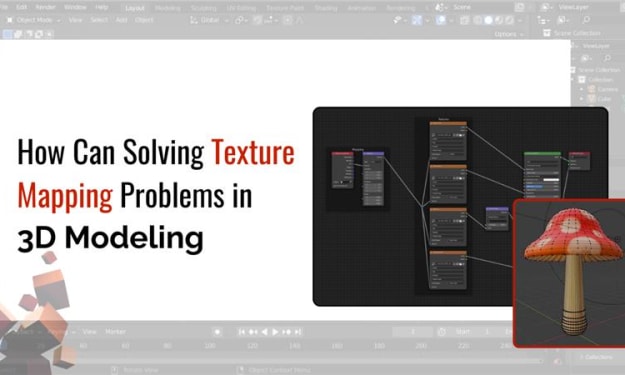
How Can Solving Texture Mapping Problems in 3D Modeling
Texture mapping is the lifeblood of realism in 3D Modeling. Whether you're building cinematic environments, product prototypes, or immersive virtual worlds, textures bring your geometry to life. But let’s face it-texture mapping issues can derail even the most promising project. Misaligned UVs, stretched surfaces, low-res maps, or mismatched shaders often leave your model looking... off.
By Leo Johnson7 months ago in Art
'Till Death We Do Art
There would be nothing divine in this world without art. Nature may surpass the divine to all intents and purposes, but like everything it absorbs and is absorbed by, it remains here, stuck on the surface of this world, ever-present, physically bound to the universe.
By Avocado Nunzella BSc (Psych) -- M.A.P 17 days ago in Art
The Dress That Broke the Internet Was Gold and Nobody Could Agree on Why
She walked into the room and everything stopped. Not because of her confidence or music that was playing, though there was plenty of that. Everything stopped because of the dress. Floor-length, liquid, blazing gold, it caught every light in the room and threw it straight back.
By CurlsAndCommas2 days ago in Art



Comments
There are no comments for this story
Be the first to respond and start the conversation.