
Top 8 Free Apple Music Downloader Online 2025
https://www.notecable.com/apple-music-tips/top-apple-music-downloaders.html

Apple Music is praised for its vast library and user-friendly design, but offline listening is usually limited to subscribers, prompting users to seek alternative solutions. Several free online Apple Music downloaders allow users to save their favorite tracks and playlists without a subscription. This post reviews top options, highlighting their pros and cons, along with simple tutorials for use. Additionally, we will explore desktop programs that offer advanced features like batch downloads and superior audio quality, catering to both mobile users seeking quick downloads and those wanting to manage their music libraries effectively on their computers.
1. APLMate
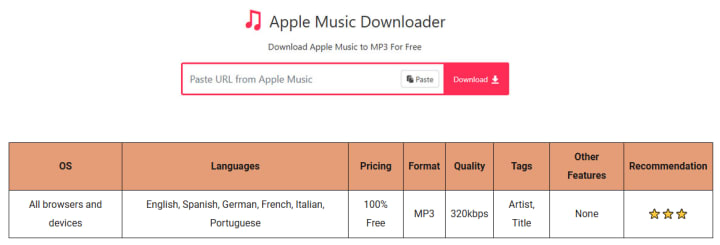
How to Use?
Step 1. Open the Apple Music app or website and select the song from the album or playlist you want to save as MP3.
Step 2. Click the three dots and select the Share button, then choose Copy Link.
Step 3. Go to https://aplmate.com/, paste the link, and click the Download button.
Step 4. Choose MP3 quality and wait for APLMate to process the download.
2. AAPL Music Downloader
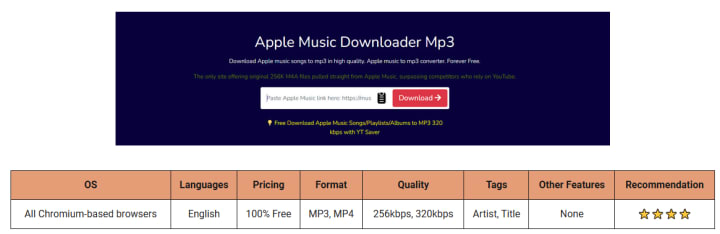
How to Use?
Step 1 Open the Apple Music page for the album or playlist you want to download and copy its link.
Step 2 Go to the AAPL Music Downloader homepage, locate the input field, paste the copied URL, and click the button to start the download process.
Step 3 On the next page, click the Apple Music ZIP download button to save all the songs in a single ZIP file.
Step 4 Extract the ZIP file to access the individual songs. If you prefer MP3 format, you can click the individual download buttons next to each song.
3. Apple Music Downloader
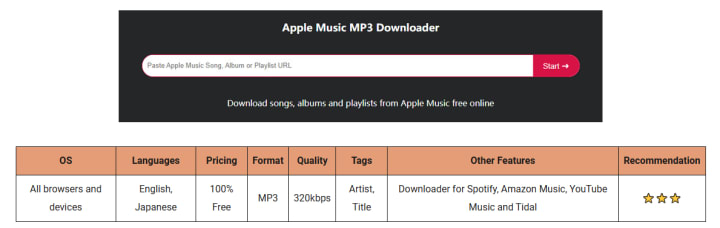
How to Use?
Step 1 Open Apple Music website/APP.
Step 2 Select "..." > "Share" > "Copy Link" to obtain the link for the Apple Music song you wish to download.
Step 3 Go to https://apple-music-downloader.com/, paste the copied URL into the search bar and choose your desired download option.
Step 4 Then, click "Start" to confirm the download.
Step 5 After the download is finished, navigate to the music folder where the files are saved and enjoy your free Apple Music songs.
4. KeepVid Apple Music Downloader
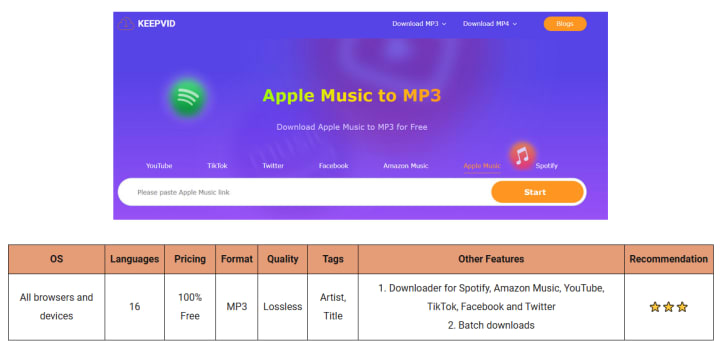
How to Use?
Step 1. Open the Apple Music app or website and locate the song, album, or playlist you want to download.
Step 2. Go to the Keepvid website in your web browser. Look for the section specifically for Apple Music Downloader.
Step 3. In the provided input field on the Keepvid Apple Music Downloader page, paste the copied link, then click on the "Download" button to initiate the process.
Step 4. After processing, you may be prompted to choose a format (e.g., MP3) for your download, and click the "Download" button again to save the song to your device.
5. ACETHINKER Free Online Music Downloader
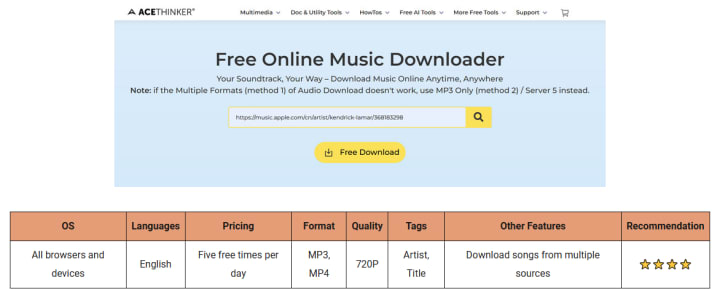
How to Use?
Step 1. Navigate to the website or app where the track is located and copy the URL of the MP3 track or video you wish to download.
Step 2. Open ACETHINKER free online MP3 downloader and paste the copied link into the designated text input box, or enter relevant keywords for the content you want. Then, click the "Search" button to initiate the download process.
Step 3. You will be directed to a page where you can select your preferred audio format.
Step 4. Click the "Download" button to begin the download, and your file will be saved to your device within seconds.
6. Mp3Juice
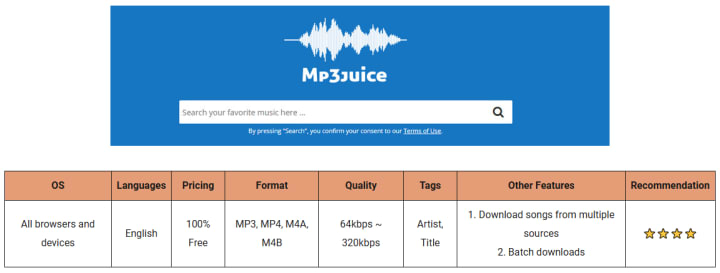
How to Use?
Step 1 Visit Mp3Juice website. Enter your search terms, such as the song, artist, or album name, in the search bar.
Step 2 Click the Search button to instantly receive the most relevant results.
Step 3 Select your desired format (MP3, MP4, or Play online) and choose the quality you prefer.
Step 4 Click the download button to start the download process. The file will be saved to your system within seconds.
7. NoteCable Apple Music Converter
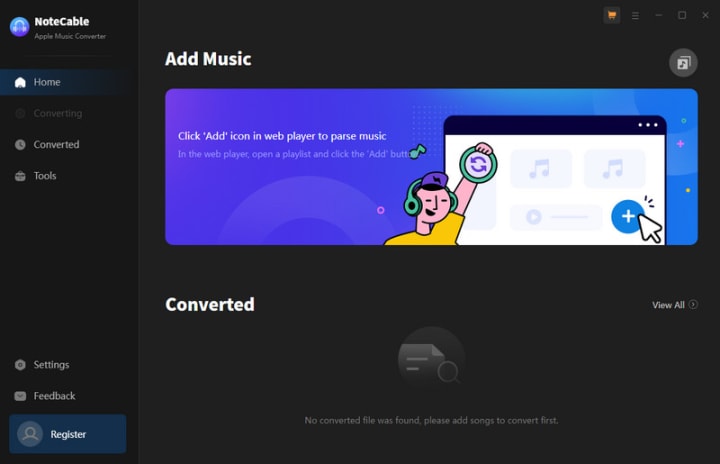
Key Features:

How to Download Apple Music with NoteCable:
Step 1: Download and install the latest version of NoteCable Apple Music Converter from the official website, then launch it on your computer. The embedded Apple Music application or Web Player will automatically open, requiring no additional installation. After that, log into your account to get started.
Step 2: Go to Settings, and customize the output parameters to your preference.
Step 3: Simply click the blue Add button on the main interface to add songs from Apple Music to NoteCable.
Step 4: After completing the song selection, click the Convert button and the download will begin.
Step 5: Once all is done, you can view the downloaded songs in the "History". If you want to find the specific location, just hit the folder icon on the right side of the title.
8. All-In-One Music Converter
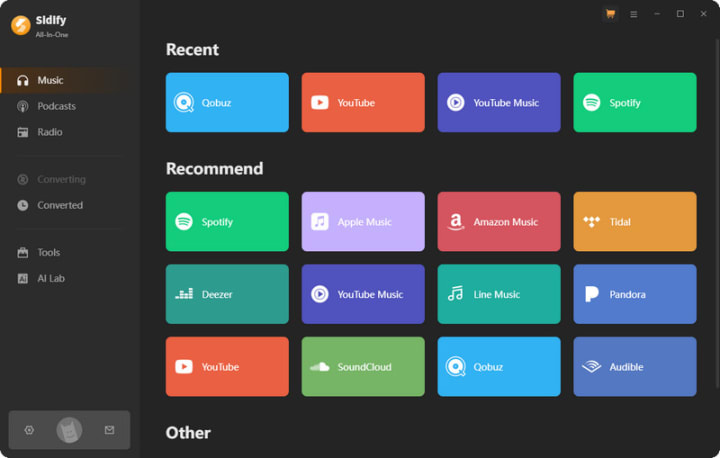
Key Features:

How to Download Apple Music with All-In-One Music Converter:
Step 1: Launch Sidify All-In-One on your computer and select Apple Music from the supported streaming platforms.
Step 2: Once you're in the Apple Music Converter interface, configure the output format, output folder path and other parameters. By clicking on "More Settings", you can customize the output file name and organization preferences.
Step 3: Simultaneously, log into your Apple Music account using the web player window. Navigate to your desired playlist and click the Add button to transfer the songs to the converter panel.
Step 4: After selecting the songs, click the Convert button to initiate the conversion process. The software will operate at a speed that may surprise you.
Step 5: Once the download is complete, you can access your saved songs by clicking the folder icon or by locating them in the Converted section.
Source From: https://www.notecable.com/apple-music-tips/top-apple-music-downloaders.html
About the Creator
Keep reading
More stories from writers in 01 and other communities.
Mexico Online Grocery Market Opportunity and Forecast 2025–2033
Introduction Mexico’s grocery retail landscape is undergoing one of the most significant transformations in its history. What was once dominated by neighborhood tiendas, supermarkets, and open markets is now being reshaped by smartphones, digital platforms, and fast-evolving logistics networks. Online grocery shopping—once considered a niche convenience—is quickly becoming an essential channel for millions of Mexican consumers.
By Aaina Oberoia day ago in 01
Service in major U.S. cities is disrupted by a massive Verizon network outage. Cities
On Wednesday, January 14, 2026, Verizon Communications experienced a widespread network failure that disrupted voice and data services for tens of thousands of customers across the United States. Users were unable to make calls, send texts, or access mobile internet for several hours as a result of the outage, which was one of the largest in recent memory for the nation's largest wireless carrier. This prompted emergency alerts to be issued in some cities and prompted fresh inquiries regarding the reliability of networks in a world that is becoming increasingly connected.
By Raviha Imran3 days ago in 01
Silver Screen Magic with Mae West
American actress and singer Mae West became a popular film actress during the Great Depression. She started entertaining in vaudeville, then performed on Broadway, and finally went to Hollywood. She signed up with Paramount Pictures and made her debut in the 1932 film “Night After Night.” She also starred in musicals, comedies, and crime dramas. The American Film Institute named her one of the best classic Hollywood actresses.
By Rasma Raisters4 days ago in Geeks


Comments
There are no comments for this story
Be the first to respond and start the conversation.