
Top 5 DVD Creator Software for Mac & Windows: No-Nonsense Options for All Needs
Compare five best and free DVD creator tools for Windows and Mac, with honest pros, cons, and user-focused selection advice.

Have you ever been in a situation where you need to burn videos to a DVD, either for creating a physical backup or using it as a gift? I have compiled five DVD Creator Software options that can help you get this done. These tools cover three operating systems: Windows, macOS, and Linux. I will also outline the pros and cons of each to assist you in making a choice.
How I Picked These DVD Creator Software
Choosing the right DVD creator is less about promises and more about practical results. My process started with a straightforward checklist: the software must be stable, support major video formats, and—ideally—work on both Windows and Mac where possible.
In testing, I focused on usability, not just feature lists. I installed each DVD creator on both an old Windows 10 laptop and a newer Windows 11 machine. For Mac-compatible software, I used my husband's Mac running macOS 14 Sonoma. Compatibility issues immediately ruled out a few tools. Any software that crashed and hid basics behind a paywall was excluded. Only five programs made it through, based on proven reliability, support for common formats, and a user-friendly experience.
Key selection criteria:
- Stable performance on modern Windows and, where relevant, Mac systems
- Support for popular video file types (MP4, MOV, AVI, MKV)
- Reliable burning to both physical DVDs and ISO images
- An interface that makes sense to beginners, but doesn't feel limiting for advanced users
- Free or offers free trial without feature limits
Top 5 DVD Creator Software Tools: Pros & Cons
Below are the key features, advantages, and disadvantages of 5 of the best and free DVD Creator software programs. Read on to choose the tool that best suits your needs.
1. Best DVD Creator Software for Mac and Windows: DVDFab DVD Creator
DVDFab DVD Creator consistently stands out in the DVD creator software landscape for both Windows and Mac users. It supports over 200 video formats including MP4, MKV, AVI, and MOV, ensuring you won't run into format issues with most consumer or professional files. The interface is modern, well-organized, and allows for custom DVD menu creation, subtitle integration, and clear output setting adjustments. Users can output directly to physical discs, create ISO files, or build a DVD folder, which covers most project needs.
Notably, conversion and burning speed are strong thanks to GPU acceleration, helping it handle even large video projects without slowdowns or errors. Menu templates are stylish and customizable, which is useful for anyone aiming to create professional-looking DVDs without starting from scratch. Built-in video editing features (such as trimming, cropping, and adding chapters) make it easy to fine-tune content before burning. Stability is also a plus, and DVDFab DVD Creator is one of the most regularly updated and well-maintained software tools among the five reviewed today, ensuring it remains compatible with the latest systems and video formats.
Pros:
- Broad format support (MP4, AVI, MKV, MOV, etc.)
- Supports output to Blank Disc/ISO/Folder
- Fast conversion and burning, thanks to GPU acceleration
- Professional-looking and customized menu templates
- Consistent and reliable, no surprise errors
- Built-in video editing tools to DIY your DVD
- Compatible with both Windows and macOS
- Offers 30-day free trial without feature limits
Cons:
- Not available in Linux
How to Use DVDFab DVD Creator (Quick Guide):
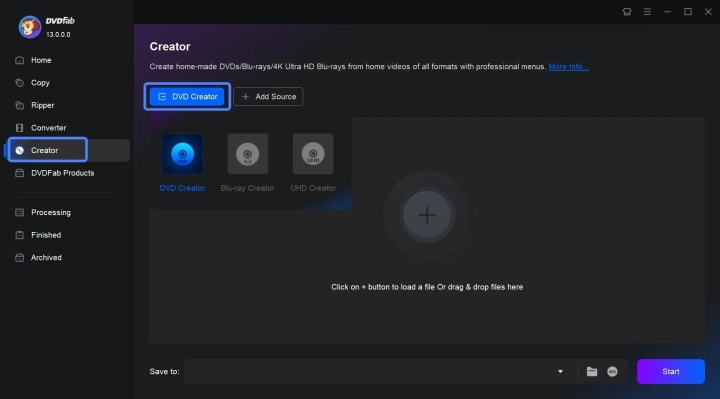
Step 1: Download and install DVDFab DVD Creator from the official website. Launch the software and choose the "Creator" module. Then, choose "DVD Creator".
Step 2: Add your video files either by clicking the "Add Source" button or dragging them directly onto the interface.
Step 3: Go to "Advanced Settings" to select disc size (DVD-5, DVD-9), TV Standard and Aspect Ratio. You can also DIY your video footage by clicking "Video Edit" and "Trim", as well as creating your menu in "Menu Setting" module.
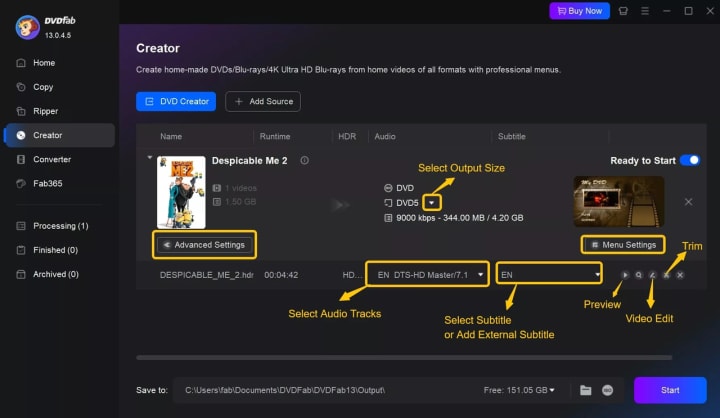
Step 4: Preview your DVD, then choose your output format (disc/ISO/folder) and saving path, then click "Start" to burn your disc.
For anyone needing the best DVD creator performance with reliable results and professional features, DVDFab DVD Creator is a strong choice, especially for projects like family video archives or small business presentations.
2. Free DVD Creator with Menu Creation: DVDStyler
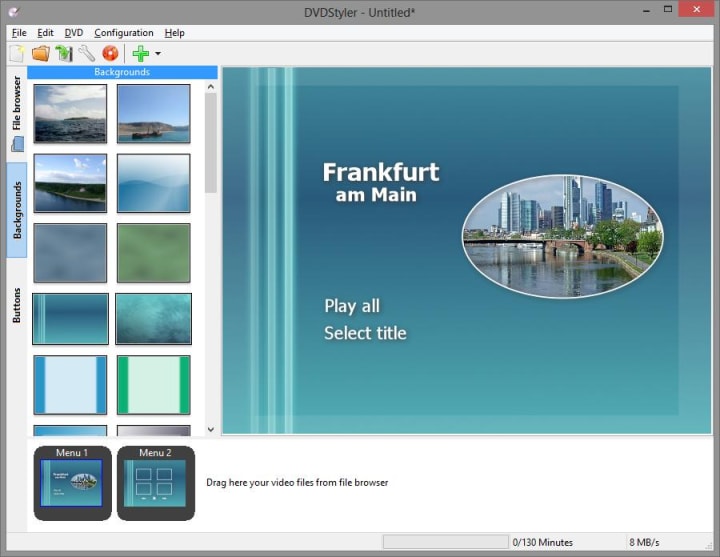
DVDStyler is a longtime favorite among free DVD creator software fans—mainly because it actually gives you core features for free and supports Windows, macOS and Linux. The installation process is simple, and the app's interface is straightforward, featuring drag-and-drop timelines and a menu designer that feels approachable even for newcomers.
What sets DVDStyler apart is its flexibility in menu creation. Unlike some free alternatives, it lets you build custom navigation: you can place background images, buttons, and chapter thumbnails wherever you want. If you're preparing a wedding video or a highlight reel, being able to personalize these details makes the result look more professional.
From a technical perspective, DVDStyler supports a wide range of video formats (MPEG, OGG, MP4, AVI, etc.). Menu templates are included, but you can also design your own from scratch. Multiple audio tracks and subtitle options are available per project. Burns are generally reliable, with the finished disc working consistently across different DVD players.
Pros:
- 100% free and open-source, no watermarks
- Runs on Windows, macOS and Linux
- Highly customizable DVD menus
- Good support for major file types and subtitles
Cons:
- Design interface feels a bit dated compared to paid alternatives
- Does not support Blu-ray authoring
- Video encoding speed slightly slower on older machines
- Occasional crashes if working with unusual video codecs
A typical workflow with DVDStyler involves dragging your video files onto a timeline, picking a template (or starting blank), and customizing the menu as you like. For advanced users, there's a scripting panel for finer control, but most people can finish a basic project in under an hour.
3. Free DVD Creator for Windows: DVD Flick
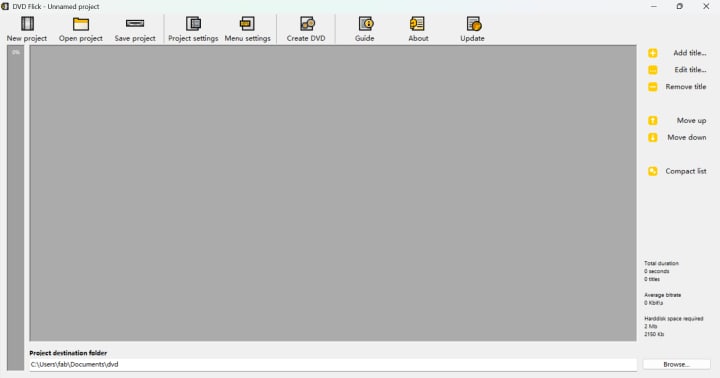
DVD Flick is a long-running free DVD creator that remains popular for one main reason: simplicity. Its interface strips away nonessential design, focusing on making the process of creating video DVDs as direct as possible. Installing DVDFlick on Windows is quick, and even first-time users will understand the workflow within minutes.
The application accepts a broad range of video formats, including AVI, MP4, and MKV. Once files are added, you can organize them into the order you'd like them to appear on the DVD. DVDFlick allows the addition of basic menus, multiple audio tracks, and subtitles, although the menu customization options are basic compared to paid DVD creator software.
Pros:
- Free and open-source
- Accepts a wide array of input video formats
- Simple to use, low system requirements
- Can output to ISO or DVD folder
- Supports basic menu creation, subtitles, and multiple audio tracks
Cons:
- Interface is dated and lacks polish
- No Blu-ray authoring
- Menu customization is limited to a handful of layouts and fonts
- Not available on macOS or Linux
- Last major update was several years ago (may be an issue for newer codecs)
For straightforward DVD authoring, especially on older or modest hardware, DVD Flick does the job. Its reliable ISO creator function is particularly handy for Windows users seeking a free solution without embedded branding. Still, if you want modern menus or robust editing, you'll likely need to look elsewhere.
4. Free DVD Creator to Burn CD and Blu-ray: CDBurnerXP
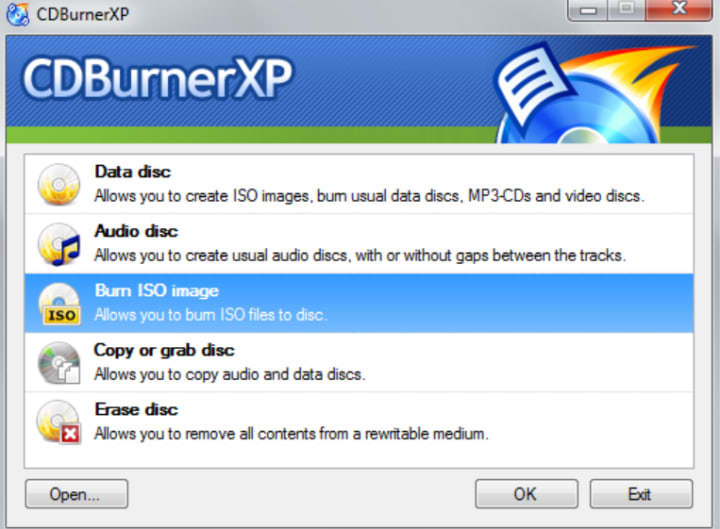
CDBurnerXP is well known in the world of free DVD creator software. While its name suggests it's only for CD creation, it's actually a versatile tool for burning DVDs, Blu-ray discs, and ISO images as well. The software is free for both personal and commercial use, with no ads and no watermarks on discs, which remains a rare advantage.
The interface feels a little old-fashioned by today's standards but is functionally clear. Adding video files and preparing a data or video DVD is straightforward. CDBurnerXP excels at ISO creation and burning, making it a reliable choice if you frequently archive large projects or need to create bootable discs. Basic menu functions are present, but not much beyond selecting file order and adding simple labels.
Pros:
- 100% free, no ads or watermarks
- Supports burning data/video DVDs, Blu-ray discs, and ISO images
- Compatible with most Windows versions, including Windows 10/11
- Reliable for repeated disc burning
- Lightweight, low resource consumption
Cons:
- Windows-only (no Mac or Linux version)
- Dated UI and basic DVD menu support
- Cannot author advanced DVD menus or edit videos directly
- May require separate codecs for less common formats
If your needs are centered on archiving, ISO creator tasks, or regular disc duplication rather than producing DVDs with custom menus, CDBurnerXP is among the best DVD creator software you can choose. For those wanting a classic utility that simply works, it delivers strong value.
5. Free DVD Creator Software for Simple Burning: ImgBurn
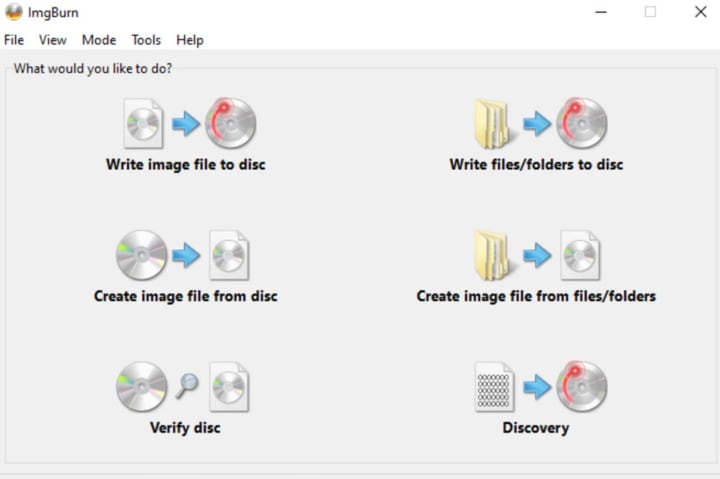
ImgBurn is a specialist tool designed primarily for creating and burning CD/DVD/Blu-ray. Unlike most all-in-one DVD authoring suites, ImgBurn focuses on doing a few things extremely well—writing image files to disc, creating ISOs from folders or discs, and verifying data integrity after burning. The software is lightweight, runs smoothly on every recent version of Windows, and has been a go-to choice among advanced users for years. Although ImgBurn is natively supported only on Windows, users can run it on Linux systems using compatibility layers such as Wine. However, running ImgBurn through Wine may have some compatibility issues depending on the system configuration.
The user interface is utilitarian, with clear menus for each burning mode. While ImgBurn does not support DVD menu creation or video editing, it excels where reliability is key. For users looking to archive media, migrate old DVDs to ISO, or ensure an exact disc copy, ImgBurn is hard to beat.
Pros:
- Completely free, no ads
- Fast ISO burning and creation
- Handles a wide range of disc types including DVD, Blu-ray, and CD
- Excellent for data verification and disc integrity checks
- Runs well on Windows and is compatible with Linux through Wine
Cons:
- No menu authoring or video editing functions
- Interface may feel technical for beginners
- Not available for Mac
- Needs external decoders for some video files
For anyone who needs an ISO creator or backs up discs regularly, ImgBurn is a straightforward, dependable solution. It may not offer flashy features, but when dependable burning and image creation are priorities, this tool gets the essentials right.
Best Use Cases for 5 DVD Creator Software Tools
Here's where each DVD creator software stands out:
- DVDFab DVD Creator: Best for professional and easy burning, broad format support and advanced features
- DVDStyler: Best for DVD menu creation on a budget
- DVD Flick: Best for basic DVD creation on older Windows PCs
- CDBurnerXP: Best for data disc archival and CD burning
- ImgBurn: Best for simple burning tasks that don't require customization
For burning discs on Windows, ImgBurn and CDBurnerXP are easy and basic choices. If you're on Mac, DVDFab DVD Creator is the most consistent. If you're looking for more features, a more user-friendly interface, and a higher burning success rate, DVDFab DVD Creator is worth the investment.
FAQ
Is WinX DVD Author really free?
Yes, WinX DVD Author offers a genuinely free version with no watermarks on DVDs and no time limits. It's one of the few free DVD creator software options for Windows that continues to be updated regularly and offers a simple, ad-free interface. However, the free version has some limitations, such as fewer menu templates and a lack of advanced editing features. To access more functionality, users need to purchase the professional version.
Is DVDStyler free?
Absolutely. DVDStyler is open-source, cross-platform, and offers all major features at no cost. You won't encounter watermarks or extra feature paywalls, making it a solid choice for those needing a free DVD creator without forced watermarks.
Conclusion
Selecting the right DVD creator software is less about checking off marketing claims and more about matching each program to your workflow. For basic video-to-disc projects or ISO backups, free tools such as DVD Flick, DVDStyler, CDBurnerXP, and ImgBurn are effective and trustworthy, with no need to worry about watermarks or surprise fees. If you need advanced menu design and broader format compatibility, especially for frequent use or professional projects, DVDFab DVD Creator delivers strong value and performance on both Windows and Mac.
About the Creator
Wenny
Hi there, I'm Wenny, a technical writer sharing multimedia solutions accessible for everyone. Read my articles to turn "how?" into "let's do it!"
How to Build an Effective Crypto Advertising Agency in 2026?
The cryptocurrency and blockchain ecosystem is evolving rapidly, and with it, the demand for specialized advertising services is surging. Crypto projects from DeFi platforms and NFT initiatives to blockchain gaming and Web3 protocols require targeted strategies that comply with regulations and resonate with niche audiences. Building an effective crypto advertising agency in 2026 requires more than general digital marketing expertise; it demands a deep understanding of crypto markets, community behavior, and innovative campaign design. This guide explores how to establish and scale a successful crypto advertising agency while adapting to emerging trends and regulatory frameworks.
By Jack santo8 days ago in 01


Comments
There are no comments for this story
Be the first to respond and start the conversation.