
Top 5 Best and Free Blu-ray Burning Software in 2025
Explore best, free and popular Blu-ray burning software to create your Blu-ray discs with ease.

Burning Blu-ray discs at home isn't as common as it used to be, but much like physical books, there's still something special about it. I still enjoy taking my purchased digital movies and burning them onto discs, so I can gather with my family and watch them together on our big screen. If you've ever wondered which Blu-ray burning software is actually trustworthy and easy to use, you're not alone. After testing plenty of programs—some great, some not so much—I've rounded up the best free and paid options worth considering. Whether you're backing up memories or just need an occasional disc, these tools will help you get the job done simply and reliably.
Best Blu-ray Burning Software: DVDFab Blu-ray Creator
When it comes to burning Blu-ray discs with confidence, DVDFab Blu-ray Creator distinguishes itself by providing an ideal balance of power, flexibility, and user accessibility. The software supports conversion from over 200 video formats (including AVI, MP4, MKV, MOV) into multiple Blu-ray formats such as BD-50, BD-25, and AVCHD DVDs (BD-5 and BD-9). It also supports output to ISO or folder. This versatility makes it an excellent solution for creating Blu-ray discs that are compatible with standalone players or for producing reliable backups of significant video projects.
Not only does DVDFab Blu-ray Creator handle the technical essentials with ease, but it also caters to enthusiasts who wish to personalize their discs, offering editable menus, built-in video editing tools, and advanced configuration options. Having had my share of frustrations with so-called "almost-free" alternatives in the past, I was genuinely impressed by DVDFab's commitment to both high-quality disc authoring and an intuitive, modern interface. The software is also kept well up to date, running smoothly on Windows 11/10/8.1/8/7 and macOS 10.10 or later, ensuring that compatibility is never a concern.
Features:
- Supports almost every video format you're likely to throw at it
- Burn videos directly to blank Blu-ray discs, or save as Blu-ray ISO images or folders
- Allows you to trim, crop, add watermarks, apply effects and so on with built-in tools
- Produce Blu-ray discs with full HD (1080p/720p) video quality
- Outputs audio formats such as DTS-HD, DTS:X, TrueHD, and TrueHD Atmos
- Customizable menus and templates that enrich your Blu-ray viewing experience
- Clean, step-by-step interface for stress-free operation
- Fast conversion speed with GPU acceleration
- Solid updates and active support
Bonus Tutorial: How to Use the Best Blu-ray Burning Software
Download DVDFab Blu-ray Creator from the official site and install it. Launch the app
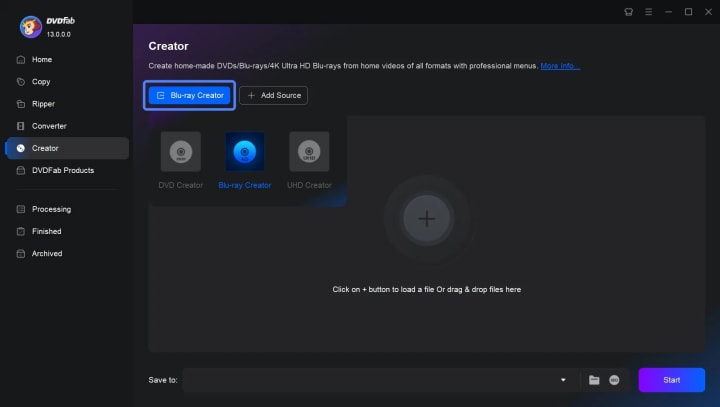
Add your video files. Drag-and-drop or use the + button.
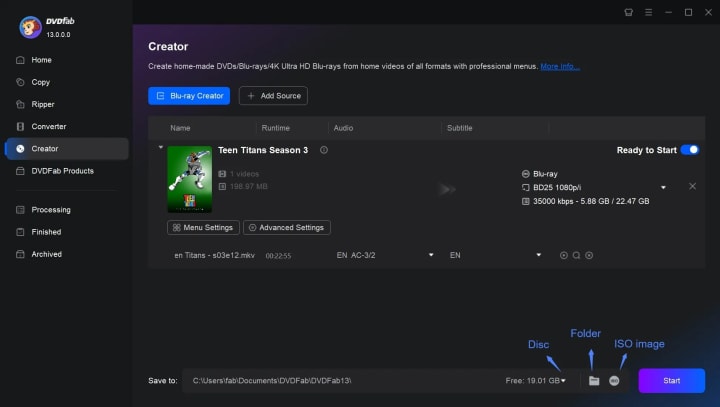
Choose the output type. Pick Blu-ray (BD25/BD50) and select your blank disc or ISO/folder as the target.
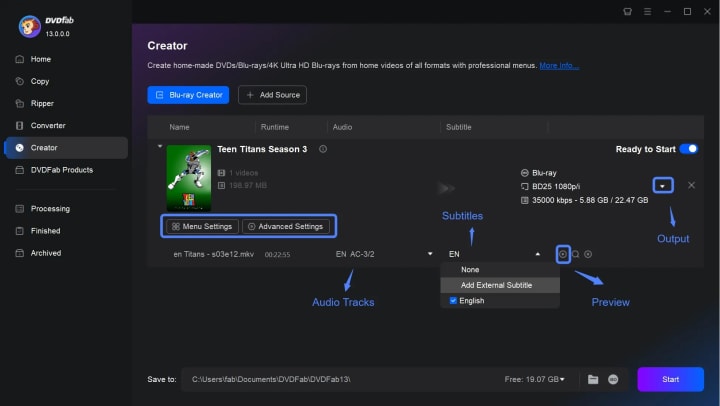
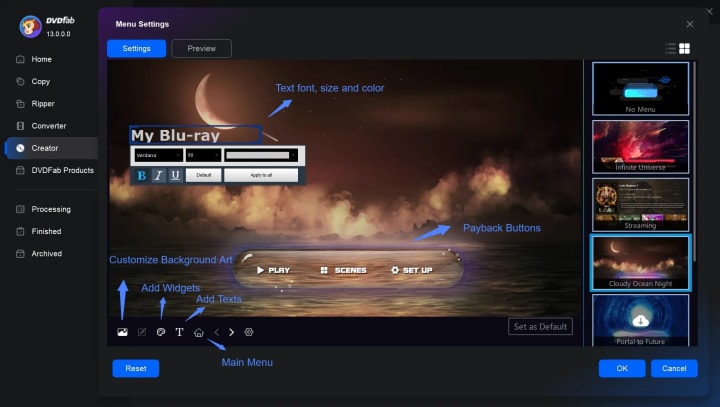
For Blu-ray menus, you may choose from a selection of built-in templates or design your own to personalize the navigation experience. The software also offers integrated video editing tools, allowing you to trim, crop, and enhance your videos prior to burning. For precise quality control, you can access the "Advanced Settings" panel, where you are able to specify the desired Blu-ray output format and adjust video quality settings accordingly.
Select your desired output format in the "Save to box" at the bottom of the main interface. You can burn the file to another disc, an ISO file, or a folder on your computer. Once you've selected the output format and location, hit the "Start" button and let DVDFab handle everything. The time to complete varies, but the on-screen indicator keeps you in the loop.
Free Blu-ray Burning Software: Top 4 Included
If you do not have intensive Blu-ray burning requirements, do not need advanced features, and are not particularly concerned about burning speed, the following four free Blu-ray burning tools are practical options worth considering. These solutions are well-suited for straightforward disc burning tasks and general home use.
CDBurnerXP
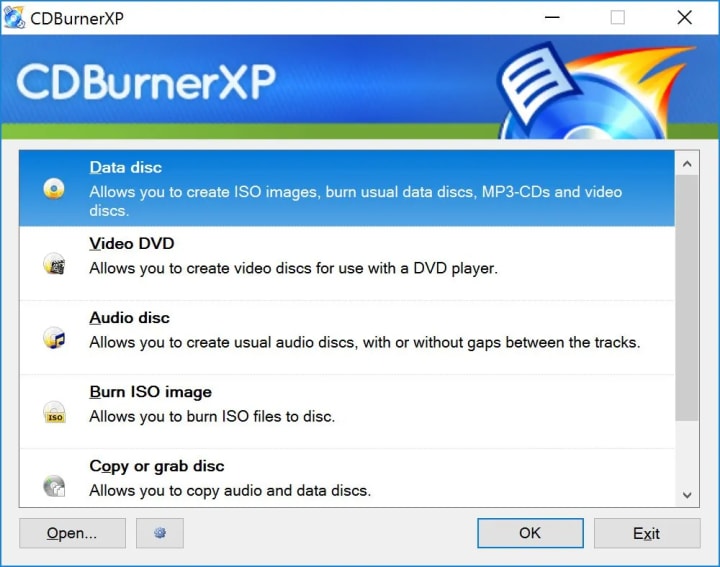
CDBurnerXP is a light-weight and free Blu-ray burning software for creating CDs, DVDs, Blu-ray, and HD-DVDs, available to both personal users and businesses without cost. While its name suggests CD functionality, the software provides robust support for Blu-ray burning, making it suitable for users who wish to create data Blu-ray discs or back up large files to Blu-ray media. CDBurnerXP supports a variety of Blu-ray and rewritable formats, specifically BD-R and BD-RE, and is compatible with a wide range of Windows operating systems, including Windows 2000, XP, Vista, 7, 8, and 10 (both 32-bit and 64-bit editions). Beyond basic disc burning, CDBurnerXP enables users to easily create and burn ISO image files, an essential feature for those archiving or distributing disc images.
Pros:
- 100% free for all users, no gimmicks
- Supports Blu-ray, DVD, CD, and ISO files
- Multilingual and lightweight, gentle on system resources
- Intuitive process: select, burn, verify
Cons:
- Design looks retro; lacks advanced menus or themes
- Some modern drives may need manual detection
- No official Mac support
Express Burn
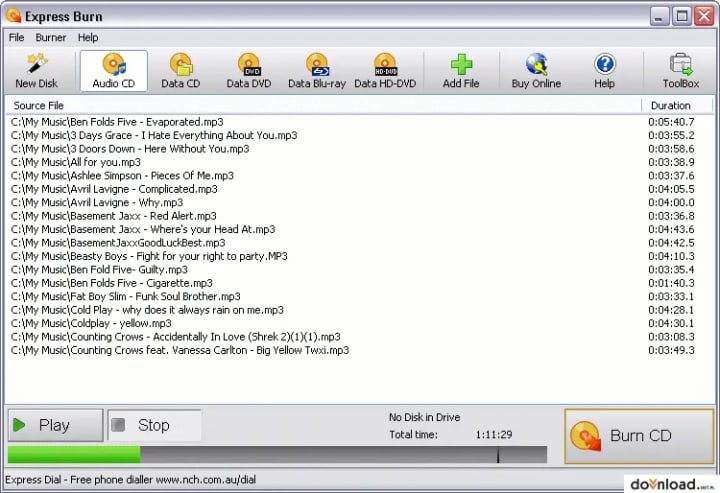
If you prefer Blu-ray burning software that just works with minimal fuss, Express Burn might be your cup of tea. Developed by NCH Software, Express Burn delivers a modern experience while covering all the basics. The interface deserves praise. It's sleek with well-labeled icons (no more guessing which button does what). Express Burn is ideal for quickly creating a home movie collection, archiving documents, or prepping music discs for the car. Available for both Windows (from 7 to 11) and Mac, platform limitations rarely get in your way. Be aware that in the free version, the tool can only be used to burn normal CDs. For advanced functions, you need to buy this best Blu-ray burner. Also, keep an eye out during install—the installer sometimes bundles extras.
Pros:
- Fast, clean-burning workflow even for large files
- Works on both Windows and macOS
- Excellent for casual home users with minimal technical know-how
Cons:
- Watermarks on certain video projects in free version
- Extras in installer require attention
- Fewer power-user settings or niche authoring options
- Can only be used to burn normal CDs in free version
StarBurn
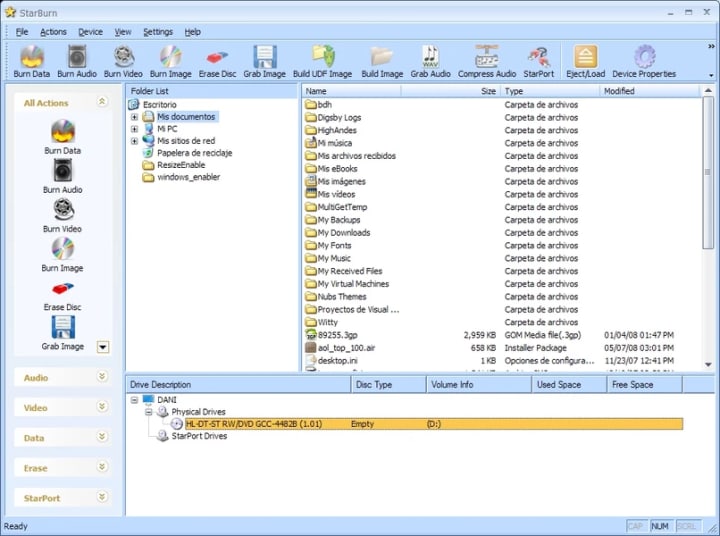
StarBurn is Blu-ray burning software that delivers broad compatibility and a robust feature set, though it's best known for its easy-to-navigate wizards. Despite not being as flashy as some competitors, StarBurn charmed me with its stable handling of oddball disc formats and a surprisingly smooth backup process. It supports CD-R/RW, DVD-R/RW, DVD+R/RW, BD-R/RE, HD-DVD-R/RW, DVD-RAM, and even large-capacity double-layer DVD+R/Rs. StarBurn also can process tracks and export them as uncompressed WAV or compressed WMA files, making it handy for music enthusiasts archiving classic albums or converting soundtracks for storage.
Pros:
- Completely free for personal use
- Supports a huge range of disc and image formats
- Wizard-driven interface: rare tasks become routine
- Good reliability for "nonstandard" disc jobs
Cons:
- Dated installer and documentation
- Interface not as polished or visually modern
- Mac users need to look elsewhere for a native alternative
ImgBurn
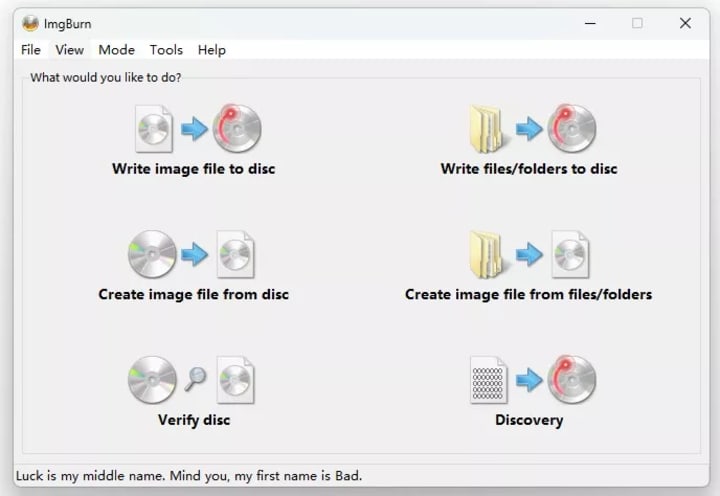
This Blu-ray burning software offers comprehensive functionality: users can read an entire disc to create an image file, build image files from files or folders on their system or network, write these image files directly to a disc, and verify that the burnt disc is 100% readable. While the interface initially appears dated, it is logically organized, and the core Blu-ray burning workflow is refreshingly direct. In practice, the process involves five straightforward steps: open ImgBurn, switch to "Write" mode, insert a blank disc, select the image to burn, and click the "Write" button. Official support is for Windows only, but many run it on newer systems with minor tweaks, or via Wine on Linux.
Pros:
- Handles nearly every disc image or video format
- Extremely lightweight, perfect for USB tools or portable workflows
- Burn verification options offer extra peace of mind
- Legendary in reliability, especially for ISO-based tasks
Cons:
- Interface can scare off non-techies
- No menu authoring or Blu-ray chapter editing
- Occasional compatibility adjustments needed on latest Windows
- Not updated since 2013
Frequently Asked Questions
Q1. Does Windows 10 have Blu-ray burning software?
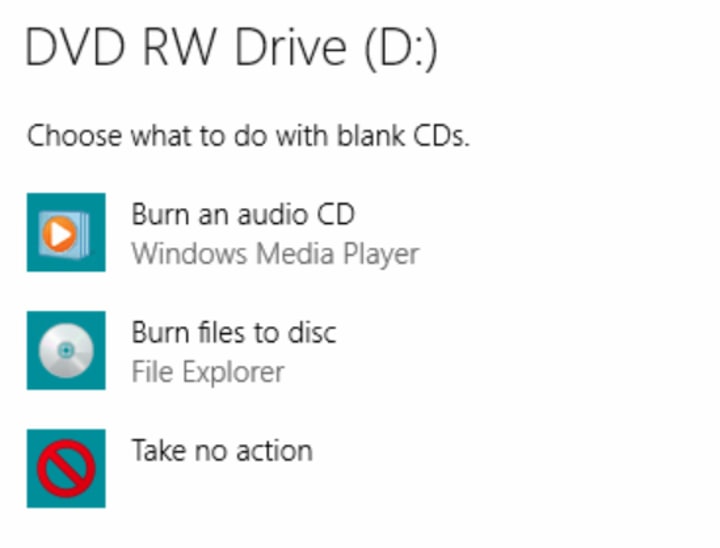
No. Windows 10/8.1/7 only provides basic Blu-ray burning features: you can use File Explorer to burn files to a Blu-ray data disc (BD-R/BD-RE), and you can use Windows Disc Image Burner to write an ISO image directly to disc; however, it does not support authoring playable Blu-ray video discs with menus and chapters (BDMV/AVCHD), which requires specialized Blu-ray burning software like DVDFab.
Q2. What is the best DVD burning software?
There are many DVD burners available, and the best one depends on your needs. If you want a more stable DVD burning experience with features like menu customization, subtitle and audio track selection, and video editing, then DVDFab DVD Creator is your best choice. If you only want to perform basic burning functions, the software mentioned in the article, such as CDBurnerXP, Express Burn, StarBurn, and ImgBurn, can all be used for DVD burning. Additionally, DVDStyler is also a good option.
Conclusion
Selecting the Blu-ray burning software depends on both your technical requirements and your personal preferences. DVDFab Blu-ray Creator stands out for users who seek a comprehensive and professional-grade solution, thanks to its extensive format support, intuitive menu customization, built-in video editing, and consistent performance on both Windows and macOS platforms. For those in search of reliable freeware, CDBurnerXP, Express Burn, StarBurn, and ImgBurn each offer distinctive strengths, ranging from broad compatibility and straightforward interfaces to detailed control and legacy format support.
About the Creator
Wenny
Hi there, I'm Wenny, a technical writer sharing multimedia solutions accessible for everyone. Read my articles to turn "how?" into "let's do it!"
Blockchain Tracing: A Key Tool in Crypto Asset Recovery
The cryptocurrency ecosystem has expanded rapidly, with billions of dollars in digital assets now in circulation across thousands of blockchains. However, this growth has been accompanied by significant risks, including hacks, scams, phishing attacks, and user errors such as lost private keys or forgotten seed phrases. In 2025, reported losses from crypto-related incidents exceeded several billion dollars, highlighting the persistent vulnerability of digital assets. Unlike traditional banking systems with reversible transactions and centralized oversight, blockchain's decentralized and immutable nature makes recovery difficult once funds are transferred. As a result, blockchain tracing has emerged as an essential method for identifying fund flows, attributing activity, and supporting recovery efforts in actionable cases.
By Garry Oneal4 days ago in 01
Top Enterprise Software Development Companies in 2026
The use of enterprise software has become imperative in the efforts by businesses to optimize, become more efficient, and grow in a safe digital competitive space. The adoption of cloud technology, artificial intelligence, automation, and data technologies, especially within the current digital era, means that businesses are seeking the help of skilled software partners.
By Olivia Carter2 days ago in 01


Comments
There are no comments for this story
Be the first to respond and start the conversation.