
Streamlining Automation Testing in Mobile with Playwright and TypeScript
Optimize mobile automation testing using Playwright and TypeScript for efficient, reliable results. Learn tips and strategies for seamless integration


Playwright is a versatile tool capable of handling both mobile and web applications, providing support for all major browsers. This flexibility allows developers and testers to gain insights into how a web application will look and behave across various screen sizes and under different lighting conditions.
It is important to note that while mobile device emulation in Playwright significantly extends test coverage, it does not replace the need for testing on real devices. Emulation offers a convenient way to perform preliminary checks and ensure that the application adapts well to different device configurations. However, for comprehensive testing, particularly for performance and specific hardware interactions, real device testing remains essential.
By leveraging Playwright’s capabilities, development and QA teams can ensure a more robust and user-friendly experience across a diverse range of devices, ultimately leading to higher quality web applications.
↪️Key Capabilities
Viewport Emulation:
Playwright provides developers with the ability to emulate the viewport sizes of various mobile devices, including both smartphones and tablets. This feature ensures that web applications are responsive and adapt seamlessly to different screen dimensions. By using Playwright’s viewport emulation, developers can catch and address potential issues related to layout and functionality on various devices, ensuring a consistent user experience across all platforms.
Color Scheme Validation:
With the increasing popularity of dark mode and other user-specific color preferences, Playwright’s mobile device emulation capabilities enable testers to validate how a web application’s design performs under different color schemes. This includes checking the consistency and accessibility of the application’s appearance in both light and dark modes. By doing so, developers can ensure that their applications provide a visually pleasing and user-friendly experience regardless of the user’s color scheme preference.
Geolocation, Time Zones, and Locales:
Playwright includes robust features to simulate geolocation, time zones, and locales, facilitating comprehensive testing scenarios. This capability allows developers to test how their web applications function across different geographic regions and time zones, ensuring correct behavior for users worldwide. For instance, by simulating different locales, testers can verify that date and time formats, language settings, and other region-specific features operate as expected. This comprehensive testing helps ensure that the application provides a seamless and accurate experience for users in different parts of the world.
Overall, Playwright’s extensive range of emulation capabilities significantly enhances the testing process, providing developers and testers with powerful tools to ensure their web applications deliver high-quality performance and user experiences across a variety of devices and settings.
Prerequisite Steps
Let’s create a Playwright script in TypeScript to automate the login process on the provided website using mobile device emulation (e.g., iPhone 11).
Initialize the Project:
- npm init -y
- npm install playwright typescript ts-node @types/node
- `npm` : Node Package Manager, a utility for managing JavaScript packages.
- `init` : This initializes a new Node.js project and generates a `package.json` file.
- `-y` : This option automatically responds “yes” to all prompts, accepting the default configurations.
- `npm install` : This command installs the listed packages and includes them as dependencies in your `package.json` file.
Create tsconfig.json:
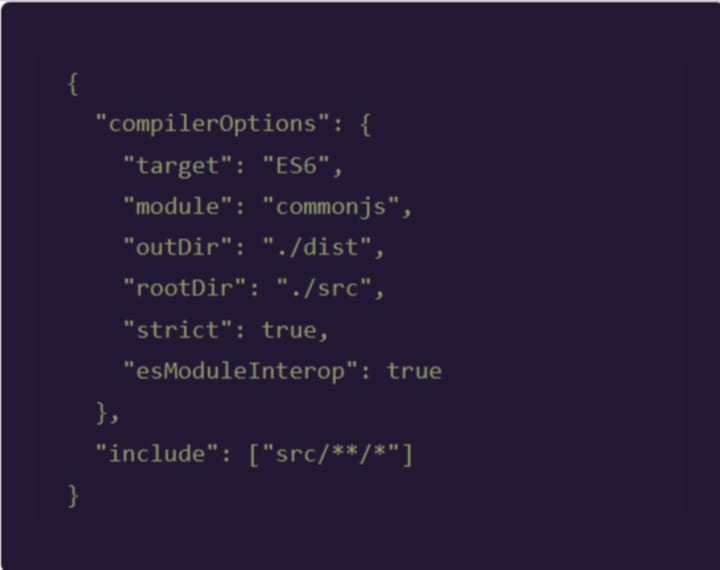
Here’s a detailed explanation of each line of the above code:
- compilerOptions:
- Contains various settings that tell the TypeScript compiler how to compile the code.
- target:
- Specifies the version of JavaScript to output.
- Module:
- Defines the module system to use in the output.
- outDir:
- Directory where the compiled files will be placed.
- rootDir:
- Directory containing the source TypeScript files.
- Strict:
- Enables all strict type-checking options.
- esModuleInterop:
- Ensures compatibility between CommonJS and ES modules.
- Include:
- Specifies which files or directories to include in the compilation.
Test case Creation & Result:
Create the TypeScript Script:
Create a src directory and add a file named mobileTest.ts inside it with the following content:
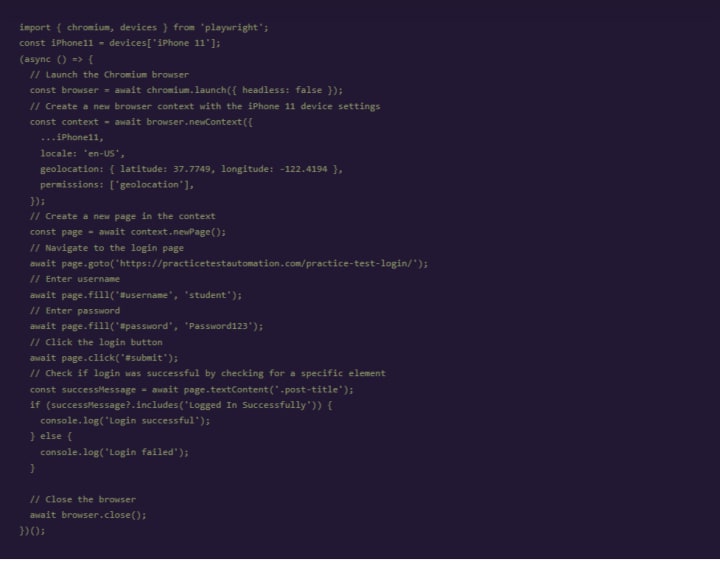
Here’s a detailed explanation of each line of the above code:
- Import Modules
- import { chromium, devices } from ‘playwright’;
- chromium: This imports the Chromium browser from Playwright.devices: This imports predefined device descriptors (e.g., mobile devices) from Playwright.
- Define the Mobile Device
- const iPhone11 = devices[‘iPhone 11’];iPhone11: This line assigns the predefined device descriptor for iPhone 11 to the variable iPhone11. The device descriptor includes information such as the viewport size, user agent, and other settings that emulate the device.
- Asynchronous Function
- (async () => {
- This starts an asynchronous function. The async keyword allows the use of await within the function, enabling asynchronous operations to be performed in a synchronous-looking manner.
- Launch Browser
- const browser = await chromium.launch({ headless: false });
- chromium.launch(): This launches an instance of the Chromium browser.
- { headless: false }: The browser is launched in non-headless mode, meaning the browser window will be visible.
TO READ FULL BLOG
About the Creator
Jignect Technologies
At JigNect Technologies, we believe that software testing is an art, a science, and a passion. Our team of experts combines years of experience, cutting-edge technology.
Keep reading
More stories from Jignect Technologies and writers in 01 and other communities.
Data Structures in QA Automation: Building Robust Test Frameworks
In the ever-evolving field of software testing, ensuring the integrity and functionality of applications is a fundamental goal. QA automation engineers act as the forefront defenders, carefully designing and running test scripts to assess performance and uncover any potential issues. In this context, a thorough understanding of data structures becomes essential. This blog examines the crucial role that data structures play in QA automation, emphasizing their importance and discussing fundamental structures that enable QA engineers to create robust and effective test automation scripts.
By Jignect Technologiesabout a year ago in 01
Can You Send a Fax from Your Phone, and How?
We primarily associate faxing with sending necessary documents using a special device connected to a telephone line. Indeed, until recently, this was the standard practice, and businesses relied heavily on bulky fax machines that dominated office spaces. But the world of document transmission has evolved significantly. What does faxing look like in today's mobile-first environment? Is the process truly simpler? Most importantly, can you accomplish this task directly from your smartphone?
By Arooj Manoorabout 12 hours ago in 01
Navigating Cryptocurrency Asset Recovery
The challenging environment of digital asset theft and loss has given rise to a specialized sector focused on recovery. This field consists of companies with distinct operational models, from direct investigation to technical support and foundational analytics. The following outlines five notable entities often referenced in this space, categorized by their primary function.
By Milan Roberts6 days ago in 01




Comments
There are no comments for this story
Be the first to respond and start the conversation.