
Save Space and Time: The Benefits of Creating ISOs from DVDs
Do you have stacks of DVDs lying around taking up space? It’s time to declutter and create ISOs.

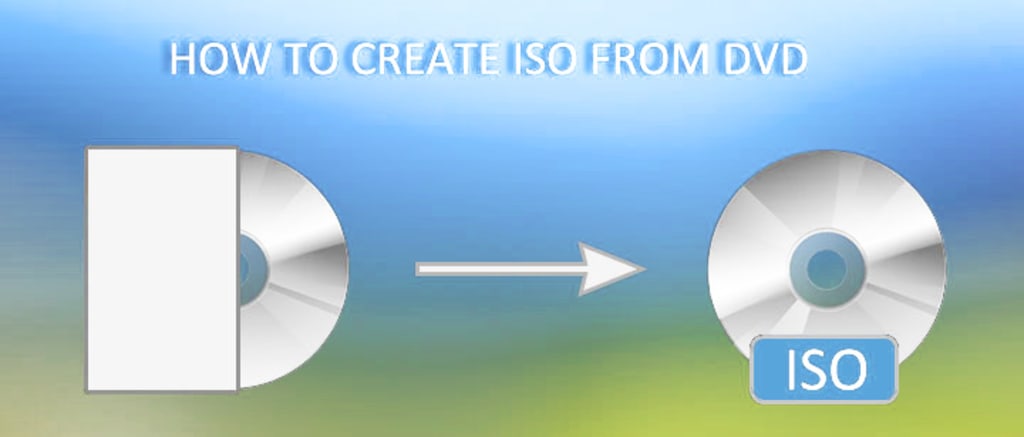
Do you have stacks of DVDs lying around taking up space? It’s time to declutter and create ISOs. An ISO, short for “ISO image,” is a digital copy of a DVD that can be stored on your computer or hard drive. Here are some reasons why creating ISOs from DVDs can save space and time.
Why Create ISOs from DVDs?
If you’re someone who loves collecting DVDs, you know how much space they can take up. Not to mention, the constant handling of physical discs can put them at risk for scratches or damage. That’s where creating ISOs from your DVDs comes in handy.
An ISO file is a digital copy of a DVD that can be stored on your computer, hard drive, or even a cloud service like Dropbox or Google Drive. By creating an ISO, you can save space and protect your DVDs from wear and tear. Plus, having a digital backup also makes it easier to access your favorite movies or TV shows without having to rummage through stacks of DVDs.
But it’s not just about saving space and protecting your physical media. Creating ISOs also allows you to easily share your collection with others. Instead of lending out your DVDs or coordinating a movie night around physical discs, you can simply share the ISO files with friends and family.
In addition, creating ISOs also opens up new possibilities for customization. For example, you can use software to extract specific scenes or extras from your DVDs and create a personalized compilation. You can also add subtitles or alternate audio tracks to your ISOs, making them more accessible to viewers who may speak a different language or have hearing impairments.
Overall, create ISO from DVD is a smart and practical way to save space, protect your physical media, and customize your collection. With the right tools and techniques, you can easily convert your DVDs into digital files and enjoy your favorite movies and TV shows anytime, anywhere.
Top Tools for Creating ISOs from DVDs
Creating an ISO image from a DVD can be both space-saving and convenient. But to make it happen, you need the right tool. Here are some of the best tools you can use to create ISOs from your DVDs:
1. DVDFab DVD Copy
DVDFab DVD Copy software is a paid DVD backup software that allows you to create ISO images from your DVDs. It offers several copy modes, including full disc, main movie, and custom mode. This software also supports various output file formats, including ISO, folder, and DVD/Blu-ray disc.
2. ImgBurn
ImgBurn is a freeware tool that allows you to create ISO images from your DVDs easily. It supports a wide range of image file formats, including BIN, NRG, and ISO. This software also comes with various optimization features, such as automatic layer break selection, CD-Text support, and more.
3. WinISO
WinISO is another popular tool that lets you create ISO images from your DVDs. It offers a user-friendly interface that makes the process simple and straightforward. You can also edit, extract, and convert image files with ease using this software.
4. PowerISO
PowerISO is a powerful tool that not only creates ISO images from your DVDs but also allows you to mount and burn image files. It supports a wide range of disk image formats and has several advanced features, such as compression, password protection, and splitting, which make it a popular choice among users.
5. AnyToISO
AnyToISO is a versatile tool that can create ISO images from various file formats, including BIN, NRG, MDF, and others. It supports batch processing and allows you to customize the output settings. This software also comes with a user-friendly interface and is compatible with both Windows and Mac operating systems.
In conclusion, creating ISO images from your DVDs is an excellent way to save space and manage your DVD collection. With the right tool, the process is easy and straightforward. Consider using one of these top tools mentioned above to create ISOs from your DVDs today.
Tips for Managing Your ISO Collection
Once you’ve created ISOs from your DVD collection, it’s essential to keep them organized and easily accessible. Here are some tips to help you manage your ISO collection:
1. Use descriptive file names
When creating ISOs, make sure to use descriptive file names that will help you identify the content of each ISO easily. This will save you time when searching for a specific movie or TV show.
2. Keep track of your ISOs
Maintain a comprehensive list or spreadsheet to keep track of all your ISOs. This list should include the name of the ISO, the date it was created, and any other relevant information about the content.
3. Store your ISOs in a dedicated folder
Create a dedicated folder on your computer or external hard drive to store all your ISOs. This will help you keep everything organized and make it easy to find what you’re looking for.
4. Backup your ISOs
It’s crucial to back up your ISOs regularly to prevent data loss in case of a system crash. You can backup your ISOs using cloud storage services like Google Drive, Dropbox, or OneDrive, or by copying them onto an external hard drive.
5. Consider using a media server
If you have a large collection of ISOs, consider setting up a media server to stream your content on multiple devices, such as TVs or smartphones. This can be useful if you have limited storage space on your computer or don’t want to keep plugging in an external hard drive every time you want to watch something.
By following these tips, you can effectively manage your ISO collection and enjoy the benefits of having all your DVDs in digital form.
About the Creator
Wenny
Hi there, I'm Wenny, a technical writer sharing multimedia solutions accessible for everyone. Read my articles to turn "how?" into "let's do it!"
United States Kitchen Appliance Market Size and Forecast 2025–2033
The United States kitchen appliance market is entering a defining decade shaped by innovation, sustainability, and evolving consumer lifestyles. According to Renub Research, the market is projected to reach US$ 115.15 billion by 2033, rising from US$ 74.35 billion in 2024, at a compound annual growth rate (CAGR) of 4.98% during 2025–2033.
By jaiklin Fanandishabout 6 hours ago in 01
United States Cryptocurrency Market Size and Forecast 2025–2033
United States Cryptocurrency Market Outlook The United States Cryptocurrency Market is expected to reach US$ 4.51 billion by 2033, rising from US$ 1.75 billion in 2024, at a Compound Annual Growth Rate (CAGR) of 11.11% from 2025 to 2033, according to Renub Research. This steady expansion reflects the growing integration of digital assets into the financial ecosystem, driven by rising institutional participation, advancements in blockchain infrastructure, and increasing consumer acceptance of decentralized financial systems.
By Aaina Oberoi7 days ago in 01


Comments
There are no comments for this story
Be the first to respond and start the conversation.