
HTML Tips #91: HTML Forms: Using the Number Input Type
When creating forms for your website or web application, it’s crucial to provide an intuitive and user-friendly way for users to input data.


One of the most common types of data entered in forms is numerical data — whether it’s an age, quantity, price, or rating. In HTML5, the <input> element has a specific type attribute for capturing numerical values: the number input type.
In this article, we’ll explore everything you need to know about using the number input type in HTML forms. We’ll cover how to implement it, its features, benefits, and some important best practices to keep in mind.
What is the number Input Type?
The number input type allows users to input numeric values in an HTML form. It is particularly useful when you need to collect values like age, price, or a quantity where only numbers are acceptable.
By using the number type, you ensure that users can only enter valid numeric data, and you can leverage built-in validation features of the browser to improve user experience.
Syntax of the Number Input Type
To use the number input type, you can simply add the type="number" attribute to the <input> tag in your HTML form. Here's a basic example:
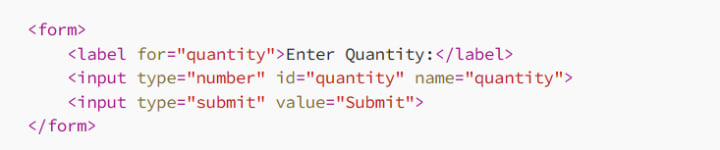
In this example:
The type="number" attribute makes the input field accept only numeric values.
The id and name attributes are used for labeling and referencing the input.
What Makes number Different from Other Input Types?
Before diving deeper into its features and use cases, let’s understand how the number input type is different from other types of input fields:
Text Input (type="text"): A text input field allows users to enter any characters, including letters, numbers, and special symbols. With type="number", only numeric values are allowed.
Range Input (type="range"): While both the number and range inputs are used for numeric values, the range input type allows users to select a value within a specified range using a slider.
The number input type is preferred when you need a more traditional numeric input (such as price or age) rather than a slider.
Features of the Number Input Type
The number input type has several built-in features that make it more efficient and user-friendly compared to a standard text field. These features include:
1. Numeric Validation
When using the number input type, the browser automatically ensures that the value entered is numeric. If a user tries to enter non-numeric characters, most browsers will either prevent them from entering the invalid input or display an error message when the form is submitted.
2. Up and Down Arrows
For numeric fields, most browsers provide up and down arrows that allow users to increment or decrement the value without having to type. This feature is particularly helpful for fields that require small changes, such as entering a quantity or rating.
Example:
<input type="number" id="quantity" name="quantity" value="1" min="1" max="100">
In this case, the user can increase or decrease the value from 1 to 100 using the arrows provided by the browser.
3. Range Limits with min and max
The number input type supports the min and max attributes, which allow you to set a range of acceptable values. This can prevent users from entering values that fall outside a desired range.
Example:
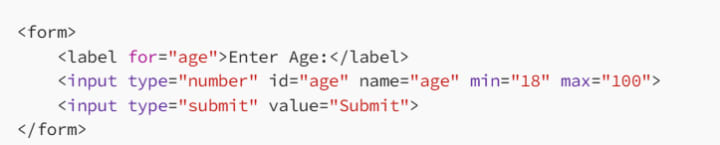
In this example, the input field only allows users to enter ages between 18 and 100. If a user tries to enter a number below 18 or above 100, the browser will display a validation error when they try to submit the form.
4. Step Values
The step attribute allows you to define the interval for valid input. For example, if you only want users to enter whole numbers or numbers with specific decimal points, you can set the step attribute.
Example (for whole numbers):

Example (for decimal numbers with a step of 0.1):

The step attribute ensures that the value entered increments by the defined step value, making it easier to control the user’s input.
5. Default Value
Just like other form input types, you can provide a default value using the value attribute. This default value will be displayed when the page loads, and it can be modified by the user.
Example:

In this example, the input field will have a default value of 10 when the page is first loaded.
6. Browser Support
All modern browsers support the number input type. However, there may be slight differences in behavior across browsers. For instance, the appearance of the input box or the arrows may differ depending on the browser.
Best Practices for Using the number Input Type
To ensure you are using the number input type effectively, here are a few best practices:
1. Define the Range
Whenever possible, define the range of acceptable values using the min, max, and step attributes. This helps users understand what values are allowed and prevents invalid input.
Example:

2. Provide a Default Value
If applicable, provide a sensible default value for numeric inputs, so the user has a starting point. This is particularly useful in forms that involve calculations or preset values.
Example:

3. Error Handling
Although HTML5 provides basic validation, it’s a good idea to combine it with custom JavaScript validation to ensure more control over the form behavior. You can use the invalid event to trigger custom error messages or styles when users input invalid data.
Example:
document.querySelector('input[type="number"]').addEventListener('invalid', function(e) {
if (e.target.validity.rangeOverflow) {
alert('The value is too high.');
}
});
4. Avoid Using number for Non-Numeric Inputs
The number input type should only be used for numeric data. Avoid using it for fields such as phone numbers or zip codes, as these are often not purely numeric or may include leading zeros.
For non-numeric data, use other appropriate input types such as tel for phone numbers or text for zip codes.
5. Use Descriptive Labels and Placeholders
Even though the input field is for numbers, make sure to provide a descriptive label or placeholder text that guides the user in what is expected. This improves the accessibility and usability of your forms.
Example:

Conclusion
The number input type in HTML is an essential tool for handling numerical data in forms. By using it correctly, you can enhance the user experience, enforce data validation, and improve form interactions.
Remember to take advantage of attributes like min, max, step, and value to fine-tune the behavior of your number fields. Combine these features with clear labeling and error handling to provide a seamless experience for your users.
With these tips, you’re ready to implement the number input type in your next form—whether it's for a simple price entry, a quantity selector, or a more complex numeric input requirement!
About the Creator
MariosDev
Hi, I’m Marios! I’ve been a developer for over 9 years, crafting cool stuff and solving tricky tech puzzles. I’m a total tech enthusiast and love sharing my thoughts and tips through blogging. Also, in love with my bike!
Everything You Need to Know About Apple MacBook Neo
Apple has officially introduced the MacBook Neo, a new entry-level laptop designed to make the Mac experience more accessible to a wider audience. Announced in March 2026, the device is positioned as the most affordable MacBook in Apple’s lineup and is aimed primarily at students, casual users, and first-time Mac buyers.
By Veronica Bennett6 days ago in 01
How Application Modernization Services Drive Digital Transformation
Many organizations still rely on legacy systems that were built years—or even decades—ago. While these systems may have served businesses well in the past, they often struggle to keep up with today’s rapidly evolving digital landscape. Slow performance, security vulnerabilities, lack of scalability, and limited integration capabilities can prevent companies from innovating and delivering modern digital experiences.
By Ian Barnardabout 18 hours ago in 01


Comments
There are no comments for this story
Be the first to respond and start the conversation.