
How to Rip a DVD to ISO: Best Software Options
Ripping a DVD to an ISO file is a great way to create an exact digital copy of your DVD, preserving all the content, including menus, audio tracks, subtitles, and video quality.

Whether you're archiving your movie collection or creating a backup, converting your DVD to ISO is a simple and efficient process. There are a number of software tools available that can help you with this task, with DVDFab DVD Copy being one of the most popular choices. However, there are other options worth considering depending on your needs. In this article, we'll show you how to rip a DVD to an ISO file and mention several software tools that can help with the process.
What is an ISO File?
Before we dive into the specifics of how to rip a DVD to ISO, let's quickly go over what an ISO file is. An **ISO file** is a complete digital copy of an optical disc, including the file system, structure, and all of its contents. When you rip a DVD to an ISO file, you are creating an exact replica of the DVD, which you can later mount as a virtual drive or burn back to a physical DVD. The benefit of ISO files is that they preserve the full quality of the original disc and maintain all its data intact.
Why Rip a DVD to ISO?
Ripping DVDs to ISO has several advantages:
- Backup: Protect your physical discs from damage or loss.
- Convenience: Access your movies and TV shows without needing to insert the DVD each time.
- Preservation: Keep your DVDs safe from scratches or wear and tear.
- Digital Collection: Store your DVD collection on a hard drive or cloud for easy access and playback.
Software for Ripping DVDs to ISO
There are many tools available that can help you rip your DVDs to ISO format. Below, we’ll discuss several popular programs, starting with DVDFab DVD Copy and also including other options like HandBrake, MakeMKV, WinX DVD Ripper, and ImgBurn.
1. DVDFab DVD Copy
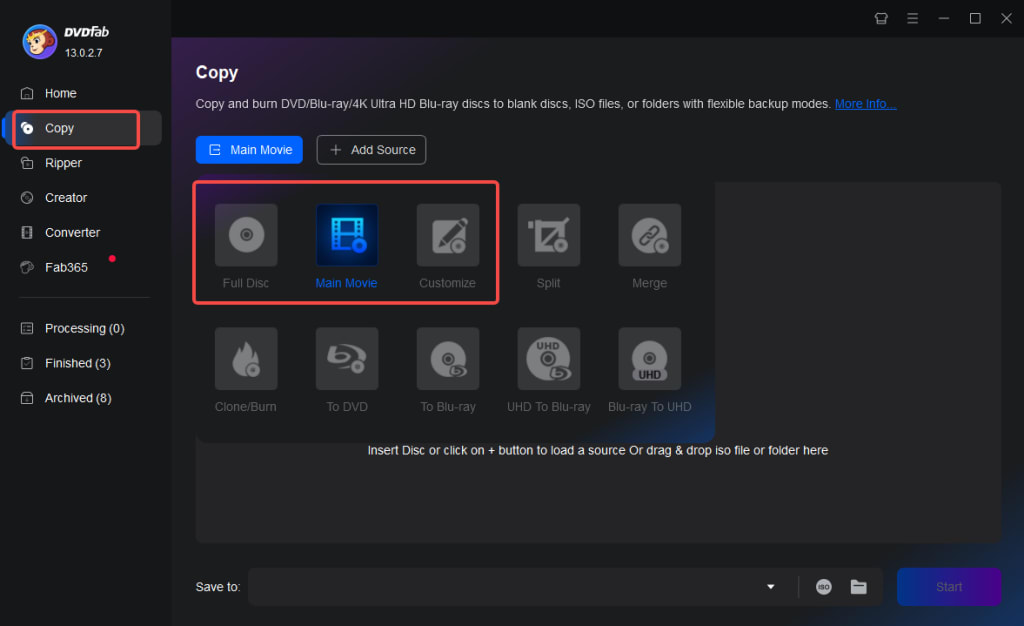
DVDFab DVD Copy is one of the most robust and user-friendly tools for ripping DVDs to ISO. It supports both DVD and Blu-ray discs and allows you to choose from several copy modes, including Full Disc, Main Movie, and Customize, ensuring flexibility for different types of DVD rips.
Pros:
- User-Friendly Interface: Great for beginners with its easy-to-navigate interface.
- Full Disc Copy: Rip the entire content of the DVD to ISO, including menus, bonus content, and extras.
- High Quality: Maintains the original quality of the DVD.
- Fast: Offers fast ripping speeds, especially on high-performance machines.
- Decryption Support: Built-in decryption technology bypasses DVD copy protection.
How to Use DVDFab DVD Copy:
1. Launch DVDFab and insert your DVD into the drive.
2. Choose the Copy module, then select Full Disc mode.
3. Set the output format to ISO and choose the destination folder.
4. Click Start to begin the ripping process.
DVDFab also provides a free trial with some limitations, and full functionality is available through a paid license.
2. HandBrake (with External Libraries)
HandBrake is an open-source video transcoder that's primarily used for converting video formats. While HandBrake itself doesn't rip DVDs to ISO directly, you can use it in combination with **libdvdcss** (a free library) to decrypt and rip unprotected DVDs. Once decrypted, you can output the content in various video formats or, with some additional tools, create an ISO.
Pros:
- Free and Open Source: No cost to use, with regular updates.
- Versatile: Supports a wide range of video output formats.
- Cross-Platform: Available on Windows, macOS, and Linux.
Cons:
- No Direct ISO Output: You’ll need to rely on additional software to create an ISO after ripping.
- Requires External Libraries: You need to install libdvdcss for HandBrake to decrypt encrypted DVDs.
How to Use HandBrake:
1. Download HandBrake and libdvdcss.
2. Insert your DVD and open it in HandBrake.
3. Choose your output format (e.g., MP4 or MKV) and settings.
4. If you want an ISO, use ImgBurn or ISO Recorder to create an ISO file from the output folder.
3. MakeMKV
MakeMKV is a free DVD and Blu-ray ripping tool that is well known for its ability to rip DVDs and convert them into MKV files. While MakeMKV doesn't create an ISO file by default, it can create a complete backup of the DVD, preserving all audio, video, and subtitle tracks. If you specifically need an ISO, you can use additional software (such as **ImgBurn**) to convert the MKV backup into an ISO.
Pros:
- Free for DVDs: You can rip DVDs to MKV for free, and it also supports Blu-ray rips (though Blu-ray ripping is free during beta).
- Preserves Original Quality: MakeMKV keeps all the original DVD content intact.
- Simple Interface: Easy to use with just a few options to configure.
Cons:
- No ISO Output: MakeMKV doesn't output ISO files directly, though it can make exact MKV backups that can be converted later.
How to Use MakeMKV:
1. Download and install MakeMKV.
2. Insert your DVD and open it with MakeMKV.
3. Select the source DVD and the output folder.
4. After ripping to MKV, use software like **ImgBurn** to create an ISO from the MKV file.
4. WinX DVD Ripper
WinX DVD Ripper is another highly rated DVD ripping software that can create ISO files directly from DVDs. It’s fast and supports both encrypted and non-encrypted discs. WinX also provides a simple interface that’s great for users who want to rip DVDs quickly.
Pros:
- Fast Ripping Speed: Known for ripping DVDs faster than many competitors.
- Supports ISO Output: You can choose to rip to ISO directly.
- Supports Copy Protection: The software can bypass most DVD copy protections.
Cons:
- Free Version Limitations: The free version has some limitations in terms of advanced features.
How to Use WinX DVD Ripper:
1. Download and install WinX DVD Ripper.
2. Insert your DVD and select the ISO Image output option.
3. Click Run to start the ripping process.
5. ImgBurn
ImgBurn is a lightweight program that's commonly used for burning ISO files to DVDs, but it also has a feature that lets you create ISO files from DVD folders. If you’ve already ripped your DVD with another program and want to create an ISO, ImgBurn is a great free tool to use.
Pros:
- Free: ImgBurn is free to use.
- Simple: The interface is straightforward and easy to navigate.
- ISO Creation: Ideal for creating ISO files from folders or other sources.
Cons:
- Not for Ripping: ImgBurn is primarily used for creating and burning ISOs, so it’s not the best tool for ripping DVDs directly.
How to Use ImgBurn:
1. Rip the DVD with a tool like MakeMKV or WinX DVD Ripper.
2. Open ImgBurn, select Create Image File from Files/Folders.
3. Choose the DVD folder you’ve ripped and save it as an ISO.
Conclusion
There are many ways to rip DVDs to ISO, and each software offers unique features to fit different needs. DVDFab DVD Copy is one of the most comprehensive tools for ripping DVDs to ISO, but if you're looking for free alternatives, HandBrake, MakeMKV, and WinX DVD Ripper are also excellent options. For those who only need to create ISO files from existing DVD rips, ImgBurn is a great tool for the job.
Regardless of which software you choose, remember that ripping DVDs might be subject to copyright laws depending on your region. Be sure to use these tools responsibly and for personal use only.
About the Creator
Rita
I am a freelancer, specializing in DVD, Blu-ray, and multimedia technologies. With a strong background as a tech editor, I bring a deep passion for the tech industry to my writing, crafting insightful articles.
Top Trends Shaping Travel App Development in 2026
The global travel industry continues to evolve at a rapid pace, driven by changing traveler expectations, digital innovation, and the demand for seamless experiences. As we move into 2026, travel apps are no longer just booking tools—they have become intelligent travel companions that assist users before, during, and after their journeys. From personalized trip planning to immersive exploration, modern travel applications are redefining how people experience travel.
By shane cornerusa day ago in 01
So You Decided To Become a Nurse Practitioner:
So you decided to become an "Advanced Practice" nurse. Congratulations!... is what I would say if this was a good idea. Grad school? In this economy? What were you thinking? Likely it was something along the lines of either 1) “I've seen these other chucklefucks do it— Why can't I?” or even 2) “I've got a nice career, I should shake it up. I miss feeling like I have no clue what I'm doing.”
By Sandor Szabo4 days ago in Fiction



Comments
There are no comments for this story
Be the first to respond and start the conversation.