
How to Rip Blu-ray to ISO: Fast, Reliable Guide (2025)
Do you want to rip Blu-ray to ISO to access the content without physical media? This guide provides the best Blu-ray to ISO software and a detailed usage guide.

If you're looking to safeguard your Blu-ray collection, ripping them to ISO files is the most complete, lossless backup method. Here are some tips for you.
Tips:
- Never use an external hard drive formatted as FAT32 for Blu-ray ISOs—it can’t store large files.
- If your discs have deep scratches, try gentle cleaning or a disc repair kit.
- "Honestly, I used to skip disc checks—until a single scratch destroyed a favorite film backup. Don’t make my mistake."
Tools Review: 2025 Top 3 Blu-ray Copy
With dozens of Blu-ray copy software out there (both free and paid), the best tool is the one that fits your needs: up-to-date decryption, true ISO output, stability, and ease of use. I've stress-tested a wide range—here are my top picks for 2025.
1. MakeMKV
Type: Free (beta for Blu-ray)
OS: Windows, macOS, Linux
ISO Support: Yes (in backup mode, bit-perfect copy)
Strengths: Simple interface, fast decryption updates, keeps all audio/subs/tracks, works “as-is” for most home users.
Limitations: True ISO requires the "Backup" feature, which sometimes creates BDMV folder structure rather than ISO directly. Needs separate virtual drive tool to repackage as ISO.
2. DVDFab Blu-ray Copy
Type: Paid, full trial available
OS: Windows, macOS
ISO Support: Yes (direct ISO output)
Strengths: Direct disc-to-ISO, advanced copy modes (full, main movie, custom), regular decryption updates for latest discs, extra error correction.
Limitations: Premium pricing, but robust for large libraries.
3. AnyMP4 Blu-ray Copy
Type: Paid, free trial (function limited)
OS: Windows, macOS
ISO Support: Yes
Strengths: Straightforward design, stable with newer discs, handy for batch backup.
Limitations: Speed varies depending on disc/drive, and trial limits output.
How to Rip Blu-ray to ISO Losslessly with the Best Blu-ray Copy Software
Step 1: Get DVDFab and Open the Copy Module
First, download and install the DVDFab Blu-ray Copy software on your computer.
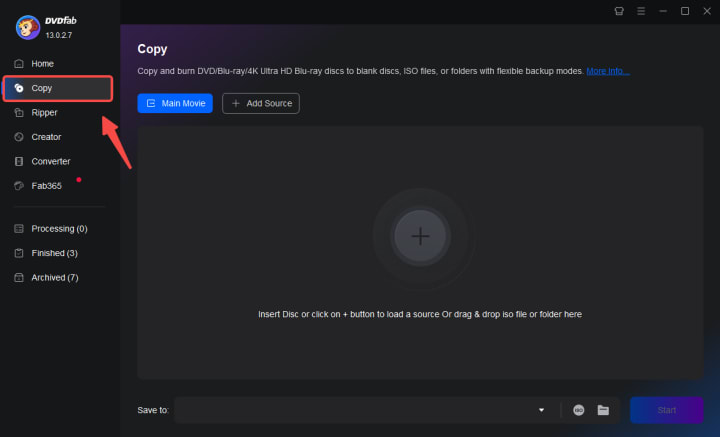
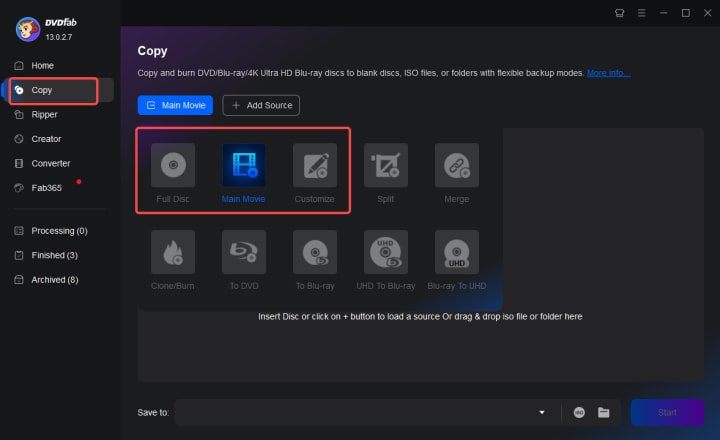
Next, click and open the Copy module on the main interface. You will now see different modes, such as Full Disc, Main Movie, Customize, Split, Merge, and Clone/Burn, to efficiently rip your Blu-ray to ISO. Click the Main Movie mode to rip the title with or without compression.
Step 2: Import the Blu-ray Disc to be Ripped
Get your hands on the Blu-ray disc to be ripped and insert it into the optical drive, and DVDFab will automatically load it. Besides the disc, if your hard disc drive has a blu-ray image or folder, click the Add button to import it. You can also use the drag-and-drop method (available on the main interface) to load it directly into the program.
Step 3: Customize the Final Output
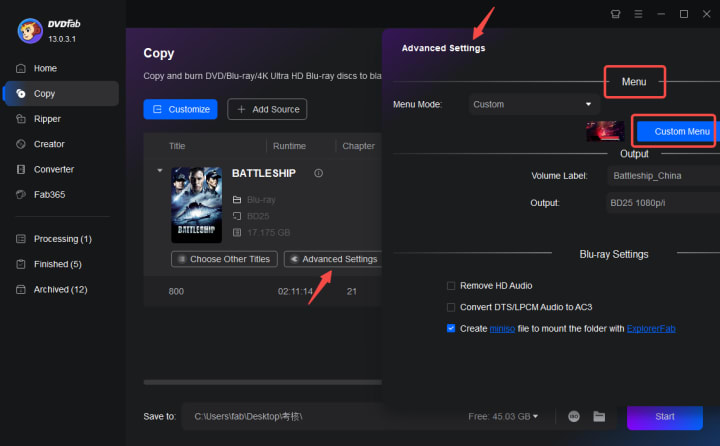
Here, you can not only define the volume label but also change other things like chapter, audio track(s), and subtitle(s). While this step is optional, you can customize the final output for personalized results.
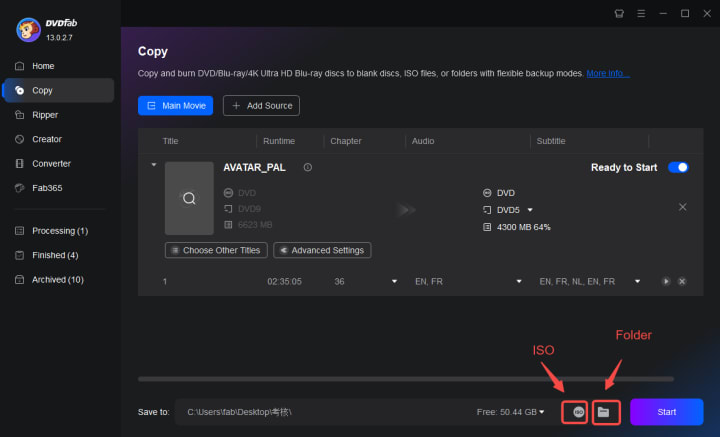
Click the Advanced Settings tab to customize your video output further. It lets you set the desired parameters and other blu-ray settings, such as Output, Copying, Removing, and Navigation.
Step 4: Start to Rip Blu-ray to ISO
Once you are satisfied with all the above steps, choose the ISO tab from the primary interface’s bottom. Then, select your output directory as the blu-ray ISO image file.
Press the Start tab to rip blu-ray to ISO.
Troubleshooting: Top Issues
Problem: Ripper stuck at 1%, "Cannot decrypt"
Fix: Update your software or try a trial of a paid ripper.
Problem: ISO created, but playback drops audio/subtitles.
Fix: Confirm ripping in full mode; do not use "main movie only" if you want menus/extras.
Problem: Copy takes ages (3+ hours).
Fix: Check if your drive is in USB2.0 mode or struggling with disc errors; always rip from a healthy drive.
“If this sounds familiar, that's because it happens to so many of us. Sometimes it's the little things—like a bad cable or old software—that make all the difference."
Q&A: Top 5 Concerns Solved
Q1. Is ISO backup truly lossless?
A: If done from a healthy disc using full-backup/decrypt mode, yes. But always verify—theoretically, a failed sector could mean missing extras or bonus tracks.
Q2. Is it legal to rip Blu-rays to ISO for personal use?
A: Laws vary by country; in many places, you're allowed if you own the disc and the backup is for personal, non-distributed use. Check your local regulations.
Q3. Why won't my player open an ISO?
A: Some players support ISO natively (PowerDVD), others need BDMV folder or special plugins.
Q4. Should I compress the ISO to save space?
A: For maximum quality and future-proofing, keep the file uncompressed. Convert to MKV/MP4 separately for casual viewing if wanted.
Q5. What's the risk of ISO file corruption?
A: Hard drives can silently lose data over years. Backup your ISOs, and consider routine verification.
Conclusion
Ripping your Blu-ray collection to ISO files may seem technical at first, but with the right tools and approach, it’s both manageable and highly rewarding. Not only do you future-proof your favorite movies against scratches or hardware decay, but you also gain convenient, lossless access suitable for modern home cinema or server setups.
Based on years of hands-on testing, my advice is simple: choose reliable, regularly updated software, keep your discs and hardware in good shape, and never underestimate the value of a quick playback check after each backup. Remember, even seasoned users face the occasional hiccup—don’t be discouraged by a failed rip or odd error. Use this guide as your foundation, learn from every attempt, and you’ll soon build a robust, high-quality digital library that lasts for years.
If you ever get stuck or want the latest recommendations as new discs or protections appear, keep an eye on official support forums and update logs. The Blu-ray world changes fast—but with the steps above, you’re always a step ahead.
About the Creator
Rita
I am a freelancer, specializing in DVD, Blu-ray, and multimedia technologies. With a strong background as a tech editor, I bring a deep passion for the tech industry to my writing, crafting insightful articles.
Twitter Down
Twitter Down When a major social media platform like Twitter experiences technical problems, millions of users immediately search for answers. Twitter, also known as X, plays a central role in news sharing, public discussion, and real time updates, so even short disruptions can feel significant. Recently, many users have reported difficulties accessing Twitter, loading timelines, posting content, or using certain features. This has led to widespread questions about whether Twitter is down, why it happens, and what users should expect. This article answers the most common questions people search for and explains the situation clearly.
By America today 5 days ago in 01
Navigating Cryptocurrency Asset Recovery
The challenging environment of digital asset theft and loss has given rise to a specialized sector focused on recovery. This field consists of companies with distinct operational models, from direct investigation to technical support and foundational analytics. The following outlines five notable entities often referenced in this space, categorized by their primary function.
By Milan Robertsabout 10 hours ago in 01



Comments
There are no comments for this story
Be the first to respond and start the conversation.