
How to Rip 4K Blu-rays Without Quality Loss
Unveil the best ways to rip 4K Blu-ray without sacrificing quality.

The joys of watching 4K Blu-ray movies are truly incomparable, with their breathtaking imagery and intricate sound details that bring the cinematic experience right into your home. However, physical discs are vulnerable to scratches and damage over time, and carrying around bulky discs can be quite inconvenient. So, how can you effectively protect your valuable 4K Blu-ray collection while still enjoying them easily on your devices? The answer lies in ripping 4K Blu-rays.
How to Rip 4K Blu-ray with DVDFab UHD Ripper
Among the many options out there, DVDFab UHD Ripper stands out as one of the most professional tools for ripping 4K Ultra HD Blu-rays. Its ability to handle the advanced copy encryption ensures smooth ripping of even the latest 4K Blu-ray discs. What impresses me most is the software’s capability to extract high-quality videos while preserving the original HDR10 and Dolby Vision.
Key Features:
- Effectively removes encryption methods such as AACS 2.0, BD-J, and other latest protections.
- Supports lossless ripping to formats like MP4, MKV, and M2TS while preserving high-definition audio tracks such as DTS-HD Master, and DTS:X.
- Optional file size compression tailored for mobile devices with no visible quality depreciation.
- Customizable output: codec, resolution, frame rate, subtitles, and more.
- Advanced GPU acceleration (NVIDIA, AMD, Intel) to increase ripping speed.
- Built-in video editing tools including crop, trim, watermarking, and subtitle management.
Limitations:
- This 4K Blu-ray Ripper is not working for Linux OS.
Steps to Rip 4K Blu-ray using DVDFab UHD Ripper
Step 1: Download and install DVDFab 13 for free. Launch the software and enter the 'Ripper' module to load the 4K Ultra HD Blu-ray source. The software will automatically load and decrypt any inbuilt copy protection.
Step 2: Once the source is loaded, DVDFab will provide multiple default profile options. For mobile devices, opt for the MP4 format with 4K resolution. For home theatres, you get the choice of HDR capabilities, speed, file size, and output format. You always have the option to click 'Choose Other Profile' to select other output formats, such as MKV Passthrough, M2TS.4K.H265.10bit, and MP4.SDR.
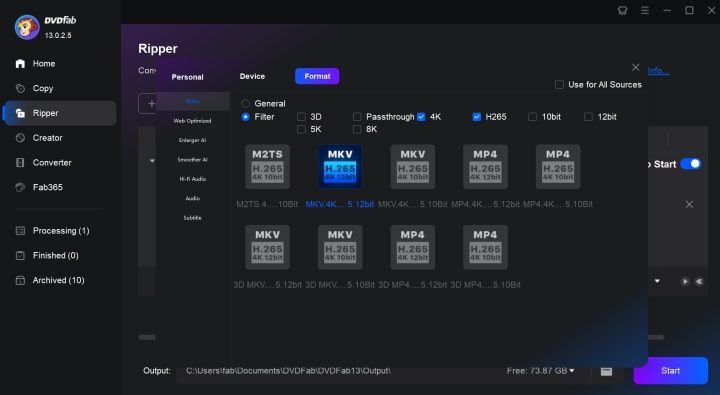
Step 3: Then, you can then modify the output by changing the name, deciding on which titles and chapters to rip, or adding audio tracks and subtitles. Advanced settings allow you to make further changes such as adjusting video/audio codec, video quality, output size, or resolution. You can also click the "Video Edit" button to add watermarks to, crop, or trim the video.
Step 4: Finally, choose your output directory and hit the 'Start' button to begin the conversion process.
How to Rip 4K Blu-ray For Free with MakeMKV
MakeMKV is a widely known transcoding tool that specializes in converting Blu-ray and DVD discs into MKV files, preserving most original data without quality compromise. The software does a great job decrypting many discs, including some 4K Blu-rays.
From my experience, MakeMKV is indispensable when you want a quick extraction of main movie content without fuss—no re-encoding means lightning-fast conversions. However, you get large file sizes and limited output formats. Also, some of the very latest 4K discs with advanced encryption might not be supported.
Key Features:
- Converts DVDs and 4K Blu-ray to MKV files retaining all video/audio tracks, subtitles, and chapter information.
- Reads discs with AACS and BD+ protection.
- No video quality loss since it performs ripping without transcoding.
- Efficient conversion process with a simple user interface.
Limitations:
- Does not support advanced protection on some new 4K Blu-rays.
- Output files tend to be large.
- You need to purchase an activation key after 30-days free trial.
- No built-in video editing tools.
Steps to Rip 4K Blu-ray using MakeMKV
Step 1: Head to the MakeMKV official site and download the software suitable for your operating system. After downloading, follow the prompts to install the software on your computer.
Step 2: Insert your 4K Blu-ray disc into your Blu-ray drive. Open MakeMKV, and click on the big disc button. The software will scan the disc. Once scanning finishes, it will display a list of titles found on the disc.
Step 3: Choose which parts of the Blu-ray you'd like to rip. The largest file is typically the main movie, but there may also be extras like behind-the-scenes content. Check the boxes next to the content you want, and then click the "Make MKV" button.
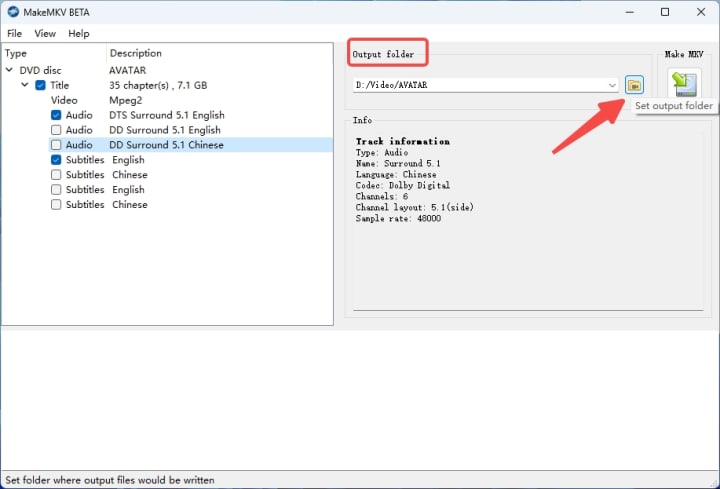
Step 4: Next, you'll be prompted to choose a save location for your MKV file. Once you've selected your desired location, click "Save." The 4k Blu-ray ripping process will start immediately.
How to Choose Between DVDFab and MakeMKV
After using them personally, here are some practical considerations to help you decide:
DVDFab UHD Ripper is the best all-around solution if you want a one-stop ripping experience that supports the latest copy protections. Its advanced customization, GPU acceleration, and video editing tools make it perfect for enthusiasts who prioritize output quality and speed.
MakeMKV is ideal for users who want a straightforward, mostly free method to quickly rip 4K Blu-ray to MKV without re-encoding. While it lacks output format versatility and editing functions, it shines in simplicity for creating digital backups.
FAQs
Is it legal to rip 4K Blu-rays for personal use?
In many countries, making personal backups of discs you legally own is considered fair use. However, bypassing copy protection mechanisms like AACS encryption may violate anti-circumvention laws, such as the DMCA in the United States. Generally, ripping for personal, non-commercial use within the copyright regulations of your region is the safest option.
How can I ensure ripping a 4K Blu-ray maintains the original quality?
To preserve image quality during the ripping process, consider the following tips:
- Use software that supports lossless ripping, which doesn't unnecessarily re-encode or compress the video.
- Choose an output format that preserves HDR metadata, as these formats significantly affect color depth and contrast.
- Avoid reducing resolution or bitrate unless absolutely necessary.
About the Creator
Diana
I’m a passionate Blu-ray collector who loves preserving the magic of physical media. Every now and then, I enjoy burning precious family videos onto discs, keeping memories alive in a tangible way.



Comments
There are no comments for this story
Be the first to respond and start the conversation.