
How to Rip Blu-ray Discs on Windows and Mac
The best methods to rip Blu-ray to digital formats to back up your Blu-ray movies.

Ripping Blu-ray discs is essential for movie enthusiasts looking to transition from physical media to digital convenience. With the digital era making Blu-ray less practical, knowing how to rip Blu-ray to digital formats is vital.
As a movie lover myself, I understand the challenge of having a growing Blu-ray collection that looks impressive on the shelf but isn’t always convenient to watch on the go. After testing and exploring several tools, I’ve compiled a list of some of the most practical Blu-ray ripping software to help you out. By mastering how to rip a Blu-ray, you can enjoy your high-definition movies across multiple devices without the hassle of physical discs.
How to Rip Blu-ray with DVDFab Blu-ray Ripper
DVDFab Blu-ray Ripper quickly became my top choice after trying various others on the market. It supports ripping Blu-rays including 3D and 4K UHD, and its advanced GPU acceleration really impressed me with fast processing speeds. The multi-core CPU and NVIDIA CUDA acceleration significantly cut down waiting times.
One feature I find especially helpful is the built-in preview function — it lets you verify selected titles, audio, and subtitles before starting the conversion, saving me from surprises later.
Highlights:
- Compatible with various devices and applications
- Removes AACS and supports new encryption methods
- Preserves original audio and visual quality
- Speeds up the conversion process efficiently
- Offers detailed options for content personalization
Drawbacks:
- Not compatible with Linux
Steps for Ripping Blu-ray Using DVDFab Blu-ray Ripper
Step 1: Download and install the DVDFab Blu-ray Ripper software on your Windows or Mac device, then launch it. Select the "Ripper" module from the options. To add your source file, either click the "Add" button or drag the file directly into the main window.
Step 2: Choose your desired profile by clicking "Choose Other Profile." Select which titles, audio tracks, and subtitles to save.
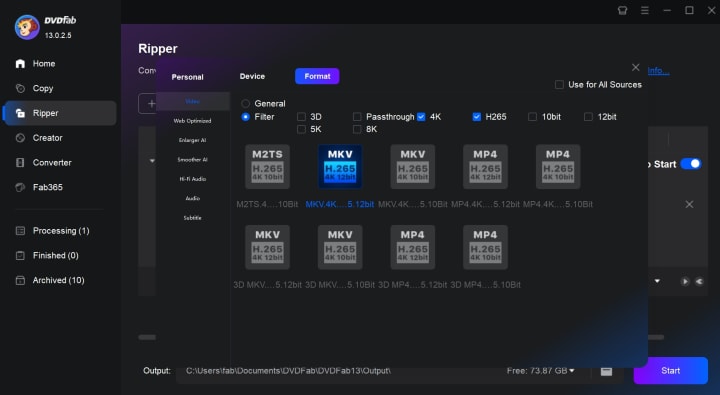
Before proceeding, click "Advanced Settings" and use the built-in Video Editor to tailor the output video to your preferences.
What I appreciated here is the ability to freely select both original audio and subtitles—once, I wanted to keep the native audio along with English subtitles, and it was very straightforward.
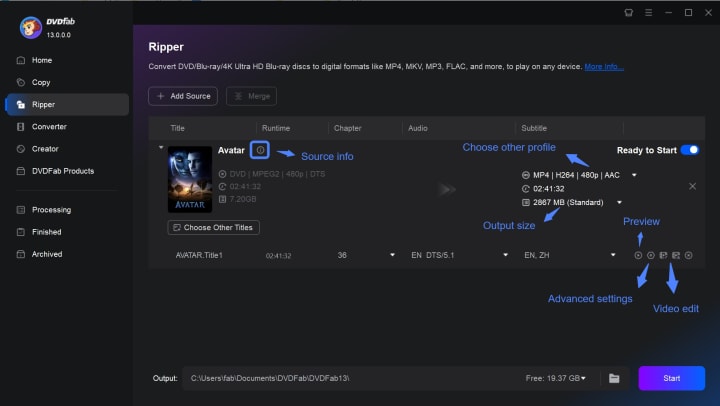
Step 3: Press "Start" to begin ripping. The process will take a few minutes to complete. This Blu-ray ripper also supports multitasking and allows you to extract audio and video from Blu-ray discs simultaneously.
The multitasking capability has been a big time saver for me, letting me convert multiple discs in one go without slowing down my computer.
How to Rip Blu-ray for Free with HandBrake
HandBrake is another free tool I explored. It’s great for ripping homemade or unprotected Blu-rays with an easy-to-use interface and plenty of customization options. However, I found that dealing with encrypted discs requires extra plugins, which adds complexity and can be a hassle to maintain.
For users who want straightforward control over video filters and effects like deinterlacing and denoising, HandBrake performs well. Personally, I enjoyed tweaking parameters to balance quality and file size, although it took some time to get familiar with all the settings.
Highlights:
- Free and open-source video transcoder with strong community support
- Supports batch encoding for processing multiple files in one session
- Offers advanced video filters including deinterlacing, denoise and more
Drawbacks:
- Requiring separate tools for encrypted media
- The extensive array of settings can be overwhelming for beginners
Steps for Ripping a Blu-ray Using HandBrake
Step 1: Visit HandBrake's official site to download and install the version compatible with your device: Windows 10 or later or Mac 10.13 and above.
Step 2: Upon starting HandBrake, you'll be prompted to select or drop a file or folder. You can open multiple sources at once. After loading, insert your Blu-ray disc for processing.
Step 3: Create a custom preset in HandBrake by adjusting dimensions, filters, and critical settings such as encoder, FPS, RF, and encoder presets in the Video column. Fine-tune these options to achieve your desired output quality.
After many trial-and-error sessions, I managed to optimize settings to get good-looking videos without huge files, though beginners might find it a bit overwhelming.
Step 4: Choose an output format such as MP4, MKV, or WebM. Remember to set the saving path for your files.
Step 5: Click "Start Encode" to convert your Blu-ray discs. Before starting the encoding process, select the desired saving path.
How to Rip a Blu-ray with CloneBD
CloneBD caught my eye for its sleek and intuitive interface, which makes the ripping process simple—even for users like me who prefer to avoid overly complicated settings. It supports many output formats and allows extraction of separate audio tracks and subtitles, which is helpful when organizing my collection. I also tried ripping some 3D Blu-ray titles, and the software handled them reliably.
Highlights:
- Eases navigation for users of all levels
- Comprehensive features for Blu-ray and DVD
- Compatible with many audio and video formats
- Processes multiple files simultaneously
Drawbacks:
- Cannot handle latest 4K UHD discs
- Lacks support for macOS and other platforms
- May affect functionality due to infrequent updates
Steps for Ripping Blu-ray Using CloneBD
Step 1: Visit CloneBD's website and download the installer.
Step 2: Insert the Blu-ray disc and open CloneBD. Then, click "Load Blu-ray" to import the files.
Step 3: Choose a video format from the "Rip To" dropdown menu and customize settings like resolution and quality.
Step 4: Select a destination folder in the "Save To" section. Click the "Rip All" button to begin the ripping process and save the files.
Step 5: Relax and wait for the conversion to complete while CloneBD processes the Blu-ray ripping.
Conclusion
In this article, we've explored three of the best options for converting Blu-ray content into digital formats, each with its own strengths. HandBrake works great for unprotected discs and offers extensive customization. CloneBD stands out by delivering high-quality copies with support for a wide range of formats. Meanwhile, DVDFab Blu-ray Ripper excels at seamlessly handling encryption and delivering efficient conversions.
About the Creator
Diana
I’m a passionate Blu-ray collector who loves preserving the magic of physical media. Every now and then, I enjoy burning precious family videos onto discs, keeping memories alive in a tangible way.
5 Best Mobile App Development Companies in Pittsburgh (2026)
Pittsburgh has quietly become one of the most compelling technology cities in the United States. What was once known for steel mills and bridges is now home to a thriving ecosystem of software engineers, AI researchers, and product builders. Carnegie Mellon University alone pumps world-class computer science and machine learning graduates into the local workforce every single year, and a growing number of them are choosing to stay and build here rather than relocating to the coasts.
By Samantha Blakea day ago in 01
The Rise of AI Presentation Tools: Transforming the Way We Create Slides
Artificial intelligence is quietly reshaping how we work, learn, and communicate. One area where this shift is especially noticeable is presentation design. Creating slides used to mean hours of formatting, arranging content, and adjusting visuals. Today, AI-powered tools are simplifying that process, helping users turn ideas into polished presentations in a fraction of the time.
By charliesamuela day ago in 01



Comments
There are no comments for this story
Be the first to respond and start the conversation.