
How to Replace Ink in Your HP Printer
Learn how to change your ink cartridge, troubleshoot common issues, and ensure your printer delivers high-quality prints.

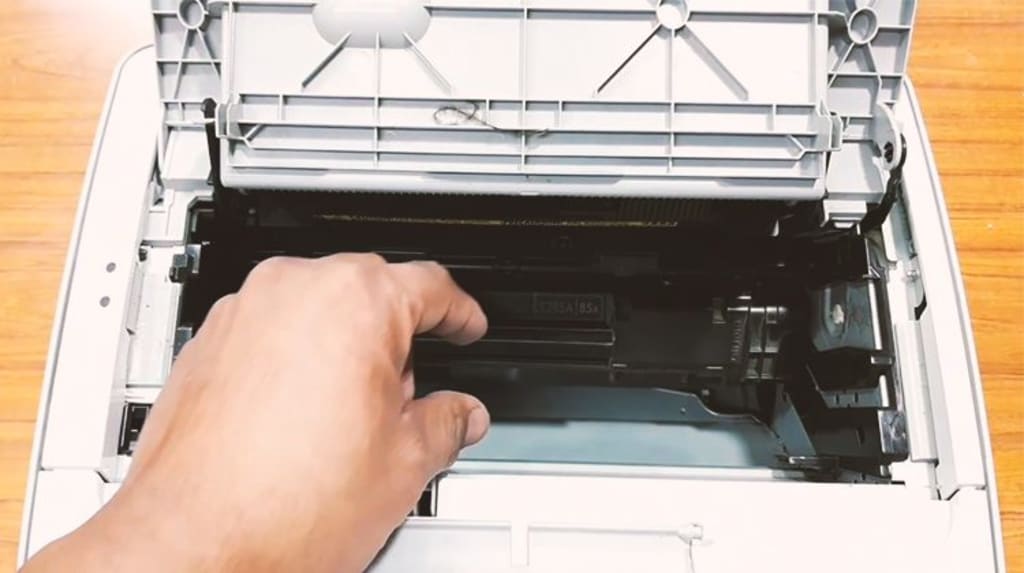
Introduction
Replacing the ink in your HP printer is an essential task that ensures your device continues to produce high-quality prints. Whether you’re printing documents for work or photos for your personal collection, knowing how to replace your printer’s ink cartridge correctly will save you time and prevent unnecessary errors. In this guide, we will walk you through the steps to replace ink in an HP printer, along with some helpful tips to ensure a seamless process.
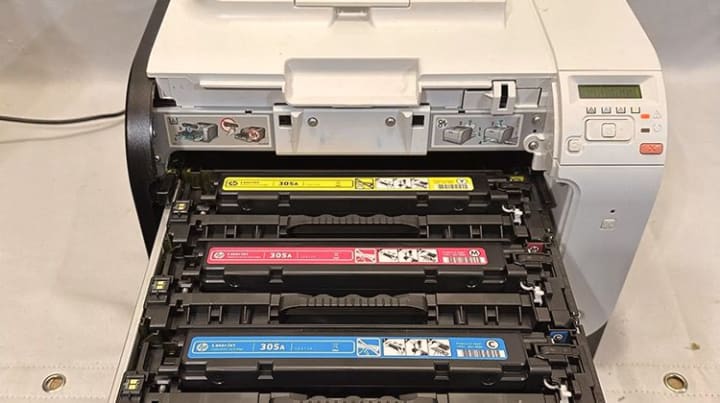
Step 1: Gather Your Supplies
• Before starting, make sure you have the following items ready:
• A new HP ink cartridge compatible with your printer model.
• A clean, lint-free cloth (optional, for cleaning the cartridge area).
• Your HP printer manual for reference (if needed).
Step 2: Turn on Your Printer
Switch on your HP printer and ensure it is connected to a power source. Most HP printers will not allow you to replace the ink cartridge when they are powered off. Opening the cartridge compartment while the printer is off may also cause alignment issues.
Step 3: Open the Ink Cartridge Access Door
Locate the ink cartridge access door on your printer. This is typically found at the front or top of the device, depending on the model. Open the door gently and wait for the ink cartridge carriage to stop moving and settle in place.
Step 4: Remove the Old Cartridge
Identify the cartridge that needs replacing (color or black). Press down gently on the front of the cartridge to release it. Once it clicks, pull it out of the slot carefully to avoid spilling any residual ink.
Step 5: Prepare the New Cartridge
Take the new ink cartridge out of its packaging. Remove the protective tape or plastic covering the cartridge’s ink nozzles and electrical contacts. Be careful not to touch the nozzles or contacts as this could damage the cartridge or affect print quality.
Step 6: Insert the New Cartridge
Hold the new cartridge by its sides and align it with the correct slot in the printer. The color-coded slots will indicate where each cartridge goes (e.g., black for the black cartridge slot and tri-color for the color slot). Slide the cartridge into the slot at a slight upward angle until it clicks securely into place.
Step 7: Close the Cartridge Access Door
Once the new cartridge is installed, close the ink cartridge access door. The printer will automatically detect the new cartridge and may prompt you to align it for optimal performance.
Step 8: Align the Ink Cartridge (Optional)
Some HP printers require you to align the cartridges after replacement. Follow the on-screen instructions or refer to your printer’s manual to complete the alignment process. This ensures the best print quality.
Step 9: Test Your Printer
Print a test page to verify that the new cartridge is functioning correctly. Check for any streaks or uneven printing. If the print quality is poor, clean the printhead using your printer’s maintenance menu.
Helpful Tips
Always use genuine HP ink cartridges to maintain your printer’s performance and avoid voiding the warranty.
Store unused cartridges in a cool, dry place to prevent ink from drying out.
Dispose of used cartridges responsibly by recycling them through HP’s recycling program or a local recycling facility.
Conclusion
Replacing the ink in your HP printer is a straightforward process that anyone can do with the right guidance. By following these steps and tips, you’ll ensure your printer continues to deliver top-notch results. Regular maintenance and timely cartridge replacements will keep your HP printer running smoothly for years to come.
About the Creator
Tech Dogs
Tech Dogs, is the preferred choice for national laser printer repair service and toner supplies. We offer custom tailored service programs which address all aspects of owning and maintaining your corporate fleet of laser printers.
iPhone 18: Everything We Know So Far (When is The iPhone 18 Coming Out)
So here’s the big headline right out of the gate: the iPhone 18 is coming — just not when most people expect. Forget 2026. According to the latest leaks and industry chatter, Apple’s next regular iPhone refresh won’t land until early 2027.
By Info Post Gate3 days ago in 01
Understanding Retractable Fly Screens for Doors and Windows
Retractable fly screens have become an increasingly common feature in modern residential and commercial buildings, particularly in regions where ventilation is essential but insects and airborne debris are an ongoing concern. Unlike fixed mesh screens, retractable fly screens are designed to be discreet, flexible, and adaptable to different architectural styles. This article explores how retractable fly screens for doors and windows work, their variations, and why they are widely used across Australia and similar climates.
By charliesamuelabout 18 hours ago in 01
One Hard Thing
Stop me if you’ve heard this one before: You have the number, you know your schedule- you’ve even picked out the perfect day and time to make this appointment. Shoot, you’ve even picked out alternative days and times just in case their schedules can’t accommodate you!
By Taylor Rigsby3 days ago in Motivation


Comments
There are no comments for this story
Be the first to respond and start the conversation.