
How to Quickly Convert and Burn MKV to DVD on Windows & Mac?
We explore the best MKV to DVD converters available in the market, provide you with expert tips to optimize the burning of MKV files to DVD.

Converting MKV to DVD allows you to create a physical copy of your video files that can be played on any standard DVD player. This is especially helpful for sending videos to loved ones who might not have access to a computer or other device that can play MKV files.
Here we will guide you through the MKV to DVD burning process, allowing you to preserve the audio tracks and subtitles of the original file in addition to creating DVD menus.
Preparation for Burning MKV to DVD
- MKV files that you want to burn to DVD
- A blank DVD to burn the MKV files onto
- Recordable DVD drive
- DVD maker software
- Compatible DVD player
Blank disc for burning
The compatibility of the DVD with the player is the most crucial factor when making DVD videos. If you are using an old or cheap DVD player, it may not be able to read DVDs other than DVD-R. Depending on the features of each disc, you can choose the one that best suits your purpose.
DVD-5 is a commonly used standard disc format with a storage capacity of 4.7 GB. Although it supports compression, the quality is generally standard definition. This format doesn't offer any special features and is primarily used for data storage and video playback.
DVD-9 offers a larger storage capacity of 8.5 GB. It utilizes dual-layer technology to provide more space while maintaining standard definition quality and compression capability. This format is often used in scenarios requiring additional space for more content.
DVD-R is a write-once disc with a storage capacity of 4.7 GB. It offers the same standard quality and compression features as DVD-5. However, once the data is burned onto the disc, it cannot be erased or rewritten.
DVD+R is similar to DVD-R as a write-once disc with a 4.7 GB capacity, supporting standard definition and compression. The primary difference lies in the data formatting and compatibility technologies, and it also cannot be rewritten once the data is burned.
DVD-RW and DVD+RW are both rewritable disc formats, each with a capacity of 4.7 GB. They offer standard definition quality and compression, but unlike the write-once formats of DVD-R and DVD+R, the RW formats allow multiple erase and rewrite cycles, making them suitable for scenarios where data needs to be recorded and updated frequently.
DVD Burning Software
DVD Creator is specialized software for converting MKV to DVD format. Besides format conversion, you can also customize the DVD menu and edit the video, such as cutting and trimming. This article will cover both paid and free burners. Freeware provides basic functionality, but if you value reliable performance, paid software is recommended.
DVDFab DVD Creator: MKV to DVD Conversion Made Easy
DVDFab DVD Creator is an efficient solution for converting MKV and other video files to DVD format for playback on standard DVD players. This software, available on both Windows and macOS, simplifies the process of creating high-quality DVDs from a variety of video formats. With its user-friendly interface, DVDFab DVD Creator caters to both beginners and advanced users, providing features that allow for the customization of DVD menus and video settings.
+ Pros
Supports a wide range of video formats, including MKV, ensuring flexibility and compatibility
Offers customizable DVD menus to enhance navigation and viewing experience
Delivers high-quality output with options to adjust resolution and other video settings
- Cons
Some advanced features may require additional purchases or plug-ins
Initial setup and configuration may require a learning curve for first-time users
How to Convert MKV to DVD with DVDFab DVD Creator
💡DVDFab DVD Creator makes it straightforward to convert MKV files into DVD-compatible formats and burn them onto a disc. Follow these steps to get started:
Step 1: Add Your MKV Files
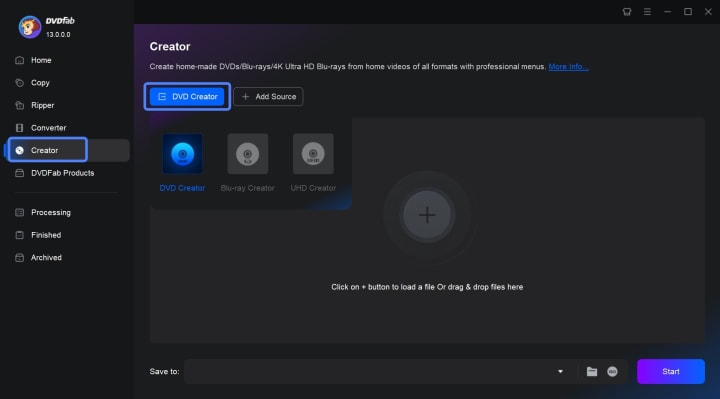
Launch DVDFab DVD Creator and click "Add" to load your MKV files into the project. You can add multiple files if needed for batch processing.
Step 2: Personalize Your DVD
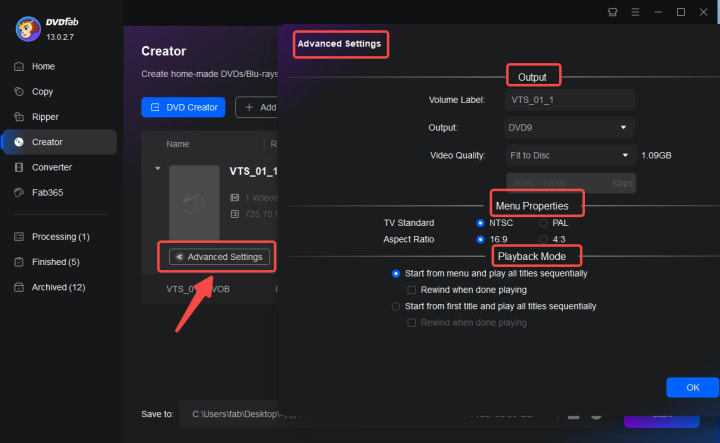
Access the "Menu" option to customize or select a DVD menu template. Use the video editing tools to adjust video settings, enhance quality, and apply any desired effects or filters.

Step 3: Adjust Output Settings
Navigate to "Settings" to select your preferred output format and resolution. Ensure these settings correspond with your DVD player's capabilities to guarantee optimal playback.
Step 4: Burn Your DVD
Insert a blank DVD into your disc drive. Click "Start" to begin the conversion and burning process. DVDFab DVD Creator will handle the format conversion and create DVD media ready for viewing.
By following these steps, you can efficiently turn your MKV files into professional-quality DVDs with customized menus and settings, making it easy to enjoy your videos on any DVD player.
Free MKV to DVD Converter Without Menu: CDBurnerXP
CDBurnerXP is CD, DVD and Blu-ray disc burning software for Windows. With a wealth of features, the program is available for free. Data discs and music CDs can all be created with CDBurnerXP. Apart from that, it has various features such as creating and burning ISO images, creating multi-session discs, creating bootable disks, and much more.
+ Pros
Create audio CDs from various audio formats
Ability to verify burned discs to ensure data integrity
Built-in disc copying tool for duplicating CDs and DVDs
- Cons
Lack of customer service to solve problems
It will ask you to install unnecessary software
It's designed for basic burning tasks and lacks advanced features
How to Convert MKV to DVD with DVD Flick and CDBurnerXP?
💡CDBurnerXP does not support direct conversion of MKV files to DVD-compatible formats on its own. You can use CDBurnerXP in conjunction with other free software tools to achieve this.
Step 1: Convert MKV to DVD-Compatible Format
Launch DVD Flick after installation. Then click on “Add title” to add your MKV file to the project. Go to “Project settings” to configure the DVD settings. If you want to create a DVD menu, go to the “Menu settings” tab. After setting Destination Folder, click on the “Create DVD” button. DVD Flick will convert MKV file to a DVD-compatible format and create the DVD structure (VIDEO_TS and AUDIO_TS folders).
Step 2: Burn DVD with CDBurnerXP
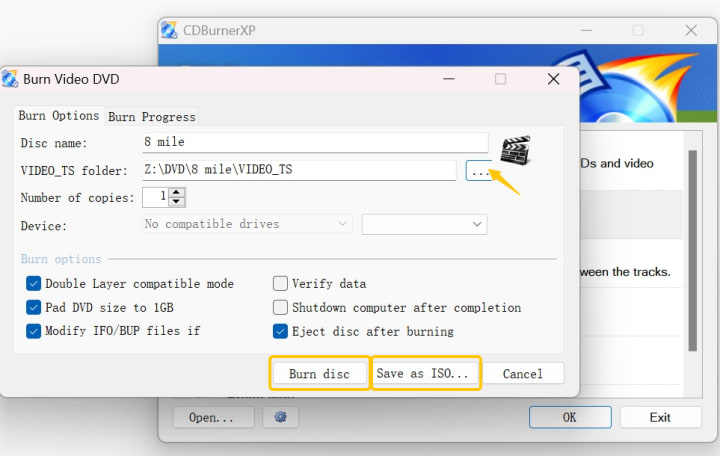
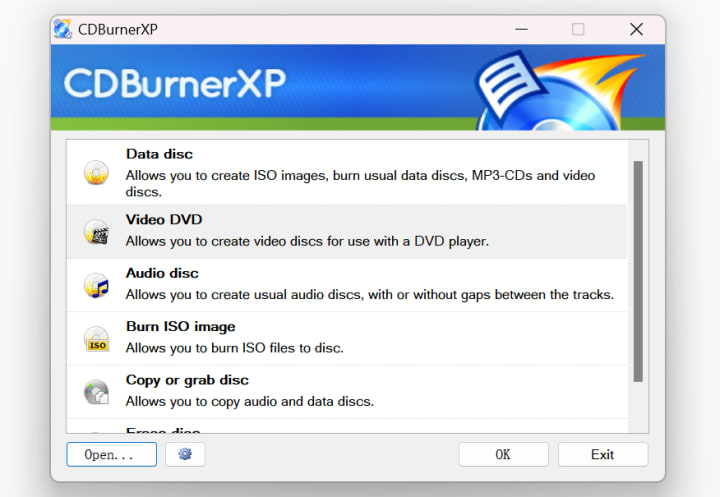
Open CDBurnerXP and select “Video DVD from folder.”
Click “Browse” and navigate to the folder containing the VIDEO_TS and AUDIO_TS folders created by DVD Flick.
Add the VIDEO_TS folder (and AUDIO_TS folder if available) to the compilation.
Insert a blank DVD into your disc drive. Then, click “Burn disc” to start the burning process.
Free MKV to DVD Converter With Watermark: Freemake
As a free MKV to DVD converter, Freemake Video Converter can convert a variety of video files, including MP4, MP3, AVI, MKV, Xvid, and MTS, to DVD. It also handles audio formats and image files, making it a versatile tool for various media conversion needs. The software offers preset conversion profiles tailored for various devices, including smartphones, tablets, gaming consoles, and more.
+ Pros
Offering essential features without cost.
Add subtitles, adjust video parameters, and enhance your videos before conversion
Easily convert your video files into DVD or Blu-ray format, complete with customizable menus and subtitles
Save time by converting multiple files simultaneously with the batch conversion feature
- Cons
Ads frequently pop up during operation
The free version outputs a DVD video with a watermark.
How to Convert MKV to DVD for free with Freemake Video Converter?
Step 1: Launch Freemake Video Converter application. Then click the “+Video” button to add your MKV files. You can add multiple files if you wish to create a DVD compilation.

Step 2: You can trim the video or add external audio. Please note that adding external subtitles requires an upgrade to the paid version.
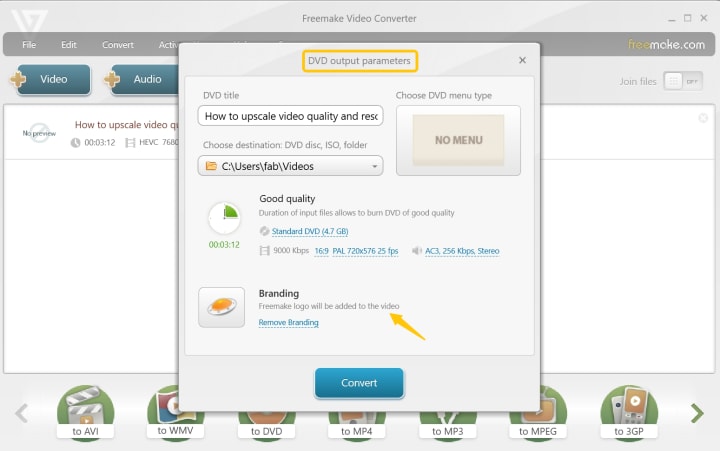
Step 3: Click on the “to DVD” button located at the bottom of the Freemake interface. You are allowed to configure DVD settings, such as customizing DVD titles and menus, setting aspect ratios, video quality and more.
Step 4: Insert a blank DVD into your DVD drive. Choose the DVD drive as the destination for the output files. Finally, click the Convert button. Freemake will convert the MKV files to a DVD-compatible format and burn them to the DVD.
FAQs
Can I add multiple MKV files to a single DVD?
Yes, most DVD burning software including DVDFab DVD Creator allows you to add multiple MKV files to a single DVD disc. Simply select all the files you want to burn, arrange them in the desired order, and start the burning process.
What is the best format to burn MKV files to DVD?
The most common and compatible format for burning MKV files to a DVD is MPEG-2. This format ensures that your files are readable on most DVD players and devices. Make sure to check the specifications of your DVD player before burning the files.
Are there any free MKV to DVD converters available?
Yes, there are several free MKV to DVD converters available. However, keep in mind that free software come with limitations in terms of features and quality. It is recommended to invest in a reliable paid converter for better results.
Conclusion
Each tool presented in this article has its own unique advantages, so please consider your specific preferences to choose the best solution for converting MKV files to DVD. If you need a robust tool that offers high customization, supports HD formats, and provides a seamless user experience, DVDFab DVD Creator is the ideal choice.
About the Creator
DVDLOVER
Sharing the latest on DVD & Blu-ray releases, E-book downloads, and trending TTS. Stay tuned for updates, tips, and exclusive content!
Cracking a Gmail Account: Here Are the Hackers’ Methods
Every year, millions of Gmail accounts fall victim to cyberattacks, exposing personal, professional, and financial data to critical risks. According to Google’s annual security report, over 100,000 accounts are reported as compromised each month — and this figure represents only a fraction of actual incidents.
By Alexander Hoffmann4 days ago in 01
Saudi Arabia Outdoor LED Lighting Market Size and Forecast 2025–2033
Saudi Arabia Outdoor LED Lighting Market at a Glance The Saudi Arabia Outdoor LED Lighting Market is expected to reach US$ 957.4 million by 2033, rising from US$ 318.96 million in 2024, registering a strong CAGR of 12.99% during 2025–2033. This expansion is primarily driven by large-scale infrastructure development, mega smart-city projects such as NEOM, The Line, and Qiddiya, and the country’s accelerating transition toward energy-efficient and sustainable lighting systems. Supportive government regulations, declining LED prices, and growing public awareness about energy conservation are further strengthening market momentum.
By Renub Research3 days ago in 01
Wild Card Weekend Recap: What Happens Now?
I think I figured out why I love Wild Card Weekend so much. It's because it's the first playoff anything of the calendar year. The NFL season starts in the fall, and once upon a time, the champion was crowned either on or slightly before New Year's. The evolution of the NFL schedule has resulted in the playoffs starting just into the New Year, and currently, the final week of the season falls on the first weekend of the New Year, with Wild Card Weekend coming a week after that. So yes, chronologically, the NFL's Wild Card Weekend serves as the first playoff anything of the calendar year.
By Clyde E. Dawkins6 days ago in Unbalanced



Comments
There are no comments for this story
Be the first to respond and start the conversation.