
How to Migrate Email, Calendar, and Drive from Google Workspace to M365?
Ways to migrate Google Email, Calendar, and Drive to M365


Google Workspace is a productivity suite with components like Gmail, Google Docs, Calendar, Drive, Sheets, etc. When we talk about Google Workspace to Office 365 migration, we talk about the migration of data from all these components to Office 365 modules.
Due to this, Google Workspace migration is a severe headache for the IT administrators. Therefore, to execute a smooth migration of emails, calendars, and drive from Google Workspace to Microsoft 365, you need reliable methods. Read this article and find effective ways to transfer data between G Suite and Office 365.
How to migrate email from Google Workspace to Office 365?
Before you use this method, make sure you enable POP/IMAP in Gmail. Next, to execute Google Workspace to Office 365 migration of emails, follow the given steps carefully:
- Configure the Gmail account with MS Outlook, and once configured, you can see all the mailbox data.
- Go to the File tab and click Open/Export and then Import/Export.
- Select Export to a file and click Next.
- Select Outlook data file (.pst) as the output and click Next.
- Select Gmail account you want to export and click Next.
- Click Browse to select a location to save the exported PST. Click Finish.
Import Outlook PST to Office 365
After saving the PST file on your system, import it into Outlook to move it to Office 365 account.
- Click File and select Open/Export > Import/Export.
- Tap on Import from another program or file, and then Next.
- Select to import Outlook data file (.pst) and click Next.
- Now, select the PST file created above, and click Next.
- Select the option to import the PST file and click Finish.
After Gmail to Office 365 migration, you can access your mailbox within Outlook on the web using your Office 365 credentials.
Method to Migrate Google Calendar to Office 365
This process involves two steps: export calendar from G Suite to ICS file and import .ics to Office 365.
Export Gmail calendar from Google Workspace
1. Login to your G Suite account and open the Google Calendar.
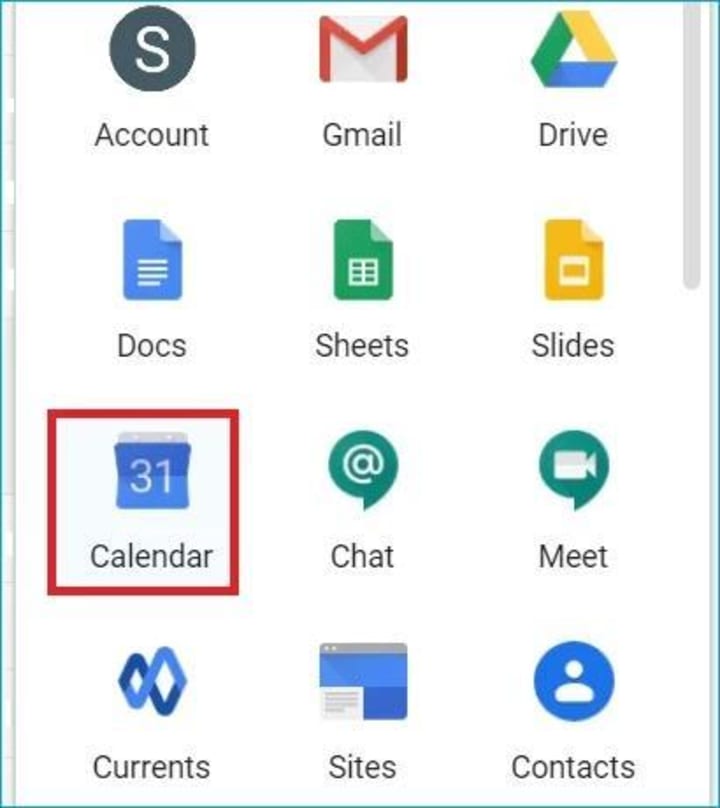
2. Choose the calendar that you want to export, and click the three dots, and then Settings and sharing.

3. In the Calendar settings, provide a new Name, Description, and adjust the Time zone.

4. Click Export calendar, and new .ics file will be saved to your computer.

Import ICS file to Office 365
1. Log in to the Office 365 account and open the Calendar app.

2. Click on Add Calendar to import a new calendar.

3. Select Upload from file from the left pane and click Browse to select the ICS file.
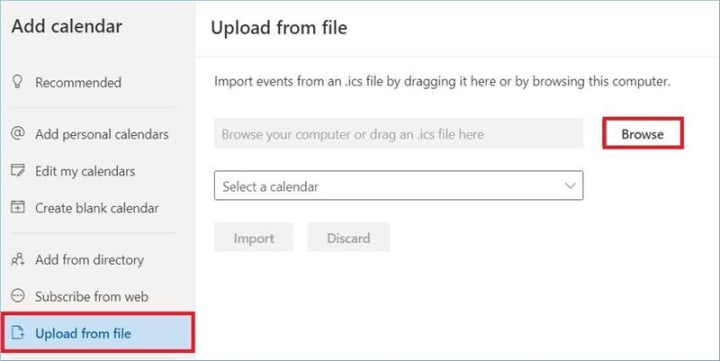
4. Now select a suitable Calendar color icon for your calendar/appointment. Click Import.
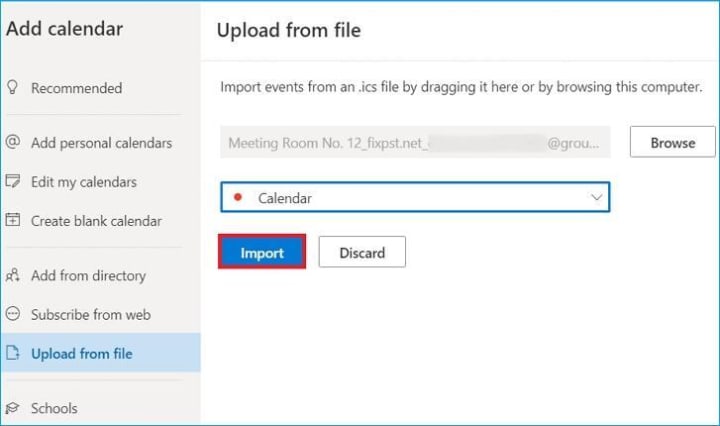
With this, the Google calendar is imported into your Microsoft 365 account.
How to transfer Google Drive to Office 365?
When you talk about moving Google Drive data to Office 365, you’re actually moving the data to OneDrive. To move the drive from Google Workspace to M365 migration, you can simply select the files from the Google Drive and right-click to select Download. This will download all the selected files to your computer. Now, open OneDrive in your browser and click Upload to add from the downloaded files and folders. With this, all the desired files will be moved to Office 365.
The other way that you can use to move the data is simple drag and drop of files from Google Workspace to Office 365 (OneDrive).
Limitations of manual method for Google Workspace to Microsoft 365 migration
Even though the method described above allows you to transfer the data, here are some limitations of these methods that make these solutions a less favorable choice.
- Manual transfers carry the risk of losing crucial data to human errors during the process.
- You have to perform separate processes to migrate manually, which requires technical expertise.
- Migrating email, calendar, and drive from Google Workspace to O365 requires a lot of time.
Conclusion
With these manual methods, you can transfer email, calendar, and Drive from G Suite to Office 365. However, you have to perform each method individually to move the data. To migrate Google Workspace to Office 365 efficiently, use Kernel Google Workspace to Office 365 migration tool. It is equipped with advanced features that let you migrate everything that you want to without losing the structure.
About the Creator
Xanthe Clay
Xanthe Clay is a highly skilled Technical Content Writer at Kernel Data Recovery, headquartered in New York, USA.
Keep reading
More stories from Xanthe Clay and writers in 01 and other communities.
Best Video Repair Software to Fix Damaged or Corrupted Videos
Summary Video files store precious memories of our lives and often essential data too. Irrespective of the device you capture the videos on, there are chances of corruption being induced into these files. However, there is no need to worry anymore. This is because of the efficient and reliable video repair software, i.e., Kernel Video Repair, which repairs corrupted or damaged videos in a few clicks.
By Xanthe Clay4 months ago in 01


Comments
There are no comments for this story
Be the first to respond and start the conversation.