
Best Video Repair Software to Fix Damaged or Corrupted Videos
Finding the best video repair tool to fix corrupted videos


Summary
Video files store precious memories of our lives and often essential data too. Irrespective of the device you capture the videos on, there are chances of corruption being induced into these files. However, there is no need to worry anymore. This is because of the efficient and reliable video repair software, i.e., Kernel Video Repair, which repairs corrupted or damaged videos in a few clicks.
Introduction
Finding a video file that stores the most precious moments of your life, unplayable or corrupted, can be quite frustrating. Whether recorded on your mobile phone camera, digital camera (Canon, Fujifilm, GoPro, Nikon, etc.), or camcorders, unplayable video often means losing it forever. There are so many manual methods available, such as updating the media player, trying a different media player, etc., to repair a damaged, blurry, or truncated video file.
However, the results experienced with these methods are not as efficient as expected. To overcome this challenge, the smartest way to repair a damaged video file is to use a professional solution. In this article, we will explore the Kernel Video Repair tool, which is known as one of the best video repair solutions.
What are the common reasons that damage or corrupt a video file?
Video files can get damaged or corrupted due to a lot of reasons. Below, we’ll look at some of the factors that lead to corruption or other damage in a video file.
Improper video codecs
Video files that have missing or outdated codecs can result in corruption or errors in video files, impacting the video playability.
Faulty file transfers
Interruptions that occur during the file transfer between different storage devices can often cause issues, such as broken or stuttering video.
Malfunctioned hardware
Playing videos on malfunctioned hardware often stimulates errors in videos, making files flickering, unplayable, or blurry.
Battery/ power failure
Experiencing power or battery failure of the device when recording videos can cause corruption in the videos.
How to repair damaged, frozen, or unplayable videos?
Kernel Video Repair software is one of the ideal video repair software that comes with a simple and user-friendly interface. The tool allows you to repair corrupt video files without any file size limitations. Moreover, you can use video files of any format, such as MP4, MJPEG, WMV, 3GP, AVI, and MKV, and repair them within a few minutes.
Core Functionalities of Kernel Video Repair Solution
1. Repair grainy, broken, corrupted, stuttering, or inaccessible video files that experienced damage during recording, copying, editing, or conversion.
2. Allow you to easily fix unsupported video codecs error from the files, such as H.263, H.264, H.265, WEBM, DivX, MPEG2, AVCHD, and JPEG 2000.
3. Fix corruption from the video files and resolve the missing audio in video files issue that affects the video streaming.
4. Resolve corruption and damages from MP4, MPEG, MJPEG, MOV, ProRes, MTS, M4V, RSV, MXF, and other video formats.
5. There is no limit on the number and size of the video files to repair using this tool.
6. Fix video files recorded on different devices, including digital cameras, CCTV, camcorders, dashcams, drones, and mirrorless cameras.
7. Supports repairing multiple virus infected videos at the same time.
8. Allows damaged video file repair for the MP4 files that are unplayable on media players like VLC and KM Player.
9. Works with all major Windows operating systems, including Windows 11, 10, 8.1, and previous versions.
10. Provides a free trial version that repairs and provides preview for the first 30 seconds of the damaged video.
Steps to repair corrupted video files
Let’s proceed to learn how to fix damaged videos using this video repair tool:
Step 1: Launch the tool and click on the + button to browse corrupt videos or drag and drop them directly.

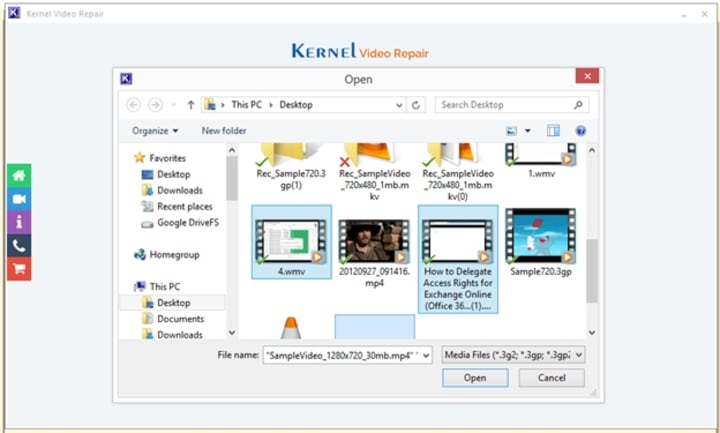
Step 2: Select all the corrupt video files you want to repair from the system’s local storage and click Open.
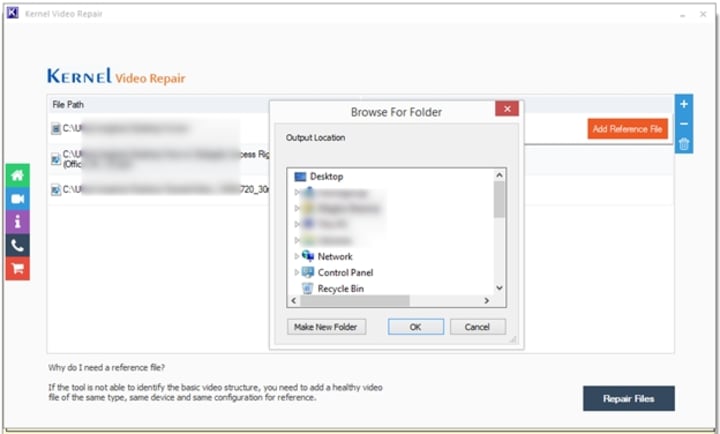
Step 3: Click on Add Reference File (if required) and click on the Repair Files button to initiate the process.

Step 4: Browse the destination location from your local machine to save the repaired video files.
Step 5: Track the progress of the video files in the queue for repair through the Status column of the summary window.

Step 6: After you successfully repair corrupt MP4 video files, the tool shows details of the process with the status.
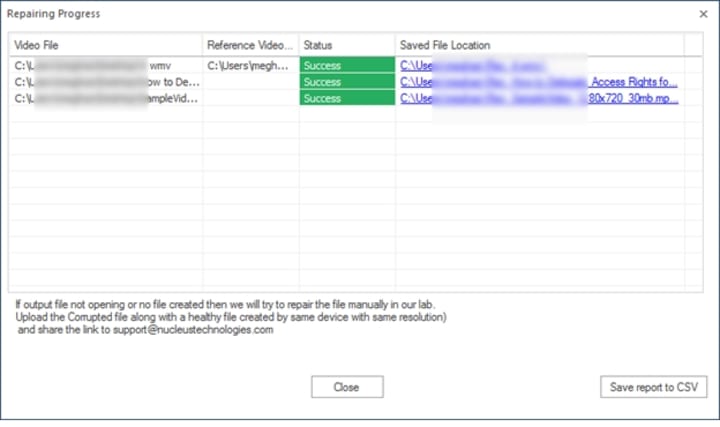
Step 7: Click Save report to CSV to save the log files of the process for future reference. Click Close.
With this damaged video file repair solution, you can easily repair & resolve corruption from video files and save them to the desired location within your local machine.
Conclusion
With the right video repair software, you can easily fix damaged, blurry, flickering, or corrupted video files. Kernel Video Repair tool simplifies the file repair and makes no changes in the video quality throughout the process. It allows you to repair videos recorded by all the popular camera brands, including Canon, Nikon, Sony, Panasonic, Polaroid, Insta360, Blackmagic, and others. Download the demo version today to examine the tool’s functionality and performance.
About the Creator
Xanthe Clay
Xanthe Clay is a highly skilled Technical Content Writer at Kernel Data Recovery, headquartered in New York, USA.
Keep reading
More stories from Xanthe Clay and writers in 01 and other communities.
Migrate SharePoint Without Losing Customizations or Workflows
Migrating SharePoint to SharePoint is a complex process, specifically when you migrate sites with customizations and workflows. Therefore, the process involves a lot of careful planning and execution. You need to specify what you’ll migrate, what tool you’ll be using, and the preferred migration approach to complete the process.
By Xanthe Clay5 months ago in 01
Ethereum Price Soars Above $3200 as Jeff Bezos Announces Space Travel Payment — Can It Rocket Higher?
Key Takeaways Jeff Bezos’ space company has expanded crypto payments to include Ethereum. Ethereum’s price rally has been driven by optimism around the Fusaka upgrade and renewed institutional demand via ETF inflows.
By Dena Falken Esq6 days ago in 01



Comments
There are no comments for this story
Be the first to respond and start the conversation.