
How to Convert Blu-ray to Digital: Best Software Review
A hands-on guide to the best free tools for converting Blu-rays into digital formats.

Blu-ray discs are still a great way to enjoy movies with immersive audio and razor-sharp visuals. But let’s face it: relying on physical discs can be inconvenient. I often found myself wanting to watch my Blu-ray collection on a laptop without a disc drive, or stream it on my tablet during flights. That’s when I realized the importance of converting Blu-rays to digital formats—files that are easy to store, share, and play on any device.
In this guide, I’ll walk you through the best Blu-ray to digital converters, highlighting their key features, strengths, and limitations. I’ve personally tested most of these tools in my own media setup, so I’ll also share some hands-on impressions to give you a real sense of how they perform.
Key Features to Look for in a Blu-ray to Digital Converter
Quality Preservation: Good software should keep the original picture and surround sound intact. If you’re ripping a 4K HDR Blu-ray, you’ll want the same wow factor in the digital copy.
Format Support: The more output options, the better. MP4 and MKV are must-haves, but I also like having audio-only options for concert discs.
Speed & Efficiency: Blu-ray files are huge. The best tools handle large rips quickly without crashing.
Copy Protection Removal: Many discs are locked with AACS, BD+, or region codes. A good ripper should bypass these smoothly.
Device Optimization: Pre-sets for iPhone, Android, PS5, or smart TVs make life easier if you don’t want to tweak every technical detail.
How to Convert Blu-ray to Digital with DVDFab Blu-ray Ripper
- OS: Windows, macOS
- Rating: ★★★★☆ (4.6/5 Trustpilot)
DVDFab Blu-ray Ripper is by far the most feature-rich tool I’ve used. It supports over 1,000 video and audio formats—from MP4 and MKV to FLAC and H.265—so I never had to worry about compatibility. What impressed me most was its AI-powered video enhancer that can convert SDR footage into HDR10. When I ripped my old Blu-ray of The Dark Knight, the playback looked noticeably sharper on my 4K TV.
It also strips away common protections like AACS, BD+, and region codes. Another nice touch is its integration with Plex and Kodi, automatically fetching metadata and cover art.
Pros:
- Capable of decrypting the most recent encrypted Blu-ray discs
- Convert multiple Blu-rays simultaneously with accelerated GPU speed
- Provide personalized settings and integrated editor to enhance your videos quality
Cons:
- Full features require a paid license
Steps to Digitizing Blu-ray Using DVDFab Blu-ray Ripper
Step 1: Install DVDFab 13 on Windows or macOS. Then, open the software and click on Ripper mode. Insert your Blu-ray disc or drag & drop an ISO/folder into the main interface.
Step 2: Click Choose Other Profile to select a format (e.g., MP4, H.265, MKV Passthrough).
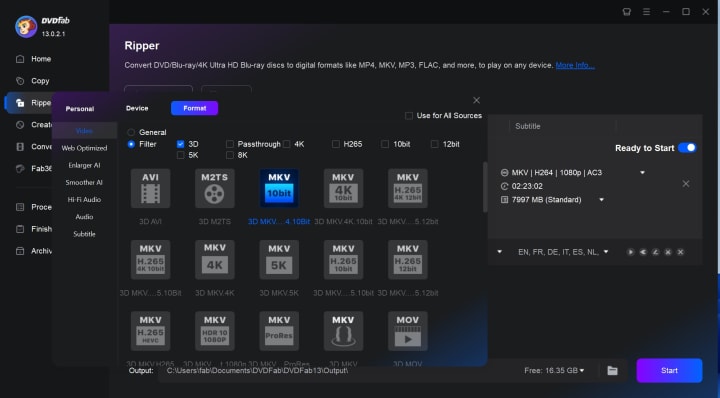
Next, open Advanced Settings to fine-tune codec, resolution, bitrate, audio channels, etc.
Step 3: Select the output folder by clicking the Folder icon. At last, hit Start. The software shows progress and estimated completion time.
How to Convert Blu-ray to Digital Free with VLC
- OS: Windows, macOS, Linux
- Rating: ★★★☆☆ (4.5/5 TechRadar)
VLC is best known as one of the most versatile free media players. However, what many people don’t realize is that it also includes a built-in feature for disc conversion, making it a potential option for those who want to rip Blu-ray discs without paying for premium software.
That said, its Blu-ray ripping capabilities are not as straightforward as dedicated tools. The software cannot natively bypass copy protection, so users must manually configure extra files such as libaacs and the key database (keydb.cfg) to access encrypted discs. From my own experience, the setup was somewhat tedious, and the ripping process was noticeably slower than professional rippers.
Steps to Convert Blu-ray to Digital Using VLC
Step 1: Ensure you have the latest version of VLC installed on your computer. Without the most recent update, compatibility issues can arise during the ripping process.
Step 2: To unlock encrypted discs, you need to manually download the keydb.cfg file and place it in the correct system directory. On Windows, it belongs in C:\ProgramData\aacs\, while on macOS it should be placed in ~/Library/Preferences/aacs/. In addition, you must download the libaacs library file and copy it to VLC’s installation folder, which allows the program to read Blu-ray encryption.
Step 3: Once the configuration is complete, insert your Blu-ray into the disc drive and wait until VLC detects it. At this point, VLC can be used to either play the content or begin the conversion process.
Step 4: From the menu bar, open "Media" and select "Convert/Save." In the pop-up window, go to the "Disc" tab and select your Blu-ray drive. It is recommended to tick the option "No disc menus" to avoid ripping only navigation screens. After confirming, choose "Convert" and select a suitable profile, such as H.264 + MP3 in MP4 format, then specify the output location. Finally, click “Start” and VLC will begin ripping the Blu-ray.
How to Convert Blu-ray to Digital Using HandBrake
- OS: Windows, macOS, Linux
- Rating: ★★★★☆ (4.5/5 TechRadar)
HandBrake is another open-source program that has earned its reputation as one of the best free video converters available. Unlike VLC, it is purely designed for conversion, with an emphasis on customization. HandBrake offers presets for popular devices, supports bothCFR and VFR, and includes advanced video filters such as denoising, deinterlacing, cropping, and subtitle embedding.
However, HandBrake alone cannot decrypt commercial Blu-ray discs, which means it is best used after another program, like MakeMKV, has already unlocked the disc. Once that step is handled, HandBrake becomes invaluable for compressing large Blu-ray files into more manageable sizes. For example, I once converted a 25GB MKV file down to about 6.5GB with HandBrake, , albeit with some loss of quality.
Steps to Digitizing Blu-ray with HandBrake
Step 1: After downloading HandBrake from its official website, install and launch the program. You will be greeted with a simple interface asking you to select a source.
Step 2: Choose your Blu-ray drive as the source, and HandBrake will begin scanning the disc. If the scan fails with an error saying "No valid source found," it usually means the disc is encrypted and must be unlocked with another tool first.
Step 3: Once the scan is complete, HandBrake displays all available titles on the disc. Next, choose your output format—HandBrake supports MP4, MKV, and WebM. You can select a preset such as "Fast 1080p30" for standard conversions or "HQ 2160p60" for 4K content.
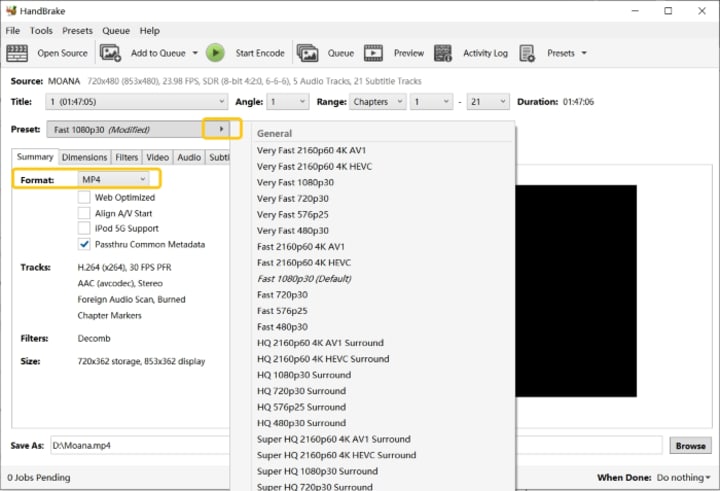
Step 4: Finally, specify the folder where you want the converted file saved. Once everything is ready, click "Start Encode."
Conclusion
Converting Blu-rays to digital files has changed the way I enjoy my movie collection. Instead of being tied to a physical player or worrying about region codes, I can now access my library anywhere.
From my experience, DVDFab Blu-ray Ripper is the most polished solution, offering speed, advanced AI enhancements, and reliable decryption. On the other hand, free tools like VLC and HandBrake are more limited but still valuable if you are willing to spend extra time configuring settings or combining them with another program.
About the Creator
Diana
I’m a passionate Blu-ray collector who loves preserving the magic of physical media. Every now and then, I enjoy burning precious family videos onto discs, keeping memories alive in a tangible way.
How to Build a Fitness App That Keeps Users Coming Back
The fitness app market in 2026 is no longer a battle of content. It is no longer about who has the most workout videos. It is now a battle of who can sustain user motivation. Data from the 2025 Global Digital Health Report is clear. Initial downloads for health apps remain high. However, nearly 60% of users drop off within thirty days. This happens if the experience feels generic.
By Del Rosario6 days ago in 01

Comments
There are no comments for this story
Be the first to respond and start the conversation.