
How to Convert DVD to Digital with 6 Best Converters
With the right tools, you can easily convert DVD to digital files for better management and accessibility on any device.

Just want to sit on the couch and play DVD content with a finger-controlled remote control? Don't want to damage your DVD disks during daily playback? Converting DVD to digital format can help you solve this problem. In this article, we will provide you with 6 best DVD to digital converters and show you step-by-step tutorials on how to use them to help manage your content for easy playback on any phone, tablet, and other devices.
What You Need to Convert DVD to Digital
You will need to prepare some hardware and software as below to convert DVD to digital formats:
- Your DVD disc(s).
- A DVD drive. If your desktop or laptop computer does not have an optical drive, you will need an external DVD drive. Most software requires access to the DVD through the computer drive in order to perform the playback or ripping process.
- A program that can convert DVD to digital.
Best Methods to Convert DVD to Digital Format
MakeMKV
MakeMKV is a versatile and free DVD to digital converter that is available on multiple platforms. As a popular MakeMKV alternative, XMedia Recode offers different features, but MakeMKV specializes in converting DVDs to MKV format without any loss in quality. This means that the output file will retain the same high quality as the original DVD. MakeMKV can convert copy-protected DVDs for free, making it a convenient choice for users looking for a reliable MakeMKV alternative. This can be useful if you have a collection of DVDs to back up or watch on different devices. However, it is important to note that the resulting MKV file may be larger in size, which could be an issue for those with limited storage space.
Pros:
- Support bypassing DVD protections.
- Preserve all video, track language, audio type & tracks, and chapter information.
- Fast conversion speed.
- Upgraded performance from Intel "Tiger Lake" CPU
Cons:
- Only support output to MKV without compression.
How to digitize DVDs to MKV format for free using MakeMKV?
Step 1. Download and install MakeMKV BETA on your Windows, Mac, or Linux PC.
Step 2. Launch MakeMKV and insert the DVD into your PC drive.
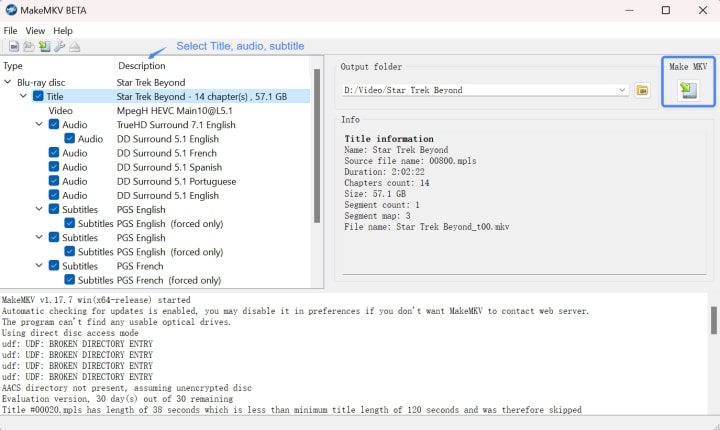
Step 3. Click the "File" on the top left, select "Open disc" from the list, and then choose the drive that contains the DVD you want to digitize.
Step 4. Choose the titles, audio, and subtitles you want to include in the MKV file.
Step 5. Click the "Set output folder" button on the right to choose a save path.
Step 6. Click the "Make MKV" button on the right end to convert DVD to digital file.
XMedia Recode
XMedia Recode is a versatile Windows-only tool that allows you to convert DVD to digital as well as digitize unprotected Blu-rays and change the format of other video files. This software provides a variety of output formats and device profiles available, allowing you to easily select from iPhone, iPad, Xbox360, and more. It also provides basic video editing features, such as cropping, adjusting video color, and importing subtitles. If you are looking for a free DVD to digital converter, you might give Xmedia Recode a try.
Pros:
- Provide a wide range of input and output formats.
- Support setting chapters for the video, adding album covers, and editing ID3 Tag.
- Offer a long list of audio and video filters, such as deinterlacing, deblock, and more.
- Support batch processing of multiple files.
Cons:
- Can't deal with copy-protected DVDs.
- Occasional crashes or bugs.
How to convert DVD to digital free using XMedia Recode:
Step 1. Download and install XMedia Recode from the official website.
Step 2. Insert the DVD into your computer’s DVD drive.
Step 3. Open XMedia Recode and click "Open Disc" in the top toolbar.
Step 4. Select the DVD drive and click "OK" to open the DVD in XMedia Recode. You will see all the titles available in the source DVD.
Step 5. Select the title you wish to convert, and select the output format as MP4 or any other option you like.
Step 6. Customize any other settings, like editing characters, setting video & audio mode, etc.
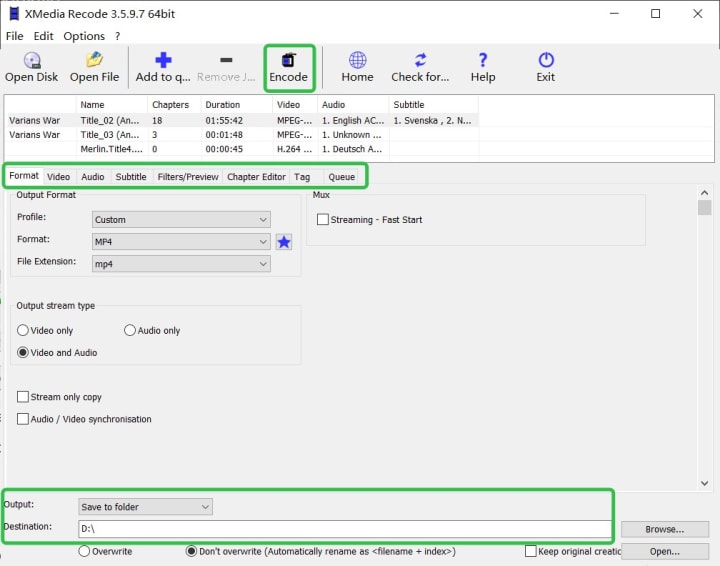
Step 7. Set the output destination in the lower area; you can click on the "Browse..." button to change it.
Step 8. Press the "Encode" button on the top bar menu and initiate the conversion of DVD to digital.
How to digitize DVDs to Plex?
You can use DVDFab DVD Ripper, MakeMKV, HandBrake, or any other methods mentioned in this article to convert DVD to digital formats like MKV and MP4 and import them to your Plex on your desktop or laptop. The Plex server can automatically detect and scan your library in the selected directory.
About the Creator
Diana
I’m a passionate Blu-ray collector who loves preserving the magic of physical media. Every now and then, I enjoy burning precious family videos onto discs, keeping memories alive in a tangible way.
Best UI/UX Trends for AI-Powered Applications in 2026
In 2024, the primary interface for Artificial Intelligence was the "chat box." Users typed a prompt, and the AI replied with text. By 2026, this paradigm has shifted. The chat box is no longer the default solution. Designers now treat AI as an invisible layer that powers the entire application, not just a feature within it.
By ViitorCloud Technologies6 days ago in 01


Comments
There are no comments for this story
Be the first to respond and start the conversation.