
Best Free DVD Ripper Software Review
A Practical Guide to the Top Free and Paid DVD Ripping software on Windows & macOS

I still remember the first time I tried to back up my Japanese anime DVD box set. The old player made noises, and some discs froze halfway through. I tested one freeware tool after another. Progress bars stalled, programs crashed, and I realized the software varied in quality.
In 2025, the situation has not changed much. Operating systems add new restrictions, DRM becomes more complex, and people now also want to back up home movies or archive aging discs.
So which DVD ripper software works in practice and deserves your time? Below are recommendations based on direct testing and common problems faced during use.
How We Test DVD Ripper Software
Hardware and Operating Systems
Tests run on desktops and laptops with Windows 11 and macOS Sonoma, across both Intel and Apple Silicon Macs. A smaller set of benchmarks is also done on Linux with standard DVD drives. The main focus is Windows and macOS, since most disc backups happen there.
Disc Set: Protections, and Damaged Discs
The test library covers home-burned DVDs, region-coded discs, titles with CSS and RCE protections, and multi-episode discs with damaged or corrupted sectors.
Evaluation Metrics: Scan Speed, Rip Time, Output Quality
I measure scan recognition speed, full-disc rip time (on both SSD/HDD and older optical drives), and average CPU and GPU load using standardized monitoring tools.
Stability, User Experience, and Updates
Tests note crash frequency, handling of batch rips, subtitle and track recognition, and whether forced subtitles or multiple languages are processed correctly. Update cadence is recorded by tracking release frequency, codec and library updates, and published security advisories.
Quick Recommendations at a Glance
For Protected or Commercial Disc: DVDFab DVD Ripper can handle most protected titles and receives frequent updates. It is the most reliable option in my tests for batch ripping.
Absolute Beginner: HandBrake works with a simple drag-and-drop workflow, as long as the disc is not encrypted.
For High Fidelity: MakeMKV produces direct rips without compression.
Best Free DVD Ripping Software Review
Here is a closer look at the main options, with strengths, weaknesses, and results from direct use.
DVDFab DVD Ripper (Editor’s Choice)
Although technically a paid DVD Ripping software, DVDFab DVD Ripper offers a free trial modethat covers basic ripping tasks. It supports for Disney discs with advanced copy protections, adds GPU acceleration for faster encoding, and refines batch processing. In tests on Windows 11 and macOS Sonoma, a single-disc main movie rip to H.264 averaged about 15 minutes. Subtitle and forced-stream detection worked with high accuracy.
Pros:
- Fast, reliable, actively updated
- Wide format compatibility (MP4, MKV, device profiles, etc.)
- Handles new DRM and bad sector tricks
- Outstanding batch queue reliability
Cons:
- Paid (trial limits advanced functions after several uses)
HandBrake (Best Open-Source Workflow, Unprotected Discs)
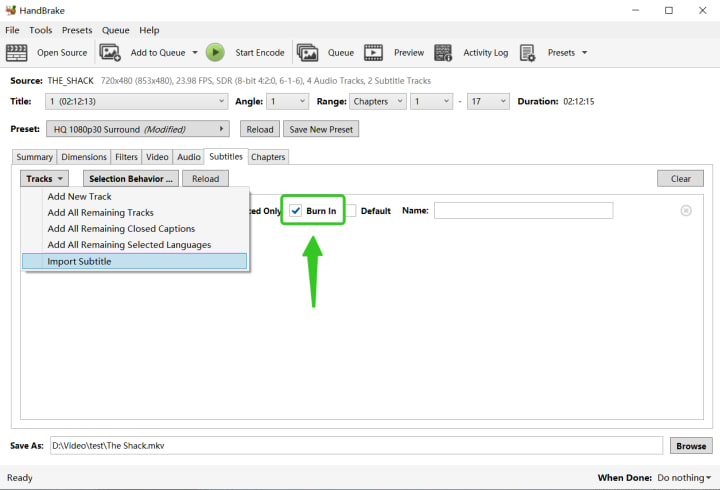
The popular open-source transcoder, HandBrake (v1.10.2 as of September 2025), shines in format flexibility. It’s free, and available for Windows, macOS, and Linux. Advanced users often use its batch queue scripting, preset management, and detailed filter and encoding controls. By default, it does not decrypt CSS or RCE protections on commercial DVDs because of legal restrictions. For home movies or other unencrypted discs, it works very well. Adding libdvdcss is possible, but this comes with legal and stability concerns.
Pros:
- Totally free, truly open source
- Regularly updated—UI feels modern and snappy
- Excellent for flexible output settings
Cons:
- No built-in support for commercial DVD protection
- Steep learning curve for advanced profiles
- Batch support less smooth with weird disc structures
MakeMKV (Best for 1:1 MKV Backups)
If your top priority is creating uncompressed digital archives of discs, MakeMKV is peerless. The free beta v1.18. unlocks protected discs, preserves chapters and all original tracks, and outputs in the widely compatible MKV container. The process is straightforward: insert the disc, scan, select titles, and rip. No compression or transcoding is applied. On a Windows laptop with an i7 processor, full extraction of a two-hour movie took about 20 minutes. However, you’ll need HandBrake to convert MKV to MP4 or compress for mobile.
Pros:
- Free during beta, works with most discs
- No loss in quality, preserves all metadata
- Easiest for TV sets (multi-episode support)
Cons:
- Output format limited to MKV only
- No built-in compression or device presets
- Not always ideal for casual or mobile users
How to Rip a DVD with the Best DVD Ripping Software
Here’s an in-depth, practical workflow using DVDFab DVD Ripper 13.0.4.7, including field-tested tips.
Step 1: Download and Install DVDFab DVD Ripper
- Head to the official DVDFab website and download the correct installer (Windows/macOS).
- Launch the program. If prompted for updates, accept to ensure compatibility with the latest discs and OS versions.
Step 2: Prepare Your Disc and Insert the DVD
- Make sure your DVD drive is showing no errors and is connected directly.
- Insert your DVD and wait a few seconds for the system to recognize it.
Step 3: Launch DVDFab and Select Ripping Mode
DVDFab will auto-detect the disc and usually prompt you with disc info and main title selection. Then, choose "DVD Ripper" from the main menu.
Step 4: Choose Output Profile and Tweak Audio & Subtitle Options
On the right panel, pick your desired output profile:
- For general playback: MP4 (H.264) with “Standard” preset
- For top quality: MKV Passthrough, which retains original streams
- Device-specific: Choose a profile for your tablet, phone, or smart TV

If you want more than the default, hit the Advanced Settings icon. Here, you can precisely adjust video bitrate, frame rate, or resolution. Before ripping, you can access the video editor— crop black bars, rotate, add external subtitles (SRT/ASS), or apply watermarks directly within the software.
Step 5: Choose Output Folder and Run a Rip
Click the folder icon and select a destination with enough free space. Finally, click "Start" and wait for completion.
DVD Ripper Software Troubleshooting Guide
Even reliable tools like DVDFab, HandBrake, or MakeMKV can encounter problems, especially with protected or damaged discs. Below are common issues and practical fixes.
1. Software Crashes or Freezes Mid-Rip
Cause: Scratched discs, old optical drives, or system resource overload.
Solution: Clean both the disc and the drive. Switch to a different drive if possible (older external USB drives are notorious for timeouts). Close unused applications to free up RAM and CPU.
2. Failed to Read/Decrypt Disc
Cause: Advanced protections such as ARccOS or Disney’s 99-title structure, or mismatched drive region settings.
Solution: For protected discs, ensure your tool is updated (DVDFab’s latest versions typically handle new schemes).
Try setting your DVD drive’s region code to match the disc in your OS settings. Restart and re-scan—sometimes the right title only appears after a second attempt.
3. Missing or Out-of-Sync Subtitles/Audio Tracks
Cause: Incompatible players, or ripper errors with forced subtitle handling.
Solution: Double-check all audio and subtitle options before ripping—don’t rely solely on auto-detected tracks. Use VLC or another reliable player to test output. If subtitles are forced only, ensure the option is checked.
Conclusion
Ripping DVDs is no longer about just grabbing any free tool you find—it’s about picking reliable software that matches your needs and keeps up with ever-changing discs and operating systems. For most users, DVDFab DVD Ripper combines ease of use with powerful features and regular updates. HandBrake and MakeMKV are great free alternatives for unprotected discs and archival purposes.
About the Creator
Diana
I’m a passionate Blu-ray collector who loves preserving the magic of physical media. Every now and then, I enjoy burning precious family videos onto discs, keeping memories alive in a tangible way.
Cryptocurrency Market Size and Forecast 2025–2033: Digital Assets Redefining the Global Financial System
Global Cryptocurrency Market Outlook The global cryptocurrency market is entering a decisive phase of maturity and institutional relevance. According to Renub Research, the cryptocurrency market is expected to grow from US$ 5.82 billion in 2024 to US$ 17.14 billion by 2033, expanding at a CAGR of 12.75% from 2025 to 2033.
By Janine Root a day ago in 01
Smart Cloud Security Tips for a Safer Home Network
In these days’s virtual age, cloud offerings have come to be an imperative part of our personal and professional lives. From storing a circle of relatives' snap shots to coping with economic statistics and smart home devices, the cloud offers convenience and accessibility like by no means before. However, with comfort comes a chance. Cyber threats are evolving swiftly, and domestic customers are increasingly turning into targets. Ensuring your house cloud surroundings are secure is now not optionally available—it’s crucial. Here are smart cloud protection recommendations that will help you shield your private home community and private data.
By Muhammad Hanzla5 days ago in 01




Comments
There are no comments for this story
Be the first to respond and start the conversation.