
A Comprehensive Guide to the Xtool M1 Smart Laser Engraver and Vinyl Cutter
Master the Xtool M1—your all-in-one guide to unleashing creativity with precision laser engraving and vinyl cutting magic!
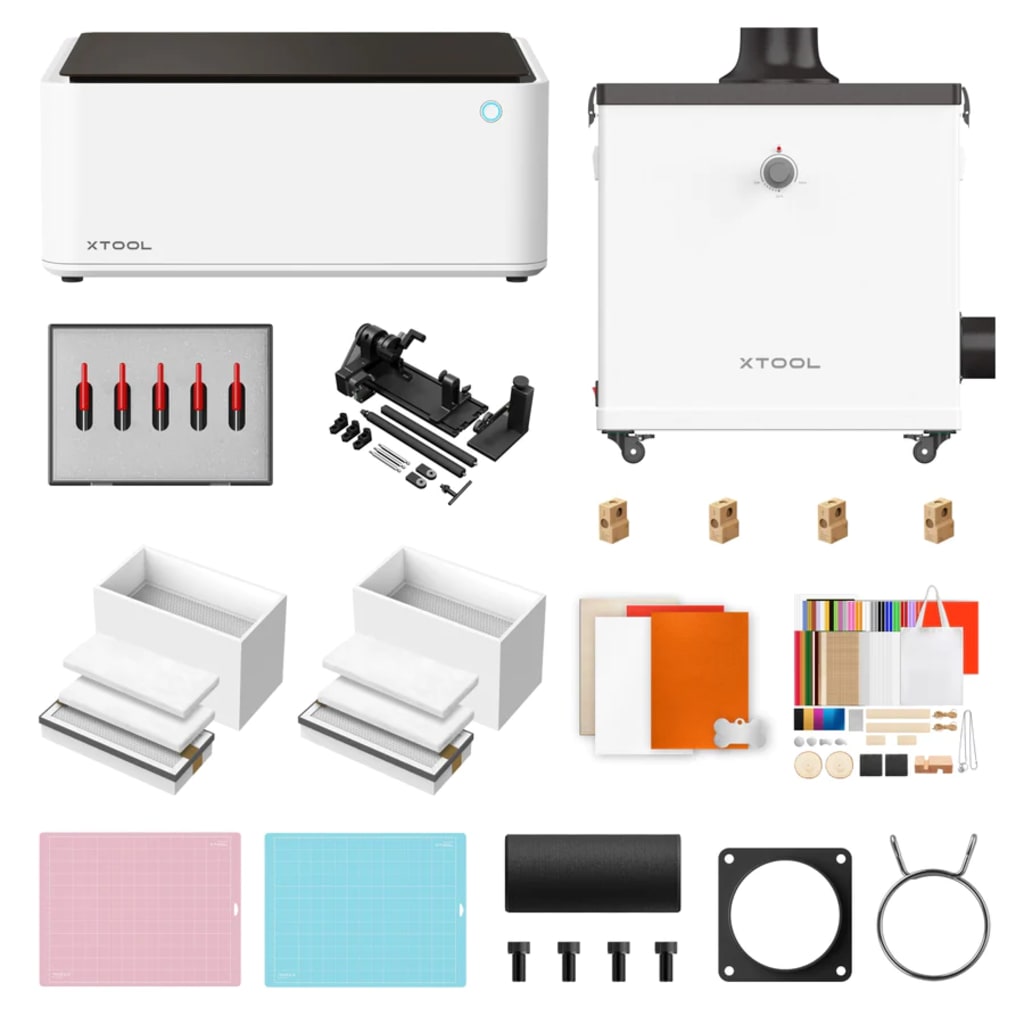
The Xtool M1 Smart Laser Engraver and Vinyl Cutter is a versatile and innovative machine that combines laser engraving and vinyl cutting into one compact device. Whether you're a hobbyist, crafter, or looking to start a small business, this hybrid machine can help you create stunning designs on a wide variety of materials. In this guide, we’ll explore the features of the Xtool M1, how to set it up, what materials it can handle, and how it compares to other popular machines in the market.
What is the Xtool M1?
The Xtool M1 is a powerful, multi-functional machine designed to both engrave and cut materials with precision. It combines a laser engraver, which is capable of cutting and etching on a variety of surfaces such as wood, leather, acrylic, and even glass, with a blade that can handle vinyl, felt, paper, and other thin materials. The Xtool M1 is ideal for those who want to dive into both laser engraving and vinyl cutting without having to invest in two separate machines.
The Xtool M1 is available in several bundles, including:
M1 Basic: Includes the M1 machine along with $97.98 worth of free materials.
M1 Deluxe: Comes with the M1 machine, the RA2 Pro rotary attachment, and $286.97 worth of free materials.
M1 Ultra Deluxe: Includes the M1 machine, the RA2 Pro rotary attachment, air assist, riser base with a honeycomb panel, and $346.96 worth of free materials.
Each bundle caters to different levels of users, from beginners to more advanced crafters, offering a range of additional accessories to enhance the capabilities of the machine.
What’s Included in the Box?
Upon opening the box, you’ll find the Xtool M1 machine, a set of cutting mats designed for use with the vinyl cutter, and a small assortment of materials to help you get started right away. The machine is mostly assembled out of the box, so there’s minimal setup required before you can begin using it. You will, however, need to attach a few parts, such as the air assist or rotary attachment if you have one.
How to Download the Xtool Software
The Xtool M1 comes with its own software, Xtool Creative Space, which is required to operate the machine. This software is intuitive and user-friendly, especially for those familiar with other design software like Silhouette or Cricut. You can download the software directly from the official Xtool website.
The software supports various file formats, making it easy to create or import designs. You can use files in JPG, PNG, BMP, SVG, DXF, and even GIF or WEBP formats. Many users find it helpful to use both Xtool’s software and other design software (like Silhouette Studio) for more complex projects, as it allows for seamless file sharing between platforms.
How to Set Up the Xtool M1 Laser Engraver and Vinyl Cutter
Setting up the Xtool M1 is relatively straightforward. The instructions provided with the machine are mostly text-based, but many users find it more helpful to watch a video guide for the setup. You can find official setup videos from Xtool online, which will walk you through the entire process.
The most time-consuming part of the setup is typically attaching the vent hose for the laser engraving function, as it requires some precision. If you’re also using the air assist, make sure to follow the more detailed setup instructions, as this involves additional steps and careful measuring.
Materials You Can Cut with the Xtool M1
One of the standout features of the Xtool M1 is its ability to work with a wide variety of materials, giving you the flexibility to try different types of projects. The laser engraver can handle thicker materials like acrylic, basswood, and leather, while the vinyl cutter works well with materials such as vinyl, felt, craft paper, and fabric.
Here’s a closer look at what the Xtool M1 can cut and engrave:
Wood: Basswood, plywood, MDF (medium-density fiberboard)
Acrylic: Ideal for both cutting and engraving
Leather: Works well with thin leather sheets for engraving or cutting
Vinyl: Can easily cut intricate designs and shapes
Fabric and Felt: Perfect for delicate materials that require a clean, smooth cut
Glass: The laser engraving feature can etch on glass items like tumblers or ornaments (note that the rotary attachment is needed for these items)
If you want to engrave on cylindrical items such as tumblers, you will need the RA2 Pro rotary attachment. This additional tool allows the laser to rotate and engrave on curved surfaces with high precision.
File Types Supported by the Xtool M1
The Xtool Creative Space software supports a variety of file formats, making it compatible with many different types of design programs. You can upload the following file types to the software:
- JPG/JPEG
- PNG
- SVG
- DXF
- BMP
- GIF
- WEBP
This variety allows for flexibility when it comes to sourcing or creating your own designs. Whether you're designing your own artwork or downloading pre-made patterns, the Xtool M1 can work with almost any design file you choose.
Making Your First Cut with the Xtool M1
Once you've set up your machine and chosen your material, you're ready to make your first cut. For example, when cutting a wooden star out of 3mm basswood, you’ll start by selecting the appropriate material in the Xtool Creative Space software. The software will auto-populate the settings for material thickness, but you can always adjust these if needed.
If you're using the laser for cutting, be sure to choose the correct processing path, which will either be "Cut" or "Engrave" depending on your project. Once everything is set, you can load your material into the machine and hit "Start" to begin the process.
It’s important to note that the air assist system helps to clean up the cut edges and prevent scorch marks, which are common when cutting with a laser. If you’re cutting without the air assist, you might see some burnt edges, so it’s worth installing the air assist to achieve cleaner cuts.
Comparing the Xtool M1 to the Silhouette Cameo
One of the most popular alternatives to the Xtool M1 is the Silhouette Cameo, a well-known vinyl cutter in the crafting community. When it comes to vinyl cutting, the Xtool M1 outperforms the Silhouette Cameo in terms of speed and precision. With preset settings, the Xtool cuts vinyl faster and more accurately, even on the first pass. The Cameo, on the other hand, sometimes requires multiple passes and adjustments to achieve the desired result.
Despite this, both machines have their merits. The Silhouette Cameo is still a great option for crafters who only need a vinyl cutter and prefer a more affordable and straightforward option. The Xtool M1, however, offers much more versatility, as it can also engrave and cut thicker materials, making it a great all-in-one solution for those who want to explore both cutting and engraving.
Final Thoughts
The Xtool M1 Smart Laser Engraver and Vinyl Cutter is an impressive and versatile machine that can handle a wide range of materials, making it ideal for both hobbyists and small business owners. While the setup process can be a bit tricky for some, the machine’s ease of use, powerful features, and ability to work with different materials more than make up for it.
If you’re looking for a multi-functional tool that can handle both vinyl cutting and laser engraving, the Xtool M1 is definitely worth considering. It offers great value for its price and is a fantastic option for anyone interested in expanding their creative possibilities. Whether you’re a seasoned crafter or just starting out, the Xtool M1 will undoubtedly open up a world of new opportunities for your DIY projects.


Comments
There are no comments for this story
Be the first to respond and start the conversation.