
4 Best Methods to Easily Rip Blu-ray to MKV Format with High Quality
Discover 4 Blu-ray to MKV converters to efficiently rip discs to convenient MKV files for lossless backup.

I've always appreciated Blu-ray discs for their high-quality content, but managing them can be a hassle since they require specialized media players. I prefer using the MKV format because it preserves the original Blu-ray quality while combining audio, video, images, and subtitles into a single file, making it much more convenient to use. To make my content easier to access and share, I recommend converting Blu-ray discs to MKV. Next, I'll introduce four effective methods to help you rip Blu-ray to MKV.
Use DVDFab Blu-ray Ripper to Rip Blu-ray to MKV
Windows and Mac users can use DVDFab Blu-ray Ripper, a versatile Blu-ray to MKV converter, to losslessly convert their Blu-ray discs to MKV and other formats. It includes a Cloud Decryption Service to bypass copy protections, and supports output lossless MKV.passthrough and also other MKV profiles (including 3D, 4K/5K/8K, H265) and preset devices to suit your needs.
DVDFab Blu-ray Ripper features support over 1000 formats for fast conversion speeds and allows extensive customization of video/audio settings like codec, resolution, quality, channels, audio tracks, and subtitles. Users can trim, merge, and enhance videos with built-in editing tools. DVDFab ensures seamless Blu-ray conversions tailored to meet diverse playback needs across devices and media players.
Key Functions
- Automatically remove the latest disc copy protection mechanisms for seamless ripping
- Rip 2D or 3D Blu-rays into a wide range of 2D/3D video formats
- Convert Blu-rays, ISO files, or folders to over 1000 video/audio formats
- Rip Blu-rays to 245+ devices, including Huawei, Google, and Apple devices
- Preserve audio tracks, subtitles, and metadata during conversion
- Utilize advanced GPU acceleration and multitasking for efficient performance
How to Rip Blu-ray to MKV Using DVDFab Blu-ray Ripper
Step 1: To access the Ripper module, first download DVDFab 13. Insert the Blu-ray disc or add an ISO file/folder stored on your computer to begin ripping.
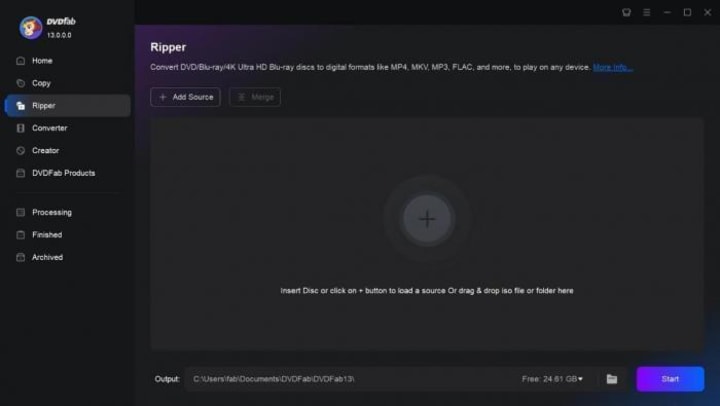
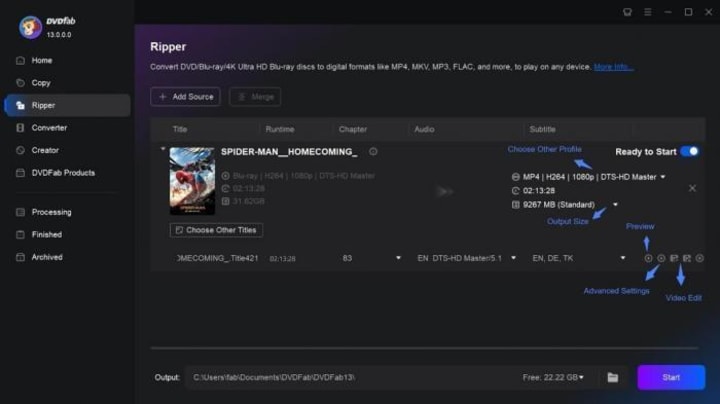
Step 2: In DVDFab 13's Ripper module, Open the Choose Other Profile tab and select Format. Then, pick an MKV profile. Alternatively, choose from various formats, including MP4 using available filters.
Step 3: Tailor your output by setting the necessary parameters. Use "Advanced Settings" to adjust video quality, frame rate, resolution, codecs, and more. Hit "Video Edit" to explore video editing tools. Also adjust the video properties whether saturation, contrast, and brightness.
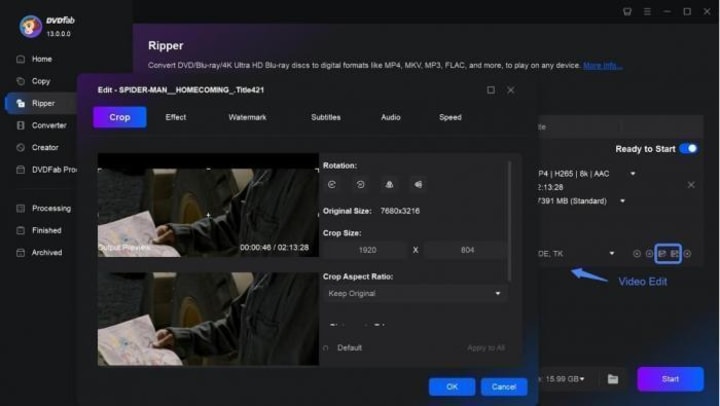
Step 4: Select the destination folder from the bottom menu and press Start.
Rip Blu-ray to MKV with MakeMKV
When seeking options for converting Blu-ray to MKV, MakeMKV can come to mind. It is a great option to losslessly convert DVDs and Blu-rays to MKV format, including AACS/BD+ protected content. It preserves metadata, audio, video tracks, and chapters for identical high-quality output.
Pros
- Maintains high-quality output comparable to the original disc
- Provides straightforward operation for converting discs to MKV files
- Suitable for users wanting to retain all disc content intact
- Offers reliable performance in maintaining video and audio fidelity
Cons
- MakeMKV excels in conversion but only supports output to MKV
- Lacks post-conversion editing, GPU acceleration, and complete free accessibility
How to rip Blu-ray to MKV With MakeMKV
Step 1: Open MakeMKV, insert the Blu-ray into the BD drive, and import the Blu-ray content by clicking the button provided.
Step 2: Pick a title, audio track(s), and subtitle(s) to keep.
Step 3: Select a folder destination for the MKV file where the output will be saved.
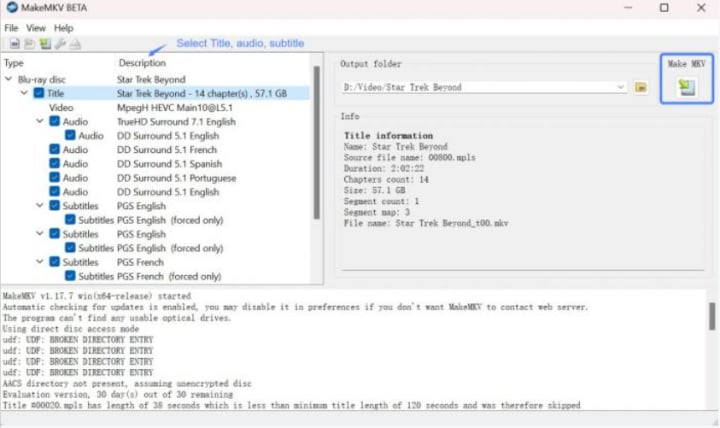
Step 4: Click "Make MKV" to convert the Blu-ray.
Convert Blu-ray to MKV With HandBrake
HandBrake is another reliable and free Blu-ray to MKV converter. It can convert non-protected Blu-rays to MKV as well as MP4 or WebM formats. It offers customizable settings, audio/subtitle selection, and video filters to optimize output quality to user preferences.
Pros
- It is free and works on multiple platforms for video/DVD transcoding
- Allows adjustments for video quality to suit specific preferences
- Includes video filtering options for enhancing the output as desired
- Provides options to select audio tracks and subtitles during conversion
Cons
- Requires a separate decryption software
- Slow conversion speed and basic editing features
How to convert Blu-ray to MKV with HandBrake
Step 1: Launch the HandBrake and insert Blu-ray. Then, use "Open Source" to import movies from the disc for conversion or backup.
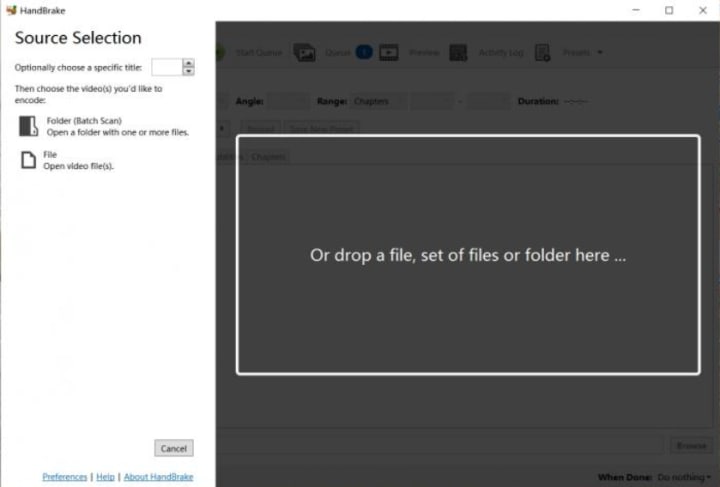
Step 2: After importing Blu-ray discs into HandBrake, choose desired titles and chapters for conversion into MKV format.
Step 3: Select MKV format as output and customize settings as needed before starting the ripping process for Blu-ray conversion.
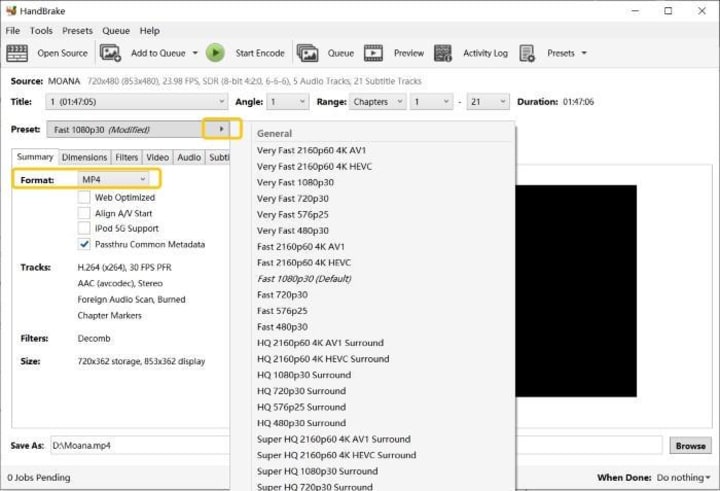
Step 4: Click Start Encode for conversion.
Convert Blu-ray to MKV with VLC
VLC is also a Blu-ray to MKV converter. It demonstrates versatility in handling Blu-ray disc ripping and supports various multimedia formats, enhancing its utility for digital content enthusiasts. However, it lacks support for protected discs.
Pros
- Free and open-source media player with robust Blu-ray conversion capabilities
- Supports ripping Blu-rays to MKV and various other multimedia formats
- Versatile across multiple platforms, including Windows, Mac, and Linux
- Offers customization options for title selection and output settings
Cons
- Doesn't support copy-protected Blu-rays
- Requires downloading additional files, making it complex for beginners
How to Convert Blu-ray to MKV via VLC
Step 1: Install the newest version of the VLC media player from a trusted source or its official website.
Step 2: Download KEYDB.cfg and libaacs.dll/libaacs.dylib, and place them in VLC's installation directory for Blu-ray decryption and playback support.
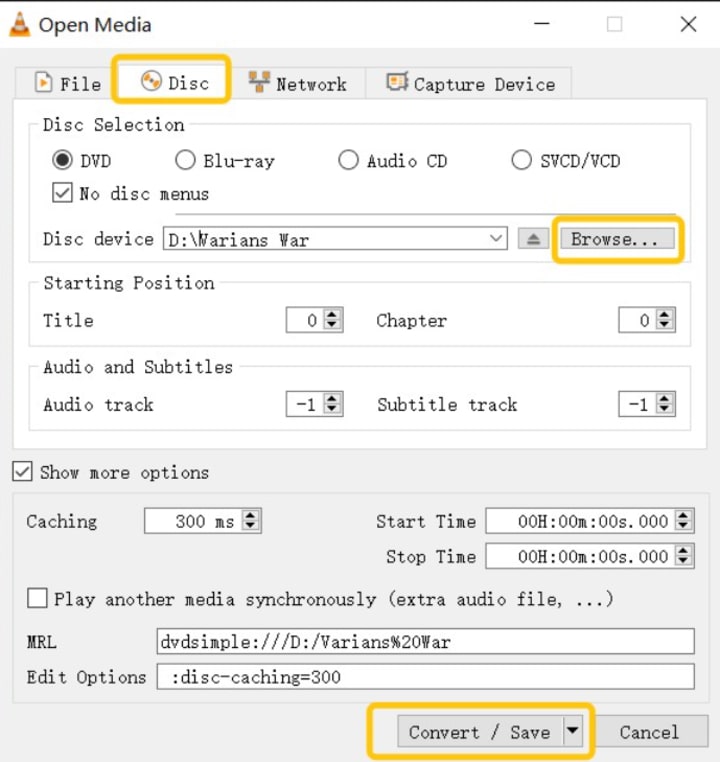
Step 3: Open VLC and load your Blu-ray disc. Navigate to Media > Convert/Save... and choose the Disc tab. Then, check the Blu-ray option and import the disc for playback or conversion within the VLC media player.
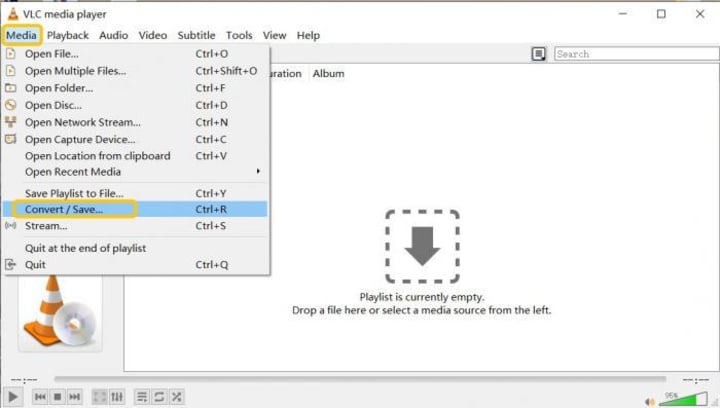
Step 4: Specify the desired title/chapter. Click Convert/Save and select MKV as the output profile. Choose the output folder, then initiate the conversion process in the VLC media player to rip Blu-ray content to MKV format.
FAQs
Is it legal to rip Blu-ray?
Ripping DVDs or Blu-rays for distribution or commercial purposes is absolutely illegal. However, ripping discs for personal use at home is legal in some countries. Therefore, it’s important to review and understand the laws and regulations specific to your country.
Why rip Blu-ray to MKV?
Blu-ray's high capacity and HD/4K capabilities are impressive, but MKV videos are favored for their smaller size, maintained quality, and ease of use and transfer in digital formats. That's why ripping Blu-ray to MKV becomes necessary.
Is MKV better than Blu-ray?
Blu-ray excels for HD and 4K content but requires a good monitor for full benefits. MKV videos offer high quality in smaller sizes, are ideal for digital storage with no degradation over time, and are easy to transfer. So, MKV is definitely better than Blu-ray.
Final Wrap
Free Blu-ray to MKV converters vary widely in capabilities. Open-source tools struggle with copy protection, slow speeds, and large files. Paid converters stands out with its ability to handle protected Blu-rays, ensure quality lossless conversions, and offer extensive editing and customization options, making it ideal for advanced users. Therefore, just choose one tool based on your requirements.
About the Creator
Wenny
Hi there, I'm Wenny, a technical writer sharing multimedia solutions accessible for everyone. Read my articles to turn "how?" into "let's do it!"
Top IT and Marketing Recruitment Agencies in Canada
IT recruitment agencies Canada play a crucial role in connecting businesses with skilled tech professionals. In the Canadian IT market, specialized recruiters have deep industry networks and technical expertise. For example, Insight Global is described as “specializing in delivering talent and technical solutions” to major companies, and Wexpand focuses on “staffing, headhunting, and talent acquisition” with a proactive, client-focused approach. Such agencies leverage local and global connections to speed up hiring for roles from software developers to network engineers. By maintaining large pools of vetted candidates and understanding Canadian tech trends, top IT recruiters help companies bridge talent gaps efficiently.
By Kashif Khanabout 6 hours ago in 01
Why Your 2025 Presentations Fail: The “Quiet Luxury” Hack Powered by PopAi & Morandi Aesthetics
Description Are you still pulling all-nighters fixing alignment and color palettes? The era of "ugly productivity" is over. As we approach the end of 2025, we analyzed why most corporate decks get ignored and uncovered a workflow shift top creatives are already using. This article explains how PopAi’s Morandi Color Scheme Minimalist Magazine slides transform complex data into refined visual narratives—and why this approach is becoming essential for modern presentations.
By charliesamuel3 days ago in 01



Comments
There are no comments for this story
Be the first to respond and start the conversation.