
How to Convert DVD to MP4 on Windows and Mac: A Complete Tutorial
Learn the easiest ways to rip your DVDs to MP4 on Windows, Mac, or online — preserve your favorite videos and enjoy them anywhere.

If you're anything like me, you probably have shelves stacked with old DVDs — precious family moments, classic films, or rare gems that you just can't stream anywhere else. But let's face it, how many times have you seen laptops dropping their disc drives, or found that discs easily get scratched or simply refuse to play? That's when I realized: the smartest thing you can do is convert DVD to MP4. With your DVDs turned into digital files, you can watch them anytime, on any device, and never worry about physical damage or clutter again.
Trust me, I've experimented with more DVD to MP4 converter tools than I care to admit. Some are slow and awkward, some stamp big watermarks on your videos, and plenty just don't get the job done at all. That's why I created this guide to share the DVD to MP4 conversion methods that truly work: from full-featured software to reliable free options and even a simple online solution, so you can skip trial and error and digitize your collection smoothly, the first time.
Best DVD to MP4 Converter: DVDFab DVD Ripper
DVDFab DVD Ripper is a dedicated DVD to MP4 converter designed for both beginners and advanced users. Its biggest strength, in my experience, is that it supports a huge range of disc types and video formats. You can rip DVDs to MP4, MKV, AVI, and dozens of other choices, and fine-tune everything—choose the audio track, keep or hardcode subtitles, or compress your video to save space.
There's a reason why DVDFab DVD Ripper is my top pick whenever I need to convert DVD to MP4—especially when rare discs or tricky copy protections are involved. This tool goes beyond the basics: it's fast, powerful, and handles both homemade and commercial DVDs with ease. Even if your disc has region codes, encryption, or embedded subtitles you want to keep, DVDFab is built for the job.
Features:
- Supports ripping both protected and homemade DVDs to MP4, MKV, AVI, and more than 1000 formats
- Preserves original video quality and allows advanced compression without visible loss
- Removes any DVD copy protection automatically (CSS, region codes, and others)
- Lets you select specific chapters, audio tracks, and subtitles—ideal for keeping the exact content you want
- Offers batch conversion and hardware GPU acceleration for faster processing
- Built-in video editor for trimming, cropping, adding watermarks and effects, etc
- Compatible with Windows and macOS
Limitations:
- Not compatible with Linux systems
How to Convert DVD to MP4 with DVDFab DVD Ripper
1. Launch DVDFab and Select "Ripper" Mode
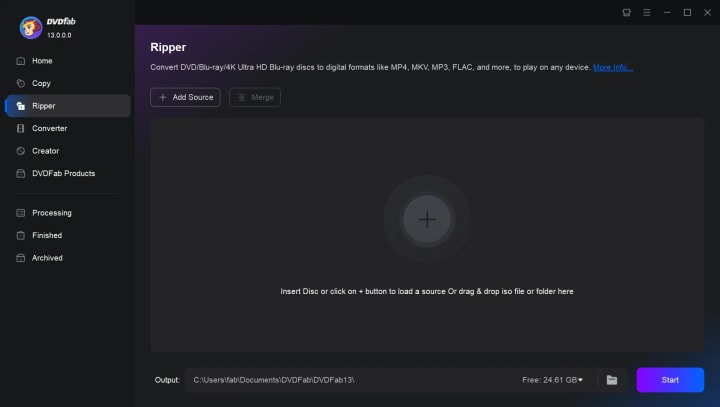
Place your DVD into the computer's disc drive. Open DVDFab DVD Ripper, and click "Ripper" on the leftside menu.
2. Load your DVD
Insert your Disc. Add the disc from the main interface by clicking "Add Source". If your source file is an ISO image or folder, you can simply drag and drop the files onto the panel. The software will analyze the content and display the main movie or all available titles.
3. Choose the Output Format as MP4
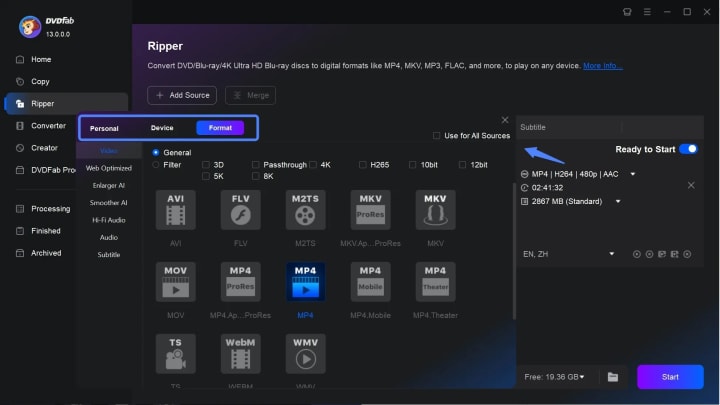
On the format panel by clicking "Choose other profiles", pick MP4 as your target format. There're different MP4 profiles. For mobile devices, you can select the "MP4.Mobile" profile to snsures good compatibility and compact file size, ideal for smartphones and tablets.
4. Customize Video (Optional)
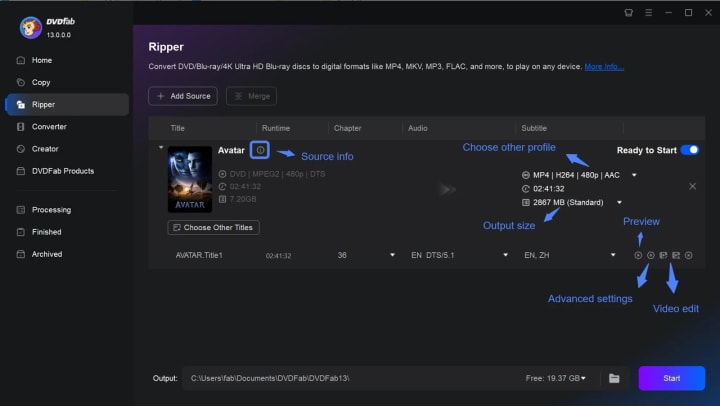
Want to keep subtitles, select specific audio tracks, or trim/crop your video? This DVD to MP4 converter allows you to tweak these details before converting. Just use the built-in editing tools as needed.
You can also use the "Advanced Settings" to adjust resolution, codec, or other settings if needed.
5. Set the Output Location and Start the Conversion
At the bottom of the window, you'll see the save path. Select where you'd like your MP4 file to be stored after conversion. Click the "Start" button. DVDFab DVD Ripper will begin converting your DVD, converting it into an MP4 file. Progress is shown in real-time, and the software uses hardware acceleration for speedy results.
Free DVD to MP4 Converter: HandBrake
HandBrake is a well-loved name among tech enthusiasts, and for good reason. When I first started experimenting with free DVD to MP4 solutions, HandBrake was the tool everyone recommended to me. It's open-source, free for Windows and Mac, and surprisingly powerful once you get the hang of it. But the catch? It can't handle most commercial DVDs with copy protection—unless you're willing to do some extra tweaking.
Features
- 100% free and open-source
- Converts DVD, Blu-ray (unprotected), and many video file types to MP4 or MKV
- Wide range of preset profiles for mobile phones, tablets, and streaming devices
- Lets you adjust video encoding settings, subtitles, and chapter markers
- Batch conversion supported
- Available for Windows, macOS, and Linux
Limitations
- Cannot natively rip copy-protected (commercial) DVDs
- Requires installing additional libraries (like libdvdcss) for basic encrypted DVDs
- Limited subtitle and audio control compared to premium software
- No built-in features for removing region codes or advanced DVD protections
Convert DVD Files to MP4 with HandBrake
1. Install HandBrake
Download and install HandBrake from the official website. If you want to rip encrypted DVDs, you'll need to add libdvdcss as an extra step.
2. Insert and Open Your DVD
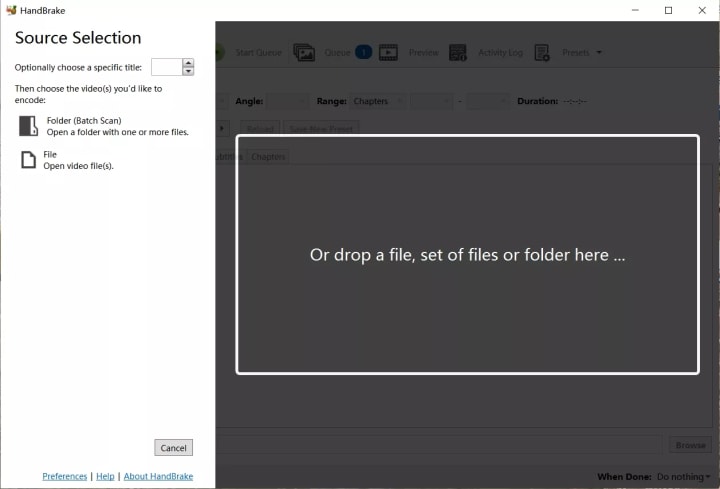
Launch HandBrake, insert your DVD, and select your DVD drive as the source. HandBrake scans the disc and lists available titles.
3. Select Title and Presets
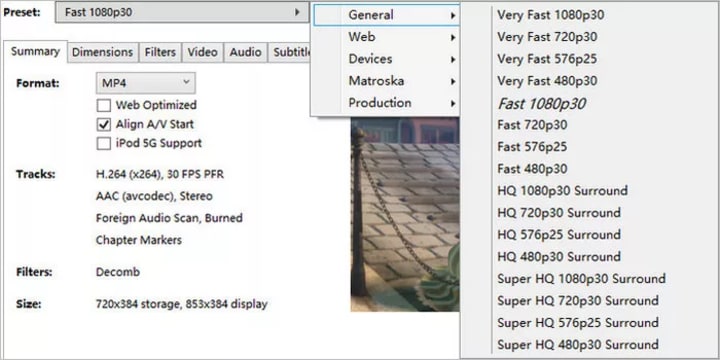
Choose the title (usually the longest, for main movie) and pick an output preset—MP4 for compatibility, and a device-specific preset if needed.
4. Adjust Settings (Optional)
Tweak video quality, add subtitles, or select chapters. HandBrake gives you lots of flexibility.
5. Start Conversion
Hit "Start Encode." HandBrake begins converting—progress is shown in real time. When finished, you'll find your MP4 in the folder you chose.
Convert DVD to MP4 with VLC Media Player
VLC Media Player isn't just a reliable choice for playing virtually any video file—it also hides a lesser-known superpower: it can convert DVD to MP4, right from your desktop. The process isn't flashy, but it's a lifesaver when you want a no-frills option using a tool you probably already have.
Features
- Completely free and open-source
- Runs on Windows, macOS, and Linux
- Converts DVDs, as well as other video and audio formats, to MP4
- Supports simple subtitle and audio track selection during conversion
- No installation of extra plugins required for basic DVD ripping
Limitations
- Cannot bypass most commercial disc copy protections (CSS, region, etc.)
- Conversion speed is slower and process can be a bit clunky
- Limited support for complex subtitles, menus, or chapter selection
- Occasional quality loss when ripping longer movies
- No batch conversion — must process one title at a time
How to Rip DVD to MP4 with VLC
Here's how I use VLC to convert DVD files to MP4:
1. Launch VLC and Insert Your DVD
Open VLC Media Player, then insert your DVD into your computer's drive.
2. Access Conversion Feature
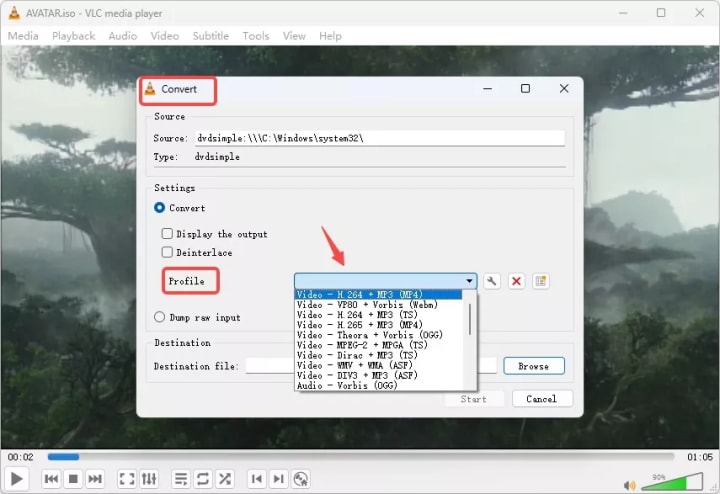
Go to"Media" > "Convert/Save", then click the "Disc" tab. Make sure your DVD drive is selected.
3. Choose Conversion Settings
Under "Convert/Save", opt for MP4 as the output profile. Selecting H.264 + MP3 (MP4) in VLC's conversion settings is a practical option, as it provides a good mix of wide device compatibility, efficient file size, and clear video and audio quality.
4. Start the Rip
Pick your destination folder, name your file with the .mp4 extension, and hit "Convert/Save". VLC will begin to rip DVD to MP4.
Online DVD to MP4 Converter: Convertio
There is no tool to directly convert a physical DVD to MP4 online, but you can use Convertio to convert VOB files in DVD Folder to MP4. For those times when you already have your DVD files on your computer—say, a VIDEO_TS folder or a VOB file—and you want a super-fast, no-installation option, Convertio is worth a look. It's an online service I've tried for quick jobs when I just needed to turn a single VOB file into a handy MP4.
Features
- 100% online — no software installation required
- Supports common DVD video files (VOB, MPG, MPEG) as input
- Converts to a wide range of formats, including MP4
- Simple drag-and-drop interface
- Works on any operating system with a modern browser
- Free for files up to 100MB; paid options for larger files
Limitations
- Can't read from physical DVD discs—only works with files (e.g., VOB from a VIDEO_TS folder)
- Upload size is limited (100MB for free accounts; large movie files require payment)
- Does not support copy-protected or encrypted files
- No batch conversion
- No way to keep menus, chapters, or advanced subtitles
How to Rip DVDs to MP4 Files with Convertio
Here's how I use Convertio when I need to convert a VOB file from a DVD to MP4 quickly:
1. Prepare Your File
Extract the VIDEO_TS folder from your DVD and identify the main .VOB file — usually the largest one (often named VTS_01_1.VOB).
2. Upload to Convertio
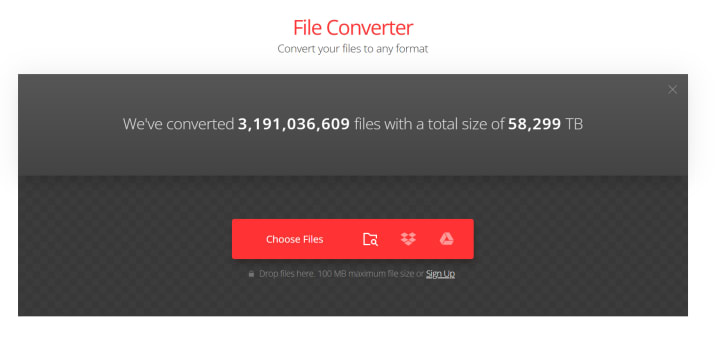
Go to Convertio's website. Drag and drop your .VOB file into the upload area.
3. Select MP4 as Output
Choose MP4 from the format list. Advanced users can tweak resolution or audio settings if needed.
4. Convert and Download
Click "Convert", then wait for processing (speed depends on file size and internet connection). Download the MP4 when done.
Conclusion
No matter why you want to convert DVD to MP4 — whether it's saving space, backing up family memories, or just making your collection easier to enjoy — there's a method for everyone. Personally, I rely on DVDFab DVD Ripper for any disc, especially when I need effortless conversion and dependable quality, even with copy-protected movies. For simple, unprotected DVDs, HandBrake gives reliable results, and if you ever need a quick fix for a single video file, Convertio's online option is handy, but just remember its file size limits. In short, don't let old discs collect dust or risk becoming unplayable. With the right tool, you can digitize your DVDs, enjoy them anywhere, and safeguard them for the future.
About the Creator
Wenny
Hi there, I'm Wenny, a technical writer sharing multimedia solutions accessible for everyone. Read my articles to turn "how?" into "let's do it!"
Nathan Allen Pirtle’s Influence on Modern Brand Strategy
In today’s crowded digital landscape, brands are no longer built on advertising alone. They are shaped by culture, trust, storytelling, and the ability to move at the speed of the internet without losing authenticity. Few strategists understand this balance as clearly as Nathan Allen Pirtle. His influence on modern brand strategy reflects a deeper shift in how brands earn relevance, loyalty, and long-term impact.
By Jeffrey D. Gross MD5 days ago in 01
Amazon warehouse employee left stunned at Jeff Bezos’ response after she emailed him about pay
Tara Jones took her complaint straight to the top and sparked a major review of pay errors A woman who was employed by Amazon went straight to the organ grinder, not the monkey, when she had a pay dispute.
By Dena Falken Esq6 days ago in 01
Miss Persephone's Manual to a Seemingly Ordinary Life
Miss Persephone was found at the dining table, her blue eyes swollen, her tears arriving and retreating like the tides of the ocean. Earlier that day, her family had visited her in the retirement home where she had lived for eight years. It was her eightieth birthday.
By Imola Tóth2 days ago in Fiction


Comments
There are no comments for this story
Be the first to respond and start the conversation.