
WALKTHROUGH ON HOW TO INSTALL VIRTUAL MACHINE AND KALI LINUX
Cybersecurity Awareness

VIRTUAL MACHINE
Definition: A VirtualBox is a powerful, open-source virtualization tool that allows you to run multiple operating systems on your computer. This can be installed on Windows, macOS, and Linux.
There are many types of Virtual Machine, like VirtualBox, VMware Workstation, Hyper-V, e.t.c.
The one I installed on my WindowsOs was VirtualBox and below is the walkthrough.
Step 1: Download VirtualBox
Visited the VirtualBox Website: https://www.virtualbox.org/

Step 2: Click on Downloads to go to the download page.
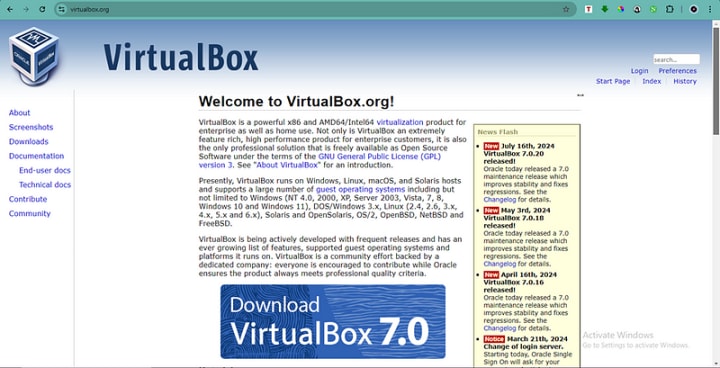
Step 3: Choose Your Operating System, Select the appropriate installer for your OS, Mine is Windows, Click on "Windows hosts"
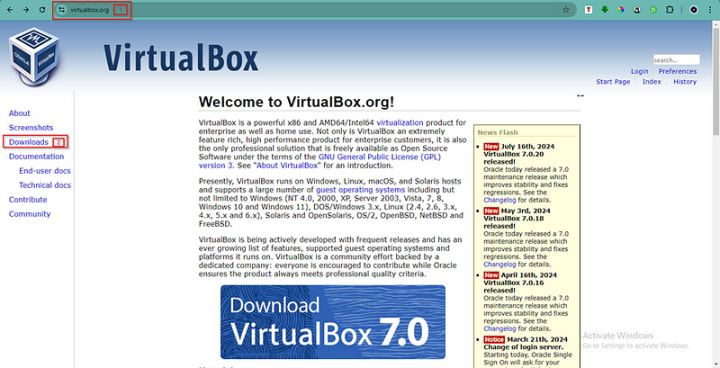
Step 4: Locate the downloaded .exe file and double-click to run the installer. Follow the Setup Wizard.

Step 5: After installation, double-click on the VirtualBox icon to run.

KALI LINUX
Definition: Kali Linux is a Linux open source distribution designed for digital forensics and penetration testing. It is maintained and funded by Offensive Security.
Step 1: To download Kali Linux, I used the resource page on Cisco Academy: https://www.netacad.com/resources/lab-downloads?courseLang=en-US

Step 2: Open VirtualBox.

Step 3: Click on File, Import Appliance.

Step 4: Locate the downloaded .ova file from the dialog box and open. Click Next and follow the Setup Wizard to complete.

Step 5: Click on the Kali Linux Tab on the VirtualBox, Then click Start button on the top middle to run.


N:B: You can mainly download Kali Linux from: https://www.kali.org/ . After downloading, continue from Step 2.
About the Creator
Keep reading
More stories from Onuorah Uchenna and writers in Writers and other communities.
Unofficial Challenge: Black History Celebration
Forward: February 28th, 10:53 PM, EST... The final hour of Black History Month, 2026. Hello fellow writers. I've had this challenge waiting in my drafts for most of the month. But I held off on publishing it, until now.
By Sam Spinelli4 days ago in Writers
The Backbone of Modern Aircraft: Electrical and Electronic Systems in Aviation
I. Introduction Modern aircraft rely heavily on advanced electrical and electronic systems to function safely and efficiently. While engines provide thrust and airframes provide structure, it is the electrical backbone that enables navigation, communication, monitoring, and control.
By Beckett Dowhan3 days ago in Writers




Comments
There are no comments for this story
Be the first to respond and start the conversation.