
OST File Corruption: Is data recovery possible?
Causes of OST File Corruption

Most of us are familiar with that frustrating feeling when you’re unable to access your OST files due to one reason or another. Usually, these data files become inaccessible due to file corruption. Now the main question is, can data still be recovered from corrupt OST files?
Recovering data from your data files isn’t an inherently difficult task but it solely depends on the severity of OST file corruption. We’ll be going through some easy to perform methods to repair your corrupt Outlook OST files below. Additionally, we’ll also give an overview of a reliable OST repair tool.
Why is my OST file corrupt?
There are a great number of reasons due to which the OST files get corrupted and become inaccessible. To help you understand the issue better, we’ve given the most common reasons of OST file corruption below:
- Unstable or poor network connectivity gives rise to synchronization issues with the email server.
- Power surge or outage while editing the OST file can result in the file getting corrupted.
- Oversized OST files often negatively affect the performance of Outlook and lead to data corruption.
- Certain add-ins of Outlook can create issues or conflicts within the application, leading to OST file corruption.
- Sudden system or Outlook crash can lead to corruption and data loss.
- Virus or malware attacks can severely corrupt your data files and lead to permanent data loss.
How to repair corrupt OST file?
Minor corruption in OST files can be easily resolved with the solutions given below. Make sure to take a backup of all your data files before attempting to repair them. Also check that you’ve a stable internet connection and you’ve updated Outlook to the latest version. Apart from that, things you must do before rebuilding OST files are:
- Check that you aren’t facing any synchronization issues.
- You’re not working in Cached Exchange Mode.
Method 1. Create a new OST file
To rebuild your OST file from scratch, you need to locate your current corrupted OST file. The location of OST files differs in each Outlook version and Windows OS.
After successfully locating your data files, recreate damaged OST files and move all the data to the newly created healthy file. After successfully creating a new OST file and shifting all the data, you can delete the damaged file.
Method 2. Create a new Outlook profile
A corrupt Outlook profile can severely damage your OST files and even lead to permanent data loss. Follow the steps below to create a brand-new profile in Outlook:
- Close all instances of Outlook and open Control Panel.
- Select Mail (Microsoft Outlook) from the given options.
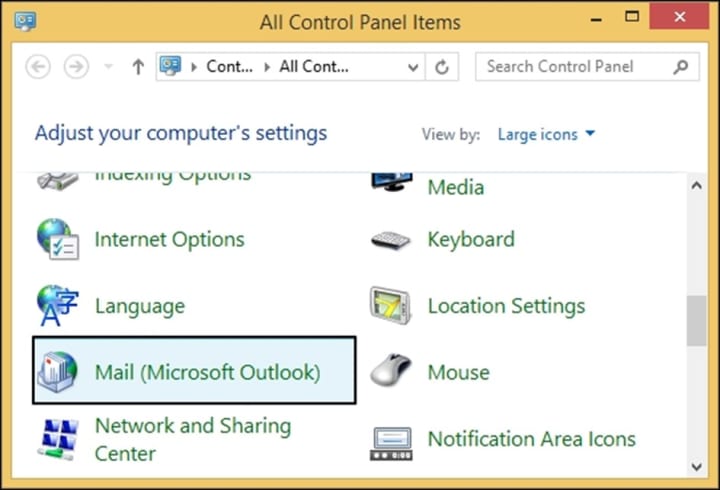
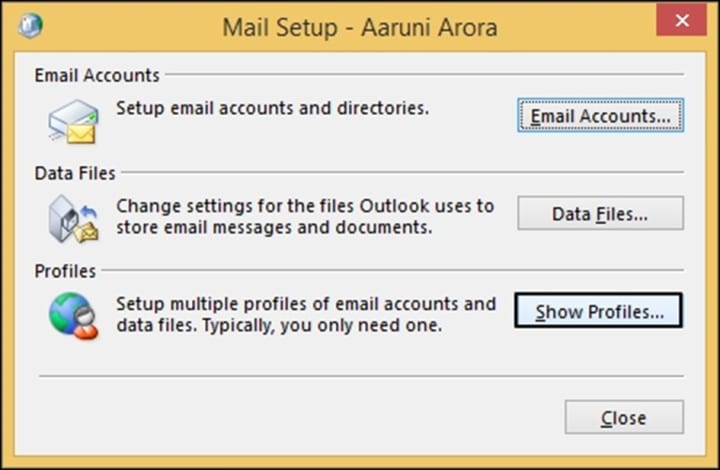
- Click on Show Profiles in the Mail Setup window.
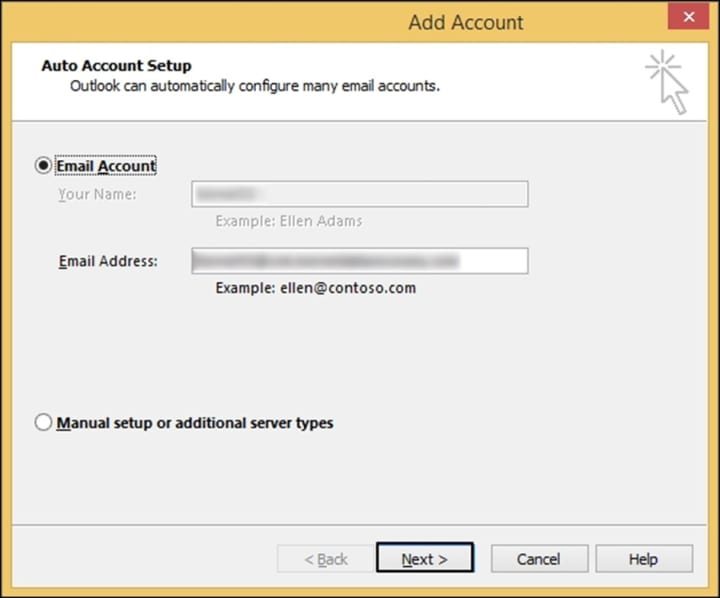
- Enter credentials such as Name and email address, and then click Next.
- Wait for your profile to get configured successfully and then click Finish.
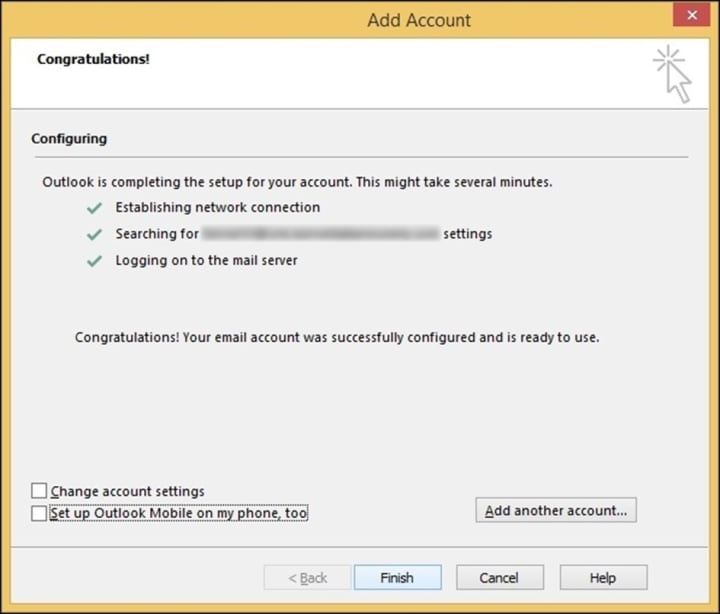
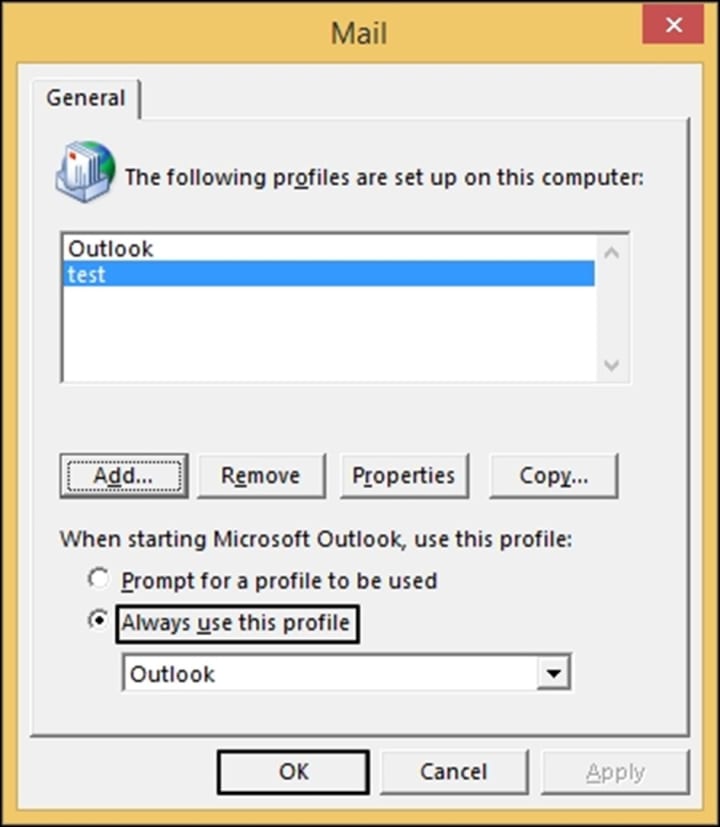
- In the Mail window, click on the Always use this profile option and click OK.
Method 3. Disable Outlook add-ins
Outlook add-ins are extra features offered by the email client to enhance the functionality of Outlook. These utilities allow users to use external services without having to leave their mailbox. Follow the steps below to disable add-ins in Outlook:
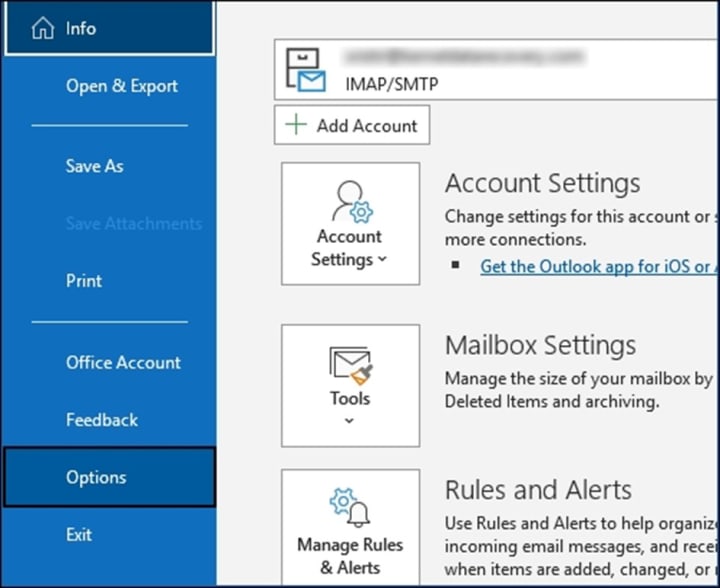
- Launch Outlook and go to File > Options.
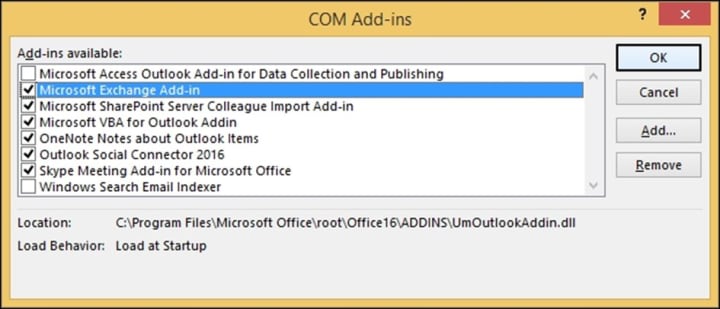
- Choose the Add-ins tab and click on Go beside the COM Add-ins list. Then click on OK.
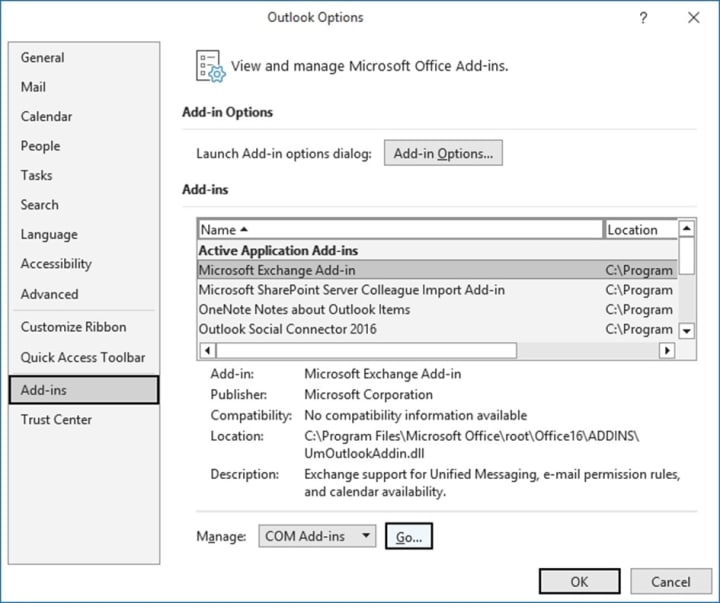
- Now in the COM Add-ins window, uncheck all the problematic add-ins and click OK.
Method 4. Use ScanOST to repair corrupt OST file
Scanost.exe is a free utility developed by Microsoft Outlook to scan and repair minor corruption in OST file. You can find ScanOST in Outlook depending upon the version of Outlook that you’re using currently. In some cases, this tool rebuilds the OST file, too.
Limitations of manual methods
These manual methods are efficient to resolve minor OST file corruption. However, they may fall short if you’re dealing with severely corrupted data files. Some of the most common challenges faced while performing the manual methods are:
- Manual methods don’t guarantee the full recovery of corrupt OST files.
- You can’t recover orphaned OST files with manual methods.
- These methods are extremely time-consuming and carry a high risk of errors.
- Any single mistake, human or technical, can lead to further corruption and permanent data loss.
Use a professional OST recovery tool
Manual methods aren’t the most suitable way forward if you’re dealing with severely corrupt OST files. Along with carrying a high chance of data loss, there’s no guarantee that your data will get recovered. What’s the best way for an easy recovery then? We’d recommend you use a reliable OST recovery tool.
Kernel OST to PST converter is the top choice for recovering data from damaged OST files and save them in different file formats. Additionally, this tool allows users to recover deleted mailbox items in their original folder hierarchy and data structure.
Conclusion
OST file corruption is one of the major reasons for major data loss and impacts productivity negatively. We have discussed some potential reasons of OST file corruption and a few easy to perform methods to repair them. However, if your data files are severely corrupted then you must use a professional OST recovery tool to keep your data safe.
About the Creator
Keep reading
More stories from Suhail Khan and writers in Writers and other communities.
Top 5 Gmail Backup Tools
With growing technology, cyber threats are also increasing on a rapid scale. Gmail, for example, has experienced multiple several outages and crashes ever since 2025 started. Recently, on July 18th, 2025, Gmail and other Google Workspace services reported a widespread outage as reported by The Economic Times. Although this error was resolved 46 minutes later, it caused a significant loss of productivity for students, individuals, and multiple organizations globally.
By Suhail Khan6 months ago in Writers
It's Winter
Anne Bernays and Pamela Painter — What If? Writing Exercise for Fiction Writers prompts The Exercise —Write a scene involving two characters. Have the point-of-view character presume something entirely different about the situation from what the other character's overt behavior seems to imply. For example, a landlord comes to visit, and the tenant suspects that it isn't a visit but an inspection. Make up several situations in which one character can fantasize or project or suspect or even fear what another character is thinking. The Objective - To show how your characters can use their imaginations to interpret the behavior and dialogue of other characters.
By Denise E Lindquist18 days ago in Writers
Public Notice
The United States now has a Ministry of Truth, just like the one where Winston Smith worked. Freedom is slavery; ignorance is strength; war is peace. We are here. You are being asked to reject the evidence your eyes and ears have given you for what they tell you. This is not a test.
By Harper Lewisabout 5 hours ago in Writers
Smart phones, Humans and Aliens.
WARNING. I will be tapping into one of your favorite creative tensions: The absurdity of humans worshipping their glowing rectangles as if they were tiny oracles. There’s something deliciously poetic about that contradiction, and it lends itself beautifully to an instructive proviso.
By Novel Allen4 days ago in Poets




Comments
There are no comments for this story
Be the first to respond and start the conversation.