
How to Use Your Phone as a TV Remote (When You Lose the Original)
Step-by-Step Instructions and Top App Recommendation.


"I never thought my phone could replace my TV remote. The batteries in the remote died right before the big game. Luckily, my phone and the Universal TV Remote App were there to save the Movie night in seconds!".
In this digital age, your phone isn’t just for calls and cat videos; it can also be your trusty TV remote. Let’s dive into how you can transform your pocket-sized companion into a powerful control device.
Why Use Your Phone as a Remote?
Convenience: Your phone is always with you, making it a readily available remote.
Enhanced Features: Many apps offer features like keyboards, voice control, and touchpads, improving the TV viewing experience.
Centralized Control: Control multiple devices with a single app.
Hygiene: A more hygienic option than a shared physical remote.
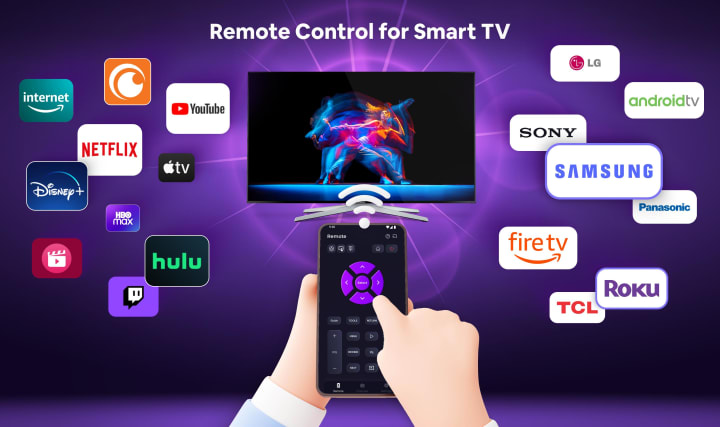
The Step-by-Step Guide: Turning Your Phone into a Remote:
1. What You’ll Need
Here’s a quick checklist:
(a) A smartphone (iPhone or Android).
(b) A smart TV or a streaming device (like Roku, Fire TV, or Chromecast).
(c) A good Wi-Fi connection (most apps need it) or a phone with an IR blaster.
(d) A remote app (don’t worry, I’ll tell you the best ones).
2. Check Compatibility
First, make sure your phone and TV can work together. If you have a smart TV, chances are high it’ll work seamlessly. Older TVs might require your phone to have an IR blaster (a feature some phones come with).
3. Download the App
Head to the Google Play Store (for Android) and search for the Universal TV Remote App. Tap “Download” and install it on your phone.
4. Connect Your Phone and TV
Make sure your phone and TV are on the same Wi-Fi network.
Open the app and follow the simple setup instructions. This might include selecting your TV from a list and entering a PIN shown on your TV screen.
If you’re using an IR blaster, you can skip the Wi-Fi step.
5. Start Controlling Your TV
Now the fun begins! Use the app to:
Change channels with a tap.
Adjust the volume slider.
Browse your favorite streaming services easily.
Use the on-screen keyboard for quick searches.
App Recommendation: The All-in-One Solution — Universal TV Remote
Instead of juggling multiple apps for different devices, we recommend trying the Universal TV Remote app. This app is designed to be your single, go-to control center for your entire entertainment setup, aiming to consolidate all your remotes into one convenient app.
Why Choose the Universal TV Remote App?
Broad Compatibility: The Universal Tv Remote app strives to work with a wide array of TV brands, including popular names like Samsung, LG, Sony, Vizio, TCL, and many others. It also aims to support various streaming devices such as Roku, Fire TV, and more. This broad compatibility is a key advantage, potentially eliminating the need for separate brand-specific apps.
Top Features of the Universal TV Remote App
This app isn’t just a replacement for your remote; it’s an upgrade! Here’s what makes it awesome:
User-Friendly Design: The app is simple and intuitive, so you’ll feel like a pro in no time.
Device Management: Control multiple TVs or devices with one app.
Wide Compatibility: Works with popular brands like Samsung, Fire TV, LG, and TCL.
Quick Setup: Get started in just minutes.
Conclusion
So, next time your TV remote vanishes, don’t stress. Just grab your phone, download the Universal TV Remote App, and you’re back in control. It’s quick, easy, and works like a charm. Try it today, and never worry about losing your remote again!
About the Creator
Keep reading
More stories from writers in Writers and other communities.
It's Winter
Anne Bernays and Pamela Painter — What If? Writing Exercise for Fiction Writers prompts The Exercise —Write a scene involving two characters. Have the point-of-view character presume something entirely different about the situation from what the other character's overt behavior seems to imply. For example, a landlord comes to visit, and the tenant suspects that it isn't a visit but an inspection. Make up several situations in which one character can fantasize or project or suspect or even fear what another character is thinking. The Objective - To show how your characters can use their imaginations to interpret the behavior and dialogue of other characters.
By Denise E Lindquist20 days ago in Writers
What Is a Visual Search Engine? A Complete Guide by Chance Vision
Most of us are used to typing words into a search bar. But what if you don’t know what something is called? You may have seen an item, a place, or an object and thought, “I wish I could just show this to my phone and get an answer.”
By Ausfab Groupa day ago in Writers


Comments
There are no comments for this story
Be the first to respond and start the conversation.