
How to Delete Multiple Emails on a Mac?
The Smartest Way to Clean Up Your Mailbox
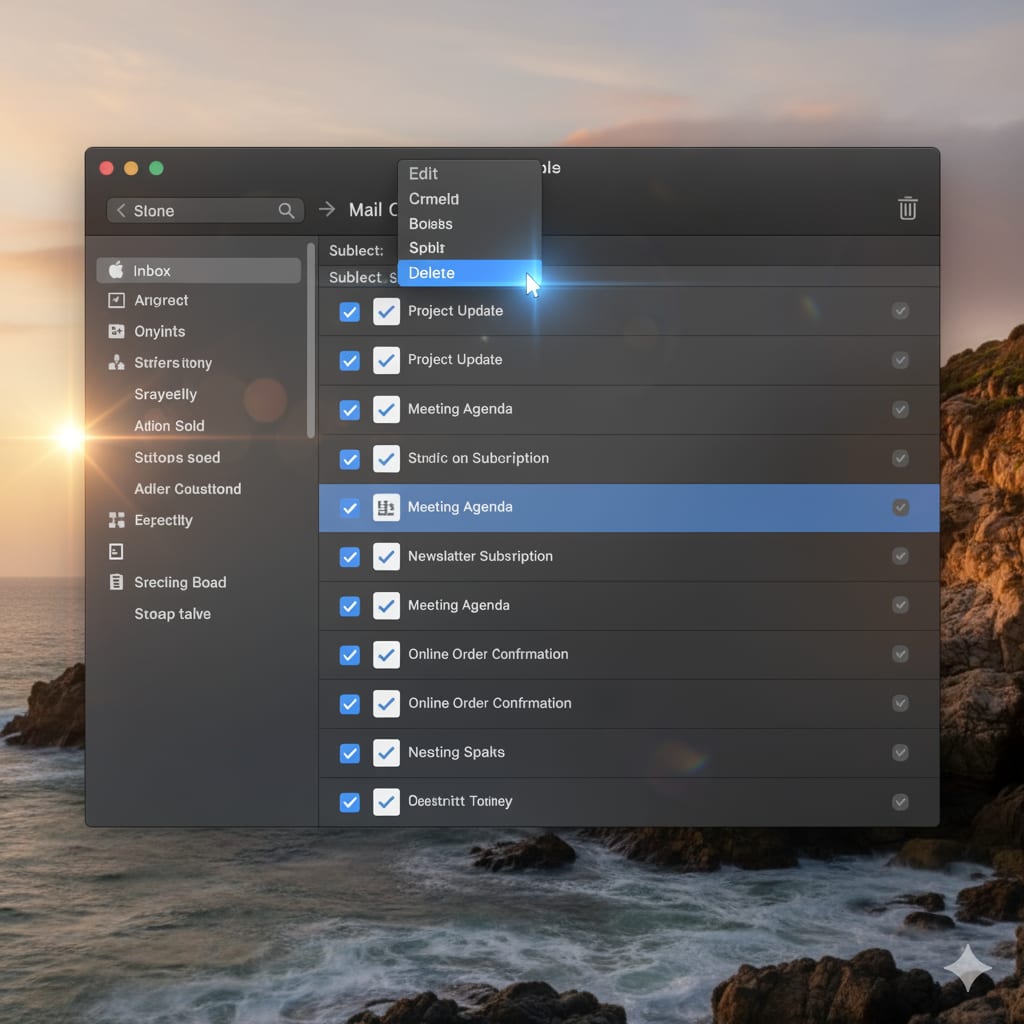
Do you want to know how to delete multiple emails on a Mac device? f your inbox feels like a jungle of unread messages, old newsletters, and promotional junk, you’re not alone. Most Mac users eventually ask the same question — how to delete multiple emails on a Mac without wasting hours manually selecting and deleting them one by one.
While Apple Mail provides some ways to delete multiple emails on Mac, they’re often slow and limited. That’s where an intelligent tool makes all the difference. This professional solution helps you delete all emails on Mac, clean up old messages, and free up valuable storage space effortlessly.
Let’s explore both manual and smart ways to manage your inbox and learn the most efficient method to delete multiple emails on a Mac permanently.
Why You Need to Clean Up Mailbox on Mac Regularly?
Over time, your Apple Mail folders pile up with old attachments, promotional offers, and archived messages. This not only clutters your inbox but also slows down your Mac and consumes disk space. Learning how to delete emails on Mac Mail or how to bulk delete emails from Apple Mail is essential to keeping your system fast and organized.
When you manage emails on Mac Mail properly, you improve performance, reduce storage issues, and ensure you never miss important messages. However, manually figuring out how to select multiple emails on Mac or how to delete multiple messages on MacBook can be confusing and time-consuming.
Let’s go through the different methods — from manual to automated — to find out what really works.
Manual Method: How to Delete Emails on Mac Mail
If you prefer to use the built-in options, Apple Mail does allow you to remove emails from Mac Mail app. Here’s how you can do it manually:
- Open the Mail app on your Mac.
- Go to your inbox or any folder where you want to delete emails in Apple Mail.
- To select multiple emails, hold down the Shift key and click to select a range, or use the Command key to pick specific emails.
- Once selected, press the Delete key or click the Trash icon.
- To permanently erase them, go to the Trash folder, right-click, and choose Erase Deleted Items.
- This is the most basic answer to how to delete multiple emails on a Mac, but it has serious drawbacks.
Limitations of Manual Deletion
- You can’t delete all mail messages on Mac at once across multiple folders.
- Apple Mail often lags or crashes when you try to delete multiple emails from inbox Mac.
- There’s no smart filtering to delete old emails on Mac by date, sender, or size.
- You risk losing important emails accidentally.
- Manually emptying mailbox Mac Mail takes forever when you have thousands of messages.
If you want to delete emails quickly on Mac or perform Mac Mail storage cleanup, you’ll soon realize that manual methods aren’t enough.
How to Mass Delete Emails on Mac — The Smarter Way?
Here’s where technology works in your favor. Instead of deleting messages manually, you can use automation tools like MacUncle Email Eraser for Mac, designed exclusively for Mac users. It offers a professional yet simple solution for anyone who wants to delete multiple emails on a Mac efficiently and safely.
The tool lets you delete emails faster on Mac by applying filters, automating bulk deletion, and securely removing unwanted messages from your Apple Mail or any configured email account. It’s the perfect solution for anyone who wants to clean up mailbox on Mac without the fear of data loss.
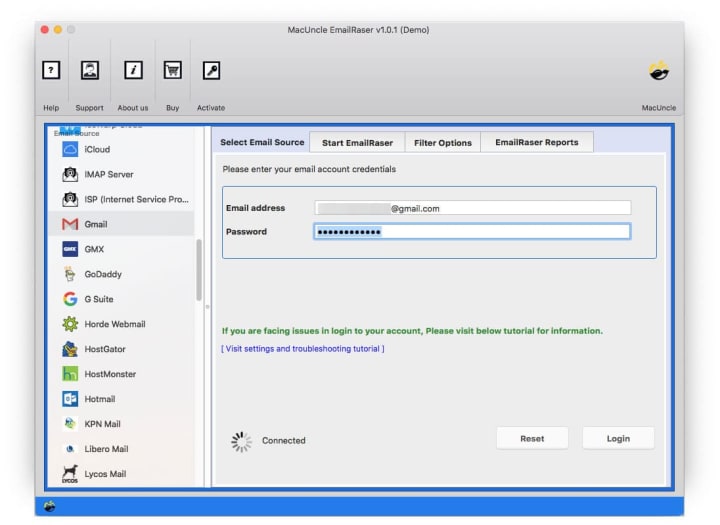
Introducing the Most Powerful Tool to Delete Multiple Emails on a Mac
The suggested software is an advanced tool built specifically to help users delete all emails on Mac in just a few clicks. Whether you’re trying to bulk delete emails Mac, delete unread emails Mac, or permanently delete emails on Mac, this tool is a complete solution.
Key Features of the Software
- Bulk Deletion Made Easy
Instantly delete multiple emails from MacBook Air, MacBook Pro, or iMac. You can select entire folders or accounts and delete multiple emails from inbox Mac with just one command.
- Smart Filters for Precision Cleaning
Choose filters like date range, sender, subject, or attachment size to delete old emails on Mac intelligently.
- Multi-Account Support
Manage multiple accounts — Gmail, iCloud, Yahoo, Office 365, IMAP, and others — and remove emails from Mac Mail app from all accounts at once.
- Safe & Secure Process
The software runs locally, ensuring your credentials and emails stay private. It’s the safest way to delete emails in Apple Mail without risk.
- Attachment Removal Option
You can even delete only attachments while keeping email content, helping you free up space in Mac Mail without losing data.
- Simple Interface
No technical skills needed. The clean UI makes it effortless to learn how to delete multiple emails in Mail app on Mac using automation.
- One-Click Empty Mailbox
Forget manual cleanup. With just one click, you can empty mailbox Mac Mail and enjoy a fresh start.
- Permanently Delete Emails on Mac
The process ensures no deleted email remains recoverable — ideal for users who need privacy and storage optimization.
Step-by-Step: How to Delete Multiple Emails on a Mac the Software
Here’s how simple it is to delete multiple emails on a Mac using this software:
- Download and Install
Get the software from macuncle.com and install it on your Mac.
2. Add Your Email Account
Launch the tool, Select preferred account,” and enter your login details. The software supports all IMAP-enabled mail accounts.
3. Select Folders
Once connected, it automatically displays your mail folders — Inbox, Sent, Trash, etc. Choose the folders you want to clean up.
4. Apply Filters
This is the smart part. Use filters to delete old emails on Mac, delete unread emails Mac, or delete large messages by size or attachment.
5. Preview & Confirm
Review the selected messages before deletion. You remain fully in control.
6. Erase Emails
Click “Delete” to begin. Within minutes, your mailbox will be lighter, cleaner, and faster.
That’s how to delete multiple emails on a Mac effortlessly and professionally.
Why the Software Is Better Than Manual Cleanup?
Here’s why the software is loved by Mac users around the world:
- Saves Time: Manual deletion takes hours, but this tool lets you delete thousands of emails in just minutes.
- No Mistakes: Smart filters help you delete only what you choose, reducing the risk of removing important messages.
- Custom Options: You can filter and delete emails by sender, date range, or attachment size — total control.
- Handles Large Data: Unlike manual methods, it easily deletes a huge number of emails without freezing or crashing.
- Safe and Private: Everything happens on your Mac, ensuring complete security and privacy for your data.
Mac Mail Cleanup Tips to Keep Your Inbox Organized
Even with an automated tool, a few habits can help you keep your Mac Mail neat:
- Remove large attachments. Free up gigabytes of space by deleting attachments alone.
- Empty the Trash. Always permanently delete emails on Mac once you’ve reviewed them.
- Use categories and folders. Organize messages before deleting so you don’t remove important ones.
- Run a quarterly cleanup. Set reminders to clear mailbox on Mac regularly.
- These Mac Mail cleanup tips ensure your system stays optimized and your inbox manageable.
Common Mistakes to Avoid While Deleting Emails
- Don’t delete everything blindly. Always preview before bulk deletion.
- Avoid using webmail interfaces to delete multiple emails from inbox Mac — they often timeout.
- Don’t forget to clear “All Mail” and “Archive” folders when you macbook delete all emails.
- Always back up before you remove emails from Mac Mail app, just in case.
How to Free Up Space in Mac Mail?
Overloaded mailboxes eat away precious storage on your system. The Mac Mail storage cleanup process with Email Eraser not only deletes multiple emails from MacBook Air but also clears attachments and unwanted folders. Within minutes, you can delete all mail messages on Mac and reclaim gigabytes of space.
So if you’ve been wondering how to free up space in Mac Mail, the solution is simple: delete clutter efficiently using software.
Conclusion — A Smarter Way to Delete Emails Faster on Mac
When you learn how to delete multiple emails on a Mac, it’s not just about freeing space — it’s about regaining control over your digital workspace. While manual options exist, nothing matches the efficiency of automation.
With the Software, you can:
- Delete emails faster on Mac.
- Bulk delete emails Mac across multiple accounts.
- Permanently delete emails on Mac safely.
- Organize and delete emails on Mac smartly.
- And finally, free up space in Mac Mail instantly.
Stop struggling with the same repetitive task every few weeks. With this professional yet simple tool, you can finally clean your entire mailbox in minutes, not hours.
About the Creator
The Writer
A writer exploring cyber security, digital forensics, and data security with engaging narratives and insightful analysis.
Keep reading
More stories from The Writer and writers in Writers and other communities.
How to Backup Exchange Online Mailbox to PST? A Complete Guide
So you've moved to Microsoft 365, and everything is in the cloud. That's great, right? Your data is accessible from anywhere, and you don't have to worry about local servers. But here's the thing: cloud data is still your data, and you're responsible for it. This is where the need to backup Exchange Online mailbox to PST comes in. Whether you need to archive old mail, perform a legal hold, or simply keep a local copy for peace of mind, getting your data from the cloud into a PST file is a smart move. Let's break down the different ways you can do this, from the built-in tools to professional solutions, so you can figure out which method works best for you.
By The Writer4 months ago in Writers
It's Winter
Anne Bernays and Pamela Painter — What If? Writing Exercise for Fiction Writers prompts The Exercise —Write a scene involving two characters. Have the point-of-view character presume something entirely different about the situation from what the other character's overt behavior seems to imply. For example, a landlord comes to visit, and the tenant suspects that it isn't a visit but an inspection. Make up several situations in which one character can fantasize or project or suspect or even fear what another character is thinking. The Objective - To show how your characters can use their imaginations to interpret the behavior and dialogue of other characters.
By Denise E Lindquist18 days ago in Writers
Why More Families Are Choosing DOs for Primary Care | E. Griffin Cipolla
Choosing a primary care provider is one of the most important healthcare decisions a family can make. In recent years, more families are turning to Doctors of Osteopathic Medicine (DOs) for their everyday medical needs for good reason. DOs offer a whole-person approach that blends modern medicine with a strong emphasis on prevention, compassion, and long-term wellness.
By Patrick Mphephu7 days ago in Writers
How to Succeed at the Benson Directory®
Congratulations and welcome to the Benson Directory® employee #22391! As our newest call handler, you will have the privilege of speaking with dozens of unique and interesting people on a daily basis as well as the opportunity to earn bonuses for high performance. Contained within this handbook you will find a set of ease to follow instructions designed to help you settle in to your new role and begin paving the way to success.
By S. A. Crawford3 days ago in Fiction




Comments
There are no comments for this story
Be the first to respond and start the conversation.