
How to Block Devices from Your Netgear Router via the Admin Login Page
How to block a device from a Netgear router
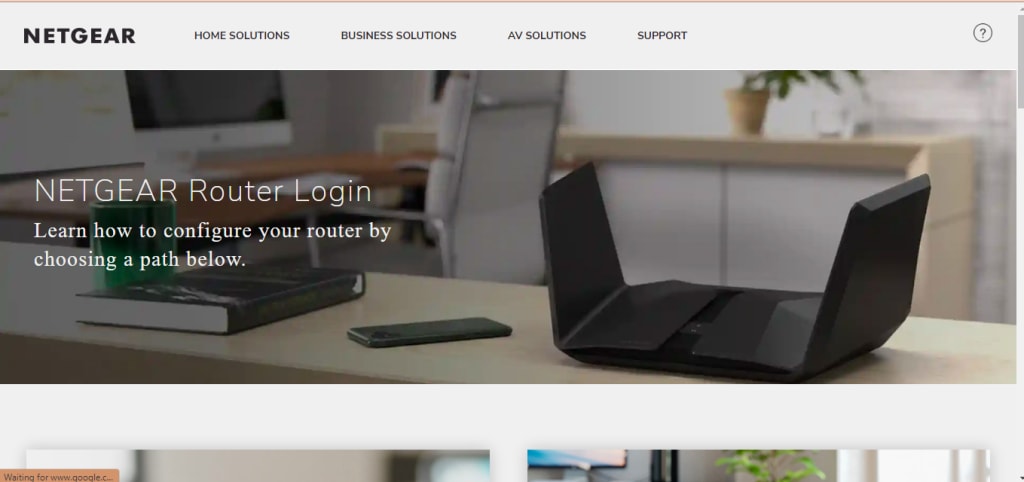
In today's digital age, the Internet has become an important part of our lives. However, sometimes we need to block certain devices from our router to maintain the security of our network or to properly utilize the bandwidth. If you are using a NetGear router, then you must know how easy it is to manage it.
Why do I need to block devices in a NETGEAR router?
- Security reasons: keeping unauthorized devices away from the network.
- Saving Bandwidth: The Internet can slow down if more devices are connected.
- Network Control: Restrict Internet usage by children or other members.
Now let's understand how this process works.
Use www.routerlogin.net to access the router 's settings
To change the settings of a NETGEAR router, first you need to log in to the admin page of your router. For this, follow the steps given below:
1. Connect the device:
Make sure your computer, laptop, or smartphone is connected to the NETGEAR router's WiFi network.
2. Open a browser:
Open any web browser (such as Chrome, Firefox, or Edge) and type in the address bar: www.routerlogin.net .
3. Go to the NETGEAR Router Login page:
This URL will take you to the NETGEAR Router Login page. Here you will need to enter your username and password.
- Default username: admin
- Default password: password (if you changed it, enter your new password).
4. Login:
After entering the correct information, click on the Login button. You will now be directed to the router's admin page.
Device blocking procedure
1. View device list:
After login, you will find the option "Attached Devices" or "Connected Devices." Click on it. Here you will see the list of all the devices that are connected to your network.
2. Select Block Device:
Identify the device you want to block. You can identify it by MAC address or device name.
3. Turn on access control settings:
Look for the "Access Control" or "Parental Controls" option in the router's menu.
- Turn it on.
- Select the option "Block all new devices."
4. Apply the blocking:
Now add the device to be blocked to the list. To do this, click "Add Device to Blocked List" or "Add to Access Control.".
5. Save:
Click the "Apply" or "Save" button to save the settings.
Other Settings and Tips
- Use MAC address filtering: You can allow only selected devices using MAC address filtering.
- Change the password: If you think an unauthorized device is using your network, change the router's password immediately.
- Update the firmware: Make sure your router is running on the latest firmware.
Conclusion
Blocking a device in a NETGEAR router is extremely easy and gives you better control over your network. You can easily complete this process by using NETGEAR Router Login. This not only enhances the security of your network but also gives you a better internet experience.
About the Creator
Marina Tuckson
https://lowessyfcomactivate.weebly.com/ expedia flights is a convenient platform for activating your Lowe's credit card. Simply visit the website and follow the easy steps to activate your card quickly.
Keep reading
More stories from Marina Tuckson and writers in Writers and other communities.
123 HP COM SETUP | INSTALL HP PRINTER | SETUP AND CONNECT HP PRINTER
A simple process that lets you prepare and connect your printer with ease. Whether you are buying a new printer or resetting an existing one, proper setup is a must. This blog will guide you step by step through hp.123.com/setup so that you can complete your HP Printer Setup without any hassle.
By Marina Tucksonabout a year ago in Writers
📢 Raise Your Voice Thread: 01/22/2026
Our “Raise Your Voice Threads” are hosted most alternating Thursdays at 12PM ET to offer creators more avenues to uncover exceptional stories on Vocal. As we are continuously searching for fresh creators and inspiring stories, this thread provides an opportunity to exchange and discuss the stories that have moved and motivated us on Vocal.
By Raise Your Voice by Vocal2 days ago in Resources



Comments
There are no comments for this story
Be the first to respond and start the conversation.