
How to Add IDEA Network to Your Wallet (Step by Step Guide)
Are you looking for the process of adding an IDEA Network and want to explore its decentralized applications?


Are you looking for the process of adding an IDEA Network and want to explore its decentralized applications? The method of adding the IDEA Network to your MetaMask or any other wallet is simple.
We will provide all the steps with visual screenshots for your guidance. We will walk you through everything from setting up a MetaMask wallet account to connecting with IDEA Network. IDEASCAN will provide you with smooth transaction and staking opportunities.
You can check the complete history of your blocks and block address. You can also track the block address from where you have got money or to which wallet you have transferred. The gas fee associated with these transactions can also be tracked with this easy to use Network.
Follow along to securely connect your wallet, add IDEA Network, and get ready to start staking and transacting on the blockchain. Let’s get started.
Before Adding IDEA Network: Create a Wallet Account

In order to use the IDEA network you should have a connection with your wallet acccount. For connecting with Metamask wallet account you need to visit the IDEA Network official site. Where you will find out the history of your crypto wallet after connecting.
Lets create a wallet and connect with IDEA Network for smooth transactions and staking.
Step 1: Click on the “Add IDEA Network” from Sidebar
First thing you need to do is click on the Add IDEA Network button from the right top corner of the homepage of ideascan. This button is available with the MetaMask logo.
Step 2: Add MetaMask Extension to Chrome

When you are going to add a network then your chrome should have a MetaMask extension. By using this extension you can create a wallet and connect it to IDEA Network. When you click on Add IDEA Network this will lead you to the extensions.
Click on the Add to Chrome and wait for some seconds.
Finally; you have got a message of MetaMask added to chrome on your screen.
Step 3: Create MetaMask Wallet
Next step is you need to create a MetaMask Wallet, for which you have to click on MetaMask from 42 available options. You can use it for Firefox, Chromium, IOS and Android. Click on Visit Site.
When you click on the Metamask or button of “Visit Website”. You will have a welcome page in the new tab. MetaMask Wallet is a secure wallet that allows millions of people access the world of Web3 .
Step 4: Check Agree to MetaMask’s Terms of Use
Read the terms of use by MetaMask by clicking on the “Terms of Use”. If you agree with the wallet policy of MetaMask please check out the box and click on “Create a new wallet”.
After that you will have major privacy policy points on your screen or you may also get complete privacy policy by clicking on it. If you agree with privacy policy then simply hit the “Agree” button.
Step 5: Create a Strong Password
Create a strong password for your wallet and try to have a mixture of text, digits and symbols. Please not share this password with anyone else for future security reasons. It should have a minimum of 8 characters.
Note: Remember that metamask will not recover this password for you. You are the only person who knows the password, not even MetaMask knows it. So please note down it on your notebook to stay away from hackers.
Step 6: Create a New Wallet
When you are creating a password, MetaMask tells you besides the status of it. Either it is good or average or excellent from a security point of view. Once you are satisfied with the password. So, check the box and click on the create a new wallet.
Step 7: Secure Your MetaMask Wallet Account
The security of your MetaMas wallet account is very important. This is because most of the time you have lost your device or a lay person login to your device then if you did not take measures for the security of the crypto coinbase Web3 wallet your money will be in the worst hands.
While you are creating your MetaMask wallet Account there is a built-in recommended option of adding a security to your wallet by the tool MetaMask is presenting. To avail this option you need to click on the “Secure my Wallet” button.
When you click, it will provide a 12 word recovery phrase. You please try to write down these recovery phrase words in your notebook. You can also store it in a deposit box.
Go to your study room and bring a notebook on your working table to note it down. After that click on the “Reveal Secret Recovery Phrase”. Because you are ready to store it.
Copy your secret recovery phrase and don't reveal it to anyone else. Write down in your notebook immediately.
Next, you need to confirm your recovery phrase by providing the 3 missing words from the provided recovery phrase. From the notebook check and write the words in missing boxes.
Step 8: Confirm Secret Recovery Phrase
Check the sequence of the words and provide the 3 words to confirm the secret recovery phrase. Once you provide these words you need to click on the “Confirm”.
Adding the IDEA Network to Your MetaMask
By default, your new MetaMask wallet will be connected to the Ethereum network. To interact with decentralized applications (DApps) on the IDEA Network, you need to add it to your MetaMask. Follow these steps:
Step 1: Connect IdeaScan to MetaMask
To Connect the IDEASCAN network to your MetaMask wallet now click on the Add Network and then on MetaMask. It will lead to a connection with MetaMask. If you don’t have a wallet please from the above 8 steps that are visual and simple for your guidance.
You will see a pop type window on your screen that is showing IDEASCAN need to connect with the MetaMask.
Once you click on connect button, next you need to click on approve for connecting it with your wallet.
Followed the above steps? Good, you are now connected to MetaMask.
Step 2: Access the Networks Menu
To add a custom network to IDEASCAN, now click on the MetaMask from the extensions. But it should be connected to the wallet first. Hit the Dropdown menu or Main Menu from the side left corner.
(It usually displays "Ethereum Mainnet").
Step 3: Select Add Network from the options.
I have added an Idea testnet already but you need to click on the “Add a custom Network”.
Step 4: Fill in the IDEA Network Details
When you click on Add a custom network then you need to fill the IDEA Network Details.
Note that these parameters are unique to each network.
Network name: IDEA Chain Testnet
New RPC URL : "node1.ideascan.io"
Chain ID: 2960
Currency symbol: IDEA
Block explorer URL: "https://www.ideascan.io/"
meta8
Step 3: Save the Network
After entering all the required details, click on the Save button.
Step 5: Confirm Connection to the IDEA Network
You should now see the IDEA Network listed in your networks. Select it to switch to the IDEA Network.
You will see the network name at the top of the MetaMask interface, confirming that you are now connected to the IDEA Network.
Step 6: Fund Your Wallet
To use the IDEA Network, you will need to fund your MetaMask wallet with some IDEA tokens to cover transaction fees. You can transfer IDEA tokens from exchanges like Binance to your MetaMask wallet using the IDEA Network.
Wrapping Up
Congratulations on integrating the IDEA Network into your MetaMask Wallet. You can now immerse yourself in the experience of decentralized applications, smooth transactions, and staking.
Your wallet is set up and secured with the IDEA Network through the steps you followed, now keep in mind to store your recovery phrase and verify your security settings; these steps will ensure that your digital wealth remains protected.
With strengthened confidence, you now can fully enjoy the IDEA Network's features. Congratulations on exploring the network, and we wish you happy transactions.
About the Creator
Keep reading
More stories from jennifer smith and writers in The Chain and other communities.
What are the best crypto education resources on the Internet?
Cryptocurrency is reshaping finance, but navigating this complex world requires the right knowledge. Without proper education, investors risk falling for scams, making poor trades, or mismanaging security. Fortunately, the internet offers a wealth of learning resources—from structured courses to free YouTube channels, in-depth books, and active communities.
By jennifer smith10 months ago in The Chain
How to Reduce Crypto Token Development and Launch Costs?
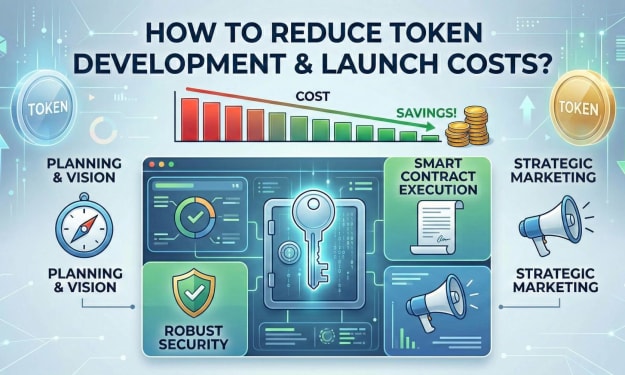
Launching a crypto token often looks deceptively simple from the outside. Smart contracts can be deployed in minutes. Token standards are well documented. Marketing channels are accessible. Yet founders frequently discover that what seemed like a modest technical exercise turns into a six-figure undertaking. Development, audits, legal structuring, exchange listings, liquidity provisioning, branding, community management, and post-launch maintenance compound rapidly.
By Jennifer Atkinson5 days ago in The Chain
Crypto Coin: Architecture, Utility Models, and Market Dynamics Explained
The term Crypto coin refers to a native digital asset that operates on its own blockchain infrastructure, functioning as a medium of exchange, store of value, and programmable financial instrument. Unlike tokens that are deployed on existing chains, a Crypto coin underpins its network’s consensus, incentivization, and transaction validation layers. Understanding how a Crypto coin operates requires a multi-dimensional perspective that includes cryptographic security, economic design, governance structures, and regulatory implications.
By Siddarth D4 days ago in The Chain


Comments
There are no comments for this story
Be the first to respond and start the conversation.