
How to Store Netflix Downloads on microSD Card
Here is how to download Netflix contents to your microSD card to save the storage of Android phone or tablet.
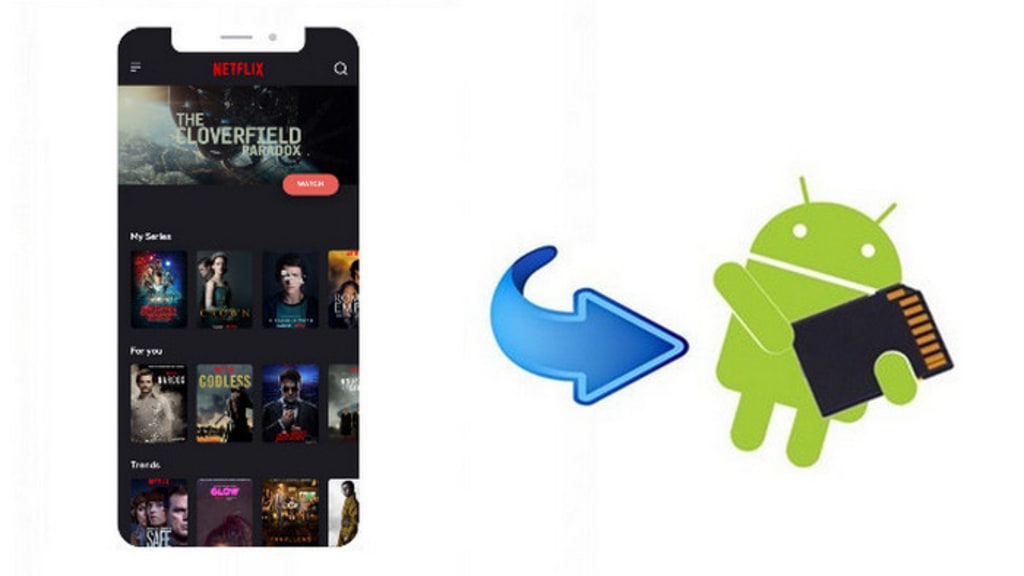
You can download select TV shows and movies on the Netflix app of Android or iOS devices to watch offline later. To be honest, the offline viewing feature is so cool because it allows you to download and store a bunch of Netflix videos for a long trip. To kill time on the long flight or train, you need 5-6 episodes which would require 5GB at least of free space for HD.
So what if you do not have any storage space left on your Android? To save the storage of your mobile phone or tablet, you can set it to download Netflix contents to your microSD card.
Download Netflix Contents to SD Card on Android
Downloaded titles are stored in the same location where you have installed the Netflix app. If you install the Netflix app to the SD card will also cause titles you download to be stored there. If the Netflix app is installed on internal storage, downloaded titles will be stored there. Here is how to download Netflix videos to your microSD card on Android.
Step 1: Launch the Netflix app on Android phone or tablet.
Step 2: Tap on the "Menu" icon in the upper-left side of the screen.
Step 3: Scroll download to "App Settings" and locate to "Download Location" option in the Downloads section.
Step 4: Select Download Location" and tap on "SD Card".
Now you have changed the download location to SD card, you can continue to download more content to your Android phone or tablet. However, this approach comes with an obvious limit: the download contents can only be accessed on the device on which there were downloaded. In other words, you can not insert the SD card into another phone to watch the downloaded contents.
Download Netflix Contents to SD Card with SameMovie
To keep the Netflix contents on the SD card still valid and accessible by other devices, you can use SameMovie Netflix Video Downloader to save Netflix videos to your computer, then transfer the downloads to SD card and play the videos on any device.
STEP 1 Download and install Netflix Video Downloader
Download Netflix Video Downloader on Windows 11, 10, 8, 7, then click on the exe file to install it.
After the installation is complete, you can launch Netflix Video Downloader.
STEP 2 Customize the Download settings
Click on the "Setting" button on the upper right corner of the interface, on the prompt, you can customize the download format to MP4 or MKV, quality to High, Medium or Low, and change the output folder.
STEP 3 Search the Netflix movies or TV shows you want to download
Simply type the movie or TV show you want to download in the search bar, or copy the Netflix video link from the browser and paste the link. Then press the "Enter" key to load all the related videos.
STEP 4 Choose Advanced Download Settings
For Netflix TV shows, you can click the download button button to choose the download quality (1080p, 720p, and 480p), audios, and subtitles languages.
For Netflix movies, you can click the advanced setting button button to open the "Advanced Download" window to select the download quality, audio tracks, and subtitles.
STEP 5 Start downloading Netflix videos to PC
Click on the "Download" icon, the program will start downloading the title and save it to the output folder you have chosen in the previous step.
After the downloading is complete, you can click on the "Library" tab on the top to check the well-downloaded videos on local drive.
STEP 6 Transfer the Netflix videos to SD card
Finally, you can insert the microSD card into your computer with built-in or portable card reader, the select and transfer the Netflix videos to SD card.
About the Creator
Happy Polka Dot Day
Happy Polka Dot Day! So, this is celebrated every year on January 22nd for Disney’s stars – Mickey & Minny Mouse. In 1928, Minny Mouse’s first appearance was in a black and white dot dress. Since then, this print has been iconic and has appeared in fashion and accessories.
By Lynne Blackabout 22 hours ago in Styled
Why Formal Dresses Remain a Core Wholesale Category
In an industry driven by trends and seasonality, some fashion categories consistently deliver strong performance year after year. Formal dresses are one of those essentials. From weddings and galas to proms and corporate events, formalwear serves a wide range of occasions. For retailers and resellers, sourcing bulk formal dresses remains a dependable and profitable wholesale strategy.
By Style Sparksa day ago in Styled




Comments
There are no comments for this story
Be the first to respond and start the conversation.