
What Are the Best iPhone Camera Settings for Filming YouTube Videos?
Best iPhone Camera Settings for YouTube: Tips for Filming High-Quality Videos
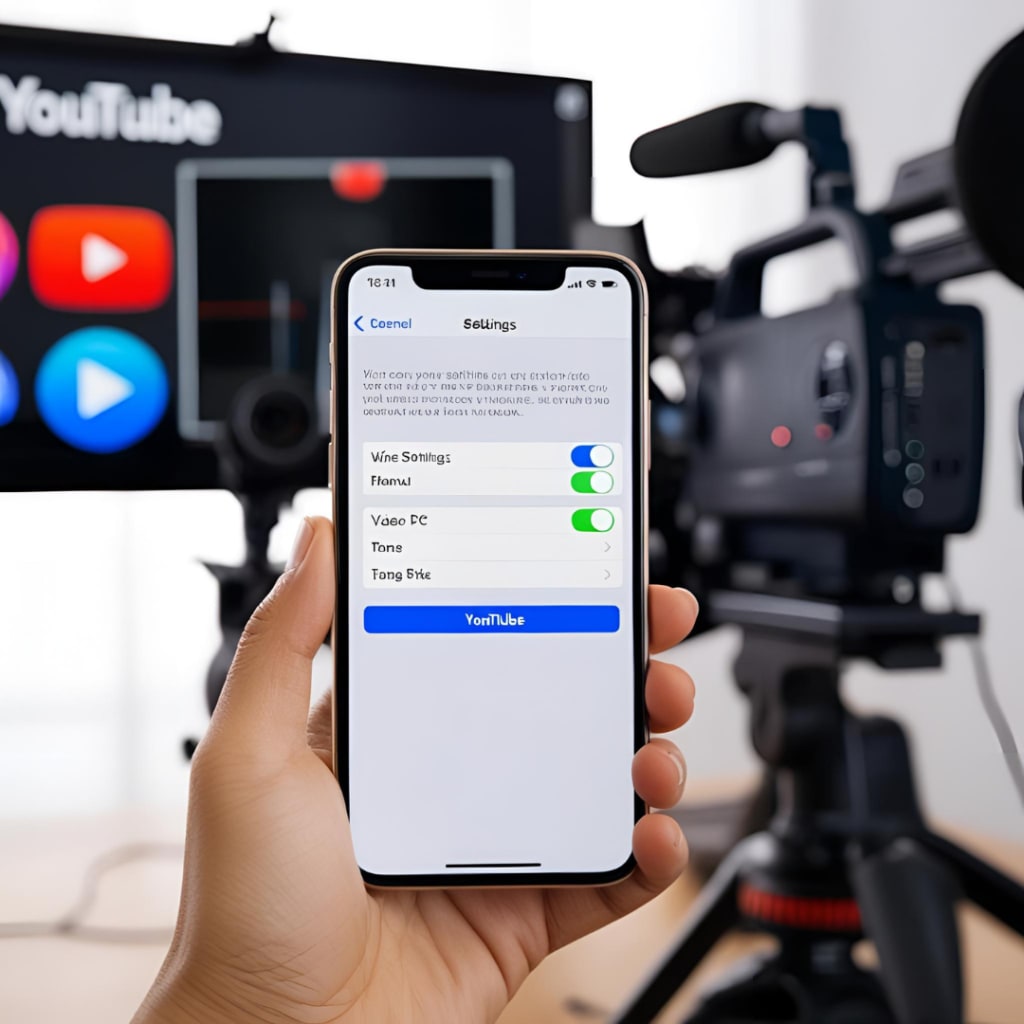
1. Resolution and Frame Rate
For the best clarity and smooth motion, the resolution and frame rate settings are key.
Resolution: To capture stunning detail, 4K resolution is your best option. Depending on your content style, you can choose either 30fps (frames per second) for standard, smooth footage or 60fps for a more cinematic, fluid look, particularly for dynamic scenes.
How to Set It: Navigate to Settings > Camera > Record Video, and select 4K at 30fps or 4K at 60fps based on your preferences.
2. Focus and Exposure Control
Sharp focus and proper exposure (brightness) are vital for clear and professional footage.
- Focus: Tap on your screen to focus on the main subject, and adjust to ensure the focus stays consistent, especially during stationary shots.
- Exposure: Swipe up or down after focusing to control brightness. Proper exposure is crucial to ensure your subject is well-lit, without overexposure.
- Lock Focus and Exposure: Hold your finger on the screen to enable the AE/AF Lock, which keeps the focus and exposure consistent throughout the recording.
3. Lens Selection
iPhones come with multiple lenses that offer creative possibilities:
- Wide Lens: Ideal for general use, providing a natural look.
- Ultra-Wide Lens: Best for more dramatic perspectives or when you need a broader frame.
- Telephoto Lens: Useful for tighter shots or more professional depth of field effects.
- Lens Switching: Simply tap to focus, then swipe between lenses (0.5x, 1x, 2x, etc.) for the desired shot.
4. Stabilization for Smooth Shots
While iPhones feature optical image stabilization (OIS), using a tripod or a gimbal can significantly reduce shake and provide smoother footage, especially when filming dynamic scenes or handheld shots.
Tip: For static videos, a tripod is essential. For action shots or moving footage, a gimbal will elevate your video quality to the next level.
5. Lighting Considerations
Good lighting makes all the difference in video production. Though iPhones are equipped to handle various lighting conditions, it’s crucial to ensure your subject is properly lit for the best result.
- Natural Light: Position yourself near windows for soft, flattering light.
- Artificial Lighting: Consider using a ring light or softbox lights for controlled and even illumination.
Tip: Avoid strong backlighting or harsh overhead lighting, as these can create unflattering shadows.
6. Audio Quality
While the iPhone's built-in microphone performs adequately in quiet settings, you’ll want to use an external microphone for clearer, more professional audio, especially in noisy environments.
Recommendation: Lavalier microphones (clip-on) or shotgun mics are excellent for capturing clear, directional sound.
Enhance Your iPhone Videos with AVCLabs Video Enhancer AI
Once you've captured your footage, enhancing its quality in post-production is essential for creating professional-grade content. AVCLabs Video Enhancer AI is a remarkable tool that leverages artificial intelligence to upscale and enhance your videos.
This software is perfect for improving footage shot on an iPhone. It can upscale videos from 1080p to 4K, reduce noise, sharpen details, and adjust color accuracy without losing quality. The result? Crisp, professional videos that stand out from the crowd. AVCLabs Video Enhancer AI is ideal for YouTubers who want to give their iPhone footage a refined, polished look without the need for expensive equipment or lengthy editing sessions.
Final Thoughts
With the right settings and tools, your iPhone can easily handle YouTube-quality video production. Prioritize high resolution, proper focus, and good lighting, and be sure to enhance your footage with the help of AVCLabs Video Enhancer AI for that professional touch.
Whether you’re just starting out or refining your content, these tips will help ensure your videos look as great as they sound—no expensive gear required.
Happy filming!
About the Creator
EveWilliams
Youtuber
Keep reading
More stories from EveWilliams and writers in Photography and other communities.
How Can You Prevent Costly Manual Processes in Video Production?
Have you ever found yourself drowning in a sea of repetitive tasks while working on a video project? You know the kind—sorting through endless clips, tweaking audio settings over and over, and feeling like you’re stuck in a never-ending loop of edits. Trust me, I’ve been there too, and it’s not pretty. But here’s the thing: it doesn’t have to be like this.
By EveWilliams12 months ago in Photography
Why Printed Photographs Still Matter: The Art and Value of Preserving Memories in Print
In a world where most photographs live on phones, laptops, and cloud storage, it is easy to assume that printing pictures is a thing of the past. Yet something meaningful gets lost when memories stay locked inside a device. A photograph printed on high quality paper carries a weight and warmth that no screen can fully replicate. It can be held, shared, framed, and passed down through generations.
By The Iconabout 13 hours ago in Photography



Comments
There are no comments for this story
Be the first to respond and start the conversation.