
Ultimate Guide to Photo Editing with PhotoCut
Ultimate Guide to Photo Editing with PhotoCut


Ultimate Guide to Photo Editing with PhotoCut
In mainstream photo editing, achieving an ideal image often involves removing unwanted elements, enhancing quality, or reworking an image to one's vision. The quality of tools can make a huge difference for professional photographers, social media influencers, or people who like to edit their photos for fun. One of the most powerful yet simple-to-use photo-editing software today is PhotoCut.
The features of PhotoCut enable users to get rid of backgrounds and blemishes, unwanted people, blur, or watermark properties, to improve and refine photos. In this article, we will discuss these crucial features in detail and show you how they help PhotoCut impart a more professional edge to your photographs.
Sharpen your images with PhotoCut’s AI Photo Enhancer.
1. Remove Background from Photos

One of the most common and fundamental tasks of photo editing is the removal or modification of an image background. Whether you want to place your subject into another environment, create a cool and clean minimal look, or just focus on one area of the image, background removal can entirely transform your image.
Why Remove Backgrounds?
- Focus on the Subject: Distracting or cluttered backgrounds are removed to emphasize the subject before you.
- Professional Appearance: Dirty backgrounds in design projects, including their products and marketing materials, are very unprofessional.
- Add a Convenient Element: Without a background, you can fit your subject in any setting, including a beautiful landscape, a graphic design artwork, or a corporate branding site.
How PhotoCut Makes Background Removal Easy
Background removal has now become very easy with PhotoCut, even for non-professionals. Here is how it works:
- Automatic AI-Based Detection: Firstly, PhotoCut uses AI that detects the subject in the photo automatically. The software has intelligence to draw the edges so that only the background is removed while keeping in view the subject.
- Manual Interventions: Though AI will get most of the work done, PhotoCut gives you manual editing tools when required. In case areas are detected incorrectly by the AI, use the eraser and brush tools to get rid of the unwanted pixel and refine the edges for a clean result.
- Transparent Background: After deleting the background, your image is ready to be saved with a transparent background (PNG format) so that you can overlay the image in designs or utilize the subject in different contextual settings.
Ideal for quickly and accurately getting rid of the background with no need of hours working out the edge details.
Generate professional headshots using PhotoCut’s AI Headshot Generator.
2. Remove Objects from Photos

After all the planning and controlling of various aspects during editing a picture, even the smallest things can spoil it. Be it a person crazily posing behind your intended subject, a trash can on the corner of the frame, or an unwanted sign, these all can be ruined by possible interference that will highly assist the improvement in the quality of the image. PhotoCut can help you remove unwanted objects from your photos.
Why Remove Objects?
- Enhancing Focus: Unwanted objects from the photograph also sharpened focus on an object as if it was depriving any attention from itself.
- Touch-Up to Composition: Remove distractions from the composition to give an aesthetic condition to the entire image.
- Gifted to Product Photography: For e-commerce and an advertisement, erasing extraneous objects brightens exposure for your products without distractions from the item itself.
How PhotoCut Removes Objects
PhotoCut's object removal tool is, first, an easy-to-use intuitive product. Here's how it works:
- Smart AI-based Removal: With an advanced AI technology, PhotoCut automatically identifies and erases unnecessary objects from your photo. It will then fill the space by matching-up pixels from neighboring areas so that the edit can be considered seamless.
- Manual Editing Options: For precise edits, you could simply select via the selection tool the area that you want to infer as removed. After that, PhotoCut uses its cut-aware feature to put real-looking textures that blend to its background in place of that area.
- Natural Result: Whether small or large, it is assured by PhotoCut that your photo becomes highly natural after alteration. In producing an authentic-looking image, the program takes into consideration lighting, texture, and the background patterns.
This feature changed the world for photographers and others who are searching for quick, clean, and polished images without distraction.
3. Remove People from Photos

Sometimes when you take a picture, some people in it may have to be removed, whether they are unwanted photobombers, completely unearthly subjects, or just to make the scene a little more streamlined. PhotoCut can help you remove unwanted people from your photos.
Why Remove People?
- Bring Out the Intended Subject: If the picture was taken with more than one person present, it can help direct attention to the primary subject or scene by eliminating unnecessary individuals.
- Create a Better Story: Sometimes people in the background distract from the event being told. Removing them can help to paint a clearer picture.
- Privacy and Professionalism: In the case of some business or personal photos, it is better to leave them out to be honest regarding privacy or upkeep of a "look."
How PhotoCut Removes People
PhotoCut’s "Remove People" feature is designed with ease and efficiency in mind:
- AI-Driven Processing: Overall, the PhotoCut program can identify and delete people in the same manner as an object removal. The program directly recognizes human figures in a photo and effectively deletes them from it.
- Background Reconstruction: PhotoCut creates a new background by filling the missing areas with surrounding textures and patterns to give the impression that the person was never there.
- Manual Refinements: You can also manually refine the areas that need further attention, so no traces of the person will remain-at least, not in a shadow or small detail. The power given to the artist is total control over the editing process by PhotoCut.
It works well for portraiture, landscapes, and group photographs where you want to maintain focus on select individuals.
Improve the quality of your photo with PhotoCut’s editing tools.
4. Remove Blurriness from Photos
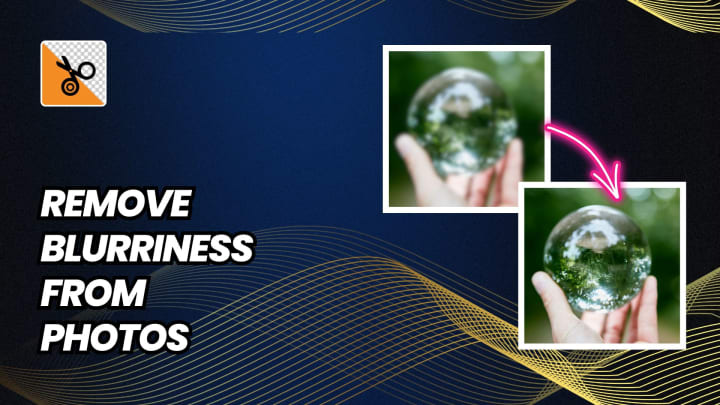
Photos taken in a jiffy that end up blurry from an accidental shake or a quick movement can prove to be real pestering. But hey, it's good that PhotoCut provides just about everything to reduce or even remove blurriness to restore clarity to your images!
Why Remove Blurriness?
- Improvement of Visual Quality: Blurring usually robs an image of the detailing and sharpness that would normally make it into an eye-catching image. By removing the blurriness, one can put great emphasis on the overall quality of the picture and give it a professional feel.
- Preserving Important Elements: If the blur encompasses significant content of the photo, the removal of the blur proves to be a gainful effort for both personal and professional use.
- Correct Camera Issues: Sometimes, poor focus or incorrect camera settings can lead to blur. PhotoCut’s advanced tools can help counteract these issues.
How PhotoCut Removes Blurriness
PhotoCut features an easy-to-use deblurring tool that can work wonders on extremely blurred images. Here’s what happens:
- Smart Sharpening Algorithm: The strong sharpening algorithm in PhotoCut detects regions of impact by the blur and enhances the details in these regions.
- Edge Detection: Using edge analysis for your photo, the application tries to enhance the clarity of the portions that need clarity restoration. This method assures your photo looks real rather than artificially enhanced, as if the blur never existed.
- Manual Control: Should the automatic repair still fall short of your standards, PhotoCut provides handy sliders and manual controls to adjust sharpness and detail to your benefit.
With the deblur tool, recover fine detail and sharpen an image, or even a set of images of yours with weakened resolution, with the PhotoCut.
5. Remove Watermark from Photos
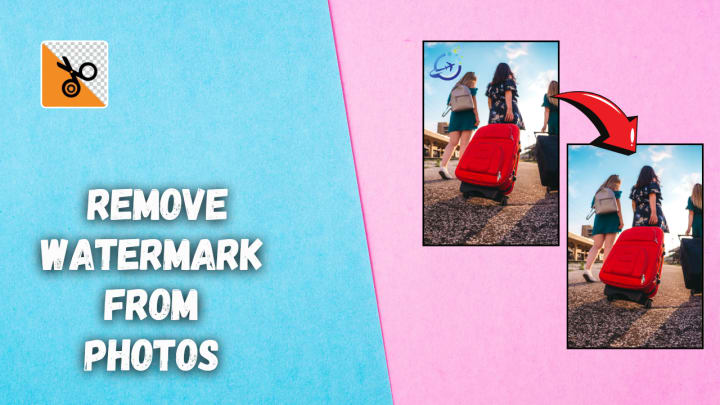
Watermarks usually indicate a certain amount of copyright protection or give acknowledgment to the photographer. However, on certain occasions, it becomes necessary to get rid of the watermark for reasons of legitimacy, such as owning that particular image and wanting a clean copy for your use. PhotoCut makes this easy.
Why Remove Watermarks?
- Clear While Unobstructed View: Watermarks can be quite intrusive; there are times when they even obstruct portions of an image from being seen. This will, of course, reduce the appeal of that image. By removing them, the whole picture can be appreciated.
- Flexible Use: When you either purchase an image or own its rights, taking out any watermark provides added flexibility for use in presentations, marketing hire, or personal projects.
- Professional Work: There could be times wherein a watermark-free image becomes fundamentally important for designers, marketers, or creators in keeping their products professional and polished.
How PhotoCut Removes Watermarks
PhotoCut easily provides powerful watermark removers that work seamlessly on any pictures:
- AI-Powered Technology: The watermark is completely removed by AI-assisted software through intelligent identification, filling the area naturally with the underlying pixels in such a way that there is no trace of the watermark remaining in the image.
- Content-Aware Fill: Where the watermark affects significant sections of the image, the content-in-the-fill technology in PhotoCut analyses surrounding pixels and fills the area in a truly believable way.
- Refinement Options: After automatic removal, areas can be fine-tuned such that there are no remains of watermark signs.
It is easy to remove watermarks from photos using PhotoCut as they are all saved in perfect quality without any flaw.
Transform your photos into sketches with PhotoCut’s photo-to-sketch converter.
Conclusion
PhotoCut is a powerful and flexible photo editing software that has a ton of features when it comes to background and object removal, blur removal, human cut out, and watermark removal in images. Its effective intuitive interface and smart tools powered by great AI help both a beginner and a professional easily and perfectly edit an image. For simple family photo editing, for a progression photo, or marketing images, PhotoCut has everything you need to make your photo perfect. The complete automatic and manual editing tools are meant for the transformation of your photos by removing undesired parts while improving the overall quality. You should make it a point to experience PhotoCut; you would never really understand how it raises the bar for photo editing, otherwise.
Create cartoons with your photos using PhotoCut’s photo-to-cartoon converter.
FAQs
Q1. Is it true that PhotoCut has no activation code?
Ans. Most of the PhotoCut application is free, i.e. it is downloaded and used without charges; but it generally provides subscription plans for unlimited editing and high-resolution export.
Q2. Does PhotoCut exist for both Android and iOS?
Ans. PhotoCut apps will typically be found on Android and iOS devices. Check the Google Play Store or Apple App Store for the confirmation of availability and compatibility of your specific device.
Q3. Is the background removal automatic or manual?
Ans. PhotoCut offers both. It has an automatic mode for quick background removal and manual tools for fine-tuning and complex selections.
Q4. Will background removal work well with complex subjects like hair or fur?
Ans. PhotoCut, like many apps, can struggle with fine details. The AI has issues distinguishing foreground hair from the background. However, manual refinement tools are available to improve the result.
Q5. Is object/people removal always perfect?
Ans. Results vary depending on the complexity of the background and size of the object. Simple backgrounds yield better results. Larger or more intrusive objects might leave visible artifacts, but PhotoCut typically has tools to minimize these.
Q6. Can I remove multiple objects or people in the same photo?
Ans. Yes, you can typically remove multiple objects in a single editing session. You might need to repeat the selection and removal process for each object.
Q7. Can PhotoCut fix severely blurry photos?
Ans. The extent to which an image can be "cleared" purely by blur removal depends on the severity of the original blur. If the blur is minor, then a lot of improvement can usually be made, but severe blurring may not reunite the pixels to recover a full image. Expect modest improvements which depend on the initial image quality.
Q8. Does watermark removal work on all types of watermarks?
Ans. Watermark removal is most effective on watermarks that are not too complex, are consistently colored, and overlay relatively simple backgrounds. Transparent or highly intricate watermarks can be more difficult to remove cleanly.
Q9. Is it ethical to remove watermarks from copyrighted images?
Ans. Generally, it is considered unethical and may also amount to copyright violation to remove watermarks from a copyrighted image. PhotoCut is a software that is supposed to only assist individuals in removing their watermarks from images or those they legally own. Removing an identifying tag from an image does not give you implicit ownership.
About the Creator
PhotoCut
AI Photo Editing Tool - Remove or Change your Background & Enhance Product Photos
Keep reading
More stories from PhotoCut and writers in Photography and other communities.
Understanding the 5 x 7 Photo Size
One of the most commonly used print sizes for photographs is a 5 x 7 photo. It’s widely known and applied in photography, printing, and framing. Good for portraits, small posters, and greeting cards, there is no shortage of scenarios in which this size fits right. But how big is a 5 x 7 photo, and how can one ensure optimal printing resolution? That's what we'll explore in this article. Read on!
By PhotoCutabout a year ago in Photography
The Photographer's Code
You decide to visit your local park. You have become a close confidant to the homeless people who gather there most days. While talking to Cleo and Reed, you notice a new face in the crowd. It belongs to a stick-thin, middle-aged woman. She has her hand on her forehead as if taking her temperature.
By Paul Aaron Domenick7 days ago in Photography



Comments
There are no comments for this story
Be the first to respond and start the conversation.