
Transform Your Photos to Black and White for Free
Transform Your Photos to Black and White for Free

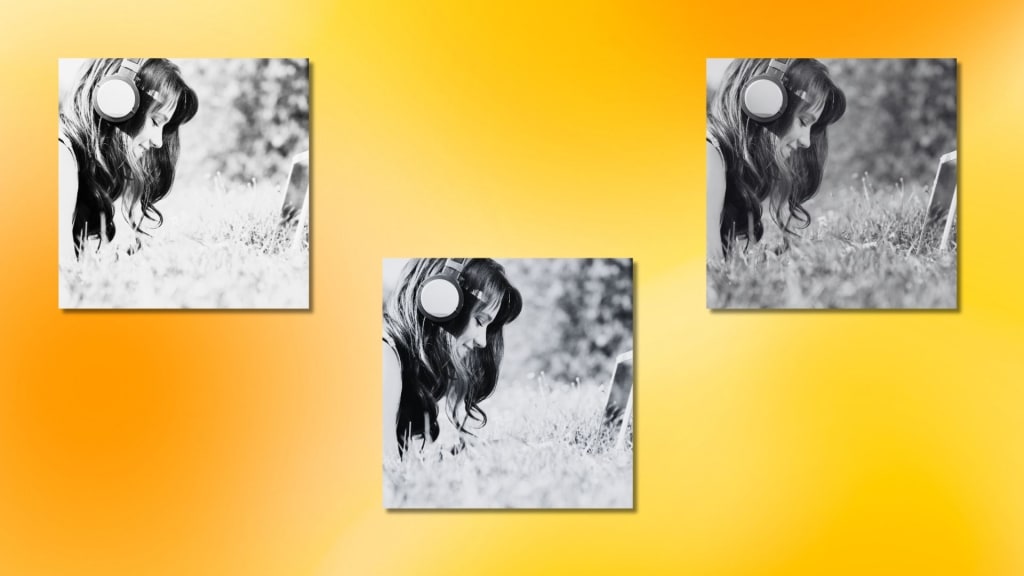
Do you wish to transform your colorful photos into timeless black-and-white masterpieces? With a click of a mouse, you can achieve this using the online picture editor PhotoCut. Converting an image into black and white would give it that classic, powerful look, but it is easy to do. The following is a step-by-step guide for any beginner or veteran photo editor wanting to convert his images and join the artistic world of black-and-white photography.
Why Convert Your Photos to Black and White?
There is a long history of using black-and-white photography. This style is still popular among photographers and painters because of its ageless appeal. It can bring a whole new dimension to your images. Here's why you might want to convert your photo into black and white:
- Emphasizes the Subject: Black and white photos create a chance for the viewers to focus on the main subject, making it stand out and attracting attention where it matters most.
- Creates Emotional Depth: Black and white photos create a feeling that color photos do not, and shades of gray add mystery and mood to make the simplest photos seem profound.
- Enhances Contrast and Texture: These bring out a level of shapes and lines in photography. As with black-and-white photography, playing with light versus dark adds much-needed drama.
- Timeless and Classic Look: Black-and-white photographs rarely look old. Usually considered more aesthetic in nature and artistic than color photographs.
- Simplifies Complex Scenes: A cluttered background and distracting colors at times can deprive a photograph of its quintessential essence. Conversion of photographs into black and white can help filter the image into something that holds your attention on key elements.
You may learn about the Amber color and use it according to your needs.
How to Convert Your Photos to Black and White Using PhotoCut?
With PhotoCut, turning your images into black and white is easier than ever before. This tool gives you an online photo editor that’s easy to use and simple to understand, showing you the quick results you would have otherwise needed expensive software or complex editing skills for. Here's how you can do it:
Step 1: Get Started with PhotoCut
Begin the transformation process by accessing PhotoCut’s website. A simple user interface greets you here where you can upload your picture and begin editing it.
Click the "Try B&W Effect Now" button and head over to the black-and-white filter page. You have two options available for this, use the sample image given or open an image by clicking on "Open Image”.
Step 2: Apply the Black and White Filter
Now, that your picture has been uploaded to the page it's time to use a black-and-white effect on your image.
- Use Effects Tab: Open "Effects" from your left sidebar of the editing tool menu.
- Choose a B&W Filter: All black and white filters are available for you to choose from. Try a few different ones and see which one provides your photo the desired appearance. PhotoCut offers several presets to make the job fast and simple.
- Click "Apply": After selecting the filter, click on the "Apply" button and see your picture turned into a black-and-white one in an instant.
Step 3: Adjust the Image (Optional)
You might find it desirable to tweak a few more settings once you have the black-and-white effect applied to perfect your image. With PhotoCut, you can change quite a few features of your picture, such as:
- Brightness: Change the general brightness of the image. Make it lighter or darker depending on what mood you wish to achieve.
- Contrast: Increase the contrast between light and dark regions. High contrast intensifies your photo, whereas low contrast tends to soften the image.
- Exposure: Fine-tune how light or dark your photo appears to get it right.
- Intensity: Change the overall strength of the black and white filter to have a more subtle or strong effect.
Step 4: Save Your Edited Image
After you're happy with the black-and-white conversion and any other changes, you can now download your photo. PhotoCut offers several options to download your file:
- Download Format: Select the format in which you want to download your photo- either PNG or JPG.
- Select Size and Quality: Choose the resolution and size you want for your photo.
Tap "Download" to save the new black-and-white picture on your device.
What Else Can You Do with Black and White Photos?
After converting your photo to black and white, you may apply a variety of artistic tweaks to change the image. Here are some additional tips and tricks:
Use Grain for a Film Look
Adding grain to a black-and-white photo can give it an old-school film feel. The slight noise in the image makes it feel more authentic and adds texture. Some photo editors, like PhotoCut, allow you to add grain effects for a vintage look.
You can create B&W profile pictures using PhotoCut’s AI Profile Picture Generator.
Play with Shadows and Highlights
The mood of the black and white photo can vary dramatically by readjusting its shadows and highlights. The deep contrast between shadows and bright highlights provides a striking appeal, while it can be toned down to add more serenity to your image.
Create a Consistent Theme
If you're editing a lot of pictures, it's also useful to turn all of your images to black and white. This is especially beneficial for social networking, blogs, and portfolios if you wish to preserve a particular look.
Try Different Black and White Styles
Black and white styles are different; one can evoke an entirely different kind of atmosphere than another. High contrast would add drama to the photo, whereas a soft black-and-white effect would evoke the dreamy, romantic type.
You can create black-and-white photos using Bing Image Creator.
Conclusion
Convert your photos to black and white to give that artistic touch, bring out key elements, and evoke emotion. You'll enjoy easy-to-use tools such as PhotoCut; just click the buttons, setting your preferences according to what seems to give that perfect black-and-white effect. From a strong, dramatic finish to a tasteful, subtle look, these pictures are classics that never fall out of vogue. You can begin your experimentation today to see how you can raise the level of photography through this versatile editing technique.
On your Mom’s birthday, you can make her happy with these birthday messages & stunning birthday card templates.
FAQs
Q1. Why Would I Want to Convert a Photo to Black and White?
Ans. Black and white photos can have a wide emotional range and give unique aesthetics. Removing color from a photo draws attention to the texture, form, and contrast, which can sometimes create timeless classic photos. This also helps simplify a photo, removing distractions that enhance mood and drama in photography.
Q2. Is It Difficult to Convert a Photo to Black and White?
Ans. No trouble at all! To convert a photo to B&W is simple, using even such apps like PhotoCut. You won't need super high-end photo editing skills: just upload the picture, set the filter, and be done.
Q3. Will Converting Photos to Black and White Damage My Original Photo?
Ans. No, converting a picture to black and white will not harm your original photo. Most picture editing tools create a copy of the original file, so you won't alter your original. You can easily go back if you want changes.
Q4. What’s the Difference Between “Grayscale” and “Black and White”?
Ans. While "grayscale" denotes a range of shades from black to white, black and white photography often requires sharp contrasts and could include pure black and white with minimal gray tones. Grayscales are not as dramatic in contrast, and blacks and whites are more sensational. Both come in handy, depending on what is desired.
Q5. How Can I Convert Pictures to Black and White for Free?
Ans. In response, there are several free programs and utilities for turning images into black and white:
Apps for smartphones: VSCO, Adobe Lightroom Mobile, Snapseed, and Google Photos.
Tools available online: LunaPic, Pixlr, Photopea, and BeFunky.
Desktop programs: Paint.NET, GIMP.
Q6. Can I Adjust the Black and White Conversion Further?
Ans. Absolutely! You can now change some other settings, like brightness, contrast, exposure, or even change individual color channels after the photo has been converted to black and white. All this increases the amount of control you have over the final image and lets you see exactly what you want to personalize it for yourself.
Q7. What Does "Color Channels" Adjustment in Black and White Mean?
Ans. Every color that was there in the original image will contribute to the grayscale image when it is converted to black and white. You may tailor the impact of each color on the final image by varying the color channels. For instance, you can darken or lighten up the reds, which gives you much control over shades of gray within the image.
Q8. What If I Don’t Like the Way the Conversion Looks?
Ans. Most of the editing software allows you to undo or redo, in case you do not like the output of black-and-white conversion. Try filters, contrast, or even some adjustments, and then apply a filter.
About the Creator
PhotoCut
AI Photo Editing Tool - Remove or Change your Background & Enhance Product Photos
Keep reading
More stories from PhotoCut and writers in Photography and other communities.
Exploring the World of Amber Color
Amber is an amazing color scheme showing nature as well as a history of importance. Amber derived from the translucent fossilized tree resin occurs in the form of a unique color which can be any golden yellow to rich orange and reddish tones. The flexibility and warmth of amber make it appealing to various design fields. If you are interested in knowing what amber looks like, its meaning, and how to use it in your designs, this guide will walk you through everything you need to know.
By PhotoCut12 months ago in Photography
The Photographer's Code
You decide to visit your local park. You have become a close confidant to the homeless people who gather there most days. While talking to Cleo and Reed, you notice a new face in the crowd. It belongs to a stick-thin, middle-aged woman. She has her hand on her forehead as if taking her temperature.
By Paul Aaron Domenick7 days ago in Photography
The Forsyth House Fire
Since 1851, Forsyth House has stood on the corner of Union Street and Gordon Street in the heart of Glasgow. Its iconic, or was... because on Sunday 8th of March, 2026, a fire broke out in a small, seemingly un-named shop in the building and tore all that history down. As I write, the rubble is still unsettled and the street is still blocked off. Central Station is quiet on the upper level, and around 30 small businesses have quite literally gone up in smoke.
By S. A. Crawford2 days ago in The Swamp



Comments
There are no comments for this story
Be the first to respond and start the conversation.