
How to Scan a QR Code on Your Phone Without Using Another Device
How to Scan a QR Code on Your Phone Without Using Another Device

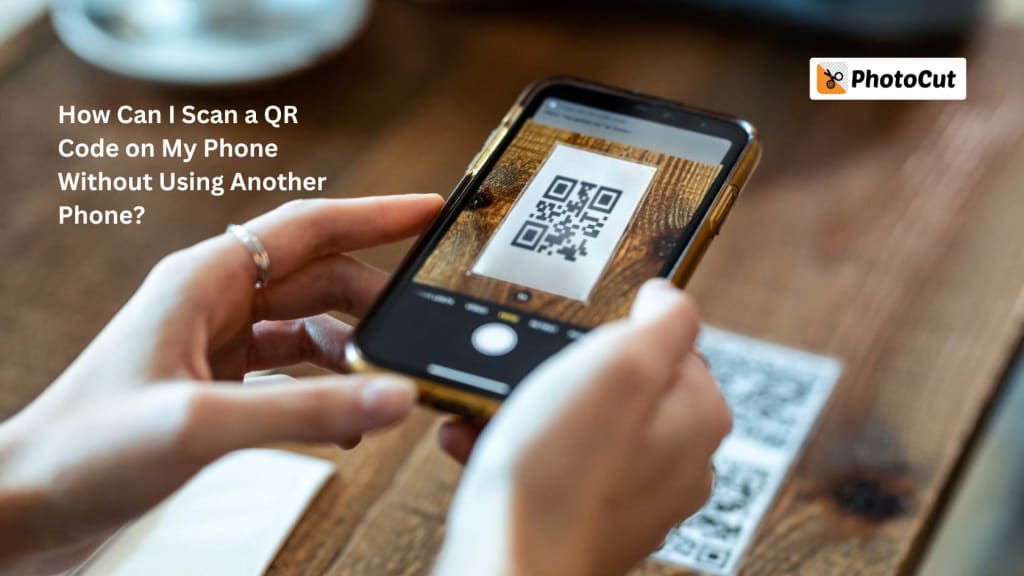
Scanning a QR code using your smartphone is an easy feat that can be done without having to use another phone. Whether you have an iPhone or Android, or you have a free QR code scanning app available, there are at least a few very straightforward ways to accomplish it. As QR codes are becoming more and more common in ads, business cards, websites, and applications, knowing the efficient way to scan QR codes will surely be handy to ease many aspects of your life. In this article, we will guide you on scanning QR codes using your phone, and how you can discover and retrieve the data in the QR code.
What is a QR Code?
Let's first describe a QR code and its purpose before moving on to the techniques. A QR code is a two-dimensional barcode that may hold information when scanned by a gadget like a smartphone or QR reader. QR codes were developed first by Denso Wave in 1994 and were for the car industry only until today has been found widely utilized by different industries including marketing, logistics, entertainment, and many more. They usually have black squares placed on a white background that forms a grid. Upon scanning, this will provide a fast retrieval of information.
QR codes are also used in many other applications:
- Website links: A website can be reached when scanning a QR code.
- Product details: There are QR codes on the package of most products for more detail.
- Business card: You can store your contact information in QR codes and distribute them easily.
- Payment: These QR codes can be used to make contactless payments.
Read everything you need to know about the Indigo color.
How to Scan a QR Code on an iPhone
With an iPhone running iOS 11 or later, scanning a QR code is quick and easy. You can scan QR codes directly through the Camera app. Here is how you can do this:
Steps to Scan QR Code Using iPhone Camera
- Launch the Camera app on your iPhone.
- Align your camera with the QR code. The code will automatically be recognized by your iPhone if it falls within the camera's viewfinder.
- In the case of marking a URL, you should see a popup message at the top of the screen to ask if it should open that link. To open the URL in Safari, simply tap on the notification.
- If the QR code has information like contact information or a prompt to pay, follow the prompts on the screen to complete that action.
iPhone users can use the Camera app, but you can also scan QR codes with Live Text (iOS 15 and later) in images. If you have a saved image of a QR code in your gallery, then follow these:
- Open the Photos app and choose the image with the QR code.
- Long press on the QR code within the image.
- Your iPhone will automatically recognize the QR code, and the relevant options (like opening a URL or sharing the information) will be displayed.
- Tap the appropriate option to access the content.
How to Scan a QR Code on Android
Scanning a QR code can be pretty easy nowadays especially when your Android device is equipped with several features, although these are found in newer versions of the OS. The procedure varies with your device model and OS version. Here is some general guidance on how to scan QR codes using your Android phones:
Steps to Scan QR Code on Android
- Point the camera toward the QR code after launching the Camera app. Make sure the QR code is well-lighted and visible.
- A pop-up message that shows information included in the QR code may show up once it has been scanned. If the code contains a link, it may also ask you to view it in your web browser.
- If your notification doesn't open when you tap that notification, then follow the prompt according to what was encoded in the QR code.
In case your Android does not automatically detect the QR code, or the camera application does not support scanning of QR, alternative ways have been devised to scan QR codes using Android.
Alternative Ways to Scan QR Codes on Android
1. Use Google Lens: Google Lens is an artificial intelligence-powered tool that enables you to scan not only QR codes but lenses other visual content. Here is how you do it:
- On your Android phone, launch the Google app.
- On the search bar, tap the camera icon.
- Choose an image from your collection or aim the camera at the QR code.
- After automatically recognizing the QR code, Google Lens will provide pertinent data, such as a website link or other specifics.
2. Use a QR Code Scanning App: When the QR scanner functionality is not built into the default features on your phone or if you wish to use an application, download QR code scanner applications from the Google Play Store. Some popular and free apps include:
- NeoReader QR & Barcode Scanner
- QuickMark Barcode Scanner
- Kaspersky’s QR Code Reader and Scanner
- QR Code Scanner by Scan
Such applications are straightforward to use, and they most probably work well with different varieties of QR code types.
Learn how to create the perfect profile picture for Discord.
How to Scan a QR Code Using Google Lens
Google Lens is another fantastic application that the concept of artificial intelligence uses for identification as well as deciphering of visible items. Google Lens does this by scanning and identifying both photographs as well as camera pictures easily. Scanning a QR code by using Google Lens.
Steps to Scan QR Code with Google Lens:
- Open the Google app on an Android phone or iPhone
- Tap on the camera icon on the side of the search bar
- Position your camera at the QR code or tap the gallery icon and choose an image containing a QR code
- Google Lens will automatically scan the image, recognize the QR code, and show you either a link that opens or content embedded within the code.
- The user can use on-screen instructions to scan data from the QR code.
Google Lens does much more than fit QR codes by identifying general landmarks and objects as well as text, so is very useful for scanning and interpreting visual content.
How to Scan a QR Code Using Free Apps
You may use your free download of any QR code scanning apps available at the App Store or Google Play Store if you have a device without an internal QR scanner, or you'd rather have all those additional features and customizations.
They come in handy to easily and efficiently scan a QR code right from your screenshot or the picture you find in your photo gallery.
Recommended QR Code Scanning Apps:
- NeoReader QR & Barcode Scanner: Scan all types of barcodes: QR codes included. It's free, supports a wide array of QR formats, and is suitable for Android or iOS.
- QuickMark Barcode Scanner: This barcode scanner is highly known for its speed. It quickly scans QR and barcodes and is downloadable for Android or iOS.
- Kaspersky QR Code Reader and Scanner: Apart from scanning the QR code, this app also provides security against any malicious links contained inside the QR code.
- QR Code Scanner by Scan: This is a simple application with a speed that beats everyone. It scans QR codes from images and applies to both Android and iOS.
Using these applications, you'll be able to scan QR codes from images and screenshots saved within your gallery quite easily.
Transform your photos into stunning silhouettes with PhotoCut’s Silhouette Maker.
How to Scan a QR Code from a Picture
In some cases, you may save a QR code as an image or a screenshot on your smartphone. Here's how you go about scanning that:
- Open up your photo gallery and choose the image with the QR code inside.
- Long press on the image of the QR code and, based on your mobile phone, some options like "Copy" or "Share" will appear.
- Tap on an action that may then either open the URL or view the contents of the QR code via the browser or an app.
Thirdly, you can also use third-party apps like Google Lens or an app to scan the QR code directly from the picture.
Conclusion
There is no need for any other equipment to use a phone to scan a QR code, as it can be done either with the default camera application or Google Lens for the scanning purpose or a specific use app. Once you can identify the details enclosed in a QR code, just a few easy steps separate you from their knowledge. On the iPhone as on Androids, it's easy, quick, efficient, and secure. You can scan QR codes from physical objects, images, or screenshots, making this process highly versatile.
Crop your images in a circle using PhotoCut’s Circle Cropper.
FAQs
Q1. What Is a QR Code?
Ans. A Quick Response (QR) code is a two-dimensional barcode that encodes information into a machine-readable format that can be scanned, such as a contact card, product description, or web page URL.
Q2. How to Scan QR Code from Picture?
Ans. Open the picture gallery, click the image with the QR code, hold down the button to copy or share the contents, or scan the code with the Google Lens app.
Q3. How Can I Scan a Screenshot to Find a QR Code?
Ans. Just open the screenshot from your gallery and long-press on the picture, then the steps to copy or share QR code content from your phone tools or a scanning app.
Q4. How to Scan a QR Code on a Computer?
Ans. Online QR readers accept image uploads of a QR code so that it can scan using Web QR or Scan QR.
Q5. What if your phone camera is unable to scan QR codes?
Ans. Try upgrading the camera app on your phone, restarting it, or getting a third-party QR code scanner app from the app store.
About the Creator
PhotoCut
AI Photo Editing Tool - Remove or Change your Background & Enhance Product Photos
Keep reading
More stories from PhotoCut and writers in Photography and other communities.
Cleanup Pictures Online in Seconds with PhotoCut's AI Image Cleaner
Do you ever take a picture and discover later that something is distracting within it? Unwanted people, objects, or text might be present with a watermark. These distracting elements can ruin a perfect photo. Fortunately, PhotoCut's AI image cleaner can easily remove the imperfections in a few clicks! Farewell to distracting elements and hello to flawless pictures! In this tutorial, we'll demonstrate how to use this easy-to-apply tool to clean up your images while enlightening you about its benefits for personal and business purposes.
By PhotoCutabout a year ago in Photography
Gold Chrysotype Photography Is Back and the Colours Are Breathtaking
There is a moment when a chrysotype print is lifted from its chemical bath and held up to the light stops people mid-breath. The colours that bloom across the surface — soft dusty pinks fading into deep magenta, rich cyans pooling at the edges, velvety blacks settling into the grain of the paper — look less like a photograph and more like something pulled from a dream.
By CurlsAndCommas4 days ago in Photography
Hottest in the Office
Dear Rafi, You’re very distracting to work around. For the first second I saw you the other day, I thought you were some type of executive. It took a moment to realize no, you were just the new guy, dressed up for the job he wants. Be still, my heart.
By Gabriel Shames5 days ago in Pride



Comments
There are no comments for this story
Be the first to respond and start the conversation.