
How To Make Background Transparent in 2024?
[Ultimate Guide]


If you’re looking to remove the background from a product or a portrait photo, the five background transparency tools highlighted in this article can effortlessly facilitate this process, opening up a plethora of creative opportunities. These techniques cater to both novices and seasoned professionals alike. Continue reading to discover step-by-step instructions on how to create a transparent background.
1. How To Make Background Transparent in Photoshop?
To make background transparent, many people pick Adobe Photoshop because it has a lot of strong tools. Photoshop 2021 added a handy “Remove Background” feature. This uses smart computer magic from Adobe Sensei to help you make the background clear fast. Also, you can manually use the tool to make background transparent for more detailed image editing.
1.1 Remove Background: Automatically remove images of single subjects with simple backgrounds with one click
Step 1: Duplicate the Image
Open the image you want to edit in Photoshop. Select the entire image (Ctrl + A), copy the image (Ctrl + C), and paste it as a new Layer (Ctrl + V).
In the Layers panel, click the eye icon to the left of the original photo to hide it.

Step 2: Make Background Transparent
Go to the Properties panel and click the “Remove Background” button in the Quick Actions section. Photoshop will automatically identify and remove the background of your image.

1.2 Selection Tools: Manually make image background transparent with different tools
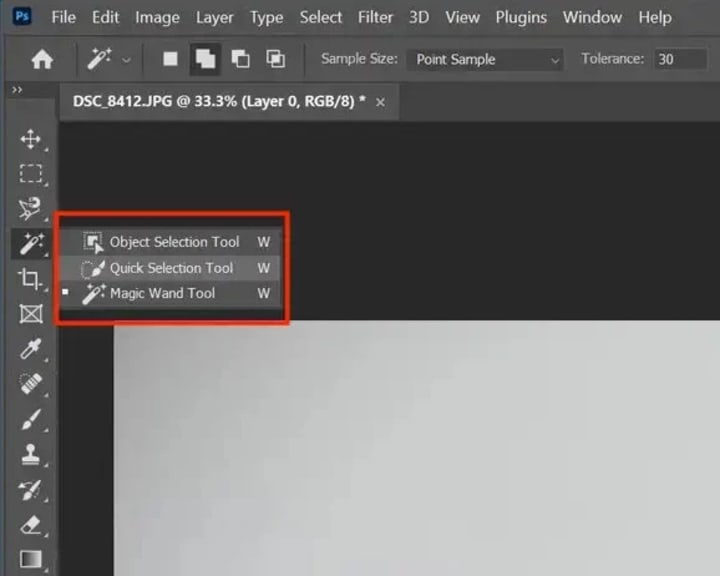
Quick Selection Tool: Select the Quick Selection Tool > It will attempt to identify the borders of a portion of an image when you click and drag over an object > Add or subtract from your selection > Invert the selection and press the Delete key.
Magic Wand Tool: Choose Magic Wand Tool > Click in the background area and adjust the Tolerance value to select more or fewer areas of similar color > Refine it and tap the Delete key to make background transparent.
Pen Tool: Select the Pen Tool > Click on the edge of the image to draw the full subject object path > Convert the path into a selection by choosing “Make Selection”> Invert the selection and create transparent background.
Lasso Tool: Select the Lasso tool > Hold and drag to outline the shape of your selection > Fine-tune the retained part and invert the selection > Delete and make background transparent.
2. How To Make Background Transparent in Canva?
Canva is renowned for its comprehensive design toolset and extensive resources. It boasts numerous sophisticated capabilities, such as the option to produce images with transparent backgrounds. It's worth pointing out that this particular feature is exclusive to Canva Pro subscribers. Nonetheless, Canva's tool for creating transparent backgrounds enables users to achieve this effect without charge.
Step 1: Upload the Image
Visit https://www.canva.com/features/transparent-background/ and click on the "Upload your image" button to add the image to Canva transparent background generator.
Step 2: Make Image Background Transparent
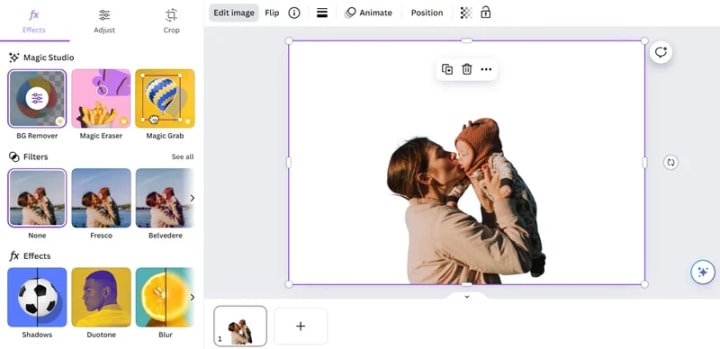
Click the image you uploaded, and then click "Edit Iamge" in the upper left corner. Under the "Magic Studio" section, click the "BG Remover" to make image background transparent.
Step 3: Download Transparent Background Image
Click the "Publish" button in the upper right corner to select the "Download" option in the menu bar. Select to save the picture in PNG format and check the "Transparent Background" option.

3. How To Make Background Transparent in Gimp?
Read more: avclabs.com
About the Creator
Reader insights
Nice work
Very well written. Keep up the good work!
Top insight
Heartfelt and relatable
The story invoked strong personal emotions
Keep reading
More stories from Madeline and writers in Photography and other communities.
AVCLabs Video Enhancer AI In-depth Review
When searching for keywords like video enhancer or video upscaler, you'll come across a wide range of options to choose from. Prominent brands such as Topaz, AVCLabs, DVDFab, and Hitpaw, as well as various online tools, might catch your attention. Naturally, you may find yourself wondering which one is the best fit for you or which one can fulfill your specific requirements. To provide you with valuable insights so that you can confidently make the right choice for your needs, we have prepared a comprehensive and in-depth review of AVCLabs Video Enhancer AI.
By Madeline2 years ago in Photography
Leavie Scott
ORDER HERE Chicago – A Radiant Urban Masterpiece by Leavie Scott Arts & Culture Review – Feature Story In his striking new work Chicago, photographer Leavie Scott captures the soul of the Windy City with a level of vibrancy and emotional resonance that is impossible to ignore. The image immerses viewers in a dazzling skyline bathed in mesmerizing tones of purple, pink, and gold—a palette rarely seen in traditional urban photography and one that instantly distinguishes Scott’s artistic voice.
By Organic Products 7 days ago in Photography
Curious Photography Tips Every Beginner Should Try
Have you ever wondered why two people using the same camera can produce completely different photos? The answer often lies in how well the photographer understands the camera itself. For beginners, cameras can seem filled with confusing buttons, dials, and settings. But what if those settings are actually the key to better photos?
By Craig Spiesman5 days ago in Photography


Comments (1)
Thanks for the well detailed tutorial