
How to Make Any Photo Square Online Without Losing Important Content
Square images have become a standard format across the internet.
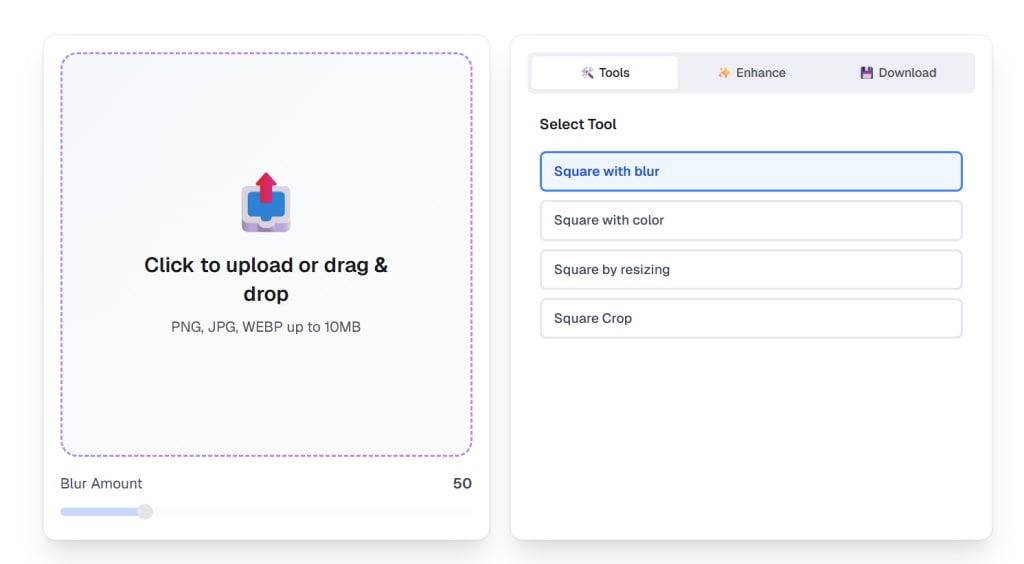
From Instagram posts and profile pictures to thumbnails and avatars, many platforms now require images to be in a 1:1 square ratio. While cropping is often the default solution, it’s rarely the best one—especially when image content matters.
In this article, I’ll explain why cropping can be problematic, introduce a better approach for creating square images, and show how you can make any photo square online without cutting out important details.
Why Square Images Are Everywhere
Social platforms prefer square images for a reason:
Consistency across devices: Square images work well in grid-based layouts, ensuring a uniform appearance on both desktop and mobile.
Aesthetically pleasing: Square images tend to keep content centered and balanced, which works well in many designs.
Social media requirements: Platforms like Instagram and Facebook require square or portrait-style images for posts, making the square format a widely accepted standard.
As content creators, social media managers, and businesses look for easy ways to create these images, the demand for simple square image tools has grown tremendously. But how do you ensure the image is properly formatted without losing important elements? The traditional way is to crop the image, but that’s not always the best choice.
The Hidden Problem With Cropping Images
Cropping seems simple, but it often introduces issues:
Faces get cut off: In profile pictures, cropping can result in half of someone's face being removed.
Portrait images lose background context: When you crop a portrait photo into a square, the important background elements might get cropped out.
Important visual elements disappear: In landscape photos, cropping can result in the loss of key elements that add depth or context to the image.
These problems become especially noticeable when you’re working with images that weren’t shot for a square format in the first place, such as portrait or landscape images.
A Better Solution: The Square Canvas Method
Instead of cropping the image itself, a more flexible approach is to place the image inside a square canvas.
Here’s how it works:
Create a square (1:1) canvas: The final image needs to fit into a square space.
Scale the original image proportionally: Rather than cropping, the image is resized to fit inside the square.
Center the image within the square: The image is aligned to the center of the square canvas, maintaining its full content.
Fill extra space with a background: Any empty space in the square is filled with a blurred background, a solid color, or a pattern, creating a balanced and intentional look.
This method preserves 100% of the original image while still meeting the square format requirements.
Using an Online Square Image Tool
To apply this method easily, I’ve been using a browser-based tool called SquareImage.
🔗 Try it here:https://squareimage.run
SquareImage is designed specifically for creating square images without cropping. Everything runs directly in the browser, which means:
No uploads to a server: Your image never leaves your device, ensuring maximum privacy.
No accounts or sign-ups: You can use the tool instantly, without the need for registration.
No watermarks: You get the clean image you need without any branding.
You simply upload an image, adjust the layout, and export a square version in seconds.
How to Make a Square Image Step by Step
Here’s a simple workflow anyone can follow:
Open the online editor: Visit SquareImage and click "Upload" to choose your image.
Upload your image (portrait or landscape): Supported formats include PNG, JPG, and WEBP.
Select a square (1:1) output size: Choose the square ratio that works best for your image.
Adjust image scale and position: Resize and reposition the image to ensure it looks centered and balanced.
Choose a background style (blur or color): You can either add a blurred effect to the background for a more artistic look or opt for a simple color background.
Export the final square image: Once you’re happy with the result, click "Download" to save your image.
The result is a balanced square photo that doesn’t feel cropped or forced.
When the Square Canvas Method Works Best
This approach is especially useful for:
Profile pictures: Perfect for creating consistent profile images across platforms like Instagram, Facebook, and Twitter.
Social media posts: Quickly generate square images that fit perfectly into social media feeds without cropping the content.
Avatars: Ideal for creating avatar images where the entire subject is visible and centered.
Product thumbnails: Use the square canvas method for creating clear, consistent product images for online stores or listings.
If you’re preparing images for platforms where composition matters, preserving the full image often leads to better visual results.
Why Browser-Based Image Tools Matter
Client-side image processing has a few clear advantages:
Faster feedback: You can instantly see how your image looks after resizing, adjusting, or applying effects.
Better privacy: Since everything happens in the browser, your images stay secure and are never uploaded to external servers.
No server costs: All processing is done client-side, so you don’t need a backend to handle the image editing.
Modern browsers handle canvas-based image editing surprisingly well, making tools like SquareImage both practical and efficient.
Final Thoughts
Making an image square doesn’t have to mean cutting parts of it away.
By using a square canvas instead of cropping, you preserve the original composition while still meeting platform requirements. For anyone who frequently works with social media images, profile pictures, or thumbnails, this method offers a cleaner and more flexible solution.
If you’re looking for a simple way to make photos square online, tools like SquareImage make the process quick, free, and accessible.
🔗 Square image tool: https://squareimage.run
About the Creator
Keep reading
More stories from sam lee and writers in Photography and other communities.
The Photographer's Code
You decide to visit your local park. You have become a close confidant to the homeless people who gather there most days. While talking to Cleo and Reed, you notice a new face in the crowd. It belongs to a stick-thin, middle-aged woman. She has her hand on her forehead as if taking her temperature.
By Paul Aaron Domenick6 days ago in Photography
The Gold Tone (Orotone) Technique
She picked it up from a dusty shelf at an estate sale, thinking it was just an old frame. Then the light caught it. The image glowed, not like a print, not like a painting, but like something that seemed to carry its own inner warmth. That was her first encounter with an Orotone, and she bought it without asking the price.
By CurlsAndCommas2 days ago in Photography
My First Time Skiing and I Got Lost, Alone, in the French Alps
Looking back, I can trace some of my life’s biggest adventures to a simple action from my sister. She’d introduced me to Tommy (a very long time ago), a colleague of hers, who had overshared his penchant for Italian-looking women, and I ticked that box.
By Chantal Christie Weissa day ago in Humans


Comments
There are no comments for this story
Be the first to respond and start the conversation.